





Want to set up a WooCommerce affiliate program but don’t know where to start?
An affiliate marketing program can unlock new revenue opportunities for your business, and it’s much easier to set up than you might think.
Here’s a simple guide to help you set up an affiliate program for WooCommerce.
Why is a WooCommerce Affiliate Program an Essential Marketing Tool?
Whatever products you sell, there’s bound to be a corner of your target market you’re not reaching yet.
You can be doing an awesome job with your marketing, but there are still more people you can reach, the question is, how do you do it? The quickest way to expand your audience and reach new sections of your target market is with affiliate marketing.
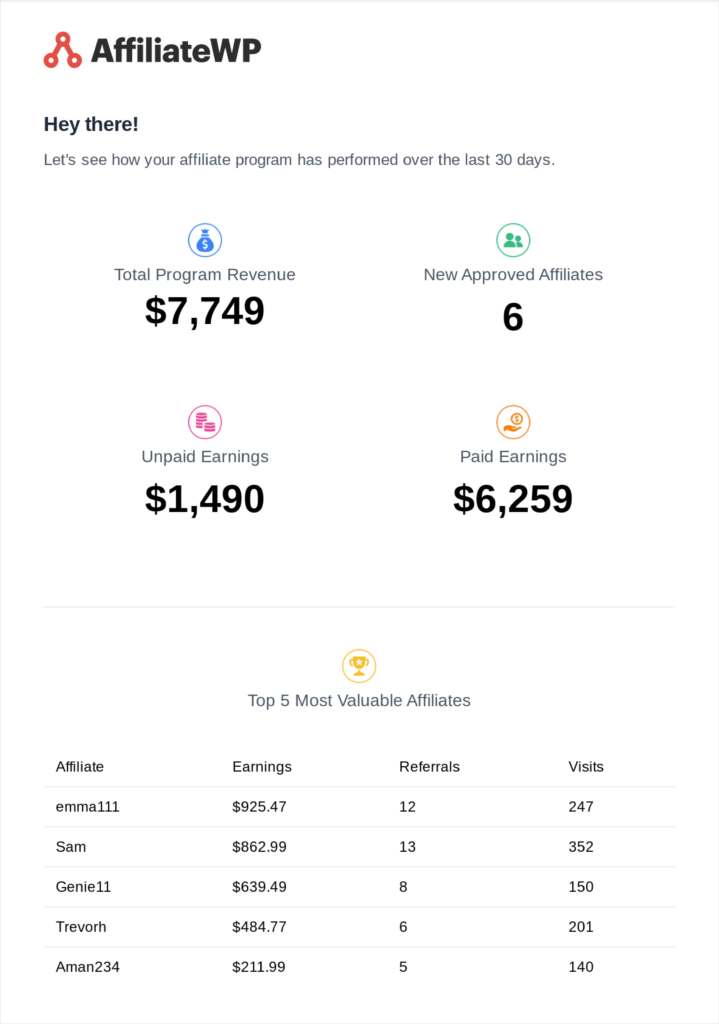
With the right affiliate software for WooCommerce, you can quickly sign up new affiliates with large, targeted audiences, and start to boost conversions to grow your sales.
The best part is, a WooCommerce affiliate program is very low risk, and it’s super easy to manage.
The best affiliate plugin for WooCommerce will make affiliate management effortless, and you don’t have to pay affiliates until you make the sale. This means low start-up costs, and no distractions from all the great work you’re already doing to grow your business.
An affiliate program for WooCommerce is the top way to grow your product sales, so let’s show you how you can get started.
6 Steps to Set Up a WooCommerce Affiliate Program
Affiliate marketing can have an immediate impact on your business’s success, so let’s take a look at how you can start using it.
We’re going to run you through every step you need to follow to set up an affiliate program for WooCommerce.
Here’s a quick list of what we’ll cover:
- Install AffiliateWP
- Use the setup wizard to integrate WooCommerce with a click
- Edit your Affiliate Area and start signing up affiliates
- Approve or reject affiliates with a click
- Customize your affiliate dashboard to make life easy for your affiliates
- Set up affiliate payouts for effortless, reliable payments
Let’s take an in-depth look at how to set up an affiliate program for WooCommerce.
Step 1: Install AffiliateWP
AffiliateWP is the best WordPress affiliate management plugin.
And, with its one-click integration for WooCommerce, it’s the quickest and most powerful way to create a WooCommerce affiliate program
Easy setup is only part of the story though!
With AffiliateWP, you’ll also get advanced affiliate management tools that make your WooCommerce affiliate program hassle-free for you and your affiliates:
- Advanced affiliate tracking
- Powerful fraud prevention
- Smart commission rules
- Real-time analytics
- Automated notifications
- Limitless automation opportunities
- Unbeatable customization options
Throw in some industry-leading growth tools, and AffiliateWP offers incredible value!
When you’re ready, head to the pricing page and choose the package that best fits your needs. Note that the Pro plan unlocks some awesome extras that are specifically designed to skyrocket WooCommerce sales!
If you have any trouble installing the plugin, you can check out this step-by-step guide, and see our documentation for other tutorials.
Step 2: Complete the AffiliateWP Setup Wizard
Now it’s time for the fun part – setting up your WooCommerce affiliate program!
Ordinarily, this might be a little bit daunting but don’t worry, with AffiliateWP, there’s no technical or coding knowledge needed, and you can have everything running in under 10 minutes.
All you’ve got to do is open the Setup Wizard, by going to the AffiliateWP Settings page from your WordPress dashboard. Scroll to the bottom of the page, and click Launch Setup Wizard.
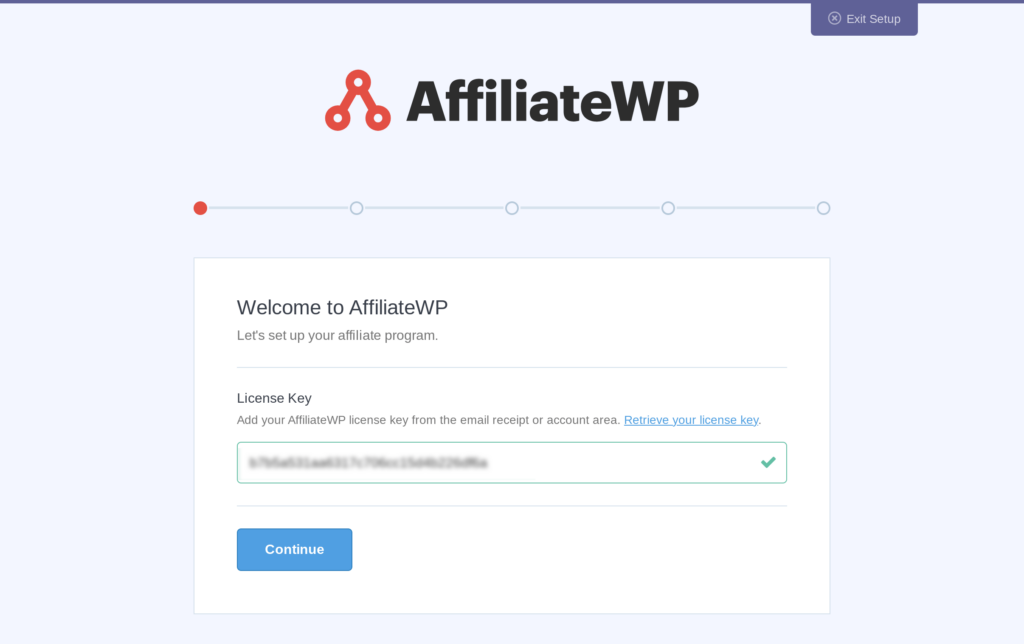
Now you will be able to start the setup process by entering your License Key (this can be found in your AffiliateWP account). Once you’ve entered your License Key click Continue, and you’ll be brought to the integration page.
This is where the magic happens, as all you have to do is select WooCommerce from the eCommerce Integrations dropdown menu and click Continue. (You’ll also notice that we’re one of the best affiliate software for Easy Digital Downloads too!)
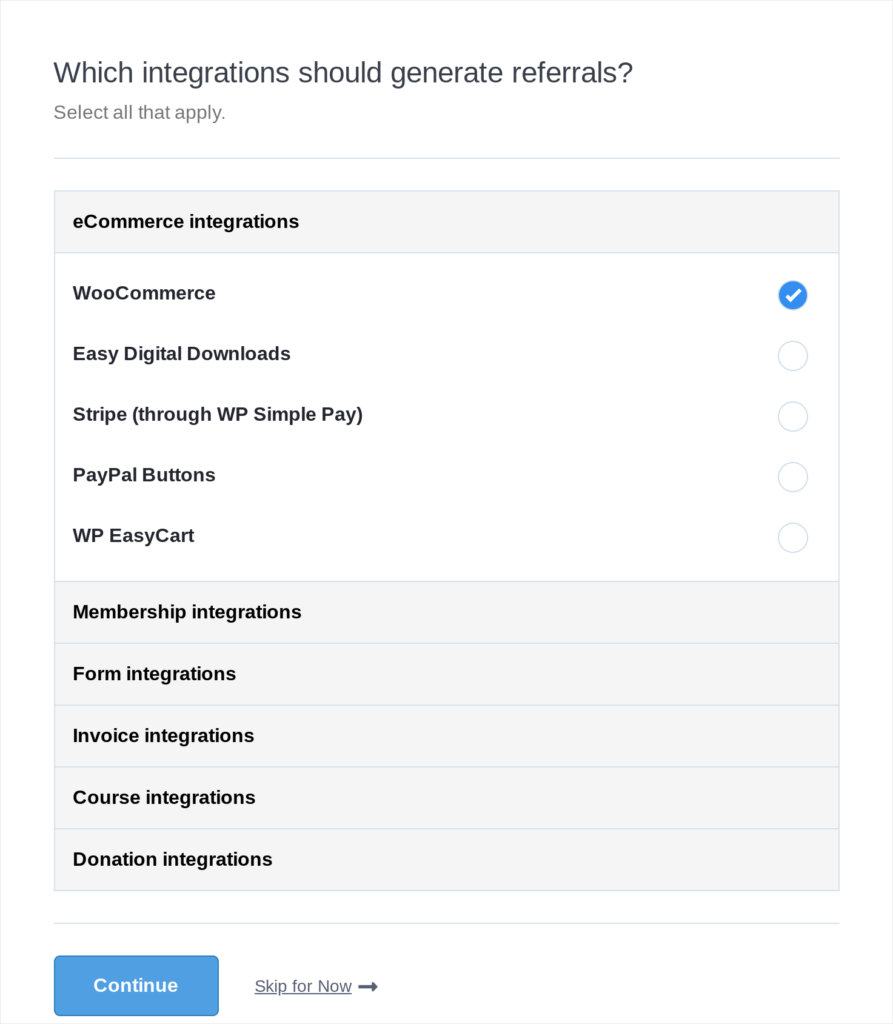
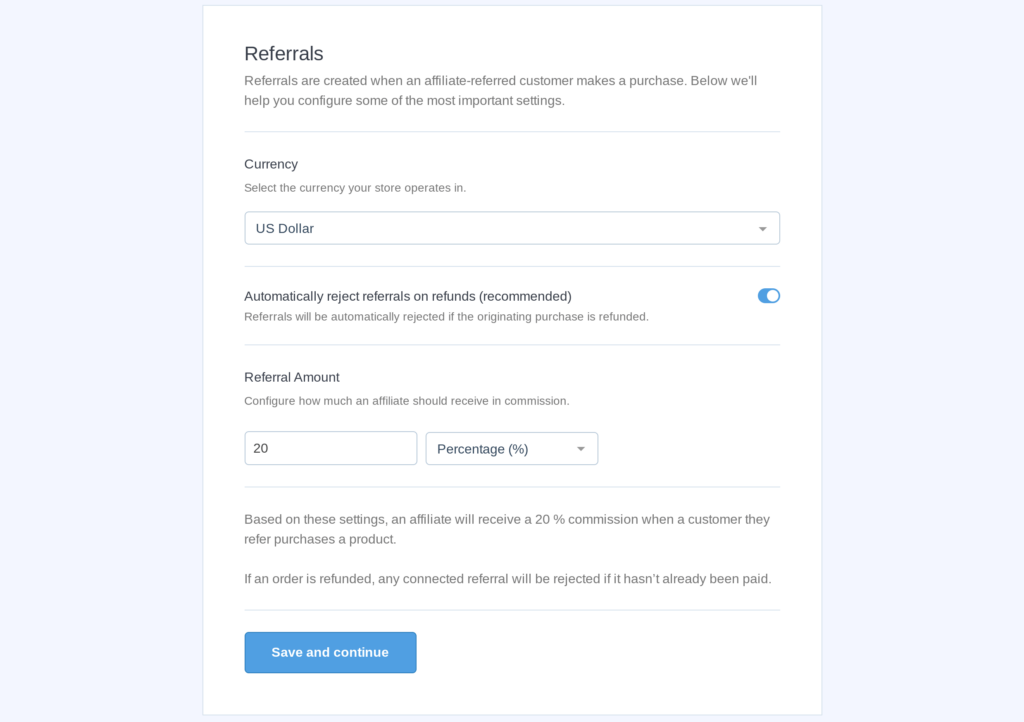
At this point, you’ll be asked to make some decisions about your commission structure. Don’t worry about this too much, as you can always set different commissions at a later date from the AffiliateWP Settings page. For now, choose a commission rate and type (here’s a little guide to affiliate commissions for reference), and hit Save and Continue.
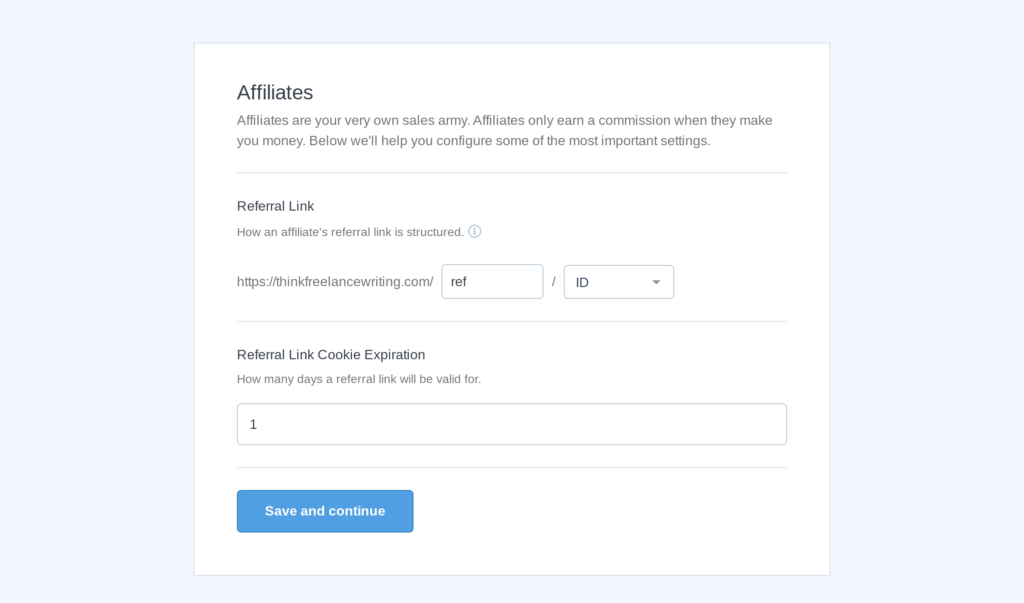
The last decision you’ll have to make is about your cookie expiration. Again though, you can always edit these at a later date, so if you’re not sure, just choose a standard number like 30-days for now.
As soon as you’ve completed these steps, you can click Finish the setup and exit the wizard and your WooCommerce affiliate program will go live.
It really is as simple as that!
Step 3: Edit Your Affiliate Area and Start Signing Up Affiliates
When you finish the Setup Wizard, AffiliateWP will automatically create an Affiliate Area page for you.
This is the page where affiliates will sign up for your program and once approved, log in to their affiliate dashboard. You can find it by going to Pages from your WordPress admin and searching for Affiliate Area.
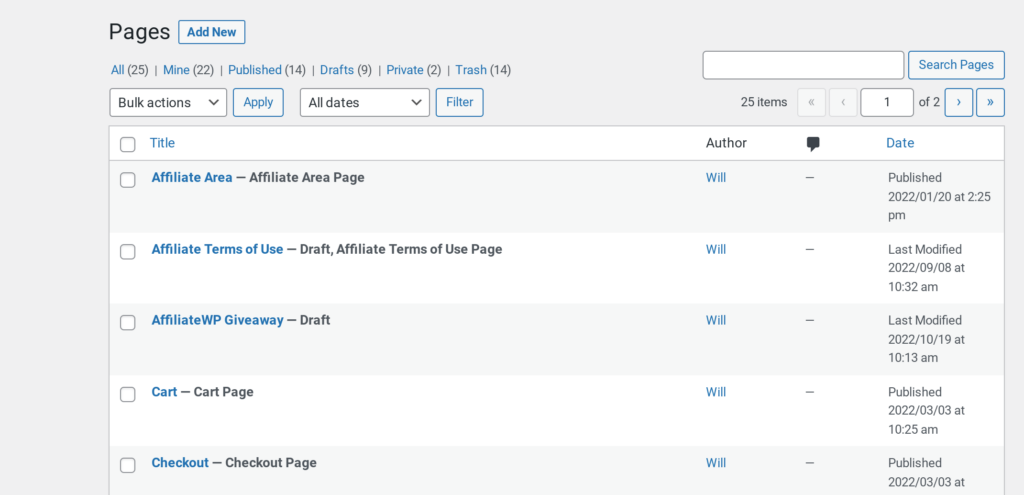
You’ll be able to edit the Affiliate Area just like any other WordPress page, and use AffiliateWP’s blocks to edit your affiliate registration form. Alternatively, if you want to set your own page as the Affiliate Area, you can go to Settings and choose any WordPress page from the Affiliate Area dropdown menu
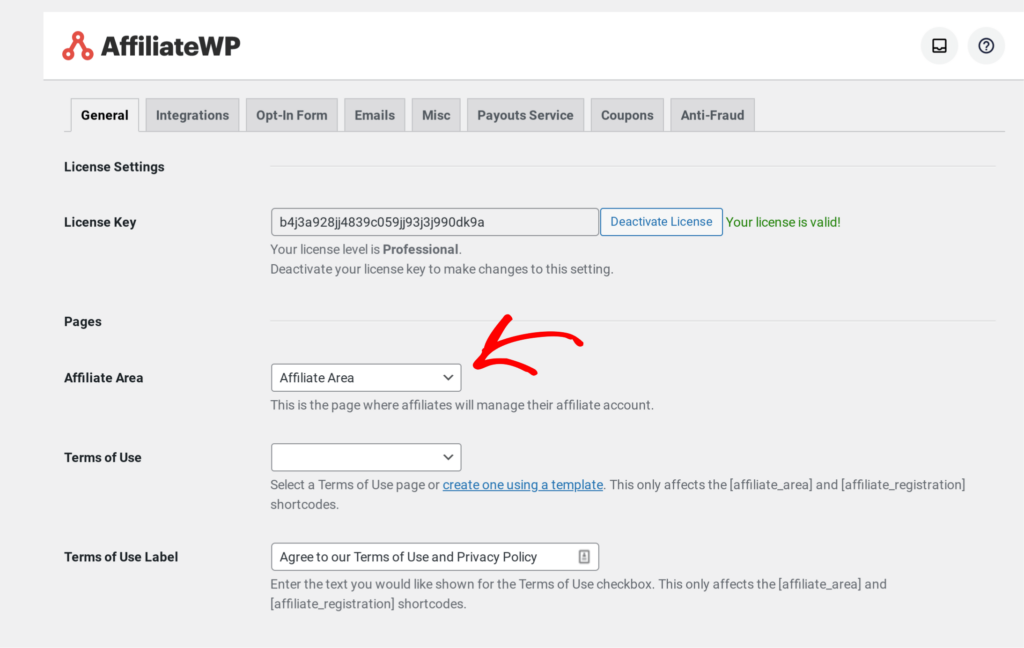
Once you’ve approved an affiliate, this page will then be transformed from a signup page into their affiliate login and dashboard page. From here, they can create affiliate links, view your affiliate onboarding, and much more!
Step 4: Approve or Reject Affiliates with a Click
AffiliateWP requires you to approve affiliates by default.
The reason for this is that it’s an essential protection against affiliate fraud (AffiliateWP also includes built-in fraud protection on the Anti-Fraud settings tab). Screening affiliates to make sure they’re a good fit for your program is important, which is why we make it incredibly easy to accept or reject affiliates.
Just got to the Affiliates page, and click on the Pending tab to see all your affiliate applications. Hover over the affiliate’s name, and you can quickly accept or reject the application.
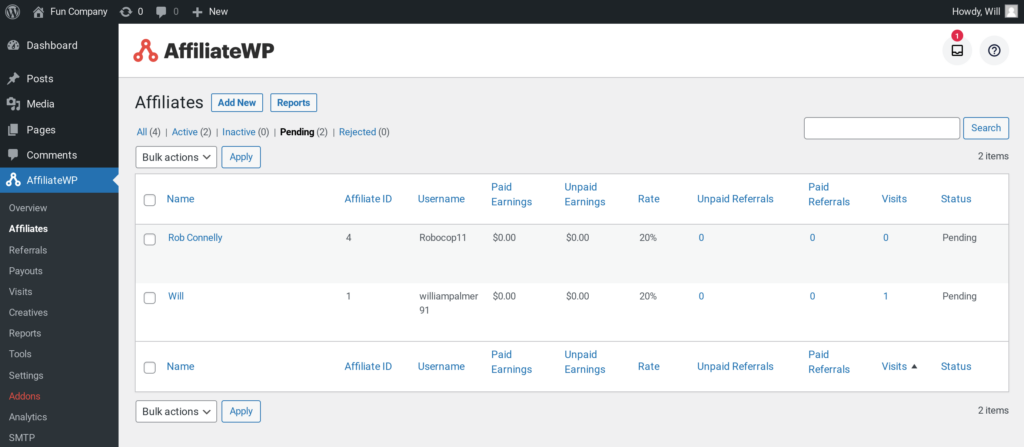
Emails are automatically sent out to affiliates when they’re application has been approved or rejected, and you can customize your other notification settings by going to Settings > Emails.
Step 5: Customize Your Affiliate Dashboard to Make Life Easy for Affiliates
One of the big advantages of setting up a WooCommerce affiliate program with AffiliateWP is the easy customizability (through templates, hooks, shortcodes, and API).
You own your own affiliate program and you can build it as you see fit and a big part of this is the affiliate dashboard. The dashboard will automatically take on the look of your WordPress theme, but there’s even more you can do.
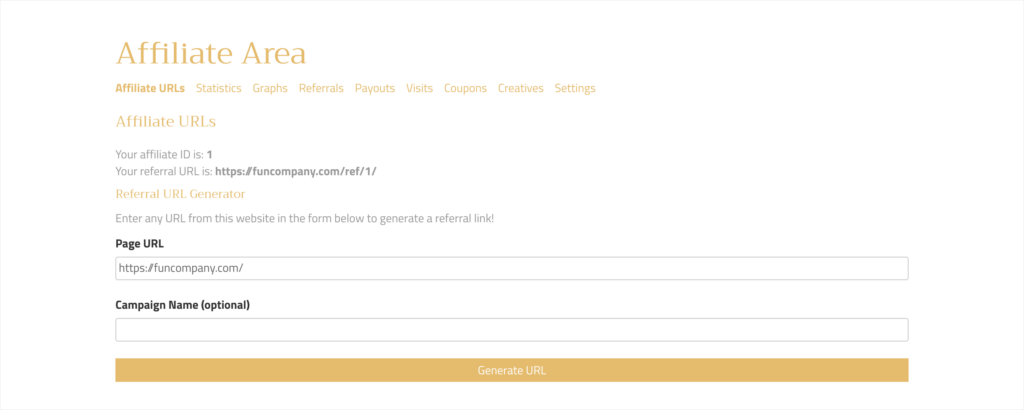
By setting up custom tabs, you can add extra elements to your program like affiliate onboarding, product tutorials, and anything you’d like. Affiliate marketing success is based on strong relationships, so it’s well worth taking the time to perfect your affiliate dashboard.
If you want to take things to the next level, then it’s well worth checking out the upgraded affiliate experience that our Affiliate Portal offers.
Step 6: Set Up Affiliate Payouts for Effortless, Reliable Payments
Getting paid accurately and on time is one of the most important things for your affiliate partners. As your WooCommerce referral program grows, this can become a bit of a challenge, but not with AffiliateWP.
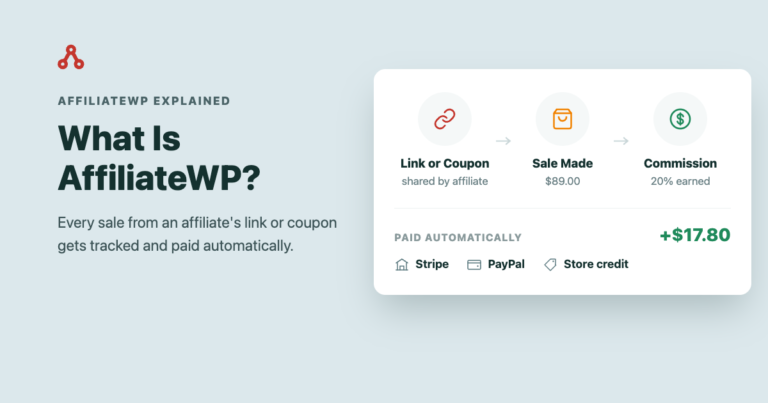
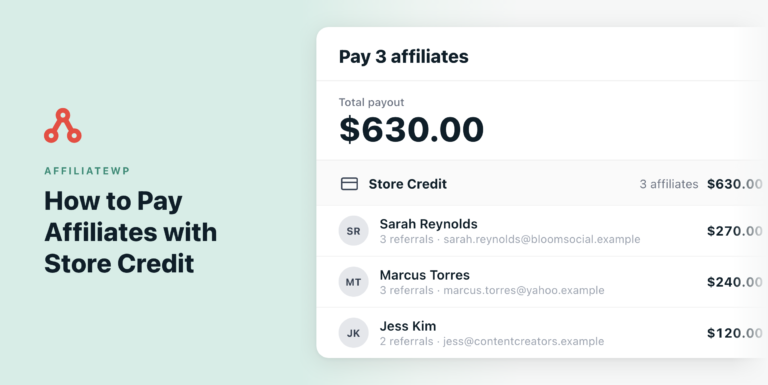
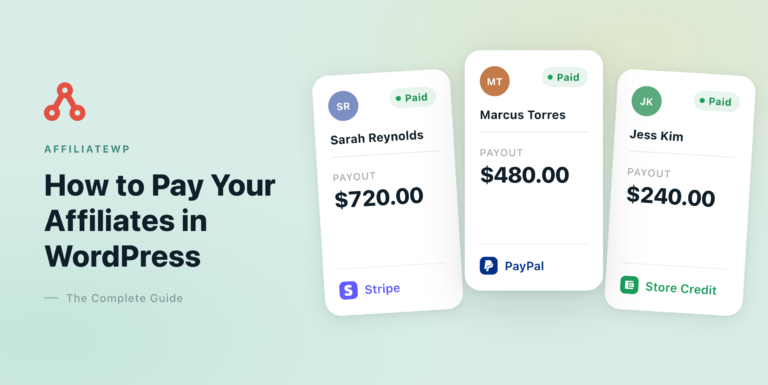
The easiest way to make affiliate payments is by connecting Stripe (we also offer PayPal payouts and store credit), which allows you to pay affiliates directly to their bank accounts from within WordPress. This saves you a ton of hassle, and means affiliates get convenient payouts they can rely on.
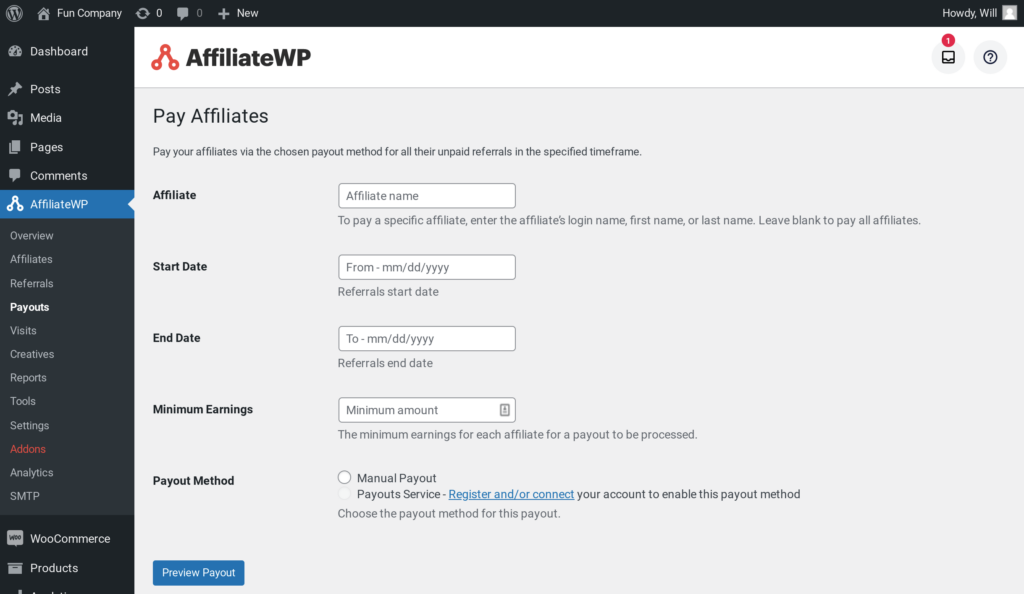
Check out this detailed guide on how to pay affiliates in WordPress, and make sure your WooCommerce affiliate program is one your affiliates can rely on.
Now Put AffiliateWP’s Best Tools to Use to Grow Your WooCommerce Affiliate Program
Your WooCommerce affiliate program should make life easy for you and your affiliates.
AffiliateWP is constantly working to make sure this is the case, which is why you’ll continue to see regular new features and functionality. We’ve already got some awesome tools you can use to foster your affiliate relationships and grow sales, so now’s the time to put them to use.
- Vanity Coupon Codes: Enable your affiliate to choose their own affiliate coupon codes and stand out on social media and email marketing.
- Affiliate Landing Pages: Create personalized affiliate landing pages to reward top affiliates and boost conversion rates.
- Direct Link Tracking: Eliminate the need for affiliate referral links with direct link tracking directly from your affiliate’s sites.
- Recurring Referrals: Reward affiliates with a recurring commission when they sell WooCommerce Subscriptions products.
These are just some of the great tools store owners can benefit from when they use the Pro plan to grow their WooCommerce affiliate program.
FAQs: Set Up an Affiliate Program for WooCommerce
- Can I sell affiliate products on WooCommerce? You can sell affiliate products on WooCommerce, but you need an external WordPress affiliate plugin. With AffiliateWP, you can sync your WooCommerce products to an affiliate program in minutes, start signing up successful affiliates and make affiliate sales.
- How do I create an affiliate program on WordPress? The best way to create an affiliate program on WordPress is with AffiliateWP. With its easy setup wizard, you can create an affiliate system in minutes and integrate it with many of your favorite WordPress plugins.
- How do I create an affiliate link program? If you run a WordPress site then you can create an affiliate link program with AffiliateWP. In just a few minutes you can start tracking affiliate links and making sales.
- Which platform is best for affiliate marketing? The best platform for affiliate marketing, if you have a WordPress website or e-commerce store, is AffiliateWP. You get unlimited affiliates (bloggers, influencers, SEO experts, and more), unlimited creatives, and you don’t pay fees on your earnings
Set Up an Affiliate Program for WooCommerce the Easy Way
AffiliateWP is the best WooCommerce affiliate plugin for managing and growing your online store. Whether you’re just starting your WooCommerce store or are an established seller, it couldn’t be easier to set up an affiliate program for WooCommerce.
It’s going to take you very little time, but it will unlock some huge benefits.
Affiliate marketing can expand your audience very quickly, get experienced marketing professionals promoting your business, and bring in limitless sales, all with little risk.
Looking for ways to grow your sales through affiliate marketing?
We’ve got you covered:
- How to Track Affiliate Performance with Monthly Email Summaries
- How to Set Up Affiliate Terms and Conditions (The Right Way)
- What is Affiliate Fraud and How Can You Stop It?
- How to Manage Affiliates in WordPress (The Easy Way)
Now there’s only one thing left to do.
Get AffiliateWP and set up a WooCommerce affiliate program today!
Good afternoon, does your plugin support LMS MasterStudy?
Hi John!
No, we do not have an official integration with LMS MasterStudy. Is it this plugin? https://wordpress.org/plugins/masterstudy-lms-learning-management-system/
Great Plugin!!!
That’s a tool that can relatively simply and easily vastly expand the customer base at fraction of the cost and time of having to develop leads yourself.
Is it possible to setup a multi-tier affiliate commission for my woocommerce store?
Hi Bryan,
Thanks for the question!
Are you referring to Tiered Affiliate Rates where affiliates earn different commission rates based on how much they sell or Multi Level Marketing where affiliates are incentivized to recruit new affiliates?
Many thanks,
Will
This looks good. better than what I currently have. Maybe I missed it but what is the parameter you use for your Affiliate links? I currently have affiliates that use ref=123. Would I be able to move over my existing affiliate IDs to this system without interrupting the already created links?
Hey Judith! AffiliateWP also uses “ref” as the default referral variable (and that can be changed to anything) so that’s not a problem. If you’re starting fresh with AffiliateWP you can import a .CSV file with your current affiliates and these will be generated within AffiliateWP starting at 1, and incrementing by 1 each time. As long as there aren’t any “gaps” in the IDs from your other system, this should work fine and each affiliate’s ID will be the same as before.
Hands down, amazing plugin.
What a great tutorial, thanks!
Thank you for the guide it helped a lot!
After using other affiliate program software, I tried AffiliateWP. It’s definitely easier, more flexible, and more intuitive.
What are the benefits of setting up a WooCommerce affiliate program instead of using third-party platforms such as FirstPromoter, Impact, Partnerstack, and similar? Does it perform better than Ultimate Affiliate Pro?
I would like to set up an affiliate program. Im just not sure that there is money in my niche!
Hey Elijah, every niche is different but almost every niche is profitable affiliate marketing niche if done right. Check out this post to know more.
Great plugin…
Nice plugin
Thankyou for this info. Great plugin!
Thankyou for this info. Great plugin! I’m looking forward to learning more about it.
I would love to set up an affiliate program but my site is just starting out. I don’t know if I would be able to make much use for it. any tips for how this could benefit a new site?
I just love simplicity and setup wizards. AffiliateWP a must if you want to grow your customer base and revenue fast. Awesome thanks!
I’m not a WooCommerce user yet, but I appreciate the helpful info. Thank you.
Thanks so much for sharing this article, the information was really helpful and I’m excited to put this into action now.
wow, this is much easier than I thought it would be