Would you like to give your best customers a status worth keeping? The RewardsWP VIP Program places members into tiers, such as Silver, Gold, and Platinum, based on spend, points earned, or referrals. Each tier can carry its own points multiplier, welcome gift, and list of perks.
This guide gives you a high-level view of how VIP tiers work and what you can do with them. All you need is a Pro license level and a WooCommerce or Easy Digital Downloads store.
Requirements: The VIP Program requires a Pro license level and an active WooCommerce or Easy Digital Downloads store.
Before you get started, make sure RewardsWP is installed and activated on your WordPress site.
What Is the VIP Program?
The VIP Program adds a ladder of status tiers to RewardsWP. Members climb it as they shop, earn, or refer. Every step up gives them something new.
A customer who knows they’re 50 points away from Gold has a reason to place their next order with you.
You choose one measure for the whole ladder. Then you set the threshold each tier needs in that measure:
- Total amount spent: members move up as their store spend grows. Choose this when revenue per customer matters most to you.
- Points earned: members move up as they earn points, either over their lifetime or within a recent window such as the last 90 days. This rewards engagement of every kind, not only purchases.
- Completed referrals: members move up as their referred friends complete purchases. Choose this when word of mouth drives your growth.
RewardsWP handles the rest. It checks each member as they earn, buy, and receive refunds. Then it places them in the highest tier they qualify for and tells them by email when their status changes.
See Understanding When VIP Tiers Update.
How Does the VIP Lifecycle Work?
Every member follows the same path through your tiers.
Qualifying for a Tier
When a member’s total reaches a tier’s threshold, RewardsWP promotes them to that tier. If you create a tier with a threshold of 0, every new member starts there.
See Choosing How Members Qualify for VIP Tiers.
Enjoying Tier Benefits
From the moment they’re promoted, the member earns purchase points at their tier’s multiplier and receives any entry rewards you’ve set up for that tier. They can see their tier, their benefits, and their progress to the next tier in the Rewards Widget.
Keeping or Losing a Tier
Whether members can move down depends on how they qualify. With lifetime points, members don’t move down through their own activity, because a lifetime total only grows. With spend, referrals, or a points window, a member who drops below their tier’s threshold moves down.
The move happens right away or after a grace period you choose. Members in a grace period get an email and a notice in the widget telling them what they need to do to stay.
See Managing VIP Tier Demotion and the Grace Period.
What Does a Tier Include?
Each tier you create has these parts:
- Name and description: what members see in the Rewards Widget and in VIP emails.
- Threshold: the spend, points, or referrals a member needs to reach the tier. Tiers are ordered automatically from the lowest threshold to the highest.
- Icon: a built-in icon or your own artwork, shown next to the tier name. See Customizing VIP Tier Icons.
- Points multiplier: how much faster members earn points on purchases at this tier. See Setting VIP Points Multipliers.
- Entry rewards: a one-time welcome gift, such as a discount coupon or bonus points. See Adding VIP Entry Rewards.
- Perks: a list of what else members get at this tier, such as early access to sales. See Adding VIP Tier Perks.
Your members see these parts of each tier wherever VIP appears in RewardsWP.
Seeing VIP Across RewardsWP
Once VIP is running, tier information appears in several places:
- The Rewards Widget shows members their current tier, their progress, and every tier on your ladder. See Showing VIP Status in the Rewards Widget.
- Emails tell members when they reach a tier, when their tier is at risk, and when their status changes. See Customizing VIP Tier Emails.
- The Members screen adds a VIP Tier column and filter, and each member’s profile shows their tier and VIP history. See Viewing Members by VIP Tier.
- Reports add a Tier performance table, and member exports include each member’s tier. See Tracking VIP Tiers With Reports and Exports.
Each of these places reads from your VIP settings, so setting those up comes first.
Getting Started With VIP Tiers
All VIP settings live on one screen.
From your WordPress admin sidebar, go to RewardsWP » Settings. Then click the VIP tab.
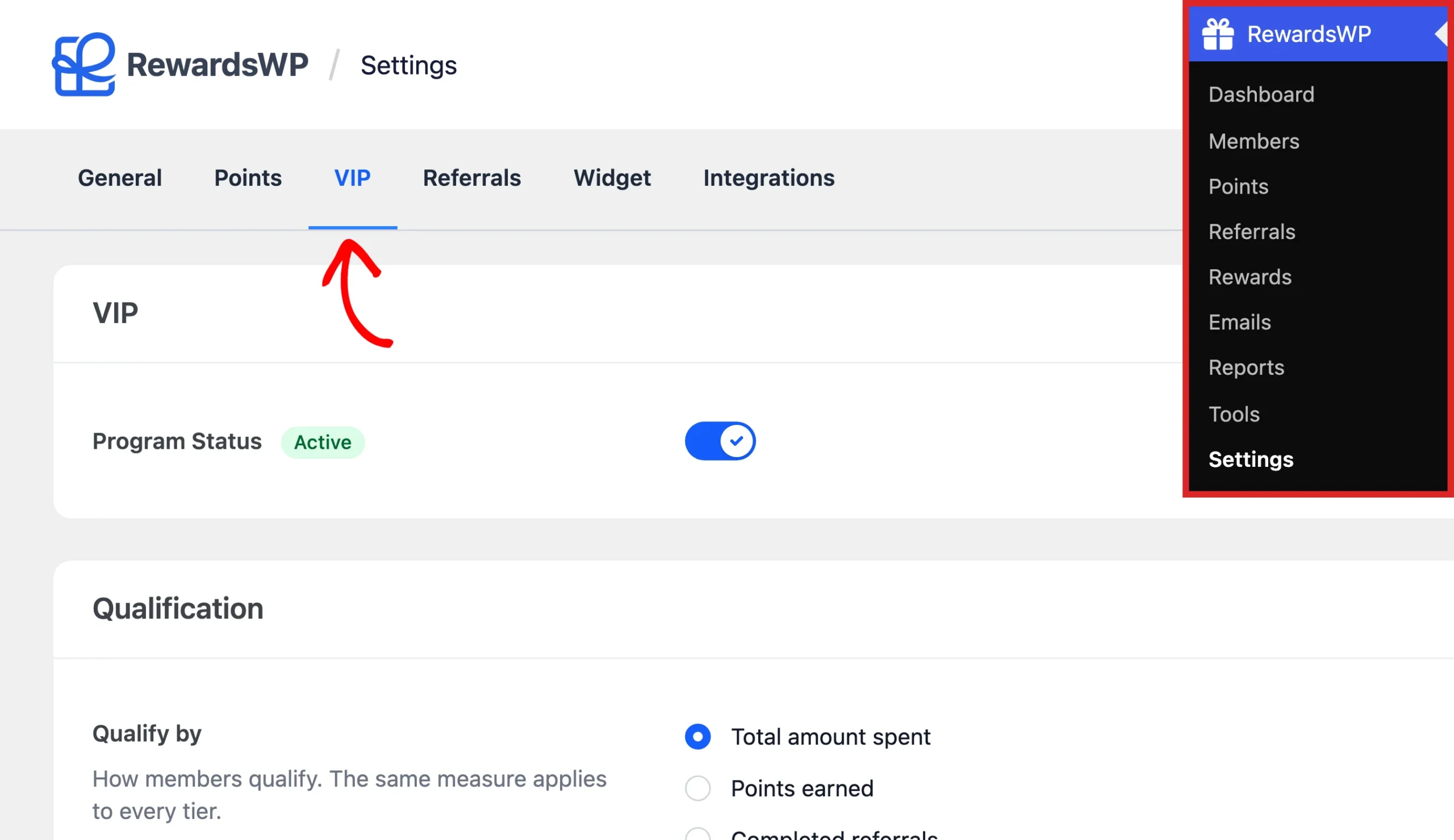
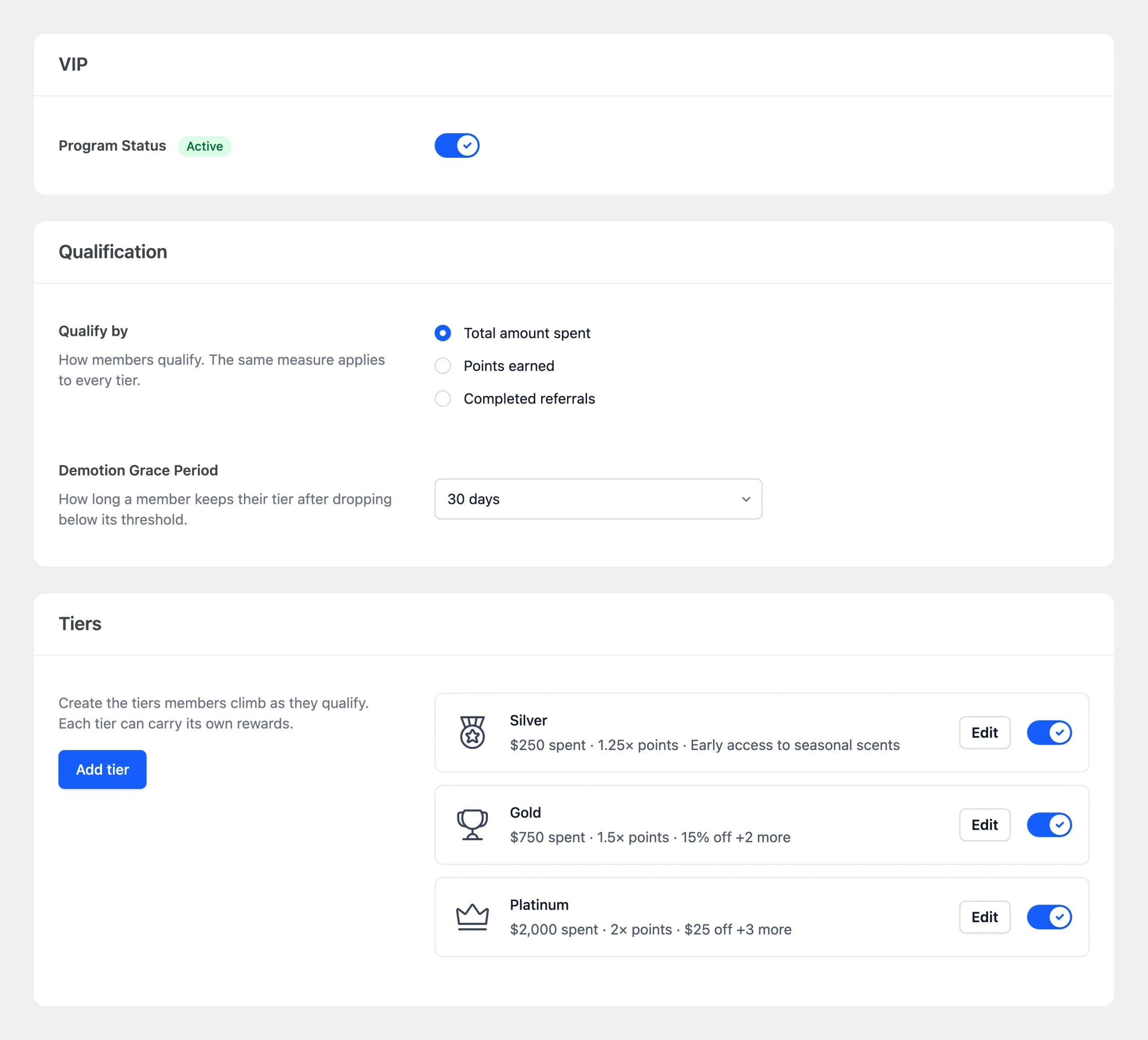
The tab has three sections. We recommend setting them up in this order:
- VIP: turn the program on. See Enabling or Disabling the VIP Program.
- Qualification: choose how members qualify and whether they can move down. See Choosing How Members Qualify for VIP Tiers.
- Tiers: create your ladder. See Creating and Managing VIP Tiers.
That’s it! You now know how the VIP Program works and where to set it up. Next, read Enabling or Disabling the VIP Program.
FAQ
Below, we’ve answered some of the most common questions about the VIP Program.
Do I need the Points Program to use VIP tiers?
Only if members qualify by points. If they qualify by total amount spent, VIP works without the Points Program. If they qualify by completed referrals, the Referral Program needs to be on. Points multipliers and points entry rewards only apply while the Points Program is on.
Can I use VIP tiers without a store?
No. VIP tiers need an active WooCommerce or Easy Digital Downloads store. Without one, the VIP Program Status toggle can’t be turned on.
What happens to my tiers if my license changes to a lower plan?
Your tiers and settings are saved. While your license is below the Pro license level, VIP is paused. Nobody qualifies for a tier or moves between tiers. When you return to a Pro license level, your saved tiers are ready to use again.
Can I place a member in a tier by hand?
No. Members are placed in tiers automatically based on the measure you choose. To move a specific member, adjust the total they qualify by. For example, when members qualify by points earned, you can add points to their balance from the Members screen.