





Would you like members to hear about their VIP status the moment it changes? RewardsWP sends three VIP emails as members move up and down your tier ladder. Tier Reached celebrates a new tier, and Tier At Risk warns a member before they move down. Tier Demoted tells them when they have. All three are on by default, so members hear about tier changes without any setup from you.
In this guide, we’ll walk you through each VIP email, when it’s sent, and how to customize its subject line with merge tags. All you need is a Pro license level and the VIP Program turned on.
Requirements: VIP tier emails require a Pro license level and an active WooCommerce or Easy Digital Downloads store.
Before you get started, make sure RewardsWP is installed and activated on your WordPress site.
Finding the VIP Emails
From your WordPress admin sidebar, go to RewardsWP » Emails.
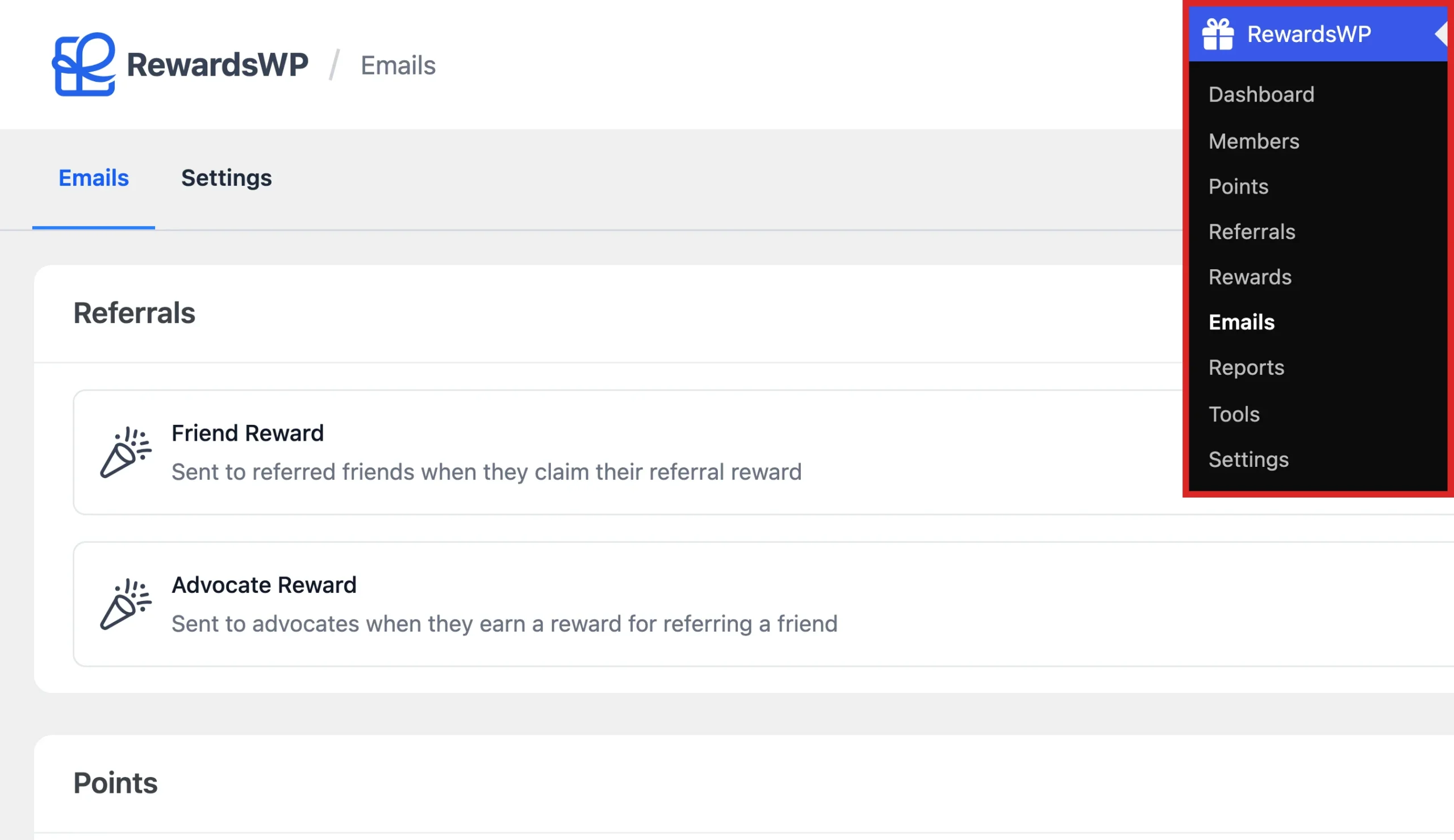
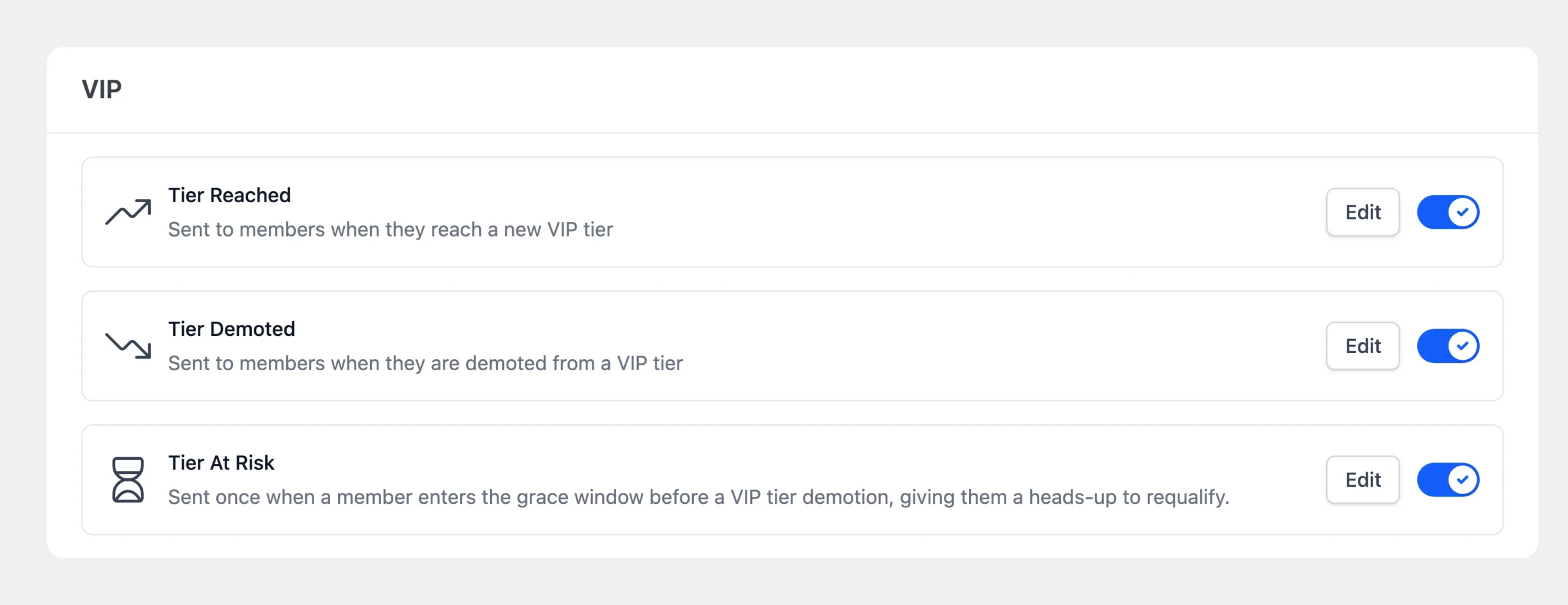
The three VIP emails are grouped under their own VIP heading in the list.
For the settings every RewardsWP email shares, such as the sender name and logo, see Complete Guide to RewardsWP Emails.
How Does the Tier Reached Email Work?
This email congratulates a member on reaching a new tier. Its default subject is “You’ve reached {tier_name}!”. The email includes the tier’s welcome gift, its perks, and a link to view their status.
It’s sent when a member is promoted through their own activity, such as an order, earned points, or a completed referral. It isn’t sent when RewardsWP places members after you change your VIP settings. See Understanding When VIP Tiers Update.
RewardsWP builds the rest of the email for you, so the subject line is the part you write. These merge tags work in it:
{member_name}: the member’s first name.{tier_name}: the tier they reached.{tier_description}: the tier’s description.{multiplier}: the tier’s points multiplier on purchases.{tier_benefits}: the perks you listed for the tier.{entry_reward}: the welcome gift for reaching the tier.{shop_url}: a link to your store.
How Does the Tier At Risk Email Work?
This email warns a member that they no longer qualify for their tier and tells them how to keep it. Its default subject is “Your {current_tier} VIP status is at risk”.
It’s sent once, when a member’s grace period starts. If your Demotion Grace Period is set to Immediate, members move down right away, so this email isn’t sent. See Managing VIP Tier Demotion and the Grace Period.
Merge tags you can use in its subject line:
{member_name}: the member’s first name.{current_tier}: the tier they’re at risk of losing.{days_remaining}: the days left in their grace period.{deadline}: the date their grace period ends.{requalify_action}: what they need to do to keep their tier, written for how members qualify, such as “Earn 150 more points” or “Spend $40 more”.
How Does the Tier Demoted Email Work?
This email tells a member they’ve moved to a lower tier, or left VIP, and invites them to climb back. Its default subject is “Your VIP status has changed”.
It’s sent when a member moves down through their own activity, such as a refund. It’s also sent when the daily tier check finds their grace period has ended. It isn’t sent when members move down after you change your VIP settings.
Merge tags you can use in its subject line:
{member_name}: the member’s first name.{previous_tier}: the tier they held.{new_tier}: the tier they moved to. If they left VIP entirely, the email reads “no tier”.{requalify_cta_label}and{requalify_cta_url}: a button suited to how members qualify.
The button in the Tier At Risk and Tier Demoted emails adapts to your Qualify by setting:
- Total amount spent: the button sends members to your store.
- Total points earned (lifetime) or Points earned (rolling period): the button shows members the ways to earn points.
- Completed referrals: the button takes members to their referral link.
Customizing a VIP Email
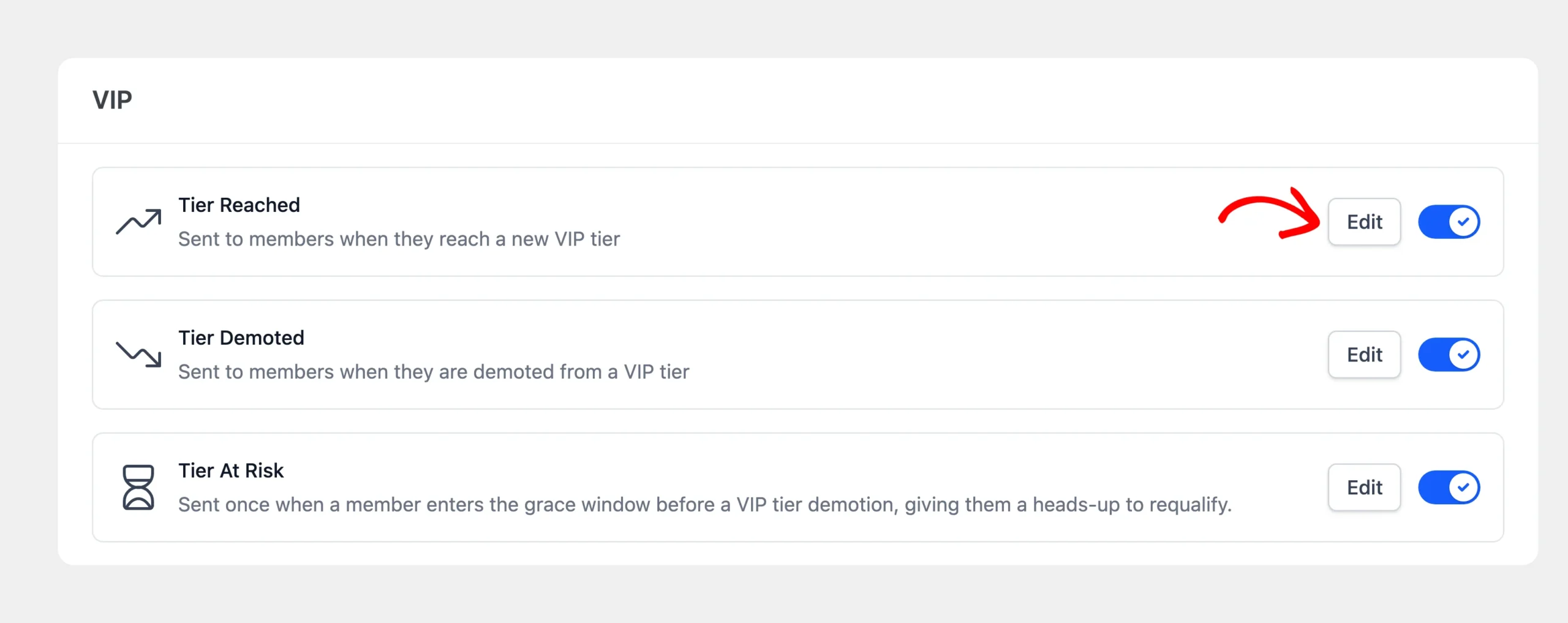
Each VIP email has its own row with an Edit button and a toggle. The toggle turns the email on or off without opening it, as the FAQ below explains.
On the RewardsWP » Emails screen, find the VIP email you want to change. Next, click Edit on its row.
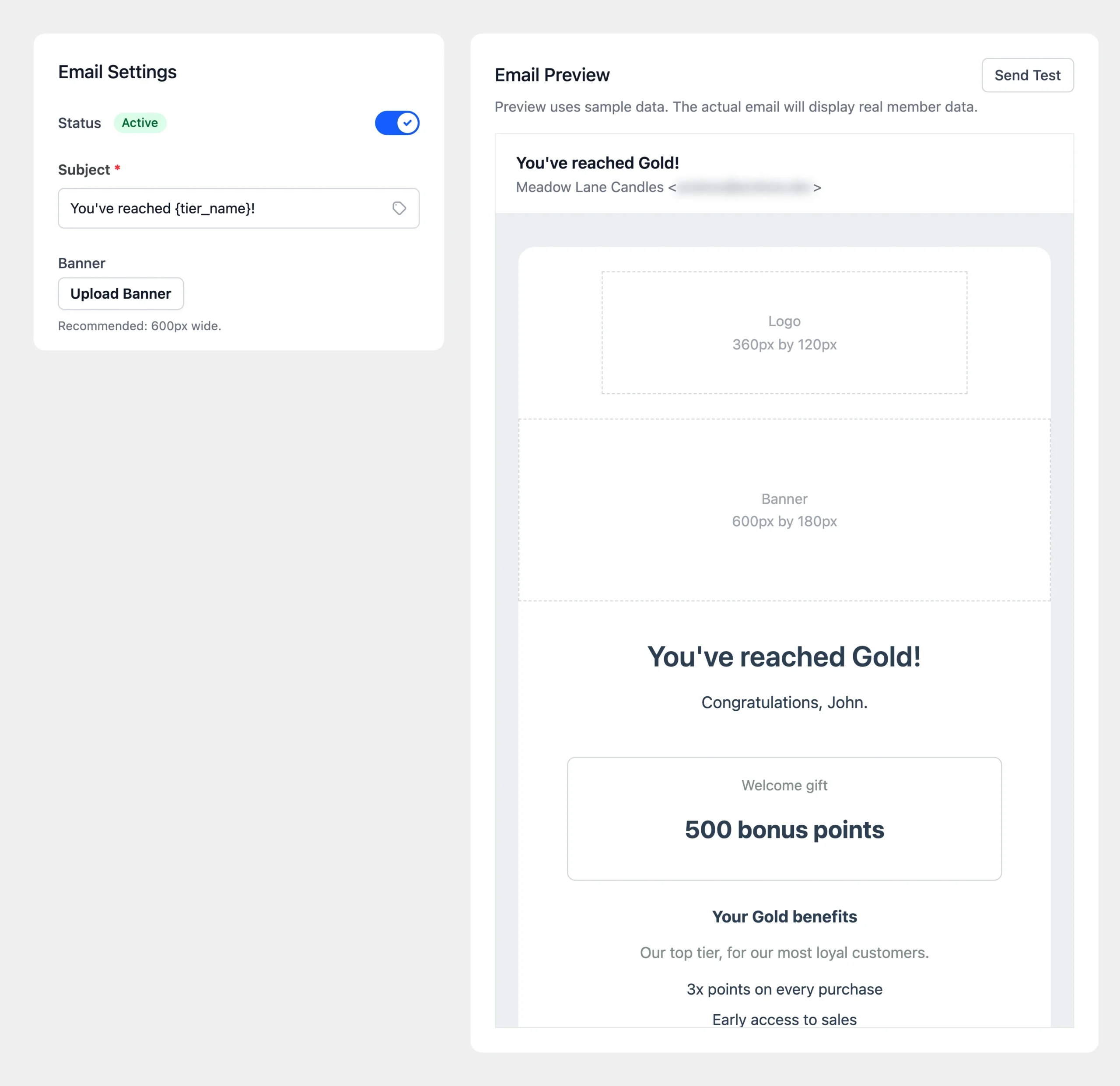
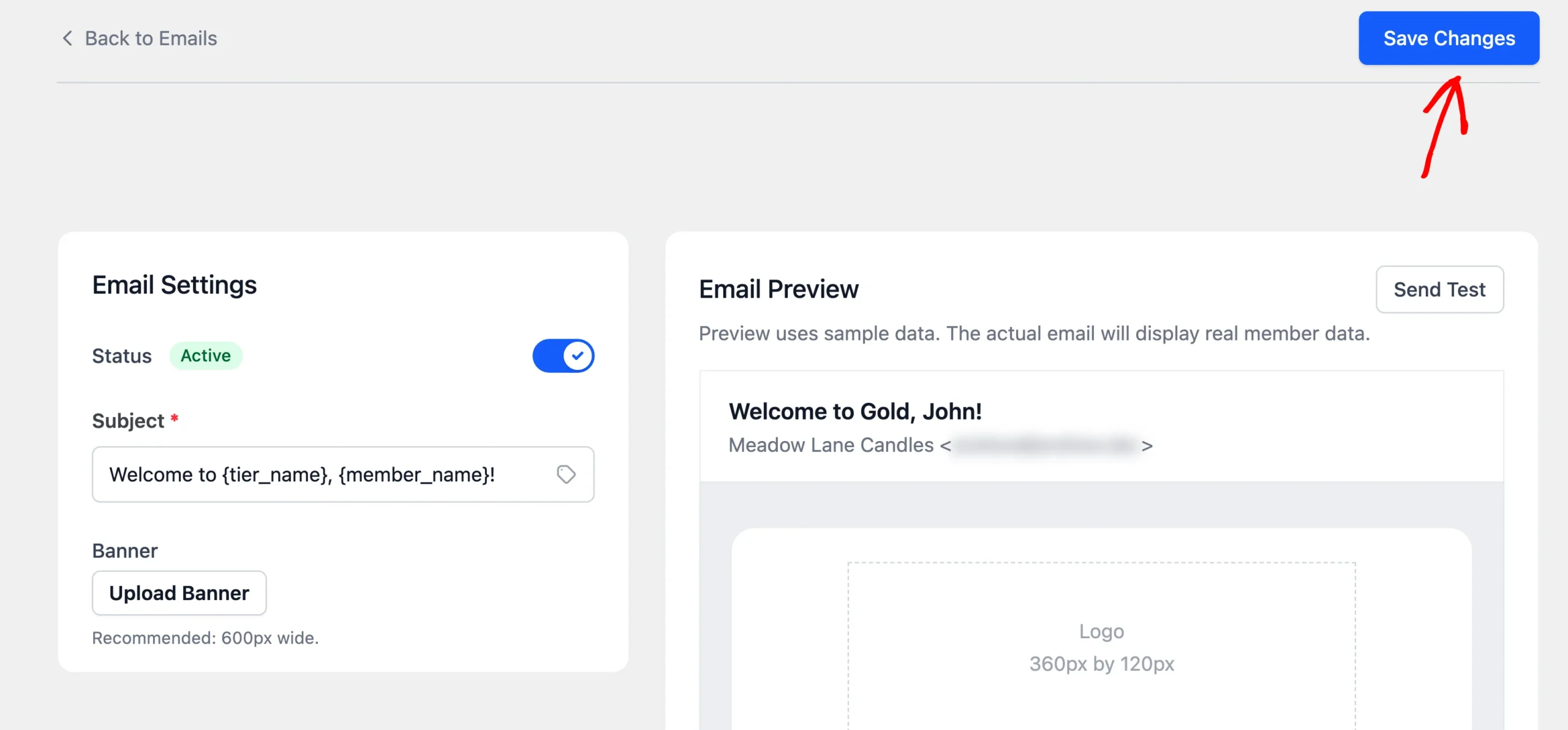
The email’s settings open, with a live preview beside them:
- Status: turns the email on or off. While it’s off, members don’t receive that email, and the other VIP emails keep sending.
- Subject: the subject line. The tag icon inside the field opens a list of merge tags to insert. For example, “Welcome to {tier_name}, {member_name}!” greets the member by name.
- Banner: an optional image that appears below your logo at the top of the email. Leave it empty for a plain header.
The preview uses sample data, so you can check how your subject and banner look before any member receives the email. The Send Test button sends the email to your store’s From Email address, so you can also check it in a real inbox.
When you’re done, click Save Changes.
Your new subject and banner apply to every email of that type RewardsWP sends from now on.
Adding VIP Details to the Points Earned Email
The Points Earned email can also mention a member’s VIP status in its subject line. Three merge tags make that possible:
{vip_tier_name}: the member’s current tier.{vip_next_tier}: the next tier on your ladder.{vip_points_to_next}: how much the member needs to reach the next tier, as a plain number in the unit members qualify by. On a spend-based program it’s an amount with no currency symbol, and on a referral program it’s a number of referrals.
A subject such as “You’re {vip_points_to_next} away from {vip_next_tier}” reminds members how close they are to the next tier every time they earn points.
These tags only fill in for members who hold a tier. For other members they’re empty, and a member on your top tier has no next tier to name. Keep that in mind when you word the subject, so it still reads well without them.
That’s it! Your members now hear about every change to their VIP status. Next, read Viewing Members by VIP Tier.
FAQ
Below, we’ve answered some of the most common questions about VIP tier emails.
Why didn’t members get an email when I launched VIP?
When you turn VIP on or change your tiers, RewardsWP places members silently. This way, your customers don’t receive a large batch of emails at once. The Tier Reached email starts with the next promotion a member earns through their own activity.
Can I turn off a single VIP email?
Yes. On the Emails screen, turn off the toggle on that email’s row. Then click Save Changes. The other VIP emails keep sending.
Will my members get a Points Earned email for entry reward points?
No. The Tier Reached email already names the welcome gift, so the bonus points arrive without a separate points email.