





Would you like to see VIP status the way your customers see it? The Rewards Widget shows each member their current tier, how close they are to the next one, and what every tier on your ladder offers. That way, they always know what to aim for.
In this guide, we’ll walk you through each place VIP appears in the Rewards Widget, for members and for visitors who haven’t joined yet. All you need is a Pro license level and the VIP Program turned on with at least one tier.
Requirements: The VIP Program requires a Pro license level and an active WooCommerce or Easy Digital Downloads store.
Before you get started, make sure RewardsWP is installed and activated on your WordPress site. To learn how the widget works overall, see Understanding the Rewards Widget.
Seeing the Tier in the Widget Header
VIP shows up in the widget on its own once the VIP Program is on. There’s no separate widget setting to change.
When a member holds a tier, the header on the widget’s inner screens, such as Ways to earn, shows their tier name. It sits under their points balance, or their referral count if you only run referrals, in place of your program name. That keeps their status in view wherever they go in the widget.

The home panel goes further, with a card for the member’s tier.
Reading the VIP Status Card
The widget’s home panel includes a VIP Status card. It shows the member’s tier icon and name, plus a progress bar toward the next tier. A short line above the bar says what’s left, such as how much more to spend or how many more points to earn.
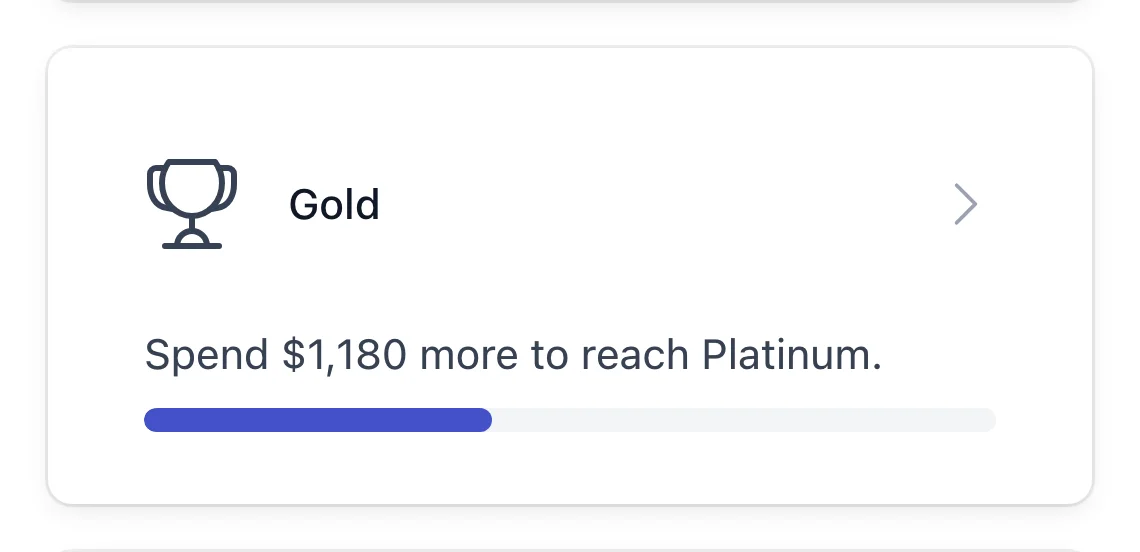
The card changes with the member’s situation:
- Just promoted: a marker highlights the new tier until the member opens their VIP status.
- No tier yet: the card names your first tier and shows the member’s progress toward it.
- At the top tier: the card says the member holds your highest tier instead of showing progress.
- At risk: during a grace period, the card shows what the member needs to do and how many days they have to keep their tier. See Managing VIP Tier Demotion and the Grace Period.
Members open their full VIP status from this card.
Exploring the VIP Status Panel
When a member clicks their tier on the VIP Status card, the VIP Status panel opens with the full picture of their tier:
- Their current tier, with their progress to the next tier, or the at-risk bar during a grace period.
- Benefits: the tier’s points multiplier on purchases, when the Points Program is on, followed by the perks you listed for the tier. If a tier has neither, this section doesn’t appear.
- Welcome gift: the entry rewards the member received on reaching the tier, marked as already added to their rewards. The heading reads Welcome gifts when there’s more than one.
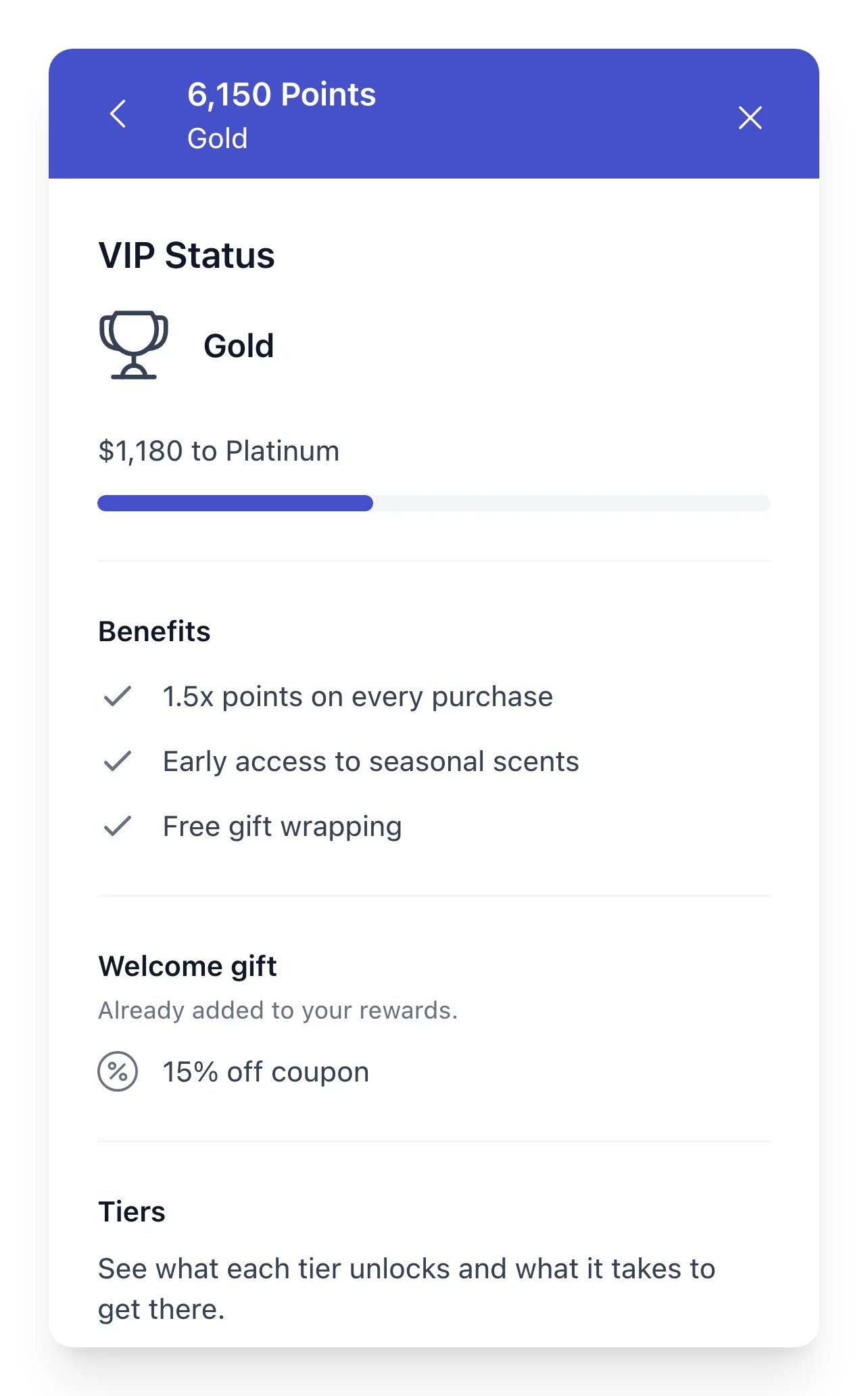
During a grace period, the at-risk bar takes the place of Benefits and Welcome gift. That way, the member sees what they need to do to keep their tier.
When the Points Program is on, members at your top tier see a button to browse their rewards. Members who haven’t reached a tier yet see an invitation to start their VIP journey, with their progress toward your first tier.
Browsing the Tier Ladder
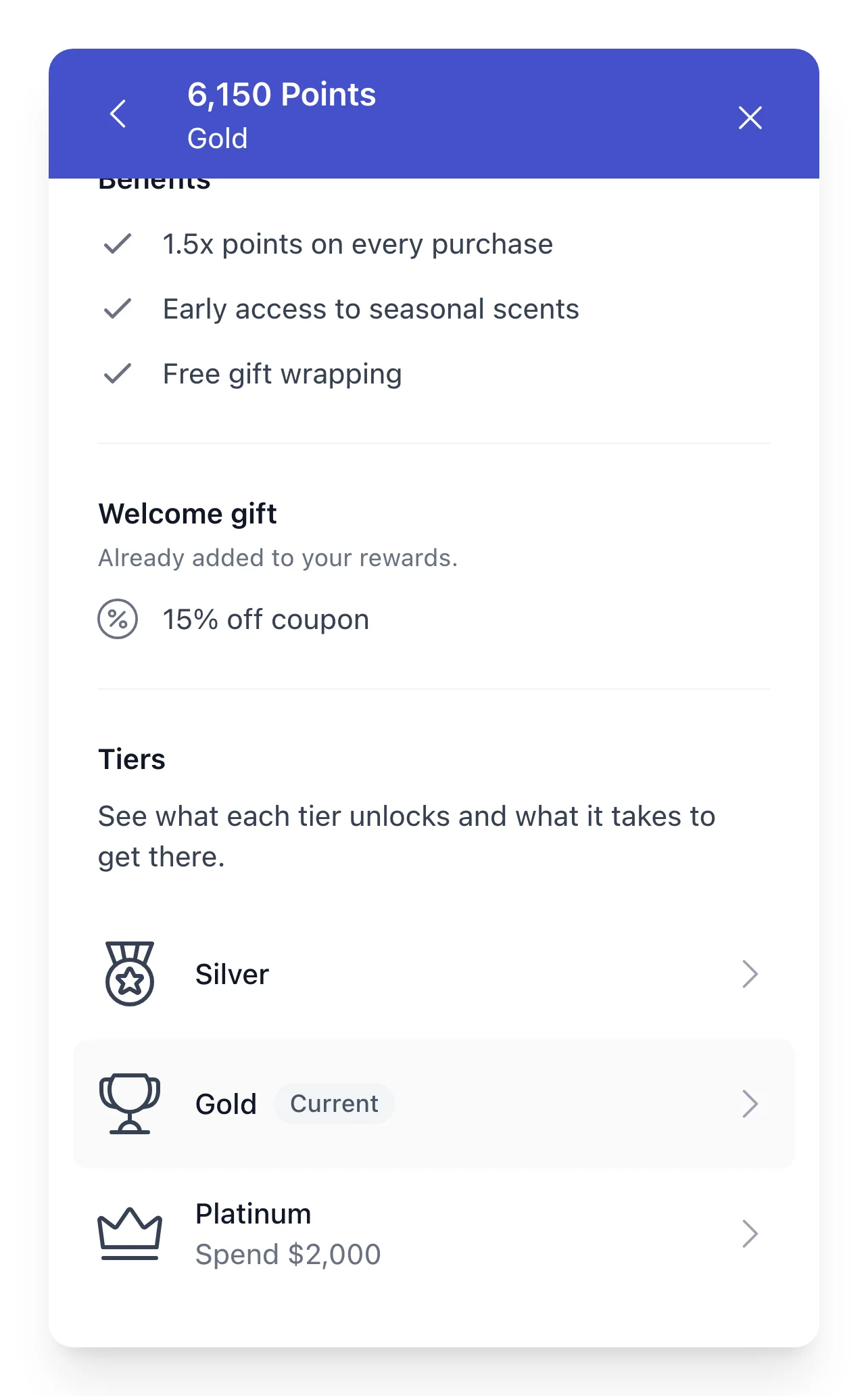
Below the member’s own tier, the panel lists every tier on your ladder in order, with their own tier marked as current. Tiers they haven’t reached yet show what it takes to get there.
Members can open a tier to see its benefits and welcome gifts. Seeing what’s waiting one tier up gives members a clear next goal.
Tier changes also appear in the member’s activity history.
Reviewing VIP Activity
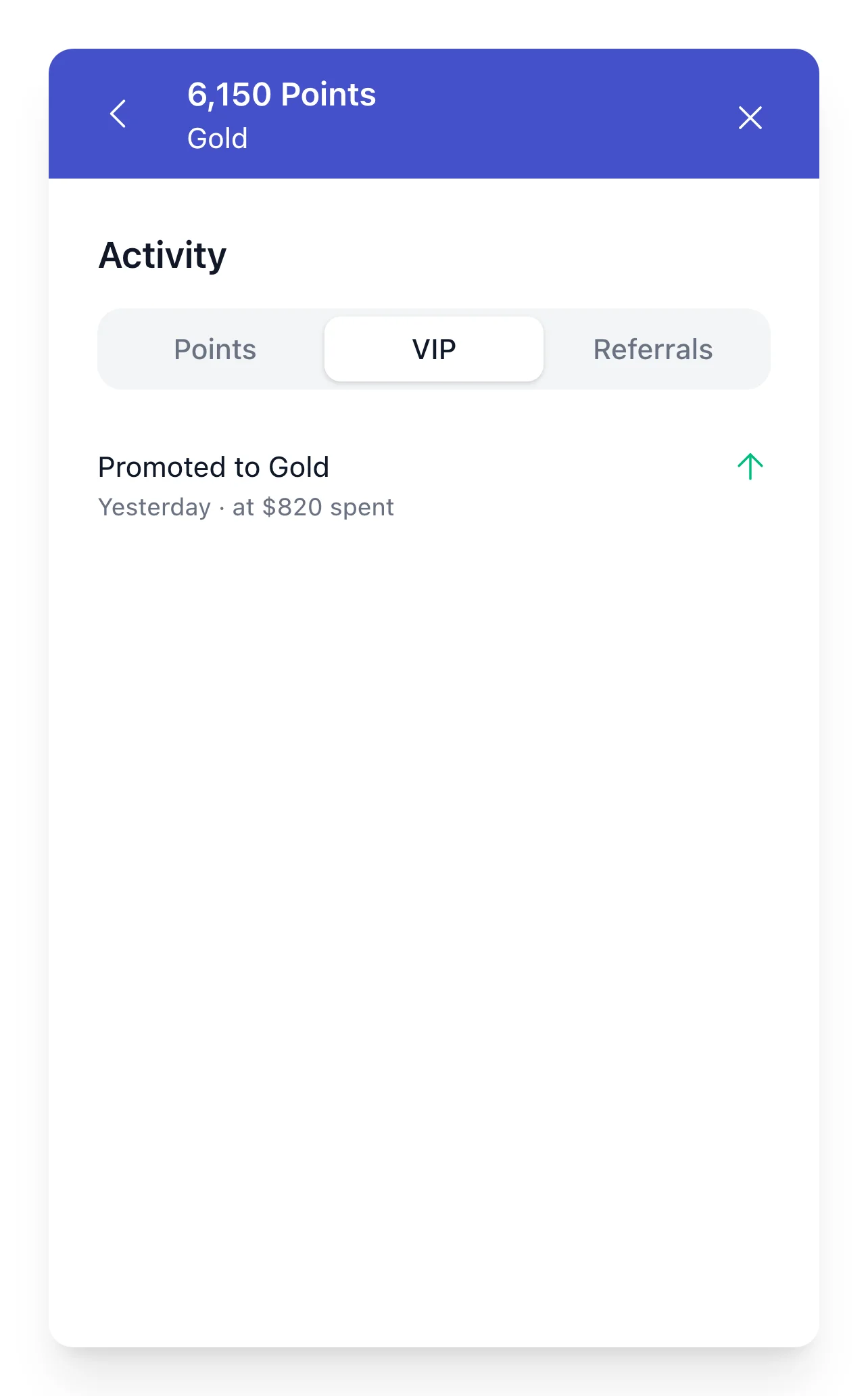
The widget’s activity panel has a VIP tab. It lists the member’s tier changes over time, such as when they reached or moved to a tier.
Visitors who haven’t joined yet see VIP too, in a simpler form.
Showing VIP to Visitors Who Haven’t Joined
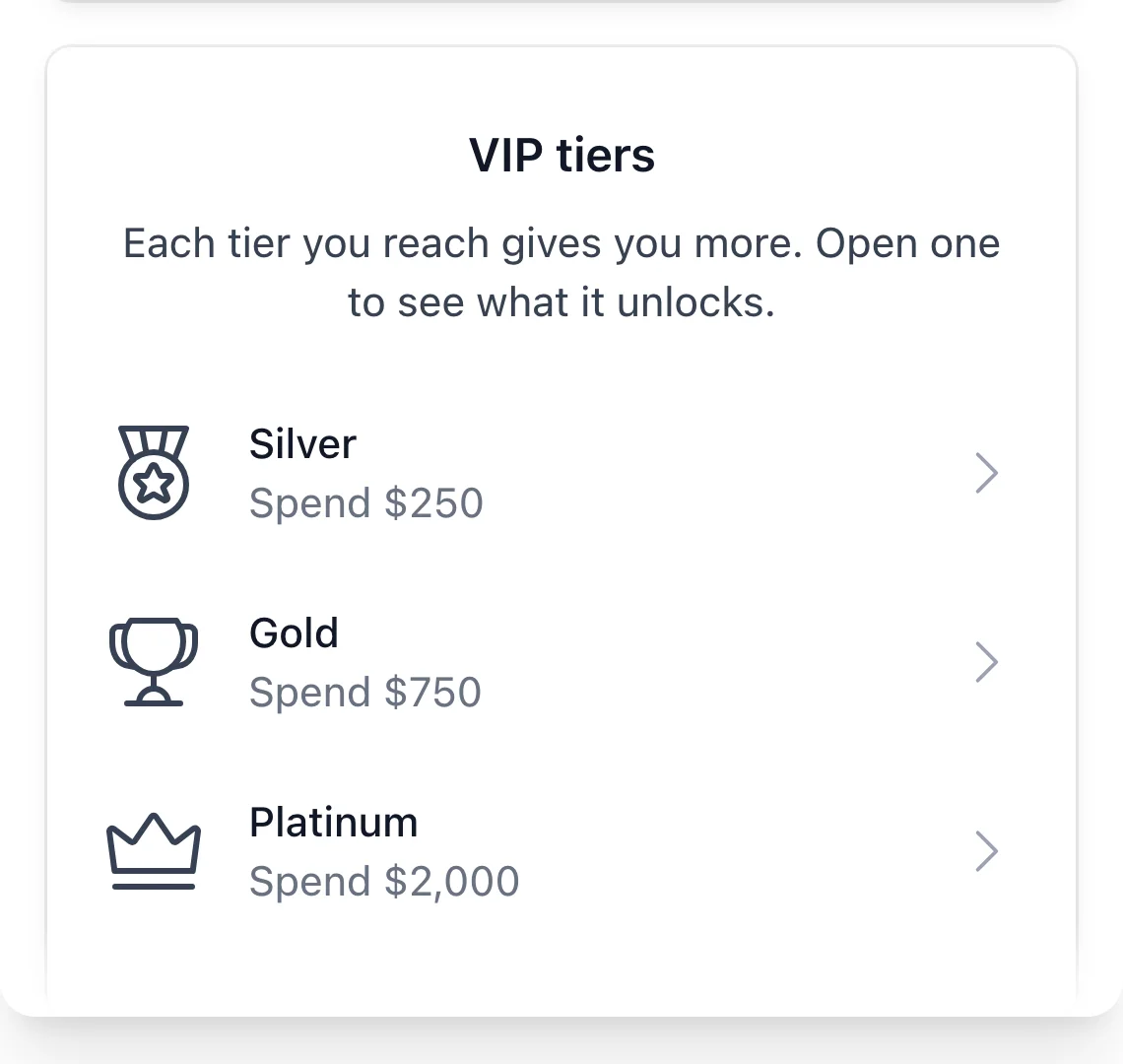
Visitors who aren’t members yet see a VIP tiers overview in the widget. It lists each tier and what it takes to get there. Visitors can open a tier to see what it unlocks. Seeing the rewards up front gives new customers a reason to join your program.
That’s it! You now know everything customers see about their VIP status. Next, to see how members hear about their status by email, read Customizing VIP Tier Emails.
FAQ
Below, we’ve answered some of the most common questions about VIP in the Rewards Widget.
How do I change what a tier looks like in the widget?
The widget uses each tier’s name, description, icon, and perks from your VIP settings. To change them, edit the tier on the VIP tab. See Creating and Managing VIP Tiers.
What do my members see if the program they qualify through is turned off?
Members who hold a tier keep seeing it, along with its benefits. Progress, the tier ladder, and at-risk notices are hidden until the program is back on, since nobody can move between tiers in the meantime. Members without a tier don’t see the VIP Status card.
Can my members see the tier thresholds?
Yes, for tiers they haven’t reached yet. The tier ladder shows what each of those tiers requires, in the same unit members qualify by, such as an amount spent or a number of points.