





Would you like to launch VIP tiers for your customers, or pause them for a while? The VIP Program Status toggle turns tier qualification on and off. Its status badge tells you at a glance whether members can reach your tiers right now.
In this guide, we’ll walk you through turning the VIP Program on and off and what each status means. All you need is a Pro license level.
Requirements: The VIP Program requires a Pro license level and an active WooCommerce or Easy Digital Downloads store.
Before you get started, make sure RewardsWP is installed and activated on your WordPress site.
Enabling the VIP Program
To get started, we’ll turn on the Program Status toggle at the top of the VIP settings. The VIP Program is off by default, so no member can reach a tier until you turn it on.
From your WordPress admin sidebar, go to RewardsWP » Settings and click the VIP tab.
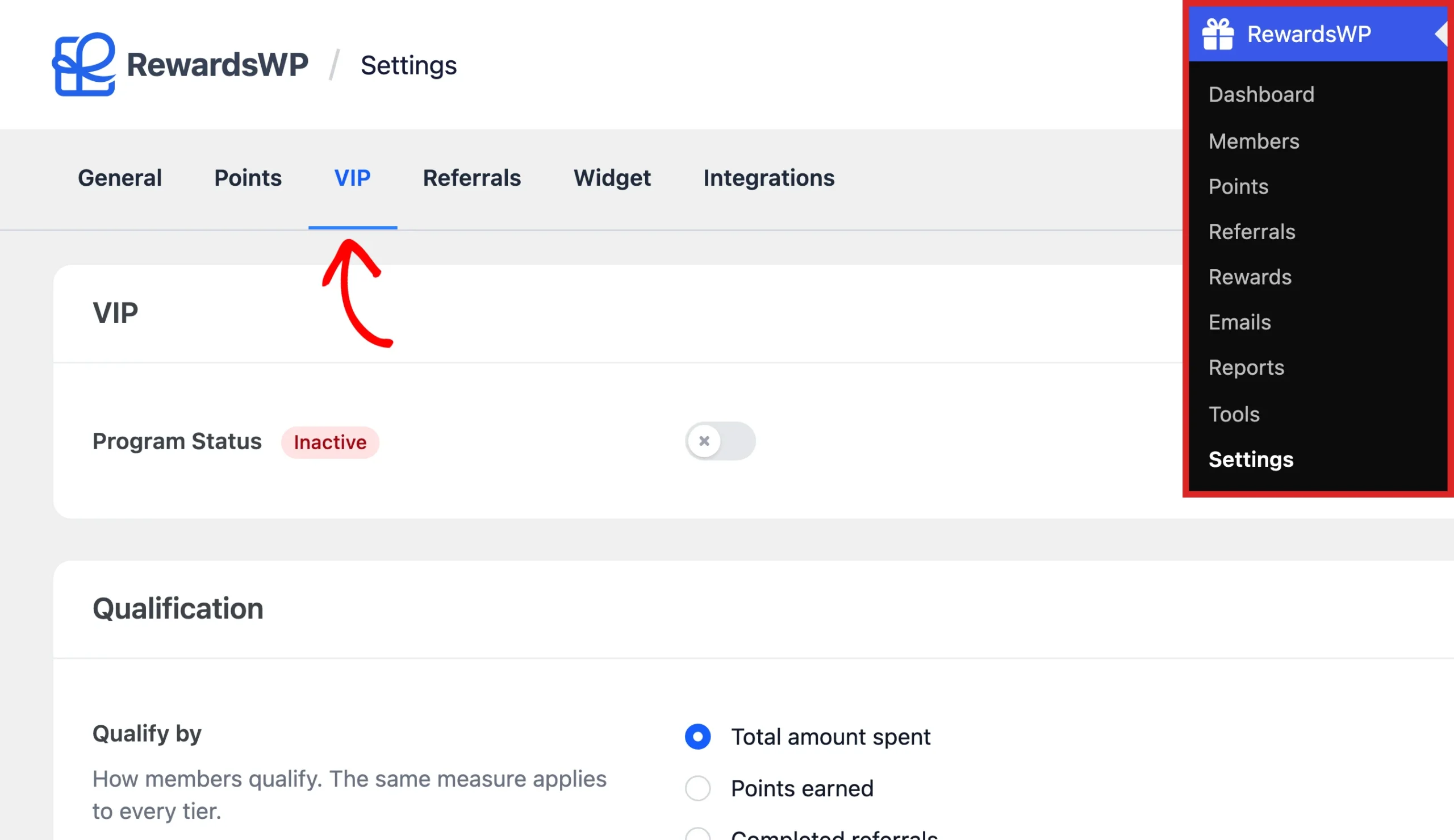
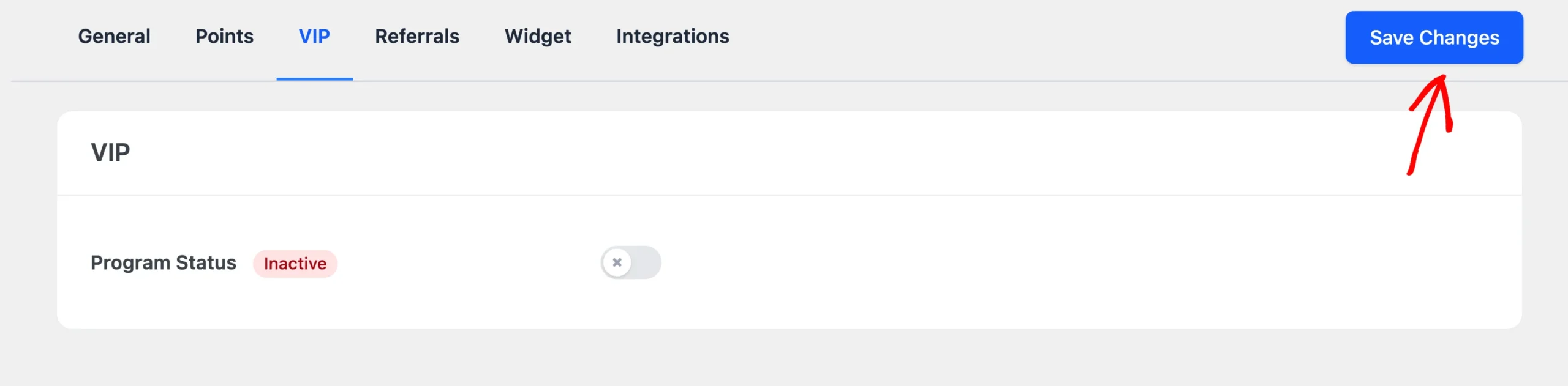
In the VIP section, turn on the Program Status toggle.
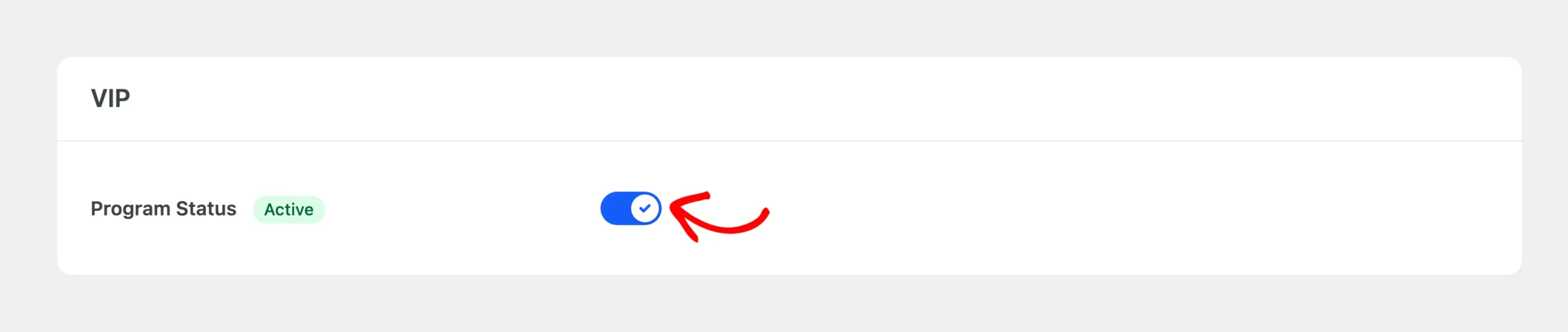
Note: If no store is connected, the toggle can’t be turned on. The VIP section shows a link to set up WooCommerce or Easy Digital Downloads instead. On a license level below Pro, the toggle is locked. The row tells you which plan VIP needs.
Your ladder needs at least one tier before members can reach it. If you haven’t created any tiers yet, the Tiers section below the toggle prompts you to add your first one.
For steps, see Creating and Managing VIP Tiers.
When you’re done, click Save Changes in the bar with the settings tabs.
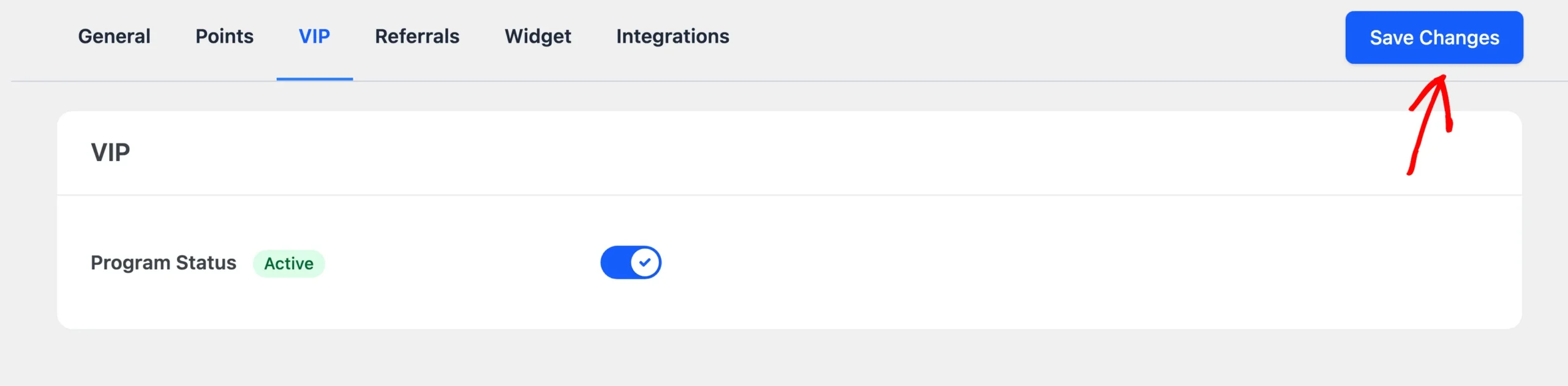
After you save, RewardsWP places every member who already qualifies into their tier in the background. This placement is silent. It sends no tier emails and issues no entry rewards, so existing customers don’t receive a large batch of messages when you launch.
Next, check the Program Status badge to confirm your program is running.
Reading the Program Status Badge
The badge next to Program Status shows the state of your program. It updates as soon as you change a setting on the tab, so it can show a status you haven’t saved yet.
- Active: VIP is on, a store is connected, the program members qualify through is on, and at least one tier exists. Members are moving through your tiers.
- Needs attention: VIP is on, but members qualify through a program that’s turned off. For example, members qualify by points earned and the Points Program is off. Nobody can qualify until you turn that program back on or change how members qualify.
- Inactive: VIP is off, or no store is connected.

If VIP is on but you haven’t created a tier yet, no badge appears. The Tiers section tells you VIP has no tiers, and that you need at least one tier for members to reach.
Disabling the VIP Program
If you need to pause your tiers, you’ll turn the VIP Program off the same way you turned it on.
On the VIP tab, turn off the Program Status toggle.
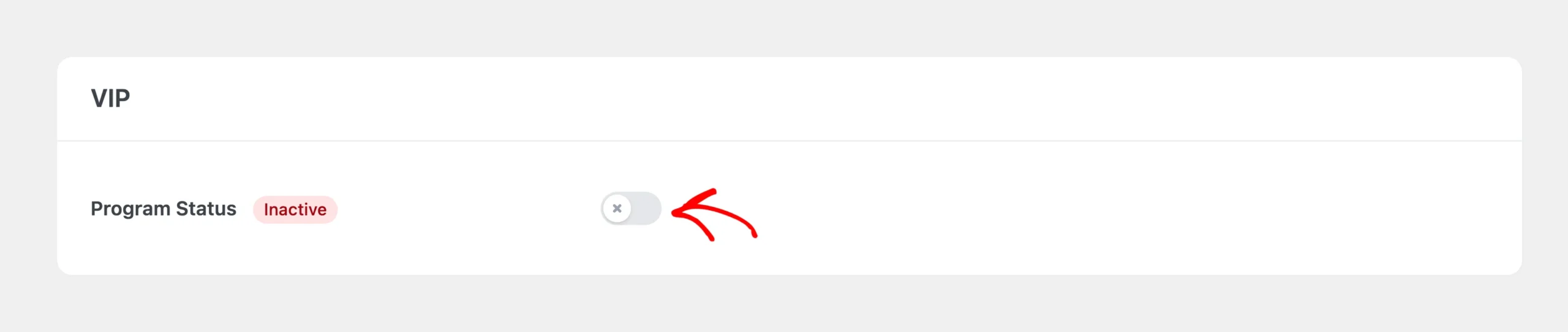
When you’re ready, click Save Changes in the bar with the settings tabs.
Turning VIP off doesn’t delete anything. Your tiers, settings, and each member’s VIP history stay saved, so you can turn the program back on at any time.
What Changes When You Turn VIP On or Off?
Here’s what the VIP Program Status controls across RewardsWP.
When VIP Is On
- Members are promoted and, depending on your settings, moved down as their totals change.
- Members earn points at their tier’s multiplier and receive entry rewards when they reach a new tier.
- The Rewards Widget shows each member’s tier, progress, and your tier ladder.
- VIP emails are sent when a member reaches a tier, when their tier is at risk, and when their status changes.
- The Members screen and Reports show VIP columns, filters, and tier performance.
When VIP Is Off
- Nobody qualifies for a tier or moves between tiers.
- Tier multipliers and entry rewards don’t apply.
- The VIP sections of the Rewards Widget, the Members screen, and Reports are hidden.
- VIP emails aren’t sent.
That’s it! You now know how to turn the VIP Program on and off and how to read its status. Next, choose how members qualify for your tiers.
FAQ
Below, we’ve answered some of the most common questions about turning the VIP Program on and off.
Why does my badge say Needs attention?
Members qualify through a program that’s off. In the Qualification section, a notice tells you which program is paused and links to it. Either turn that program back on, or choose a different Qualify by option.
What happens if I turn off the Points Program while VIP uses points?
RewardsWP asks you to confirm first, because new VIP qualification pauses while points are off. You can turn Points off anyway, or change how members qualify first. The same check applies to the Referral Program when members qualify by completed referrals.
Do my members keep their tier while VIP is off?
Their VIP history is saved, but tiers have no effect while VIP is off. When you turn it back on, RewardsWP checks every member again and places them in the tier they qualify for at that moment.