Would you like VIP status to reflect how active members are right now, without taking it away the moment they slip? RewardsWP can move members down a tier when they no longer qualify. A grace period gives them time to get back on track first.
In this guide, we’ll walk you through when demotion applies, how to set the grace period, and what members see while their tier is at risk. All you need is a Pro license level and the VIP Program turned on.
Requirements: The VIP Program requires a Pro license level and an active WooCommerce or Easy Digital Downloads store.
Before you get started, make sure RewardsWP is installed and activated on your WordPress site.
When Can Members Move Down?
Whether members can lose a tier depends on how they qualify:
- Points earned, counted over Lifetime: members move down only when a refund takes back points that counted toward their tier. There’s no grace period here, so the move happens straight away.
- Points earned, counted over a window: members move down as older points leave the window and their recent total drops below their tier.
- Total amount spent: members move down when refunds lower their spend below their tier. With WooCommerce, that’s a fully refunded order, since partial refunds don’t lower the total WooCommerce records.
- Completed referrals: members move down when their count of completed referrals drops below their tier.
When a member moves down, they go to the highest tier they still qualify for, or leave VIP if they don’t qualify for any tier.
To choose how members qualify, see Choosing How Members Qualify for VIP Tiers.
Setting the Demotion Grace Period
To get started, we’ll choose how long members keep their tier after they stop qualifying.
From your WordPress admin sidebar, go to RewardsWP » Settings. Next, click the VIP tab.
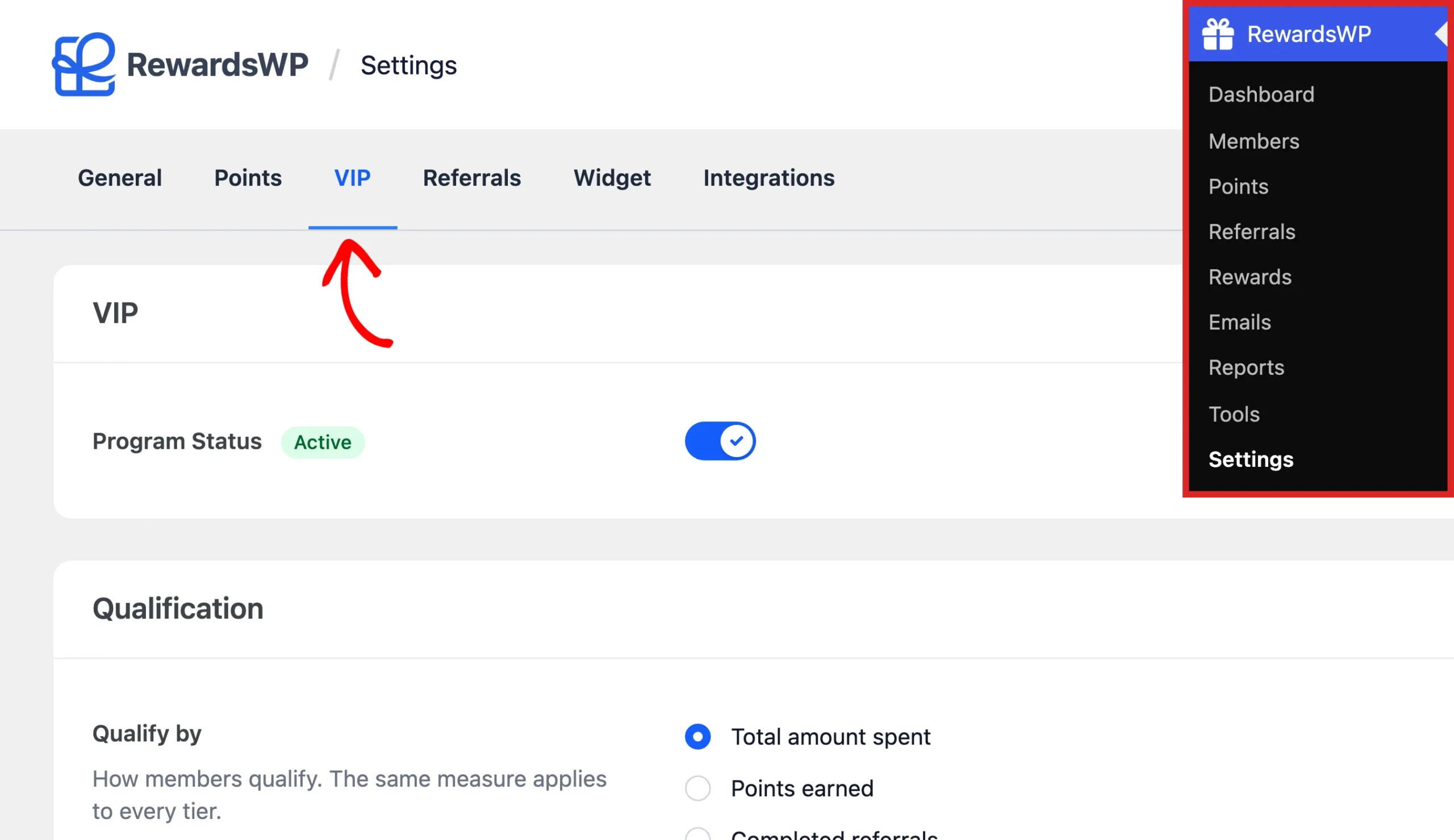
Further down the tab, in the Qualification section, you’ll find Demotion Grace Period.
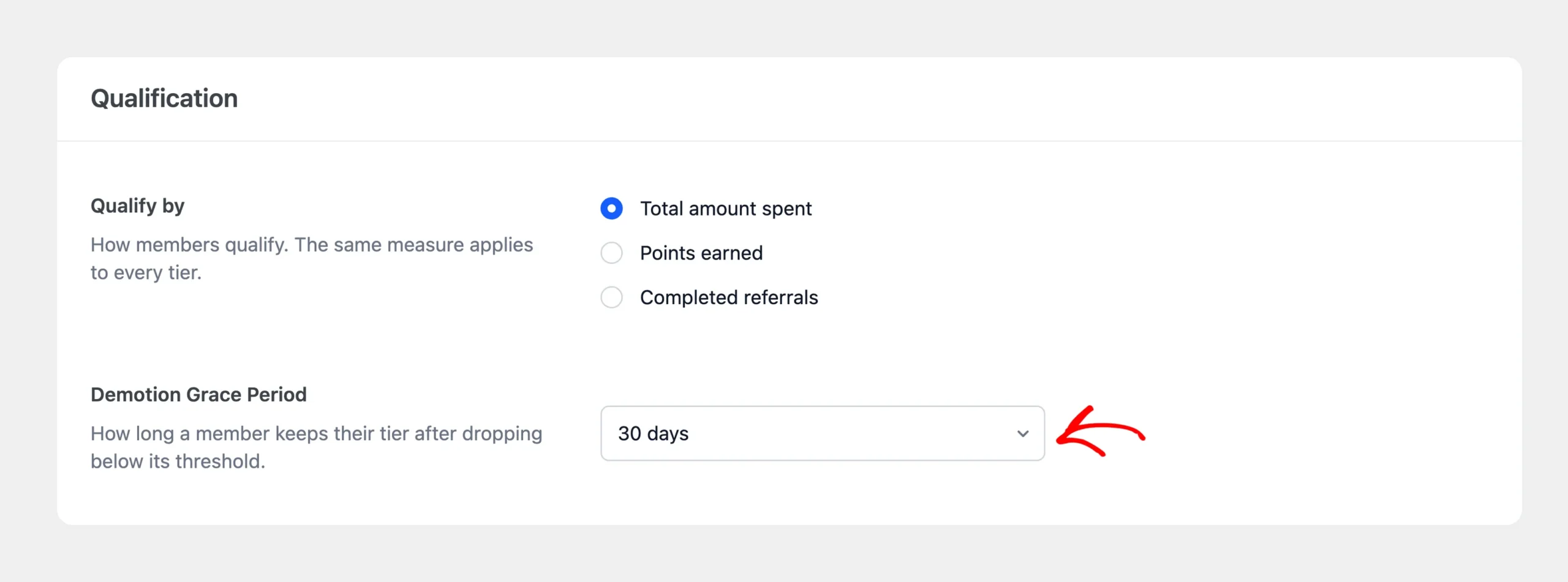
This setting only appears when members can move down, so you won’t see it when members qualify by lifetime points.
From the dropdown, choose how long a member keeps their tier after dropping below it:
- Immediate: members move down as soon as they no longer qualify. This is the default, so every tier matches what members have done until you choose to give them time.
- 30 days, 60 days, or 90 days: members keep their tier for that long, giving them time to requalify.
A grace period turns a lost tier into a reason to come back. Members get a warning and a deadline instead of a surprise, and a clear target to hit to keep their status. Match the length to how often your customers usually buy.
When you’re done, click Save Changes in the bar with the settings tabs.
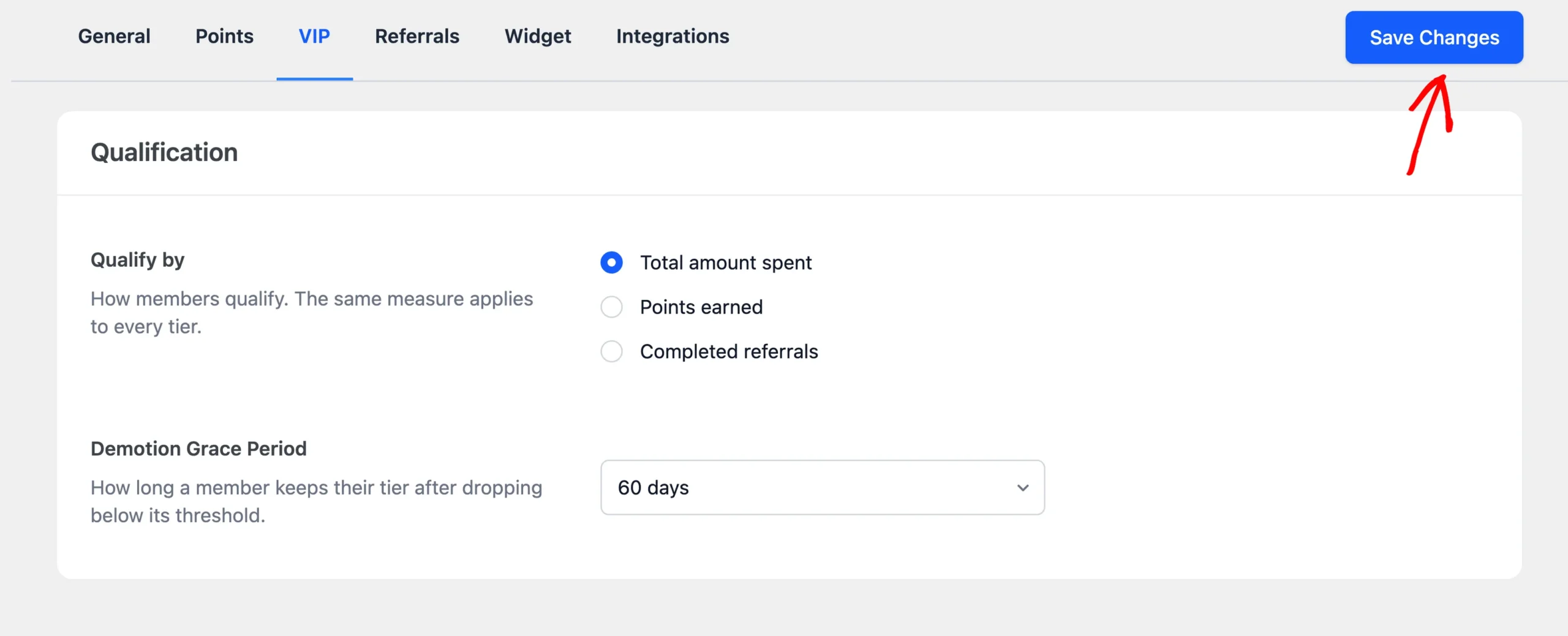
Your grace period now applies whenever a member drops below their tier.
Following a Member Through the Grace Period
Here’s what happens to a member from the moment they drop below their tier.
Entering the Grace Period
The first time RewardsWP finds that a member no longer qualifies for their tier, their grace period starts. The member keeps their tier and everything it gives them, including their points multiplier.
RewardsWP lets the member know their tier is at risk:
- The Tier At Risk email tells them how many days they have left. It also says what they need to do to keep their tier, such as earn more points, spend more, or refer more friends. It’s sent once per grace period.
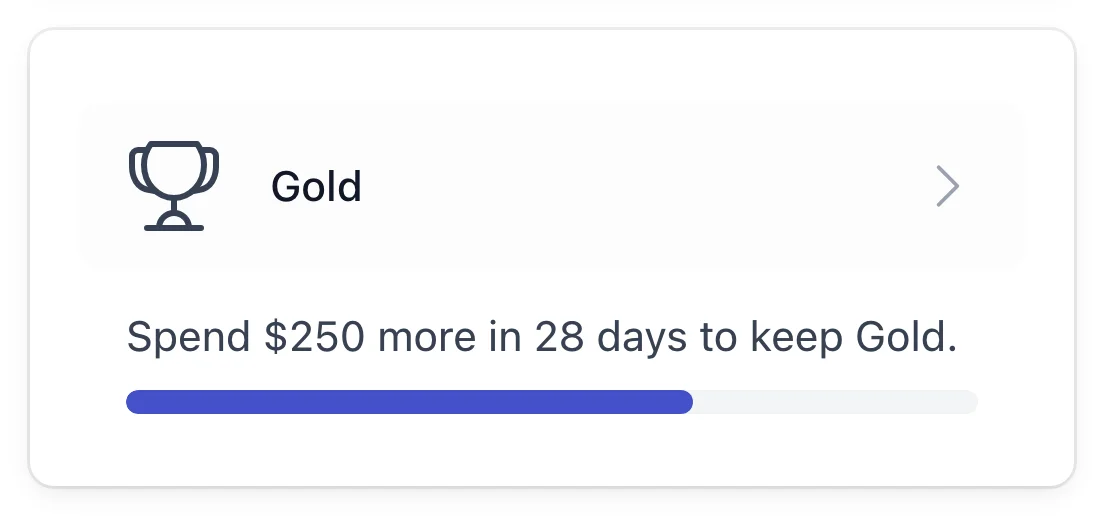
- The Rewards Widget shows the same deadline and target on their VIP Status card.
After that, the grace period ends in one of two ways.
Requalifying During the Grace Period
If the member qualifies for their tier again before the grace period ends, they keep it. The warning clears too. The member’s VIP history on the Members screen records that they kept their tier.
Moving Down When the Grace Period Ends
If the member still doesn’t qualify when the grace period ends, RewardsWP moves them to the highest tier they qualify for, or out of VIP if they don’t qualify for any tier. They receive the Tier Demoted email, which names their new tier and suggests how to climb back.
RewardsWP checks members who hold a tier once a day, as well as every time they earn points, place an order, or receive a refund. So a member moves down shortly after their grace period ends, even if they haven’t visited your store.
See Understanding When VIP Tiers Update.
That’s it! Your VIP tiers now follow members’ activity, with time to recover built in. Next, to see every event that moves a member between tiers, read Understanding When VIP Tiers Update.
FAQ
Below, we’ve answered some of the most common questions about VIP demotion and the grace period.
Can my members move down if they qualify by lifetime points?
Only in two cases. A refund can take back points that counted toward their tier, which moves them down right away. They can also move down if you change your ladder, for example by raising a tier’s threshold or disabling a tier. After you save a change like that, RewardsWP fits every member to the new ladder straight away, with no grace period and no emails.
If my members spend points on a reward, does that put their tier at risk?
No. VIP counts points members earn, not their current balance, so redeeming a reward never lowers their total.
Do my members still earn at their tier’s multiplier during a grace period?
Yes. Members keep every benefit of their tier until they actually move down.
What happens if I change a threshold while members are at risk?
RewardsWP checks every member against the new threshold after you save. Members who now qualify keep their tier and leave the grace period. Members who still don’t qualify stay in their grace period until it ends.
What happens if I change the grace period while members are at risk?
Members already in a grace period follow the new length, counted from the day their grace period started. If you switch to Immediate, anyone who still doesn’t qualify moves down the next time RewardsWP checks them.