Would you like to know whether your VIP tiers are paying off? RewardsWP reports how members in each tier spend and order, shows tier changes as they happen, and adds each member’s tier to your member exports.
In this guide, we’ll walk you through the Tier performance report, VIP activity on the dashboard, and the VIP columns in member exports. All you need is a Pro license level and the VIP Program turned on with at least one tier.
Requirements: The VIP Program requires a Pro license level and an active WooCommerce or Easy Digital Downloads store.
Before you get started, make sure RewardsWP is installed and activated on your WordPress site.
Reading the Tier Performance Report
To get started, we’ll open the Tier performance report, which compares how members in each tier shop.
From your WordPress admin sidebar, go to RewardsWP » Reports.
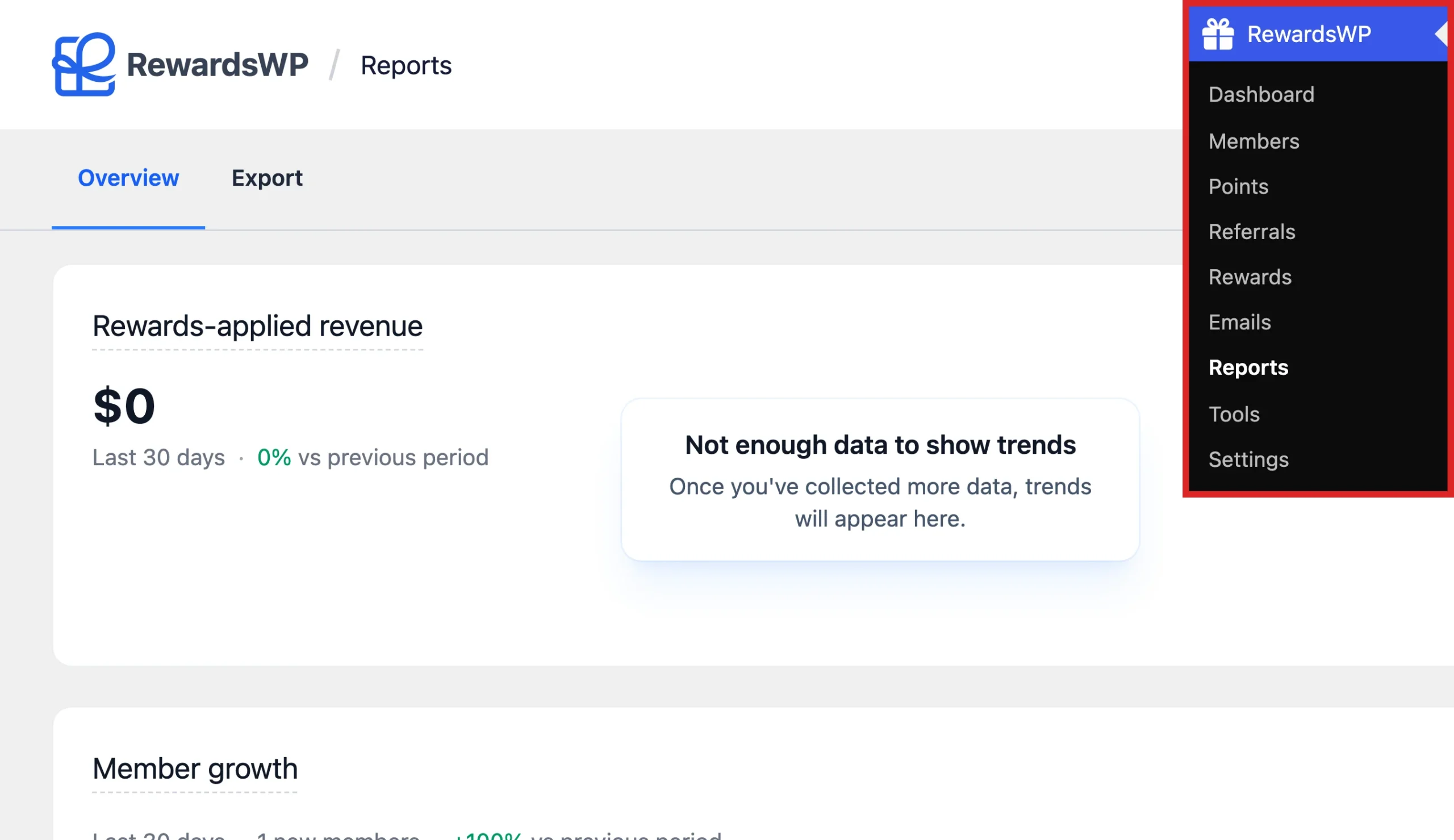
While VIP is active, the Overview tab includes a Tier performance table.
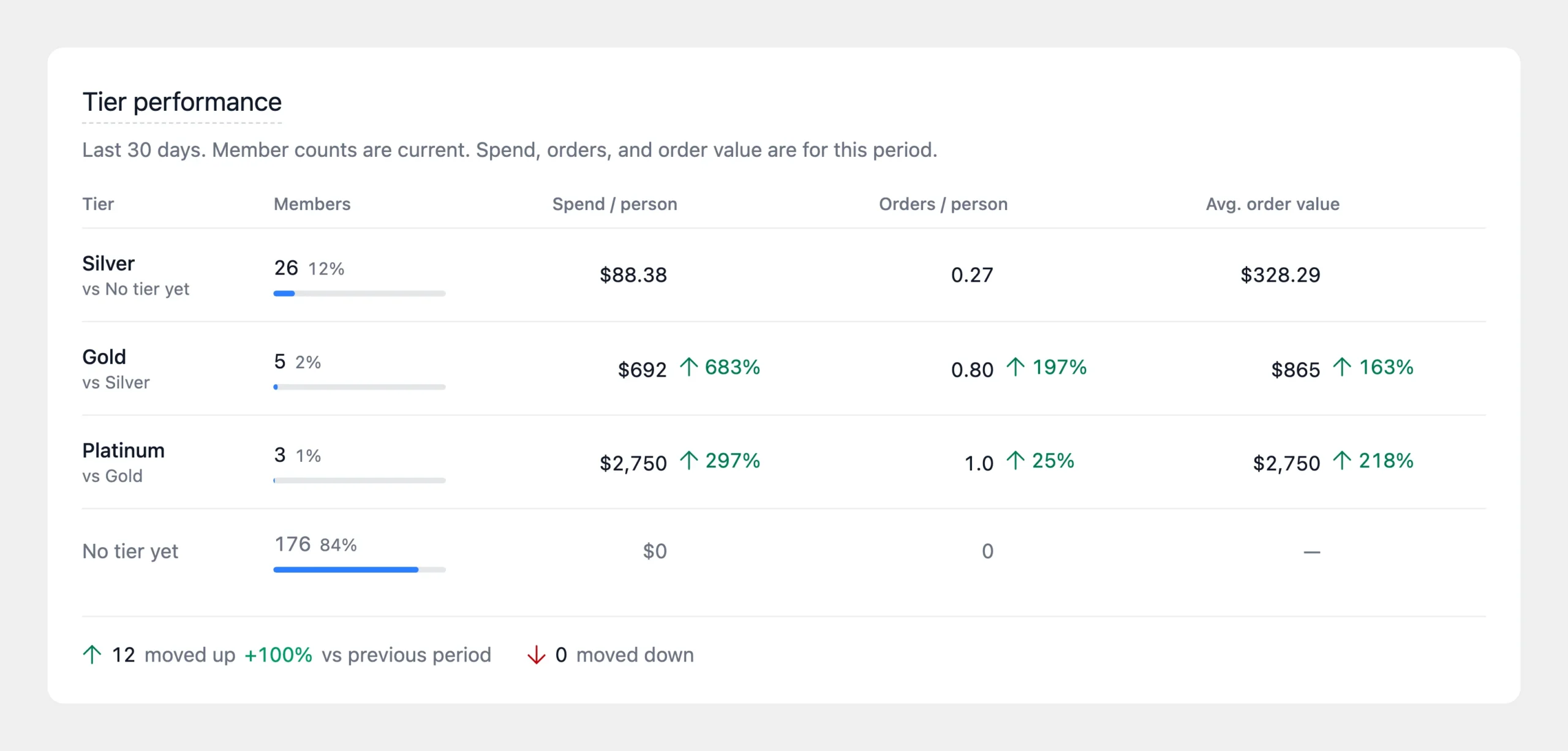
The table has one row per tier, plus a No tier yet row for members who haven’t reached a tier. For each row, it shows:
- Members: how many members hold the tier.
- Spend / person: the average amount each member in the tier spends.
- Orders / person: the average number of orders each member places.
- Avg. order value: the average value of those orders.
Member counts are current. Spend, orders, and order value cover the date range selected on the report.
The percentage beside a figure compares that tier with the next tier down that has members. The lowest tier is compared with members who have no tier yet. No percentage appears when the figure it compares against is zero.
Below the table, you’ll see how many members moved up a tier and how many moved down during the period. The moved up count also shows its change from the previous period.
Comparing rows tells you whether your tiers are doing their job. When members in higher tiers spend more per person and order more often, your ladder rewards the customers who matter most. If many members are moving down, consider a longer grace period or a lower threshold.
See Managing VIP Tier Demotion and the Grace Period.
Following VIP Activity on the Dashboard
The dashboard shows tier changes as they happen, so you can follow VIP activity without opening a report.
From your WordPress admin sidebar, go to RewardsWP » Dashboard.
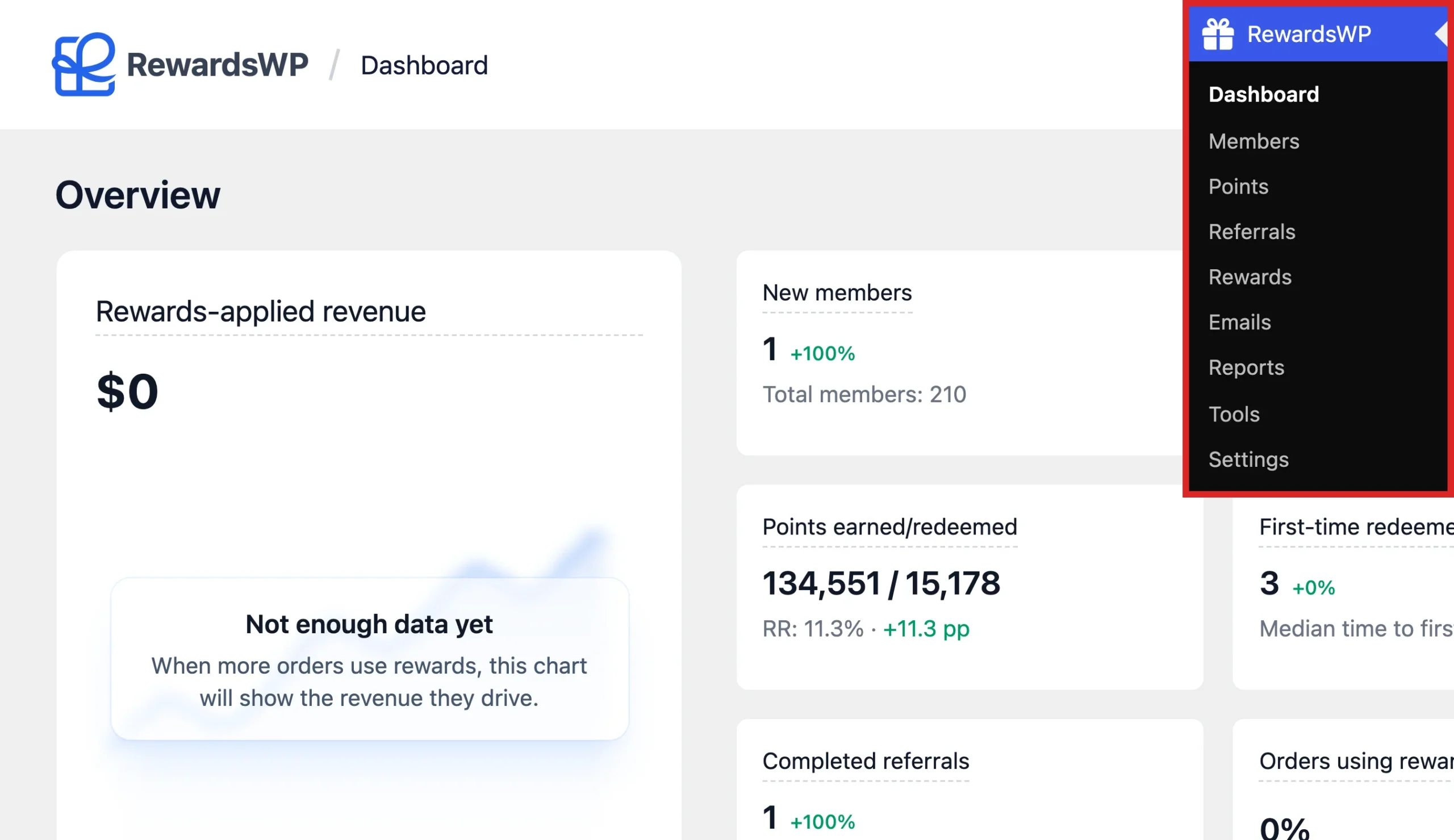
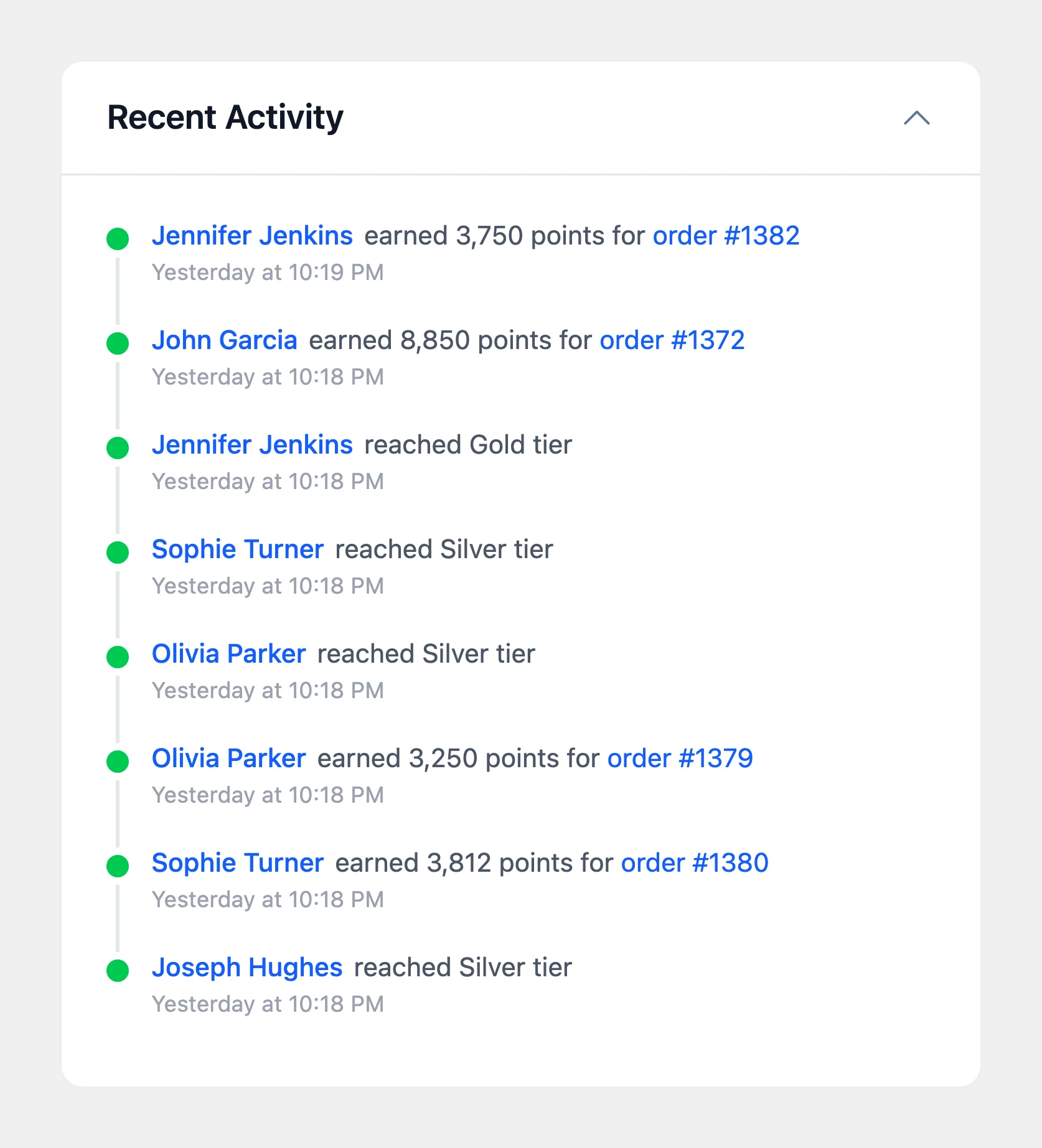
The Recent Activity feed includes VIP events. These cover a member reaching a tier, moving to a lower tier, leaving VIP, and receiving points as a tier bonus.
When a change to your VIP settings moves many members at once, the feed groups them into a single entry instead of listing each member. The member count in that entry links to the Members screen, filtered to just the members who moved.
For a single member’s full tier history, see Viewing Members by VIP Tier.
Exporting Members With Their VIP Tier
Member exports include each member’s tier, so you can use your VIP data in other tools.
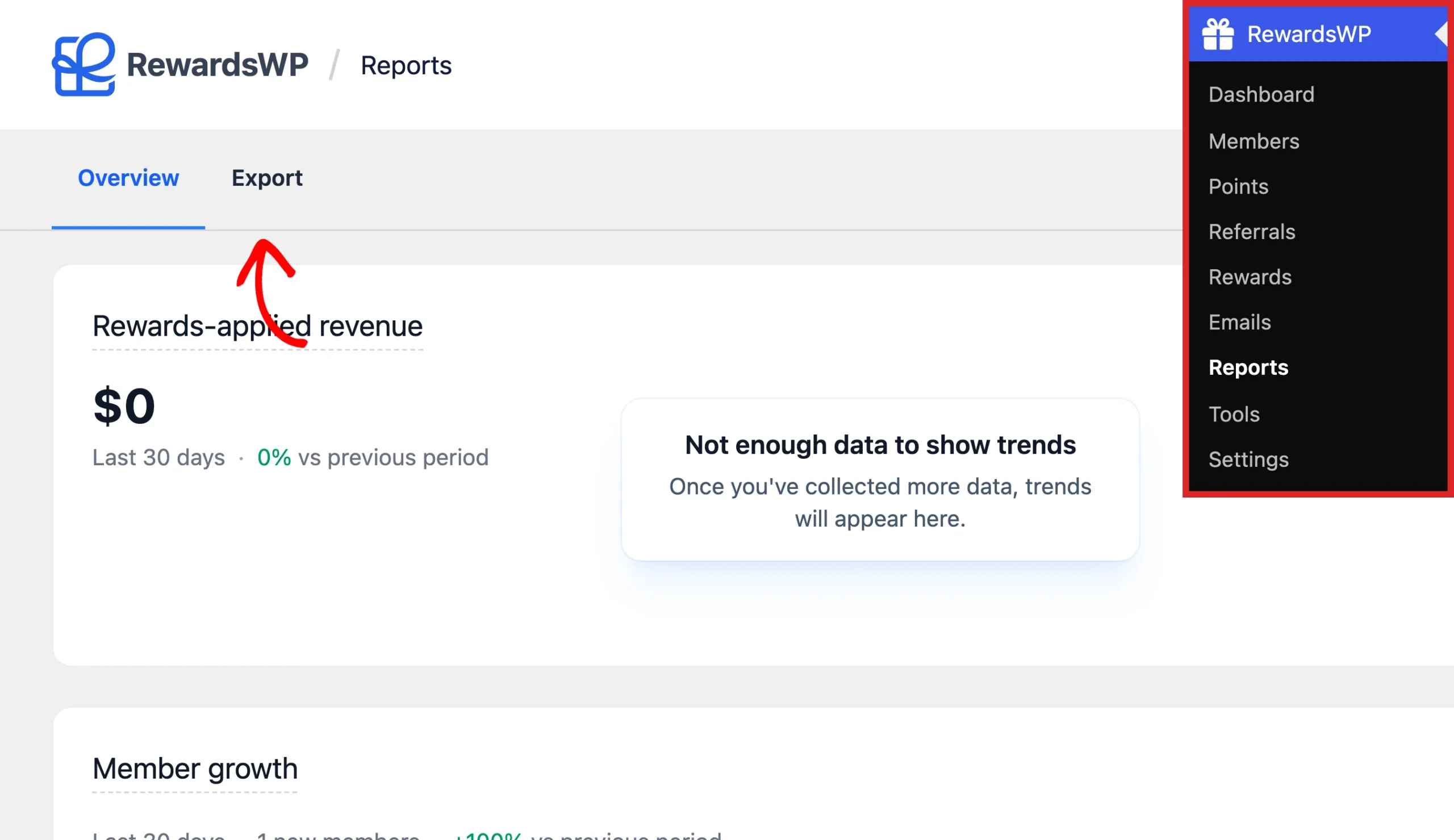
From your WordPress admin sidebar, go to RewardsWP » Reports. Then click the Export tab.
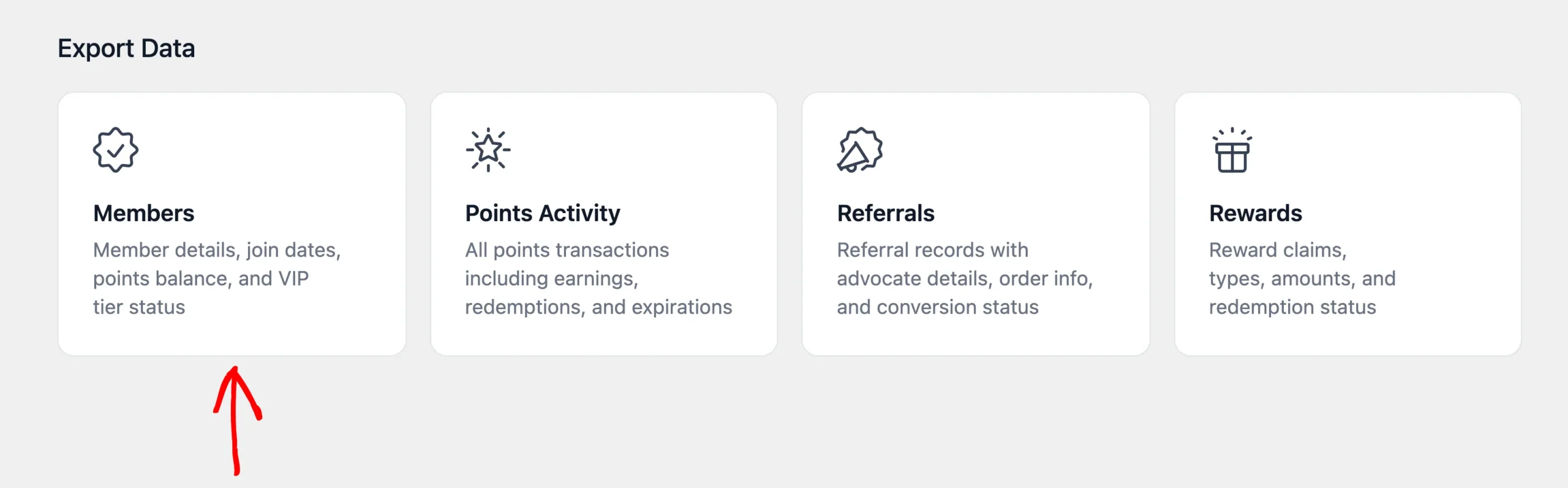
Under Export Data, click the Members card to open its export options.
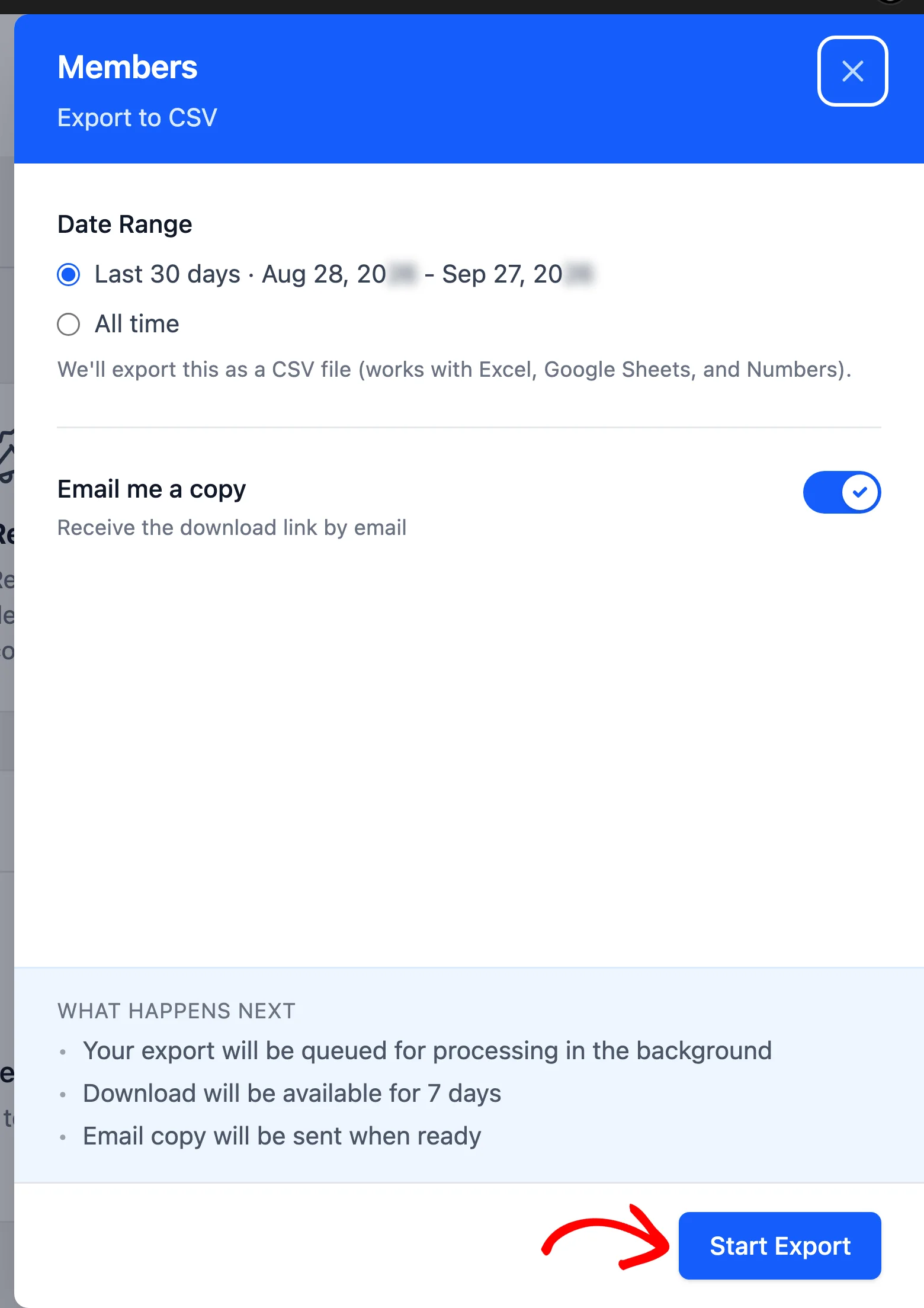
In the drawer that opens, choose a date range. Then click Start Export.
Once the export finishes, it appears under Export History on the same tab, where you can download it as a CSV file.
While VIP is active, the members file includes three VIP columns:
- VIP Tier: the member’s current tier.
- VIP Tier Achieved: the date they reached that tier.
- VIP At Risk: whether they’re in a grace period and could move down.
For example, import the file into your email marketing tool to send a campaign to your top tier. You can also reach members who are at risk of moving down.
For the full export steps, see Exporting Data.
That’s it! You can now measure how your VIP tiers perform and take tier data wherever you need it. To review how the whole program fits together, read Understanding the VIP Program.
FAQ
Below, we’ve answered some of the most common questions about VIP reports and exports.
Why don’t I see the Tier performance table?
The table only appears while VIP is active, which means the program is on and has at least one tier. See Enabling or Disabling the VIP Program.