Would you like to decide what earns a member their VIP status? The Qualify by setting picks the one measure your whole tier ladder uses. That can be how much members spend, how many points they earn, or how many friends they refer.
In this guide, we’ll walk you through each qualification option, how the points window works, and what happens when you change your choice. All you need is a Pro license level and the VIP Program turned on.
Requirements: The VIP Program requires a Pro license level and an active WooCommerce or Easy Digital Downloads store.
Before you get started, make sure RewardsWP is installed and activated on your WordPress site.
Choosing a Qualify By Option
To get started, we’ll pick the measure your tiers use.
From your WordPress admin sidebar, go to RewardsWP » Settings and click the VIP tab.
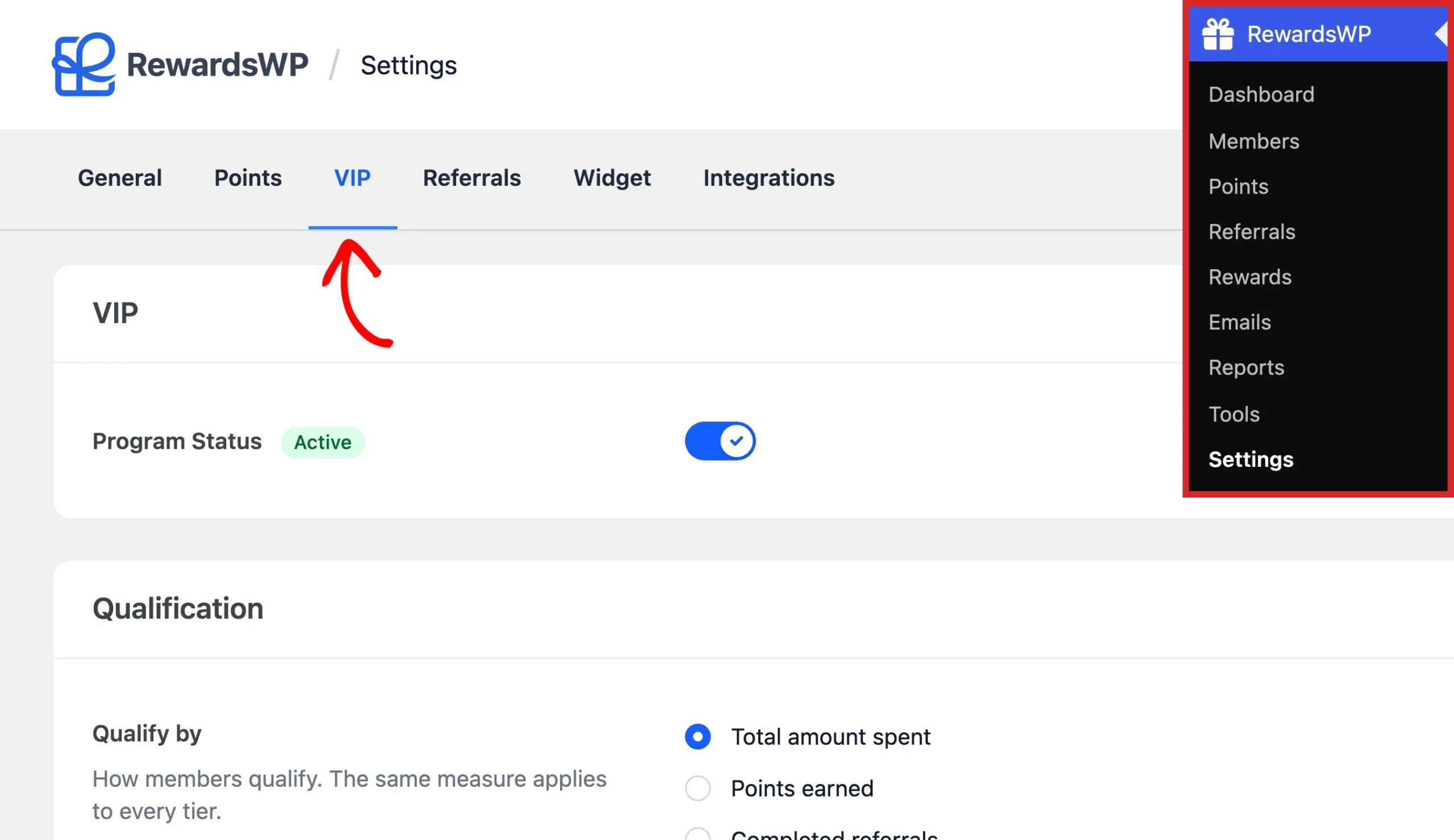
Further down the tab, you’ll find the Qualification section.
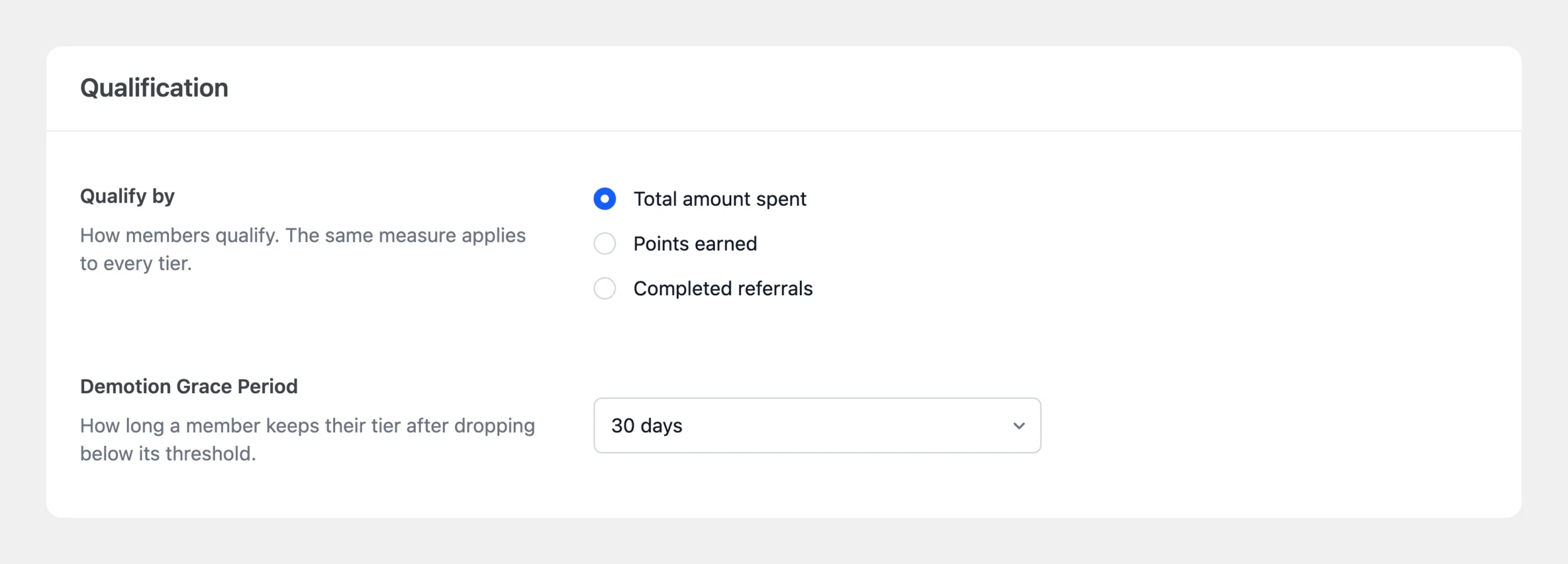
Under Qualify by, choose one option. The same measure applies to every tier, so pick the one that best matches the behavior you want to reward.
- Total amount spent: rewards your highest-value customers. Choose this when revenue per customer matters most to you. It needs an active store and works without the Points Program.
- Points earned: rewards engagement of every kind, since members earn points for purchases, signups, reviews, and more. It needs the Points Program to be on.
- Completed referrals: rewards your best advocates. Choose this when word of mouth drives your growth. It needs the Referral Program to be on.
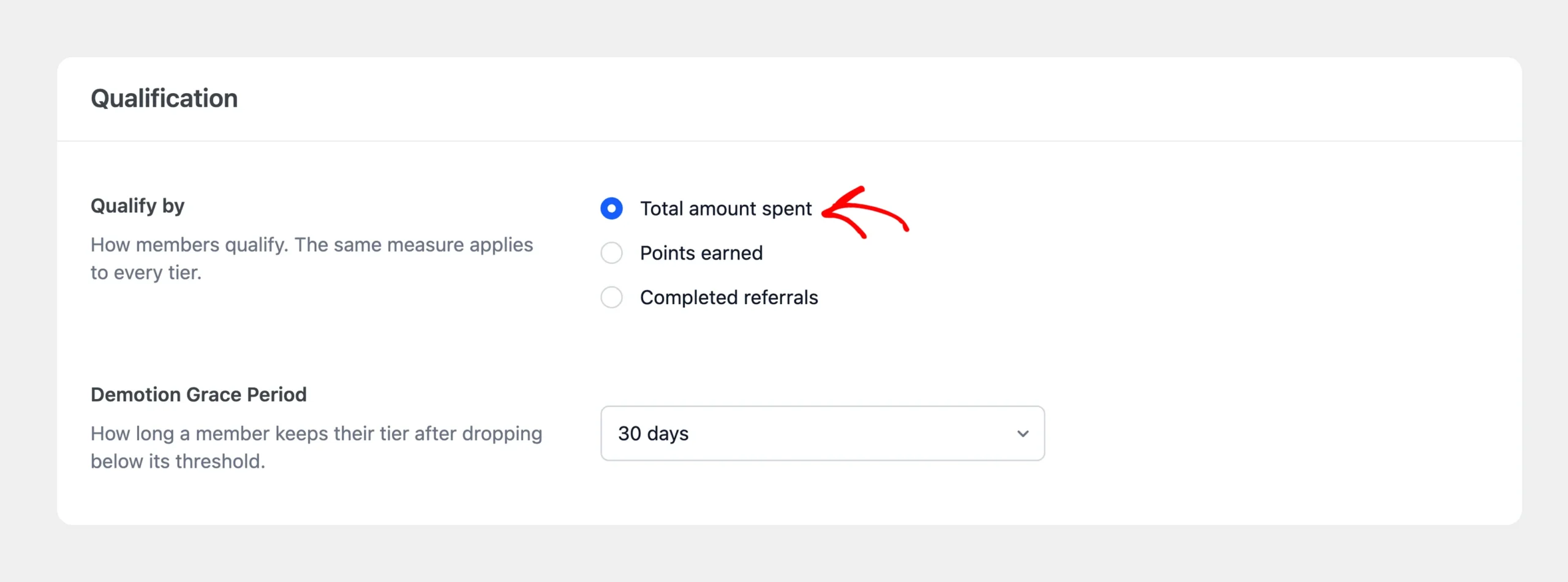
Total amount spent is selected by default, since it works on any store without turning on another program.
If an option’s program is off, that option is disabled and shows a link to turn the program on.
When you’re done, click Save Changes in the bar with the settings tabs.

If you chose Points earned, one more setting decides which of those points count.
Counting Points Over a Window
When you choose Points earned, a Counted over dropdown appears beneath it. It sets which points count toward a tier:
- Lifetime (the default): every point a member has ever earned counts. Members don’t move down as time passes, because old points never leave the total. A refund can still move a member down, since the points from a refunded purchase stop counting.
- Last 30 days, Last 90 days, Last 180 days, or Last 365 days: only points earned inside that window count. As older points leave the window, a member who stops earning can move down a tier.
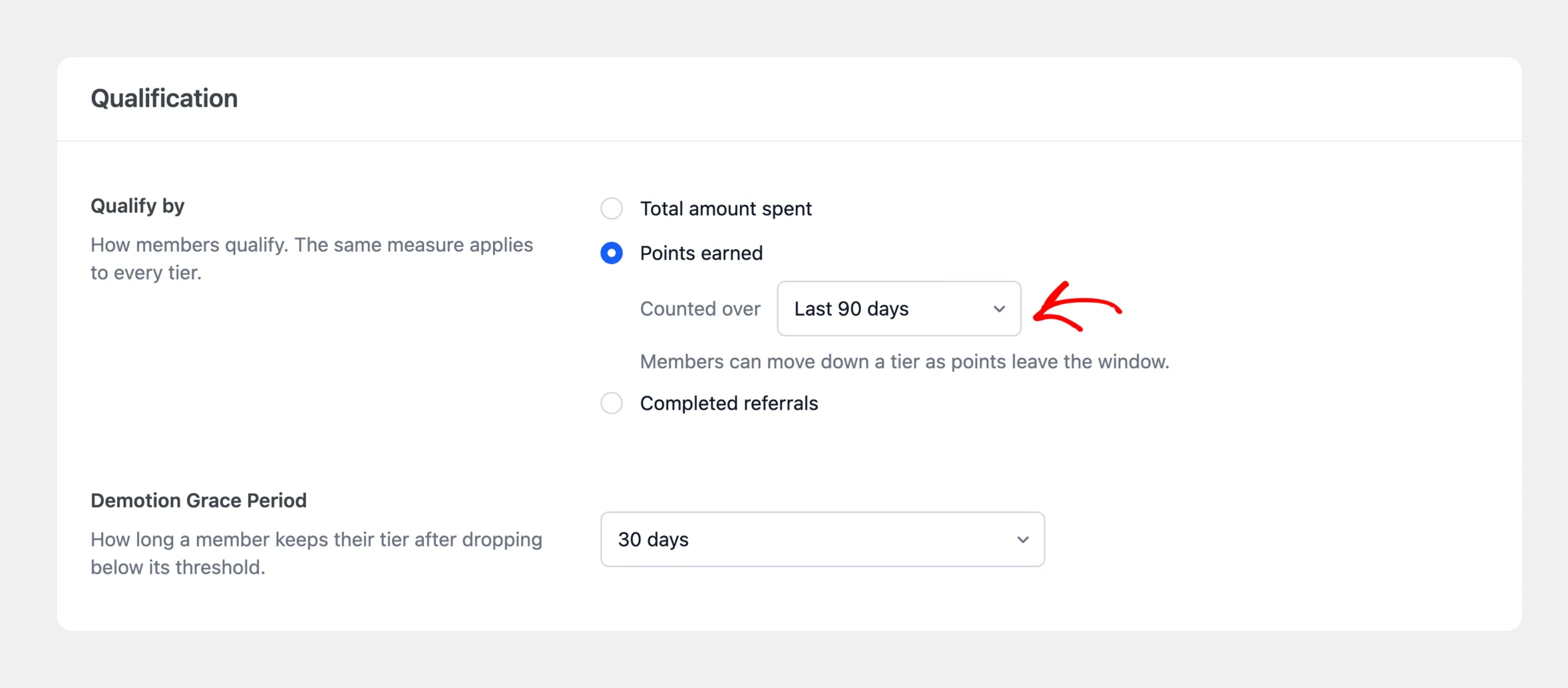
Lifetime suits a program where status is a permanent thank-you. A window suits a program where status reflects how active a member is right now. It also gives members a reason to keep earning to hold their tier.
Choosing a window also shows the Demotion Grace Period setting, which controls how long a member keeps their tier after dropping below it. The same setting appears when members qualify by spend or by referrals, since those totals can also go down.
See Managing VIP Tier Demotion and the Grace Period.
How Is Each Option Counted?
Total Amount Spent
RewardsWP reads each member’s total spend from your store. Where that total comes from depends on your store:
- WooCommerce: RewardsWP uses the total spent that WooCommerce records for the customer’s account. An order counts in full until it’s fully refunded, so a partial refund doesn’t lower a member’s spend.
- Easy Digital Downloads: RewardsWP uses the customer’s lifetime value, which already subtracts full and partial refunds.
RewardsWP checks a member’s tier again right away when they place an order or receive a refund.
When a refund lowers a member’s spend below their tier, they can move down, and the Demotion Grace Period applies.
Points Earned
Only approved points that a member earned count. Points a member spends on rewards don’t lower their total, so redeeming a reward never costs a member their tier. Pending points count once they’re approved.
If a purchase is refunded, the points it earned stop counting, and the member can move down a tier.
Completed Referrals
Each referral counts once it’s completed, and RewardsWP checks the member’s tier as soon as that happens. If the referred friend’s order is fully refunded, that referral stops counting toward the tier. To learn when a referral completes, read Understanding Referral Statuses.
Changing How Members Qualify
You can change the Qualify by option at any time. Your tiers keep the threshold numbers you entered, but those numbers now mean something different. For example, a Gold threshold of 500 becomes $500 spent instead of 500 points earned.
As soon as you pick a new option, a notice in the Tiers section reminds you to review each tier.
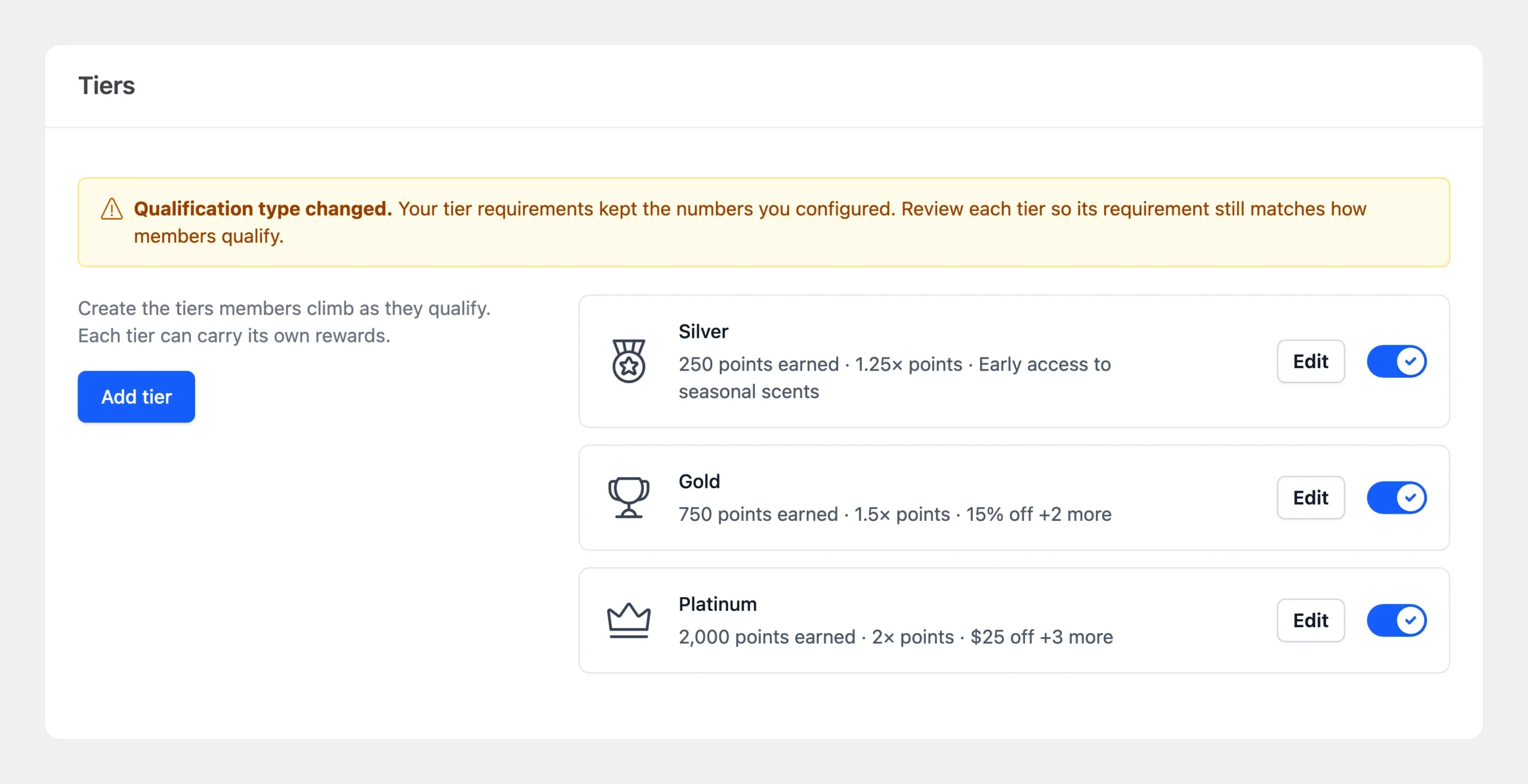
After you save, RewardsWP checks every member against the new measure in the background and places them in the tier they now qualify for. This check is silent. It sends no tier emails and issues no entry rewards.
That’s it! You’ve chosen how members qualify for your VIP tiers. Next, create your tiers and set each one’s threshold.
FAQ
Below, we’ve answered some of the most common questions about how members qualify for VIP tiers.
Can I use a different measure for each tier?
No. One measure applies to the whole ladder, so members always climb toward the next tier in the same unit.
Do my manual points adjustments count toward a tier?
Yes, when members qualify by points earned. Points you add to a member from the Members screen count as earned points, and RewardsWP checks their tier right away. Points you deduct don’t lower the member’s earned total.
What happens if I turn off the program my members qualify through?
Qualification pauses. Members keep the tier they have and its benefits, but nobody moves up or down, and the Rewards Widget stops showing progress. The Program Status badge changes to Needs attention until you turn the program back on or choose a different option.