Would you like members to see everything a VIP tier offers them? Tier perks let you list what comes with each tier. That includes things you deliver outside RewardsWP, such as early access to sales or a free gift with every order.
In this guide, we’ll walk you through adding perks to a tier and where members see them. All you need is a Pro license level and a VIP tier.
Requirements: The VIP Program requires a Pro license level and an active WooCommerce or Easy Digital Downloads store.
Before you get started, make sure RewardsWP is installed and activated on your WordPress site, and that you’ve created a VIP tier.
In This Article
Adding Perks to a Tier
To get started, we’ll open the tier you want to add perks to.
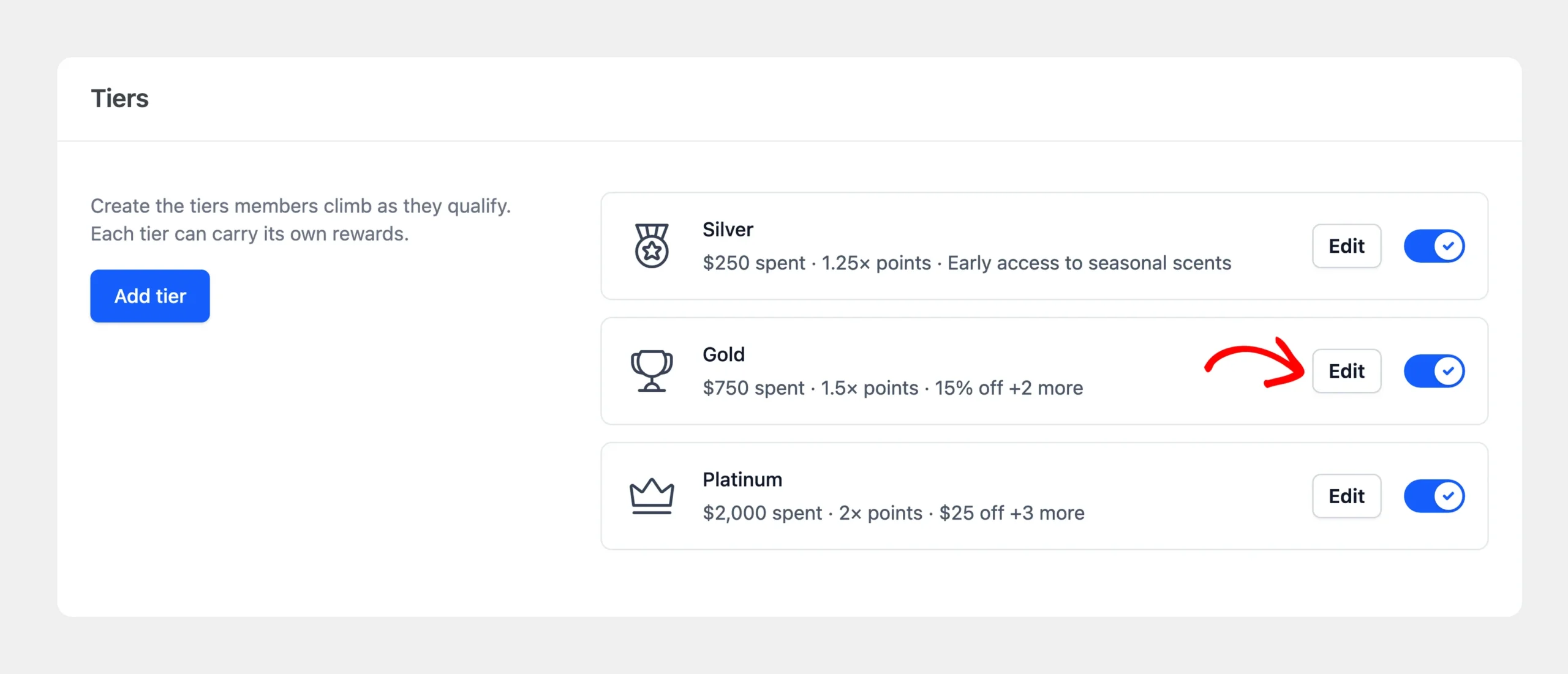
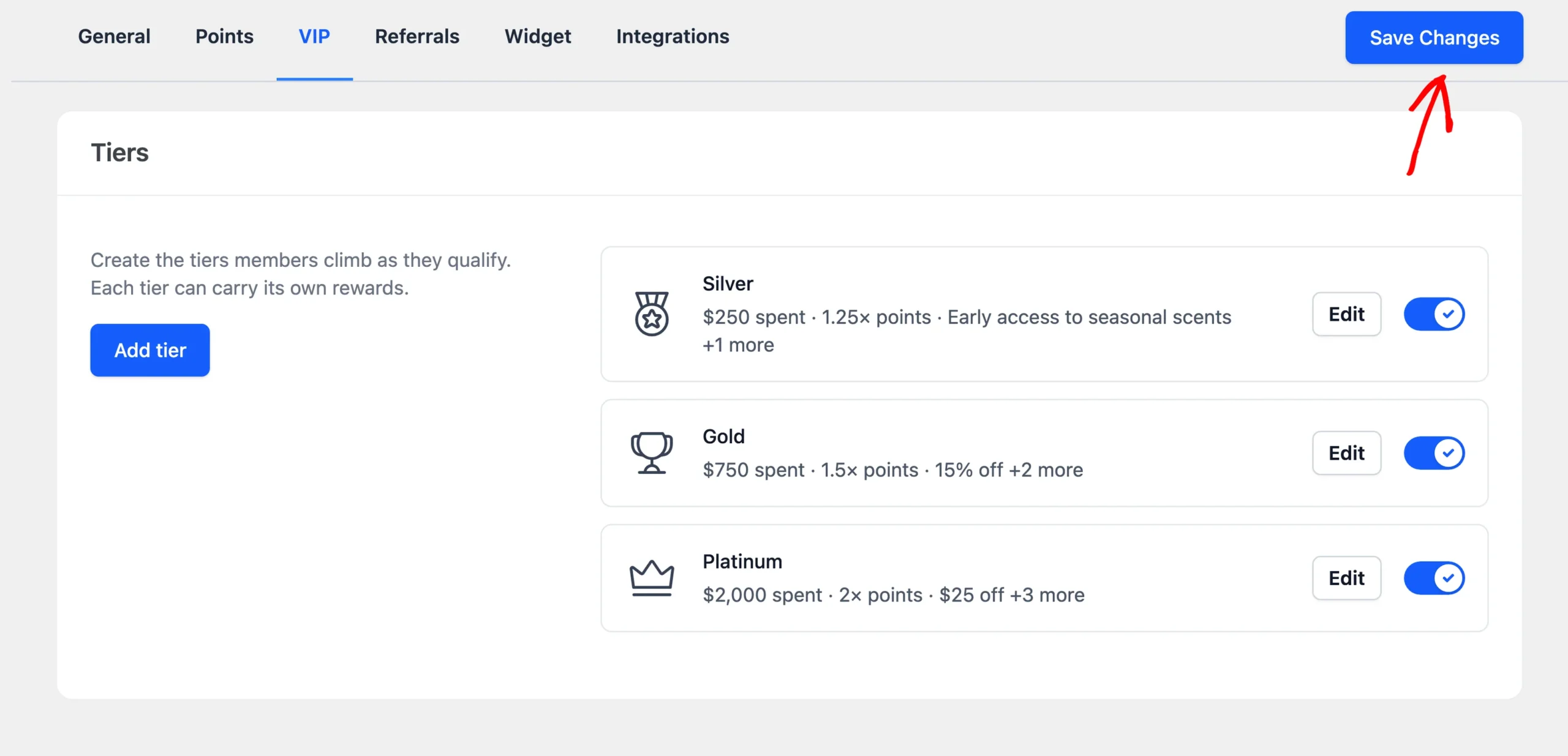
From your WordPress admin sidebar, go to RewardsWP » Settings. Next, click the VIP tab. Then click Edit on the tier.
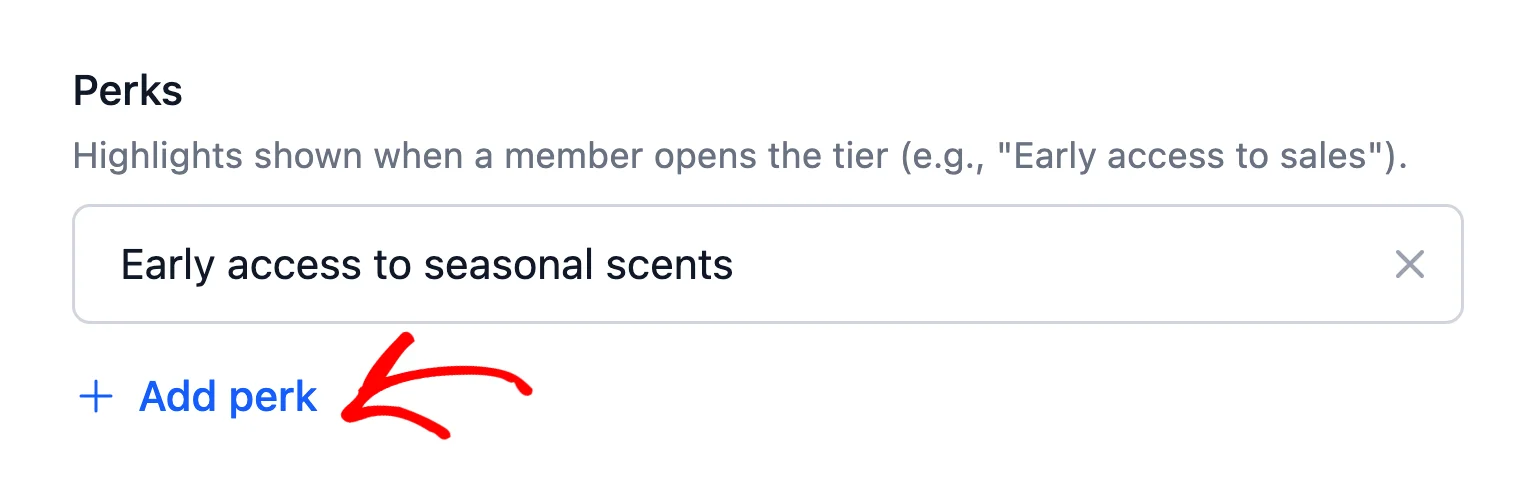
At the end of the drawer’s Benefits section, find Perks. Below it, click Add perk.
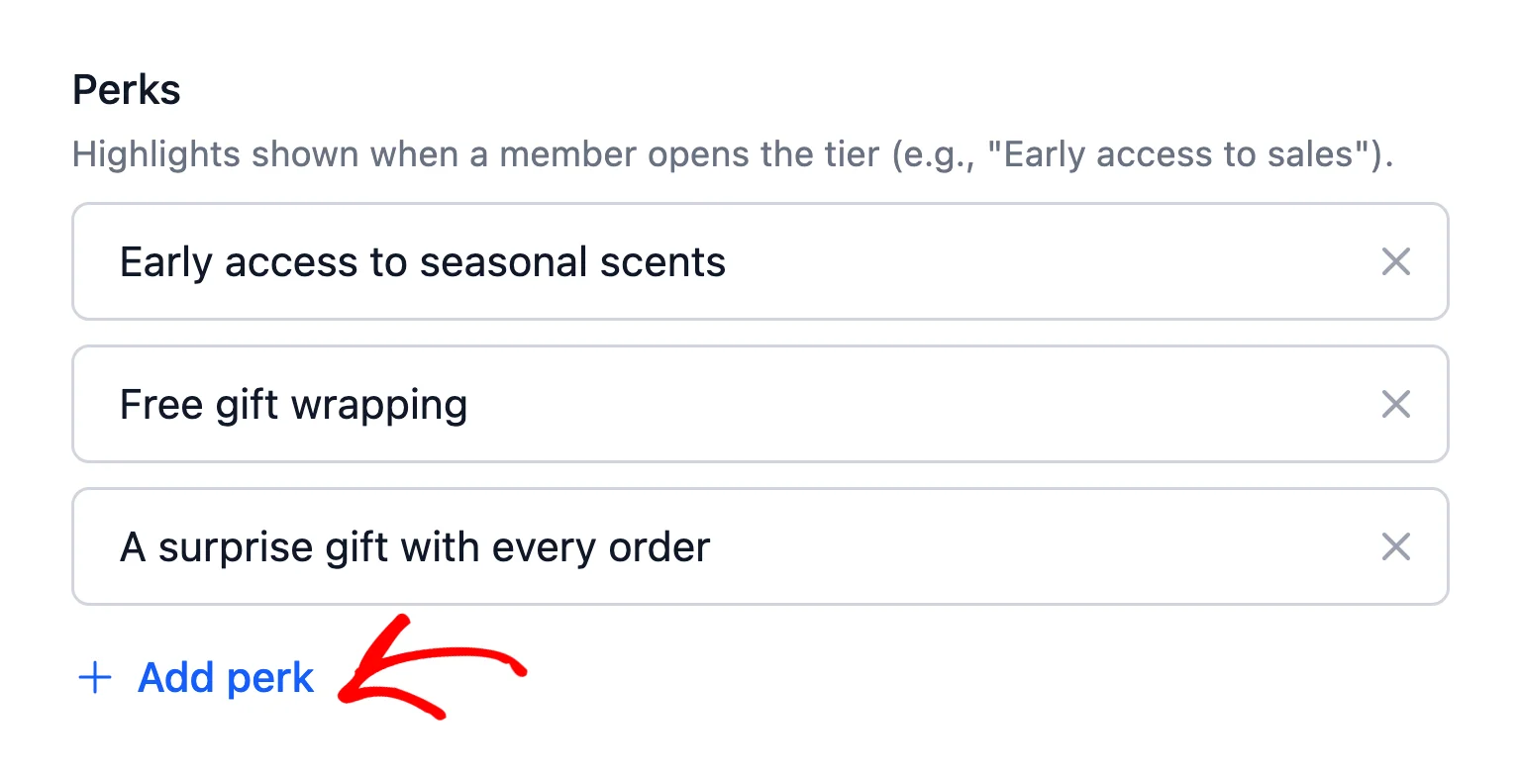
In the new line, type the perk, such as “Early access to sales” or “Free gift wrapping”. Keep each line short, since members read them as a quick list.
For each extra perk, click Add perk again. A tier can list up to 20 perks. RewardsWP drops any line you leave empty when you save.
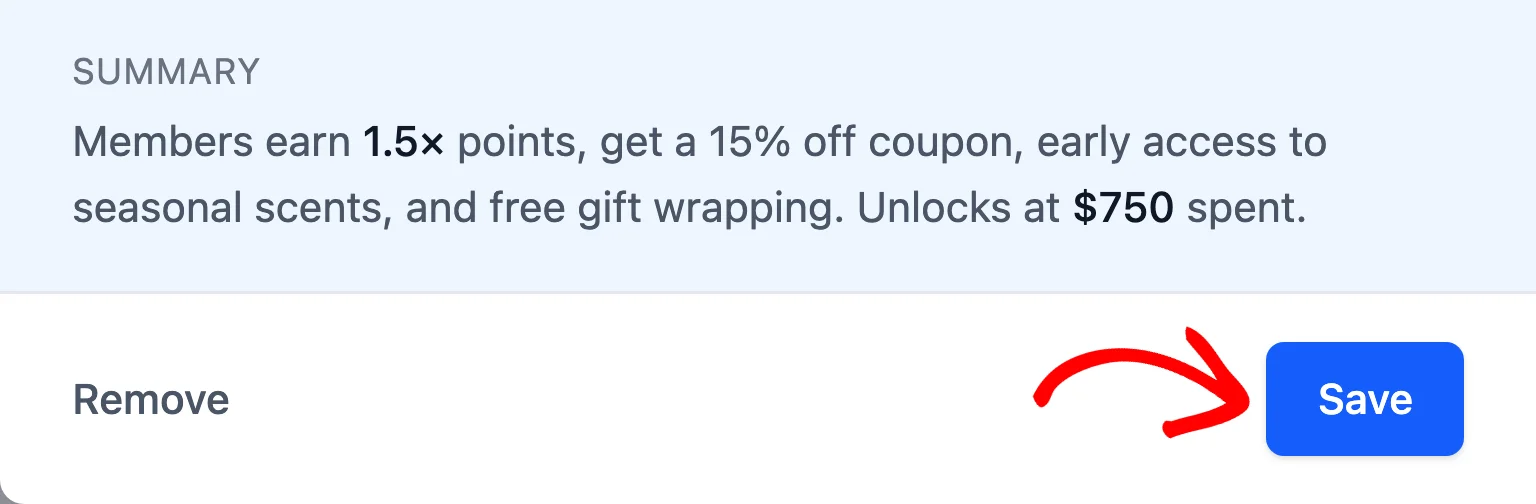
Above the drawer’s buttons, the summary sums up what members get at this tier, including your perks. It names up to two perks, or gives a count when there are more.
When you’re done, click Save at the bottom of the drawer.
Next, click Save Changes in the bar with the settings tabs.
Note: Perks are a list for members to read. RewardsWP doesn’t apply them automatically. Before you list a perk, plan how your store will deliver it.
With your perks saved, the next step is to check how they look to your members.
Seeing Where Perks Appear
In the Rewards Widget, a member’s VIP Status panel shows a Benefits section for their current tier. The list starts with the tier’s points multiplier, if the Points Program is on and the multiplier is above 1. The perks you added follow it.
The tier’s entry rewards appear in their own welcome gift section below.
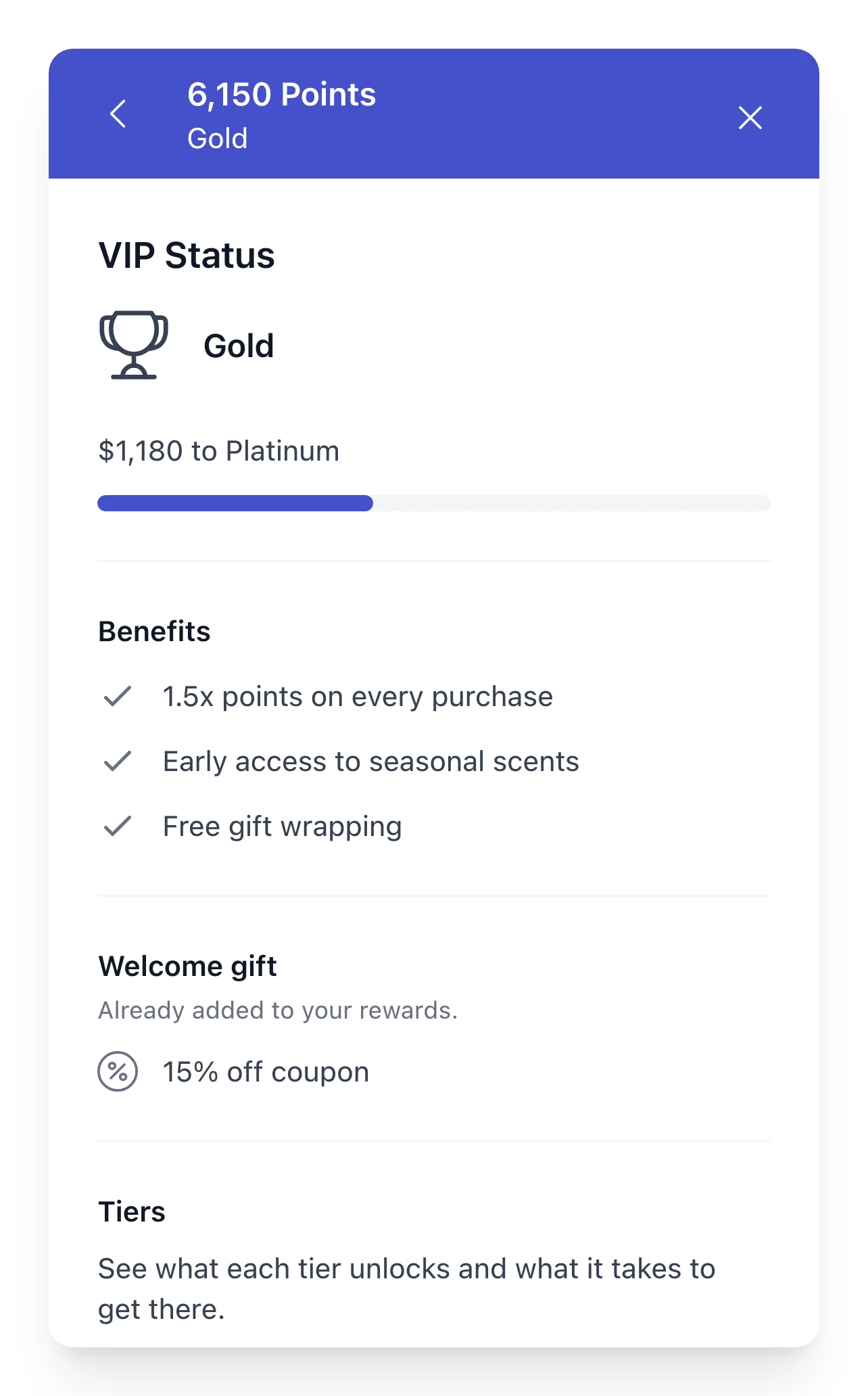
Members can also open any tier on your ladder, not only their own. Each tier shows its own Benefits section, so perks also show what’s waiting at the next tier up.
The Tier Reached email lists them too, in the benefits section of its default message. If you write your own message, the {tier_benefits} merge tag adds the tier’s perks as a list separated by commas.
See Customizing VIP Tier Emails.
That’s it! Members can now see everything each tier offers. Next, to decide what happens when members stop qualifying, read Managing VIP Tier Demotion and the Grace Period.
FAQ
Below, we’ve answered some of the most common questions about VIP tier perks.
What happens if I don’t add any perks to a tier?
If a tier has no perks, and no multiplier above 1 with the Points Program on, the Benefits section doesn’t appear for that tier. When the tier also has no entry rewards, its card on the VIP tab says it has no benefits yet. That makes it easy to spot tiers that still need some.
How do I remove a perk?
On the VIP tab, click Edit on the tier. Then click the X next to the perk you want to remove. After you save the tier, click Save Changes.