The Free Product reward type in RewardsWP allows you to offer a specific product from your store as incentives in your Refer-a-Friend program. You can reward both the Advocate (the customer who refers) and the Friend (the new customer being referred) with a free product, creating a compelling reason for customers to share your brand with others.
Understanding Advocates and Friends
Before configuring the free product reward, it’s important to understand the two parties in a referral:
- Advocates are your existing customers who share their referral link to bring new customers to your store. They earn rewards when their referred Friends complete a qualifying action (typically a purchase).
- Friends are new customers who arrive at your store through an Advocate’s referral link. They can receive a reward as an incentive to make their first purchase.
You can configure different Free Product reward for each party, allowing you to tailor incentives appropriately.
Setting Up free product for Advocates
To configure a free product reward for Advocates, go to RewardsWP » Settings » Referrals, and scroll to the Referral Rewards section.
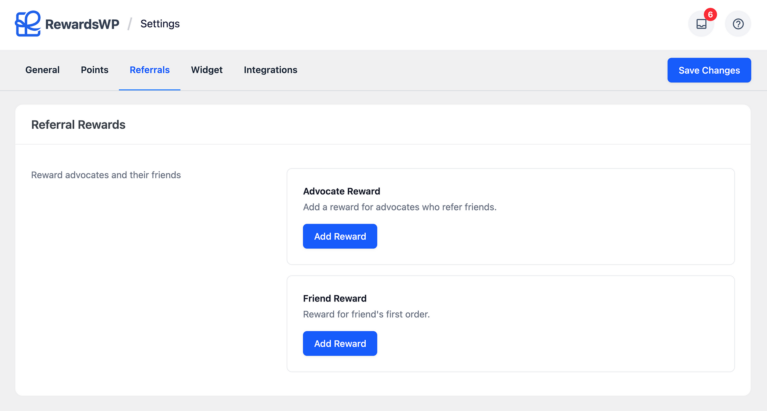
Under Advocate Reward, click the Add Reward button and select Free product from the slide-in panel.
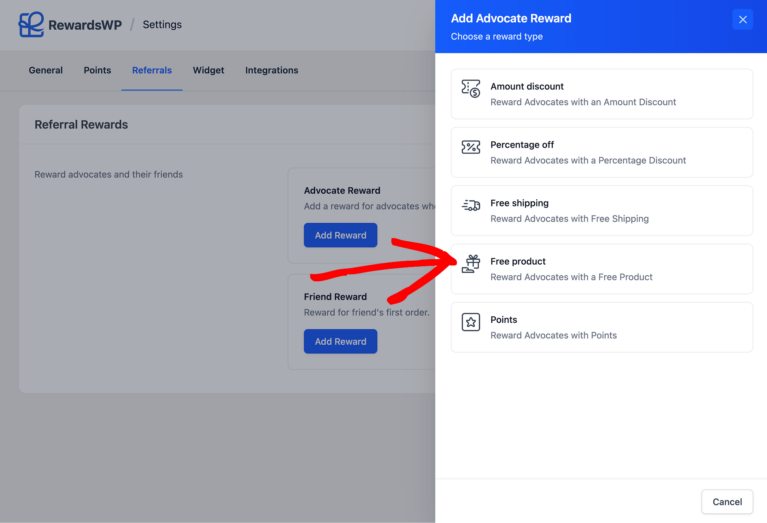
Here you can configure:
- Free product selection: Select the product that will be given for free with this reward. The search shows in-stock products from your WooCommerce or Easy Digital Downloads store, including product variations if you have variable products.
- Custom product name (optional): Show a different name to customers.
- Minimum Spend: Set a minimum cart subtotal required before the Advocate can apply their reward. This is calculated from the cart subtotal excluding the free product itself.
- Reward expiry: Determines how long the reward remains available after it’s earned. The default is 3 months, with options for 30 days, 3 months, 6 months, 1 year, or 2 years.
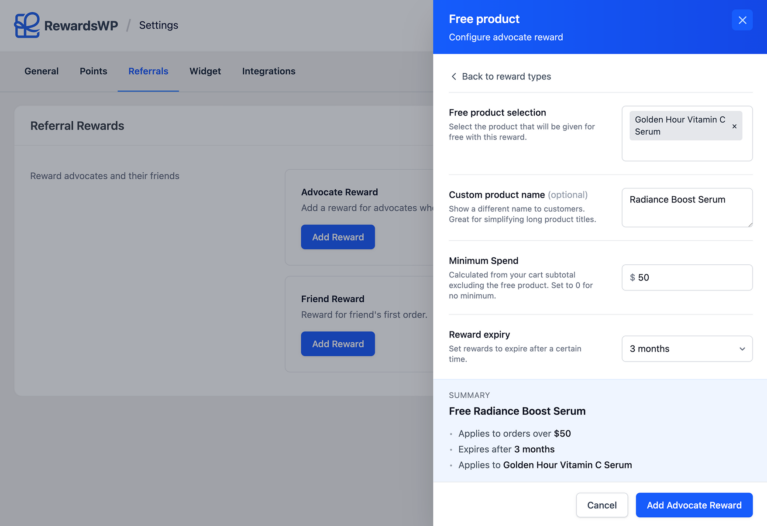
After configuring the options, click Add Advocate Reward to add the Free Product reward and then click Save Changes.
Setting Up free product for Friends
To configure a free product reward for new customers who arrive via referral, in the same Referral Rewards section, under Friend Reward, select Free product.
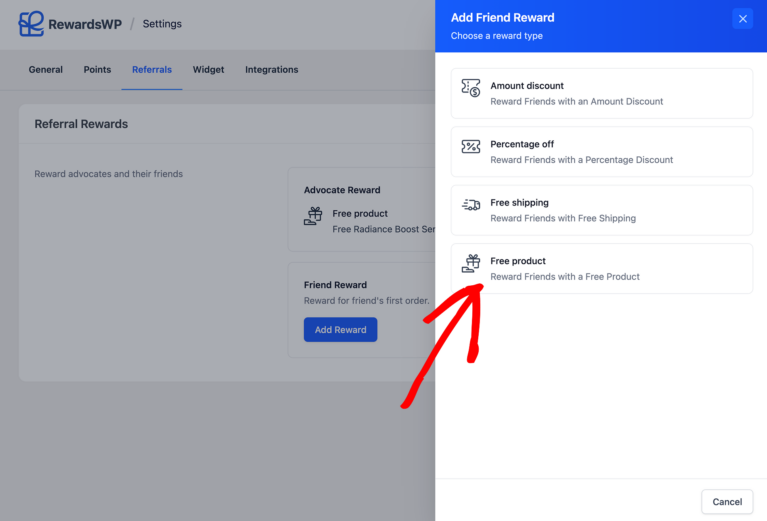
The configuration options are the same as the Advocate reward. For Friends, consider selecting a sample-sized product or welcome gift that encourages the first purchase. Custom names like “Welcome Gift” or “First-Timer Special” work well for Friend reward.
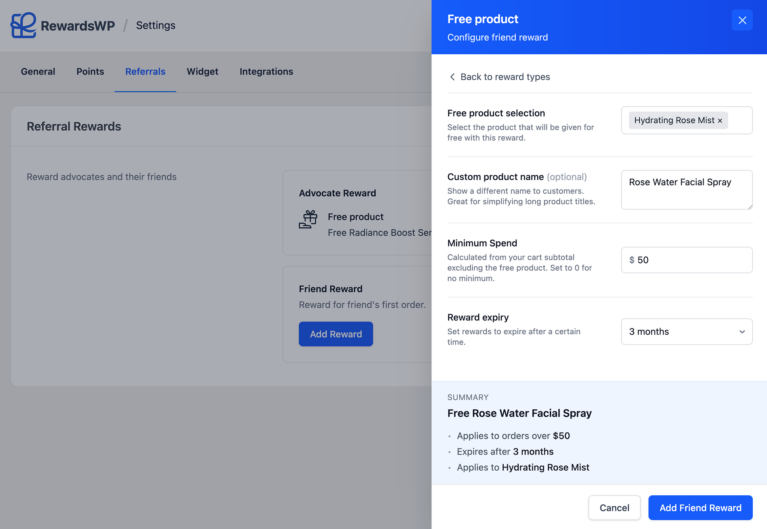
Once you have configured it, click Add Friend Reward to save the reward configuration, and then click Save Changes to apply your settings.
How the Widget Appears to Advocates
Once you’ve configured the Free Product reward, customers will see the referral incentives in the Rewards Widget on your site. The “Refer your friends” section displays both rewards clearly. Under “You get,” customers see their Advocate reward (e.g., “Free Radiance Boost Serum”). Under “They get,” they see what their Friends will receive (e.g., “Free Rose Water Facial Spray”). Below the rewards, customers can view their unique referral link and share it via Email, X, or Facebook.

How Advocates Redeem Their Reward
Advocates earn their free Product reward after a Friend completes a qualifying purchase through their referral link. When a Friend makes a purchase, the Advocate’s reward becomes available immediately.
The Advocate can open the Rewards Widget on your site and navigate to the “Your Rewards” section. Here, they will see their earned free product reward displayed with the product name.
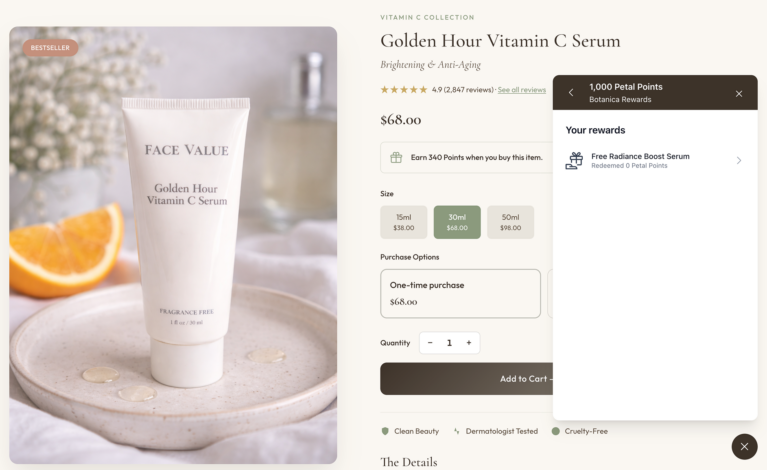
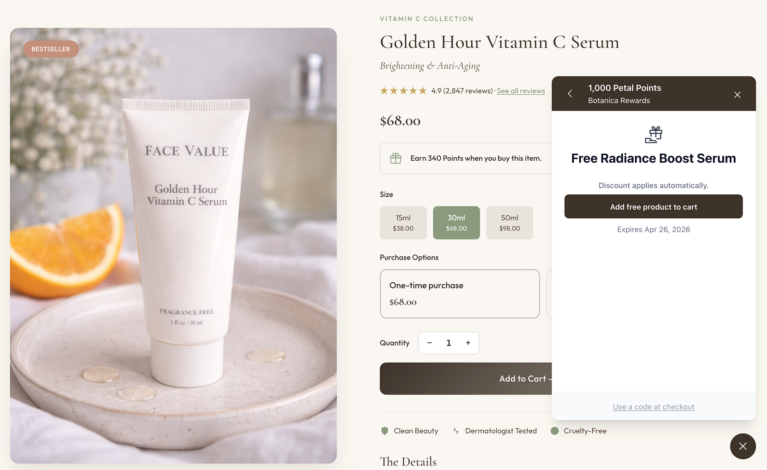
When the Advocate is ready to shop, they can click on the reward and then click the Add Free Product to cart button. The free product will be automatically added to their cart, and the coupon code will be applied instantly.
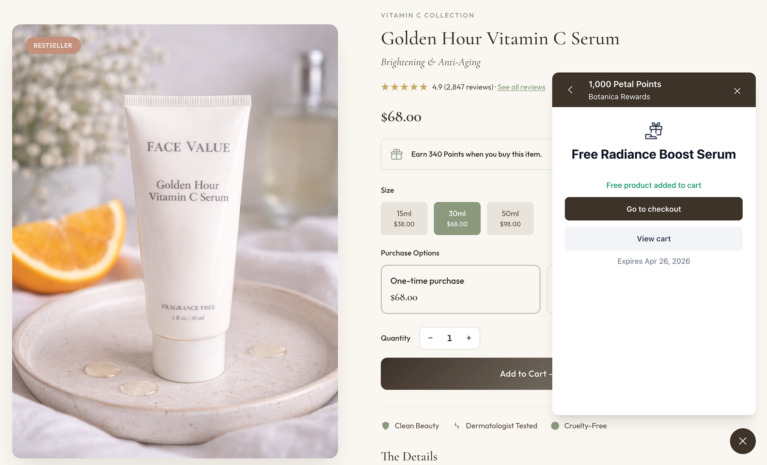
After applying the reward, a success message confirms that the product has been added to their cart. The Advocate can then proceed to checkout with the free product included.
If you’ve configured a Minimum Spend requirement, the Advocate will see a message indicating how much more they need to add to their cart, such as “Add $50 more to unlock.”
How Friends Claim and Redeem Their Reward
Friends receive their free product reward when they arrive at your store through a referral link. When a Friend clicks on an Advocate’s referral link, they land on your store, and the Rewards Widget automatically displays their gift. The widget shows a personalized message indicating who sent the referral, along with the free product reward they can claim.
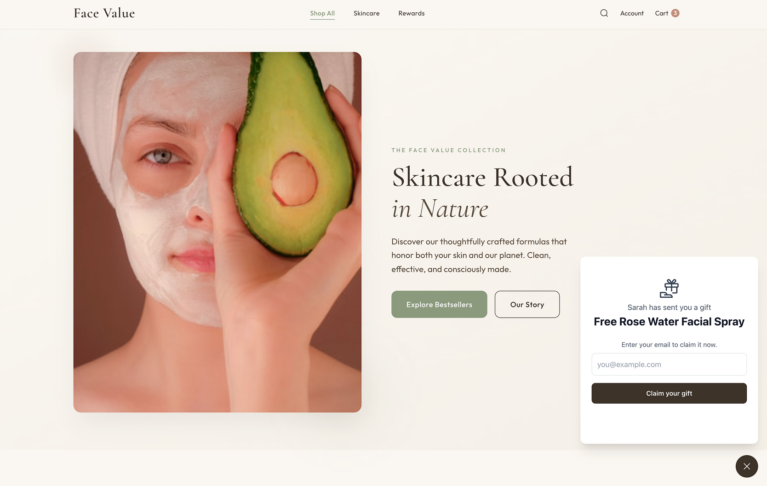
To claim their free product reward, the Friend enters their email address in the provided field and clicks “Claim your gift”. This registers them for the referral program and generates their unique coupon code.
After claiming, the widget displays a confirmation showing “You have received” along with the product name. The Friend sees their coupon code and a message indicating they can use it at checkout on their first order.
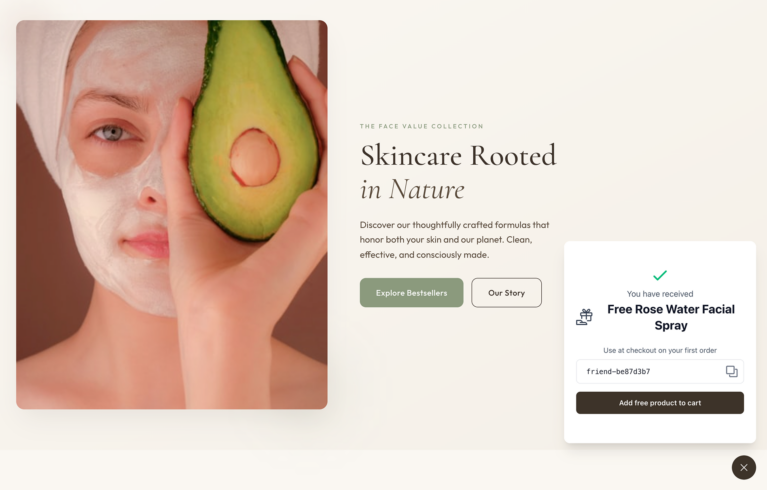
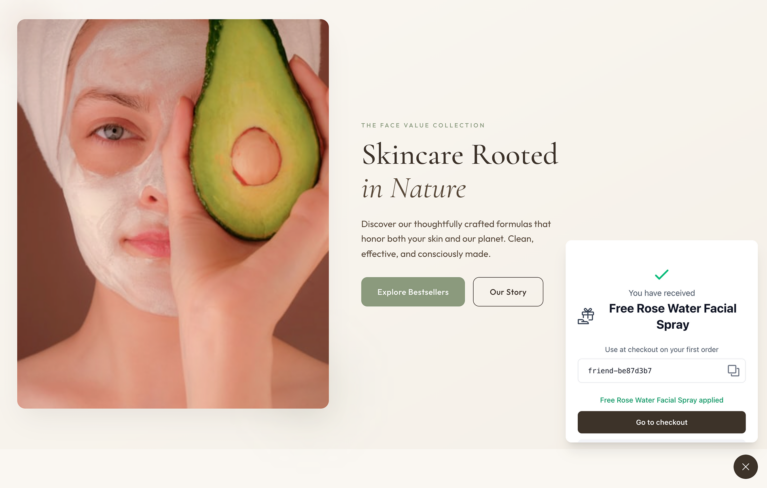
The Friend can click “Add free product to cart” to add the product to their cart automatically. The coupon code is applied at the same time. Once the product is added, the widget shows a confirmation message, and the button changes to “Go to checkout”, making it easy to complete the purchase.
If you’ve configured a Minimum Spend requirement, the Friend will need other items in their cart meeting that threshold before the reward can be applied. The widget shows how much more they need to add.
Frequently Asked Questions
Will my Referrals program pause if the reward product goes out of stock?
If the Advocate reward product goes out of stock, RewardsWP will automatically pause the Referrals program to prevent new rewards from being issued for unavailable products. The program resumes automatically when stock is restored.
Is the Free Product added to cart automatically?
Yes. When a customer clicks “Apply to cart” on their free product reward, the product is automatically added to their cart, and the coupon is applied simultaneously. The customer doesn’t need to search for or manually add the product.
Does the free product count toward the Minimum Order Value?
No, the Minimum Order Value is calculated based on the cart subtotal before the free product is added. This ensures customers must purchase additional items to meet the threshold.
What is the Minimum Spend setting?
Minimum Spend requires customers to have a specified cart subtotal before they can apply the free Product reward. For example, if set to $50, customers must have at least $50 worth of other products in their cart before the reward will apply.
Can I use the same product for both Advocate and Friend rewards?
Yes, you can select the same product for both Advocate and Friend rewards if desired. However, using different products allows you to create more tailored incentives for each party.
Can I use a variable product as a free product reward?
Yes, RewardsWP supports variable products. When a variable product is set as a free product reward, customers can select their preferred variation (such as size or color) when adding it to their cart.