Would you like to see who’s in each VIP tier and how every member is progressing? The Members screen shows each member’s tier, lets you filter and sort by tier, and records every tier change on the member’s profile.
In this guide, we’ll walk you through finding members by tier and reading a member’s VIP status and history. All you need is a Pro license level and the VIP Program turned on with at least one tier.
Requirements: The VIP Program requires a Pro license level and an active WooCommerce or Easy Digital Downloads store.
Before you get started, make sure RewardsWP is installed and activated on your WordPress site.
For everything else on the Members screen, see Managing Members.
Finding Members by VIP Tier
To get started, we’ll narrow the members list down to the tier you want to look at.
From your WordPress admin sidebar, go to RewardsWP » Members.
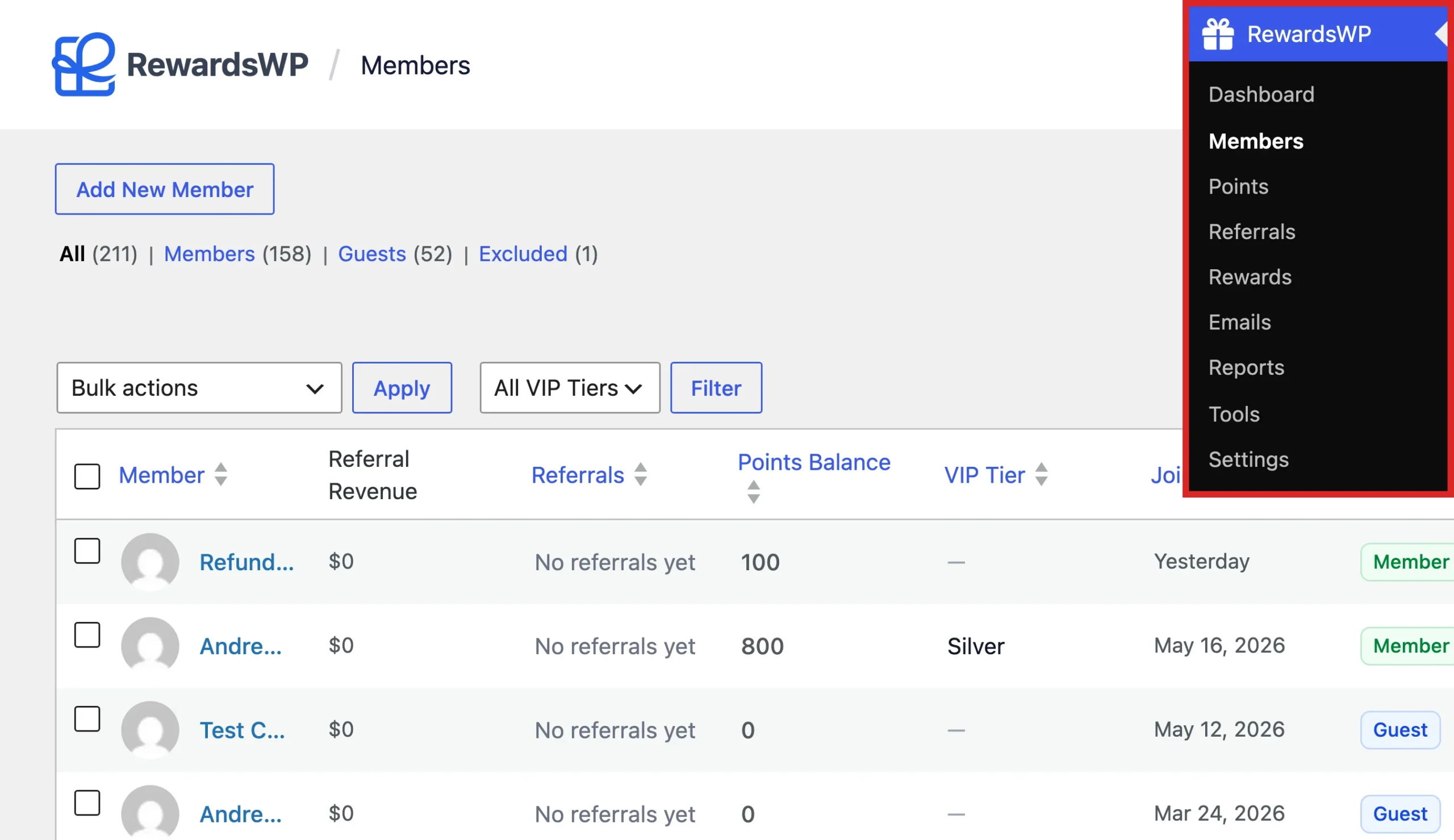
While VIP is active, the members list includes a VIP Tier column showing each member’s current tier.
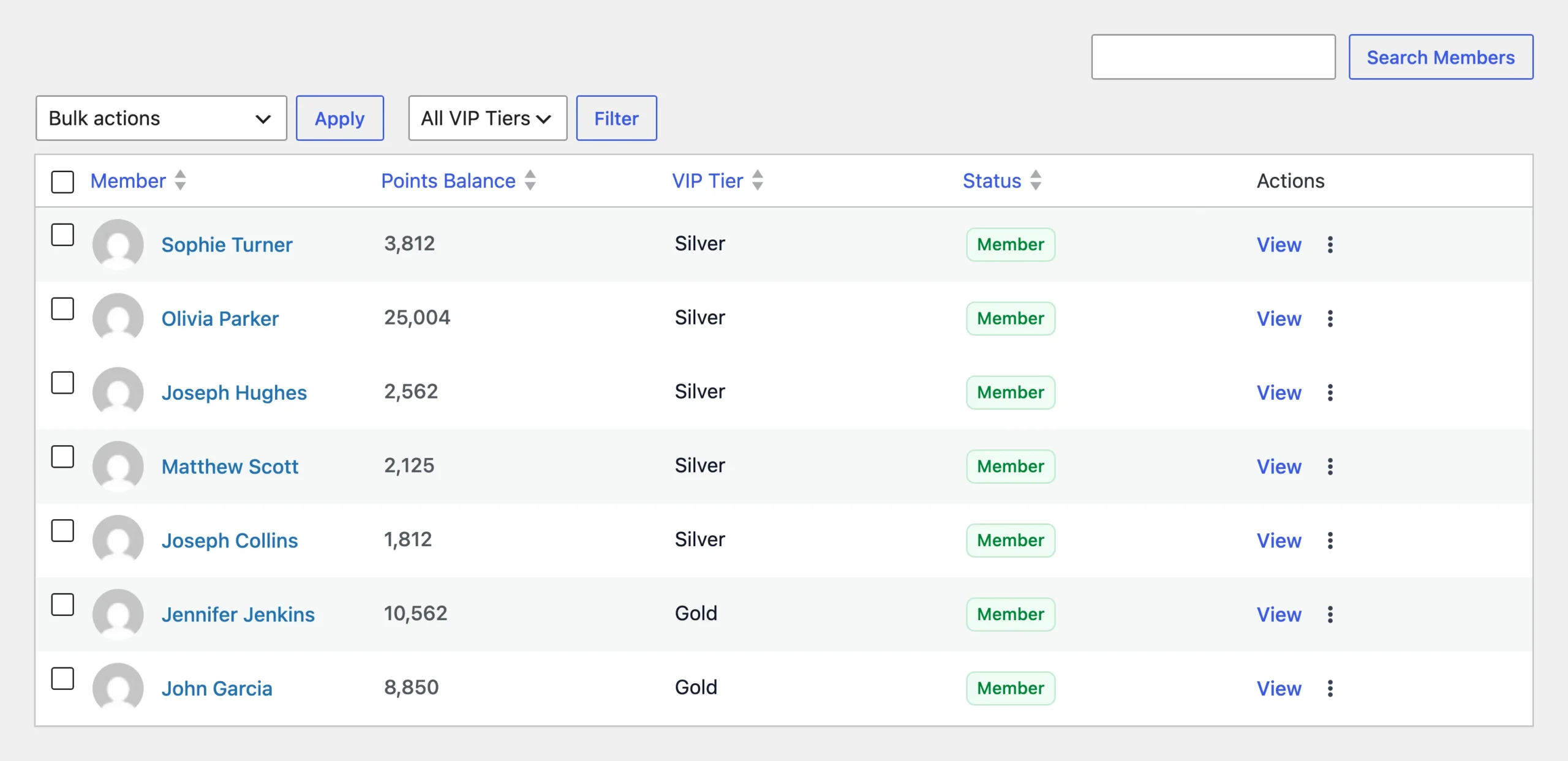
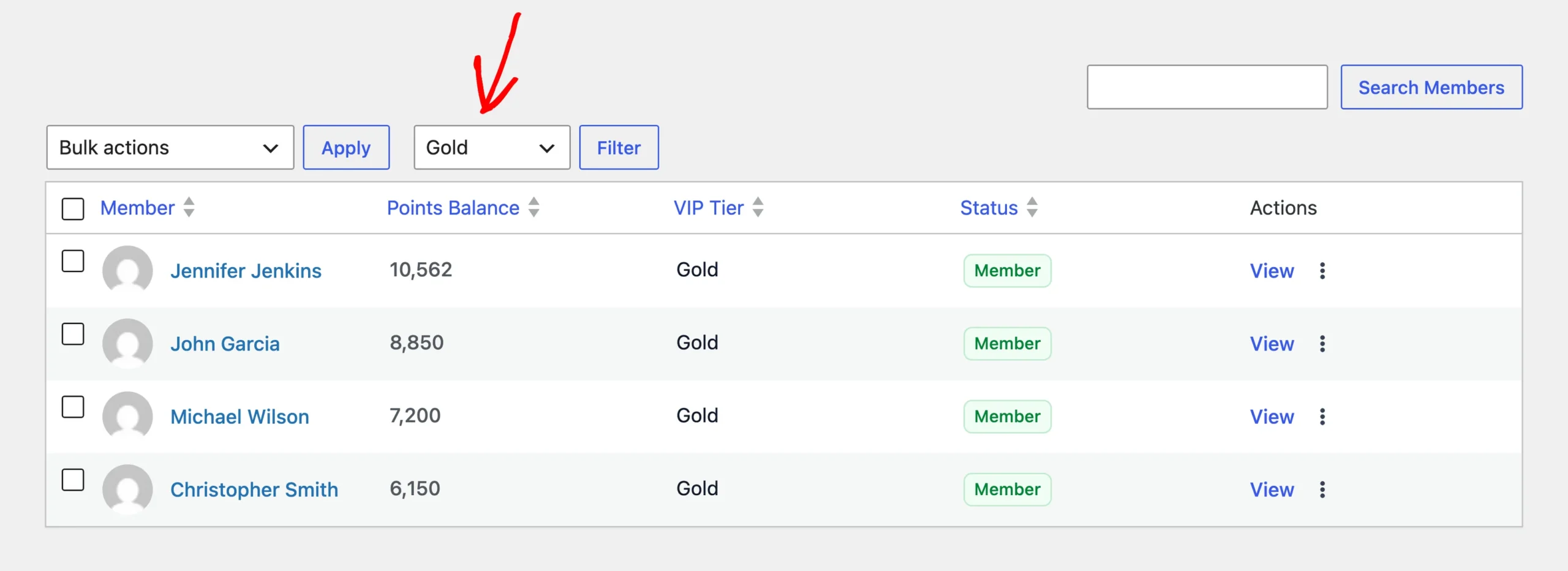
To see only the members in one tier, choose that tier from the All VIP Tiers dropdown above the list. Then click Filter.
The dropdown also has a No tier option. It’s useful for finding customers who haven’t reached your first tier yet.
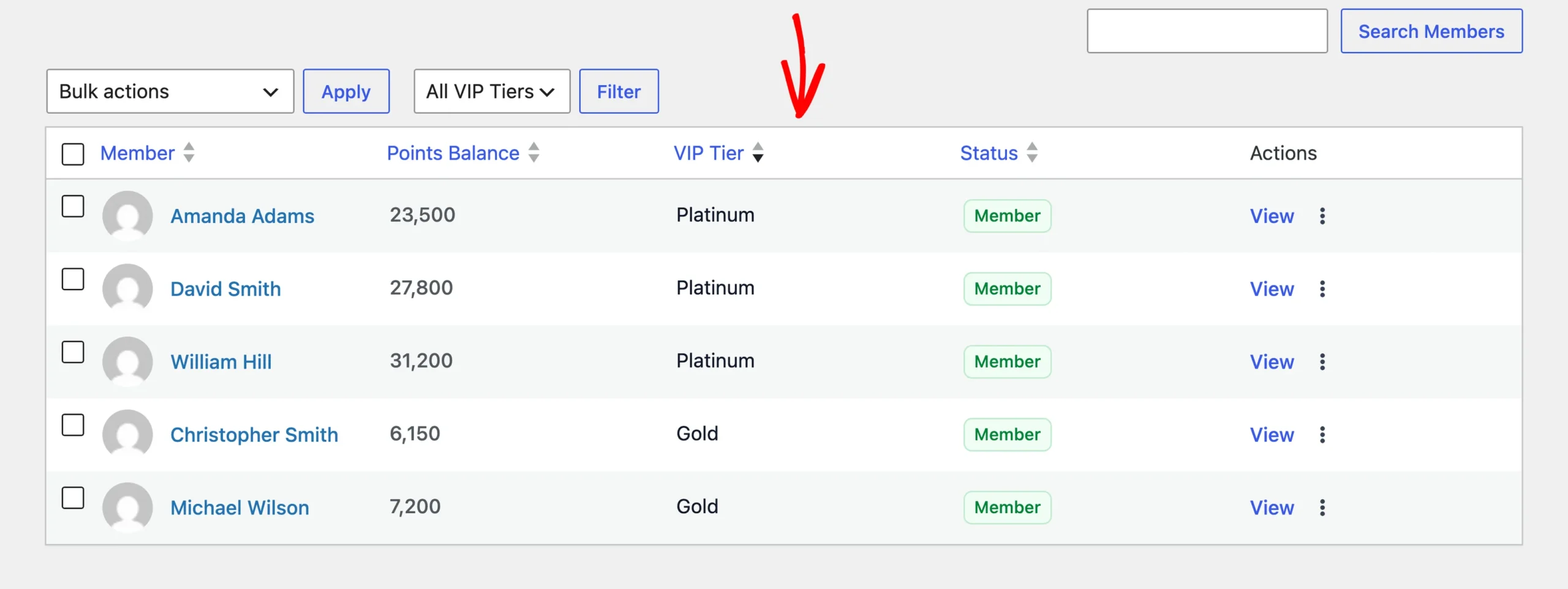
To rank members by tier, click the VIP Tier column heading. Members sort by their place on your ladder, not alphabetically by tier name, so your top tier sits together at one end of the list. Members with no tier stay at the bottom whichever way you sort.
Once you’ve found a member, open their profile to see their tier progress and history.
Reading a Member’s VIP Status
To open a member’s profile, click their name in the list. The VIP Tier stat shows:
- Their current tier, or a dash if they don’t hold one.
- A progress bar and how much more they need to reach the next tier.
- At your highest tier, a note that they hold the top tier, plus the tier’s points multiplier if it has one.

If you adjust a member’s points from their profile, the VIP Tier stat updates straight away. You can see right then whether the change moved them to a new tier.
Reviewing a Member’s VIP History
Every tier change a member goes through is recorded on their profile.
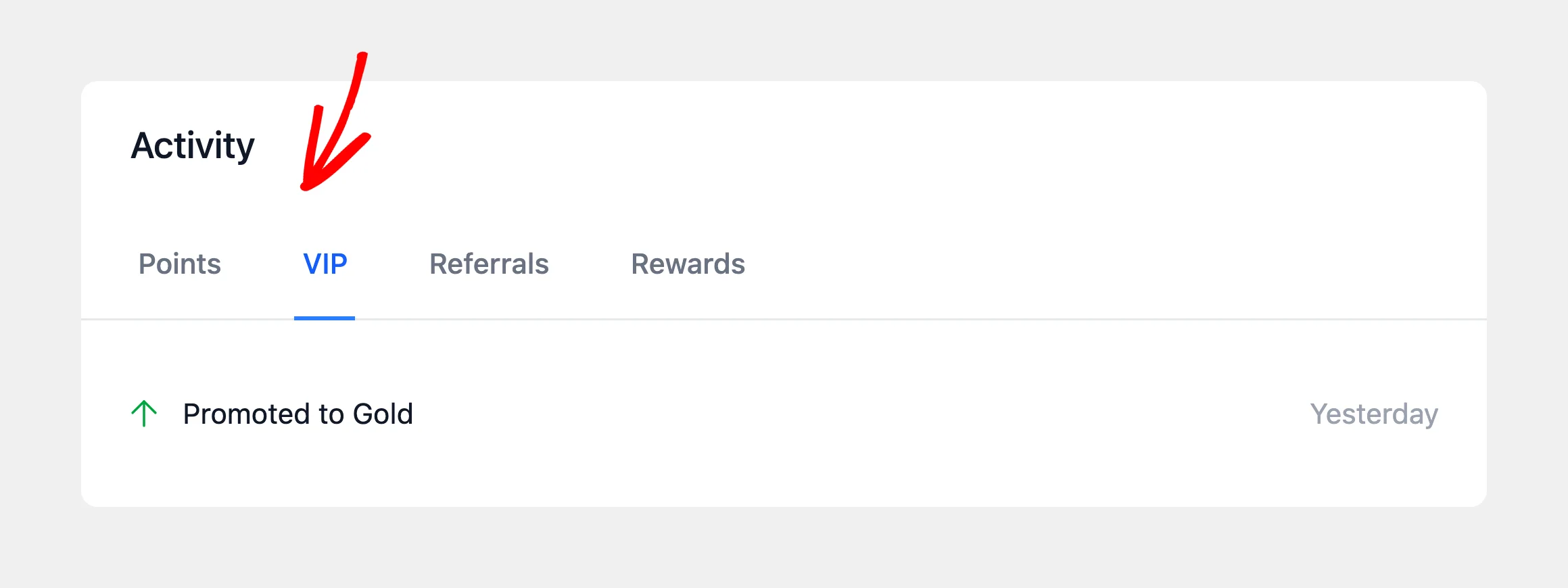
In the activity area of the member’s profile, click the VIP tab. It lists every tier change for that member. For example, you see when they were promoted, moved to a lower tier, left VIP, or kept their tier by requalifying during a grace period.
That’s it! You can now find members by tier and follow each one’s VIP journey. Next, to see how your tiers perform overall, read Tracking VIP Tiers With Reports and Exports.
FAQ
Below, we’ve answered some of the most common questions about viewing members by VIP tier.
Can I change a member’s tier by hand?
No. RewardsWP places members in tiers based on how they qualify. When members qualify by points earned, you can add points from the member’s profile. RewardsWP then checks their tier right away. Deducting points doesn’t lower a member’s earned total, so it doesn’t move them down.
Why don’t I see the VIP Tier column?
The column and filter only appear while VIP is active, which means the program is on and has at least one tier. The VIP Tier stat and the VIP tab on a member’s profile follow the same rule.