




Running a successful affiliate program means your affiliates get paid reliably, on time, and through a method that works for them. AffiliateWP gives you the flexibility to do that, with built-in support for Stripe, PayPal, Store Credit, and Manual payouts, plus integrations with WooCommerce, Easy Digital Downloads, and more.
This guide covers how to choose the right payout method for your program and how to run payouts from your WordPress dashboard.
Quick Answer: AffiliateWP includes four built-in payout methods: Stripe, PayPal, Store Credit (WooCommerce/EDD), and Manual (CSV export for wire, check, or ACH).
To run a payout: go to AffiliateWP > Payouts > Pay Affiliates, set your date range and minimum threshold, preview the batch, and click Pay affiliates. Background processing handles the rest. No need to stay on the page.
The Four Ways to Pay Affiliates in AffiliateWP
Stripe: Best for programs that want a self-serve, professional payout experience. Affiliates connect a Stripe Express account through a one-time onboarding flow. Supports 33 countries. Payouts process in the background and confirm in minutes.
PayPal: Best for international programs. Affiliates add their PayPal email to their profile. Nothing else is required on their end. Works in 190+ countries. Payouts process asynchronously.
Store Credit: Best for stores where affiliates are also customers. No payment account needed. When a referral is marked paid, the affiliate’s store credit balance updates instantly. Applies to WooCommerce or EDD checkout.
Manual: The catch-all for wire transfers, checks, ACH, or any method AffiliateWP doesn’t process directly. AffiliateWP generates a CSV you use to process payments in your bank or accounting software.
Here’s how each one works in practice.
Stripe
Stripe is the most self-contained payout experience AffiliateWP offers. Affiliates connect a Stripe Express account directly from their affiliate dashboard. Stripe handles the entire onboarding flow: identity verification, bank account connection, and tax documentation. Once connected, you never need to ask an affiliate for their bank details.
On the admin side, you connect Stripe once via API keys in AffiliateWP > Settings > Payouts. Payouts process in the background and are confirmed via Stripe webhook, so the transaction is fully recorded without you doing anything after clicking “Pay affiliates.”
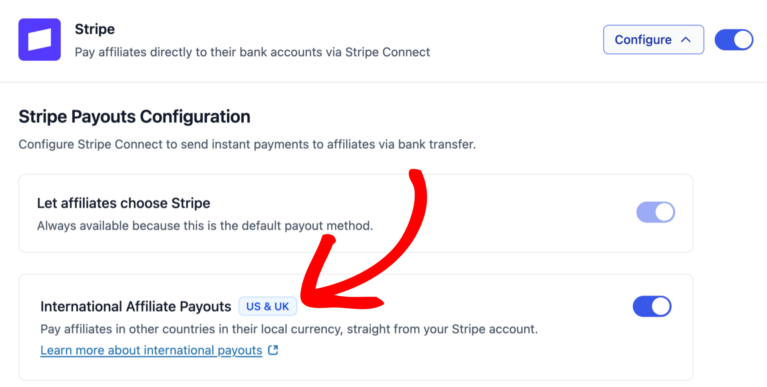
If your Stripe platform account is based in the US or UK, you can enable the International Affiliate Payouts toggle in Settings to pay affiliates in 33 countries in their local currency. Eligibility follows the Stripe account’s country, not your store’s address.
Best for: Programs with a US or UK-based Stripe account that want a professional, self-serve payout experience where affiliates manage their own payment details.
For the full Stripe setup walkthrough, see Pay Your Affiliates using Stripe →.
PayPal
PayPal is the lowest-friction option for affiliates. They provide their PayPal email in their affiliate profile. Nothing else is required on their end. AffiliateWP handles the payout via PayPal’s API using credentials you configure once in Settings.
To connect PayPal, you create an app in the PayPal Developer Portal, enable the Payouts permission on it, and paste the credentials into AffiliateWP settings. One-time setup.
PayPal works in 190+ countries, making it the default choice for international affiliate programs. Affiliates who don’t yet have a PayPal account receive an invitation email; they have 30 days to claim their payment.
Best for: International programs, or affiliates who already use PayPal and prefer not to create a Stripe account.
For the full PayPal setup walkthrough, see Pay Your Affiliates with PayPal →.
Store Credit
Store Credit is the only payout method that requires zero payment processing setup. When a referral is marked paid via Store Credit, the affiliate’s balance is credited instantly. The affiliate applies it at checkout. WooCommerce surfaces the credit automatically with a notice on the cart and checkout pages.
Store Credit works natively with WooCommerce. For Easy Digital Downloads, the EDD Wallet extension is required.
For the full Store Credit setup walkthrough, see Pay Your Affiliates with Store Credit →.
Manual (Offline)
Covers wire transfers, checks, ACH, or any offline payment method. AffiliateWP generates a CSV with affiliate emails and amounts, you handle the actual transfer in your bank or accounting software.
The key thing to understand: AffiliateWP records the payout as complete when you run the batch. The actual transfer is your responsibility. Nothing stops you from downloading the CSV and sitting on it, which is why a defined payout schedule and internal process matters for Manual payers.
Before You Run Your First Payout
Two settings are worth configuring before you send a single dollar. Getting these right on day one prevents the most common payout headaches.
Commission Holding Period
A holding period is a buffer between when a referral is earned and when it becomes eligible for payout. Set it in AffiliateWP’s Settings, and any referrals earned within the last X days are automatically excluded from payout batches.
The reason to use one: refunds and chargebacks. If a customer refunds within 14 days of a purchase, AffiliateWP can reverse the referral before it’s ever paid out. Without a holding period, you’d be paying affiliates for sales that get refunded, and recovering that money from affiliates is awkward at best.
Where to set it: AffiliateWP > Settings > Commissions.
In practice: If you set a 14-day holding period and run your monthly payout on the 1st, any referrals earned after the 18th of the previous month carry over to the following payout cycle. That’s expected behavior.
Holding period: The Pay Affiliates form has a toggle labeled “Bypass Holding Period” if you need to expedite payment for a specific affiliate or run a special payout outside your normal cycle. Checking it includes referrals still within the holding window for that batch only.
Recommendations by product type:
- Physical goods: 14-30 days (match your return window)
- Digital products: 7-14 days
- Subscriptions: match your refund window exactly

Payout Settings Worth Configuring Upfront
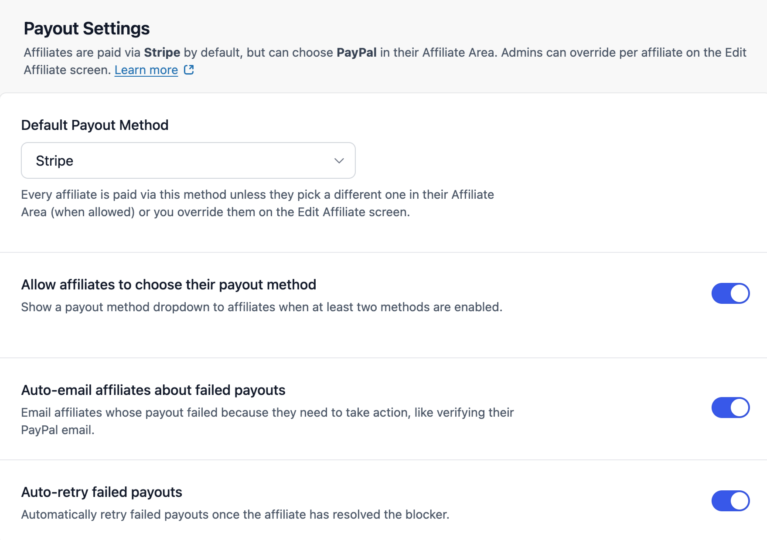
The Payout Settings section at the top of AffiliateWP > Settings > Payouts has four controls that affect every payout run:
- Default Payout Method: Sets the fallback method for any affiliate who hasn’t chosen or been assigned a specific method. Out of the box, this defaults to Manual. Change it to Stripe or PayPal once your preferred method is configured, so new affiliates inherit the right method automatically without needing per-affiliate configuration.
- Allow affiliates to choose their payout method: When enabled, affiliates see a payout method dropdown in their Affiliate Area and can switch between any methods you’ve enabled (Stripe, PayPal, etc.). When disabled, only admins can set methods. This is on by default.
- Auto-email affiliates about failed payouts: When a payout fails because the affiliate needs to take action (like verifying their PayPal email or completing Stripe onboarding), AffiliateWP emails them automatically. Leaves the follow-up loop entirely in the system.
- Auto-retry failed payouts: AffiliateWP retries failed payouts automatically once the blocking issue is resolved. Eliminates the need to manually re-run failed affiliates.
Payout Method Per Affiliate
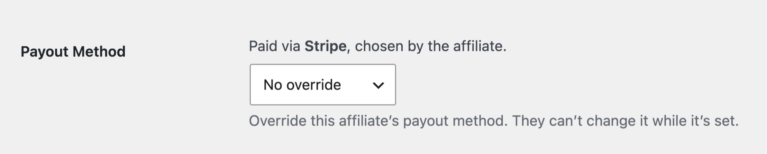
Each affiliate has a payout method stored in their profile. You set it in AffiliateWP > Affiliates > Edit Affiliate > Payout Method dropdown. The options are Stripe, PayPal, Store Credit, and Manual. This overrides the default payout method for that specific affiliate.
If an affiliate has no method configured and no default is set, they’ll be excluded from method-specific batches. This is the most common reason affiliates go missing from a payout run.
The best time to set this is during affiliate onboarding. Ask new affiliates to complete their payment setup before their first referral is approved. For Stripe, that means connecting their Stripe Express account. For PayPal, that means adding their PayPal email to their profile. A brief onboarding email covering this step saves a back-and-forth later.
How to Run a Payout in AffiliateWP (Step by Step)
This is the core workflow. AffiliateWP uses a two-step form that handles everything from filtering to preview to submission.
Step 1: Go to AffiliateWP > Payouts
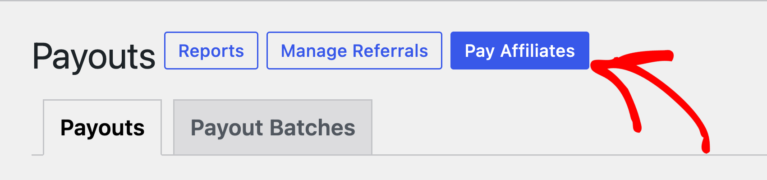
Navigate to AffiliateWP > Payouts in your WordPress dashboard. Click the Pay Affiliates button.
Step 2: Configure Your Payout Batch
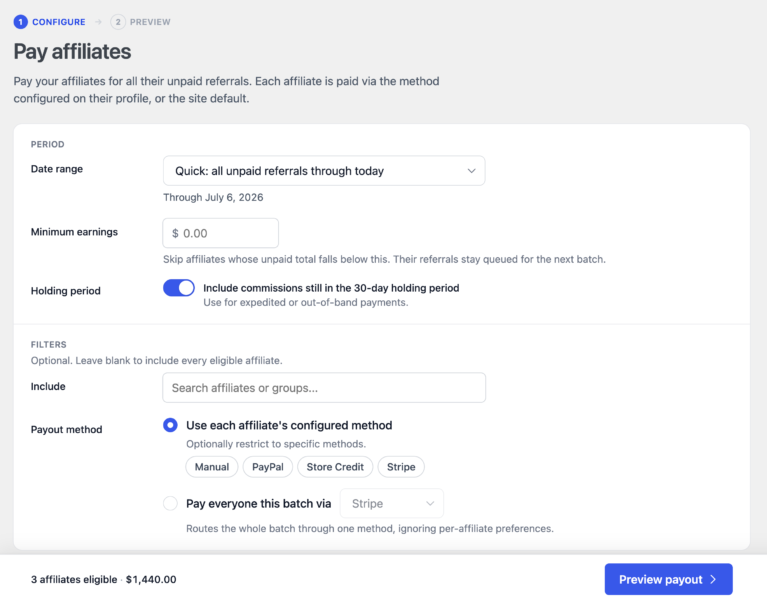
This is Step 1 of the two-step form. Work through each field:
Date range: Choose from six presets or enter a custom range. The default is “Quick: all unpaid referrals through today”, which pays everything outstanding up to now. Other presets match common payout cycles:
- “Last month”: Best for monthly payout cycles
- “This month”: Current calendar month only
- “Last 30 days” or “Last 90 days”: Best for rolling cycles
- “Custom range”: Set your own start and end dates
Minimum earnings: Enter a dollar amount. Any affiliate whose unpaid total falls below this number is skipped. Their referrals stay queued for the next batch. A minimum threshold prevents paying $1.50 to an affiliate via a method that costs $1 in fees to process.
Holding period: If you have a holding period configured, a checkbox appears here: “Include commissions still in the X-day holding period.” Leave it unchecked for normal payouts. Check it only when you need to expedite payment for a specific situation.
Include specific affiliates or groups (optional): Use the multi-select picker to restrict this batch to specific affiliates or affiliate groups. Leave it empty to include all eligible affiliates.
Payout method: This controls how AffiliateWP decides which method to use for each affiliate.
- “Use each affiliate’s configured method” routes each payout to whichever method that affiliate has set in their profile. This is the default for most payout runs.
- “Pay everyone in this batch via [METHOD]” overrides all affiliates to a single method. Use this when you want to run a Stripe-only batch or pay a specific group via Manual.
The action bar at the bottom shows a real-time count as you adjust filters: “X of Y affiliates included · $TOTAL.” It also breaks down who’s excluded and why: below minimum, no method configured, or still in holding period. Review this before moving to the preview.
Step 3: Review the Preview
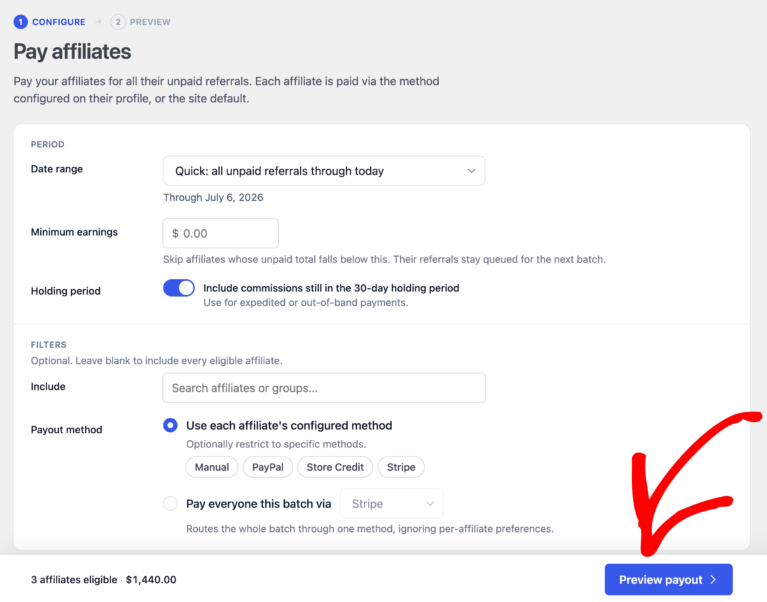
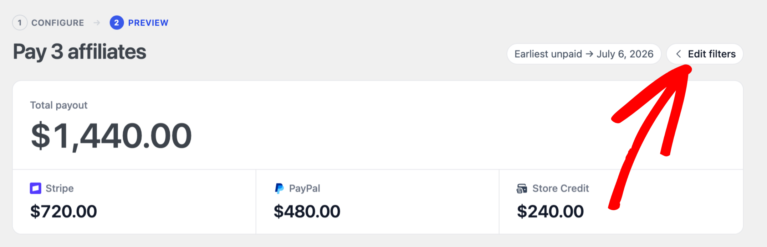
Click Preview payout to advance to Step 2. This screen shows a per-affiliate breakdown of the batch before anything is submitted.
Affiliates are grouped by payout method. Each row shows the affiliate name, the number of referrals being paid, and the total amount.
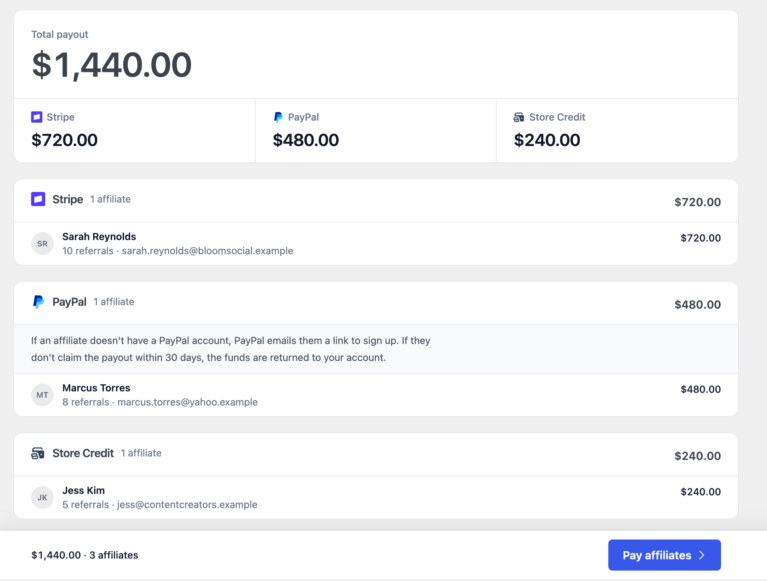
If anything looks wrong, click Edit Filters to return to Step 1 and adjust. Don’t guess at what a number should be. The preview is there precisely so you can catch errors before they hit your payment accounts.
Step 4: Send the Payouts
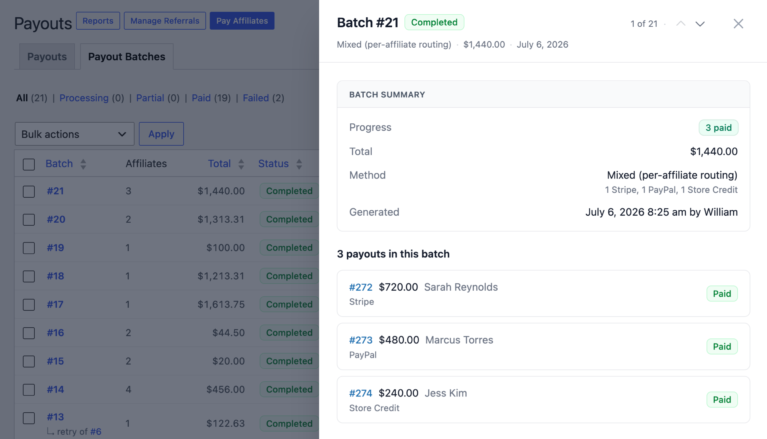
Click Pay affiliates. AffiliateWP schedules the batch for background processing using WordPress’s built-in Action Scheduler. You don’t need to keep the browser open. You’re taken automatically to the Batches tab in AffiliateWP > Payouts. The batch status updates in real time as the payout process.
Frequently Asked Questions
With AffiliateWP installed, navigate to AffiliateWP > Payouts and click “Pay Affiliates.” Select your date range, set a minimum threshold, click “Preview payout” to review the batch, then click “Pay affiliates” to submit. AffiliateWP processes the batch in the background and updates referral statuses when complete. AffiliateWP handles all of this built-in. Get started →
AffiliateWP supports four payout methods built into the core plugin: Stripe (via Stripe Connect Express), PayPal, Store Credit (WooCommerce native, EDD with the EDD Wallet extension), and Manual (CSV export for offline processing). All four are available in every AffiliateWP plan.
Yes. Each affiliate has a payout method set in their profile. When you run a payout batch with “Use each affiliate’s configured method” selected, AffiliateWP automatically routes each payout to the correct method. You can have some affiliates on Stripe, some on PayPal, and some on Manual, all processed in a single batch.
Yes. The Pay Affiliates form has a minimum earnings field. Any affiliate whose unpaid total is below this number is excluded from the batch. Their referrals stay queued for the next payout cycle. This is set at the batch level, not per-affiliate, so you can adjust it run by run.
PayPal supports payouts in 190+ countries and is the most universal option for international affiliate programs. Stripe supports international payouts to 33 countries when the International Affiliate Payouts toggle is enabled in Settings (requires a US or UK Stripe platform account). For regions where neither is available, Manual (with a CSV export) works for any payment method you can process offline.
A referral is a single commission record. It represents one conversion by one affiliate and the commission amount earned. A payout is a payment record that covers one or more referrals. When you run a payout batch, AffiliateWP groups the eligible referrals for each affiliate and creates a single payout record per affiliate. The payout record links to all the referrals it covers, so you can always trace a payment back to the individual conversions that generated it.
After sending a batch, the Batches tab shows real-time status. Once the batch is complete, all referrals in the batch show “Paid” under AffiliateWP > Referrals. You can also filter the Referrals list by status to confirm no “Unpaid” referrals remain in your target date range. Failed payouts appear in the batch drawer with error details so nothing falls through without you knowing.
For most WooCommerce programs, a combination works well: Stripe for affiliates who want direct bank deposits, PayPal for international affiliates or those who already have PayPal accounts, and Store Credit for affiliates who are also customers: brand ambassadors, product reviewers, and influencers who promote products they buy. Manual is the right fallback for high-value partners you pay via wire transfer. You can use all four simultaneously in the same program.
With four built-in payout methods and a two-step batch form, AffiliateWP gives you everything you need to run a complete payout cycle in under five minutes. All four methods are included in every plan, with no per-transaction fees on AffiliateWP’s end.