





Want to reward your customers for their purchases and engagement in a way that feels natural and valuable? The RewardsWP Points Program allows you to reward customers with points for their activity, which they can later redeem for meaningful rewards.
This guide explains how the Points Program works, how customers earn and redeem points, and how you can configure and manage the system to fit your store’s loyalty strategy.
The Points Program requires either WooCommerce or Easy Digital Downloads to be installed and activated on your WordPress site. Points earning and redemption are tied to order activity, so one of these e-commerce platforms must be active before enabling Points.
Understanding the RewardsWP Points Program
At its core, the RewardsWP Points Program is a lifecycle driven system. Customers earn points when they take specific actions on your site, such as making purchases, creating accounts, or writing reviews. These points accumulate into a balance that customers can view throughout their journey. Over time, customers can redeem their points for rewards like discounts or free shipping.
Once configured, the system runs automatically in the background. Points are awarded, deducted, expired, and adjusted without manual intervention, allowing you to focus on your business while customers stay engaged through rewards.
How points work
All points in RewardsWP use a fixed value that keeps the system simple and predictable. Rather than adjusting point value, you control how generous your program feels by adjusting how quickly customers earn points.
| Points | Dollar Value |
| 1 point | $0.01 |
| 100 points | $1.00 |
| 500 points | $5.00 |
| 1,000 points | $10.00 |
This consistent 100 points per $1 ratio keeps the system simple and transparent. Instead of changing point value, you control how generous your program is by adjusting how quickly points are earned.
Example:
- If customers earn 5 points per $1 spent, they effectively receive 5% back in rewards.
- If they earn 10 points per $1 spent, they receive 10% back.
Enabling the Points Program
Before customers can earn or redeem points, the Points Program must be enabled. The Points Program includes a single toggle that activates the entire points system across your site. To enable the Points Program:
- Navigate to RewardsWP » Settings.
- Click the Points tab.
- Locate the Program Status section.
- Toggle the switch to Active.
- Click Save Changes.
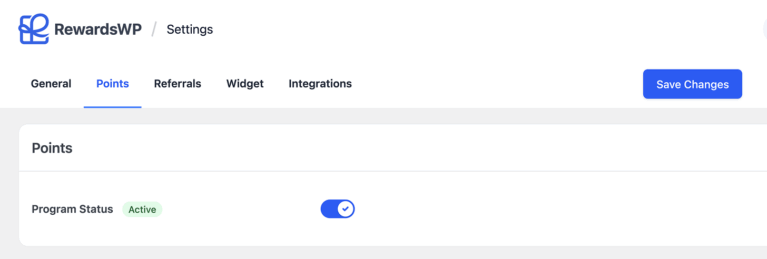
When the program is active, customers begin earning points, their balances appear in the Rewards Widget, and redemption options become available. When the program is inactive, all points-related features are hidden, and no new points are awarded, though existing balances remain intact.
It is recommended to keep the program inactive while configuring earning and spending rules. Once your setup is complete, you can switch it to Active and launch your loyalty program confidently.
Points Branding
Points are part of your brand experience. RewardsWP allows you to customize the names used for your points currency so it aligns with your store’s tone and voice.
Customizing Currency Names
Go to RewardsWP » Settings » Points, then find the Points Branding section.
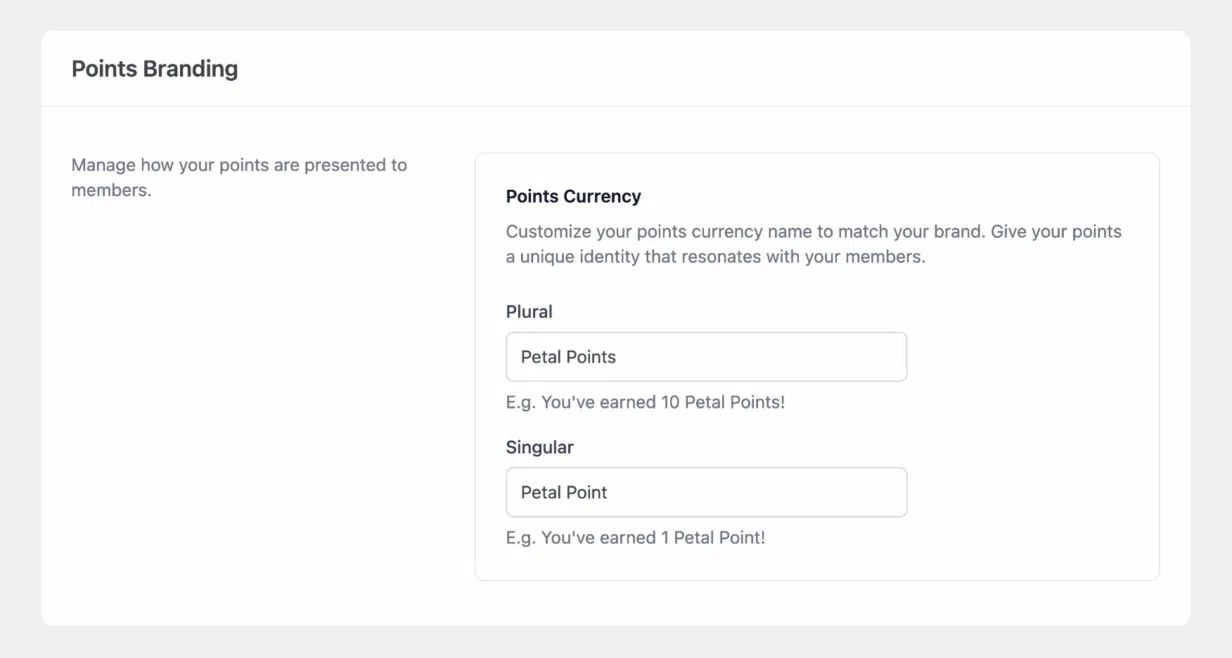
Here you can modify:
- Plural name — used when referring to more than one unit.
- Singular name — used for a single unit.
Popular naming options include:
| Singular | Plural | Best For |
| Point | Points | Universal, professional (recommended default) |
| Star | Stars | Achievement-focused brands |
| Coin | Coins | Gamified, playful brands |
| Credit | Credits | Financial services, professional tone |
| Gem | Gems | Jewelry, beauty, luxury brands |
Your custom names appear throughout the program, including the Rewards Widget, customer account area, product pages, and notification emails.
Points Expiry
Points expiration allows you to control how long earned points remain valid. This helps encourage timely engagement while giving you control over long term rewards liability. You can select an expiration period ranging from never expiring to two years. By default, points expire after one year.

Available expiration options:
| Period | Description | Best For |
| Never expire | Points remain valid indefinitely | Premium brands, infrequent purchase cycles |
| 30 days | Points expire 1 month after being earned | Fast-moving consumer goods, promotional campaigns |
| 3 months | Points expire quarterly | Moderate purchase frequency |
| 6 months | Points expire semi-annually | Seasonal businesses |
| 1 year | Points expire annually (default) | Most businesses (industry standard) |
| 2 years | Points expire every 2 years | High-ticket items, B2B |
How Expiration Works
Points expire on a first in, first out (FIFO) basis, meaning the oldest points expire first.
Example Timeline:
- Points earned January 1, 2025 → Expire January 1, 2026
- Points earned March 1, 2025 → Expire March 1, 2026
- Points earned June 1, 2025 → Expire June 1, 2026
When points expire:
- They are removed from the customer’s balance.
- A points entry is created with “expired” status.
- Email notifications can alert members before expiration.
Expiration reminders are sent 30 days, 7 days, and 1 day before points expire.
Choose an expiration period that aligns with your customer purchase behavior. For example, if customers typically buy every two to three months, a 30 day expiration may feel restrictive. The default one year option works well for most stores.
Earning Points
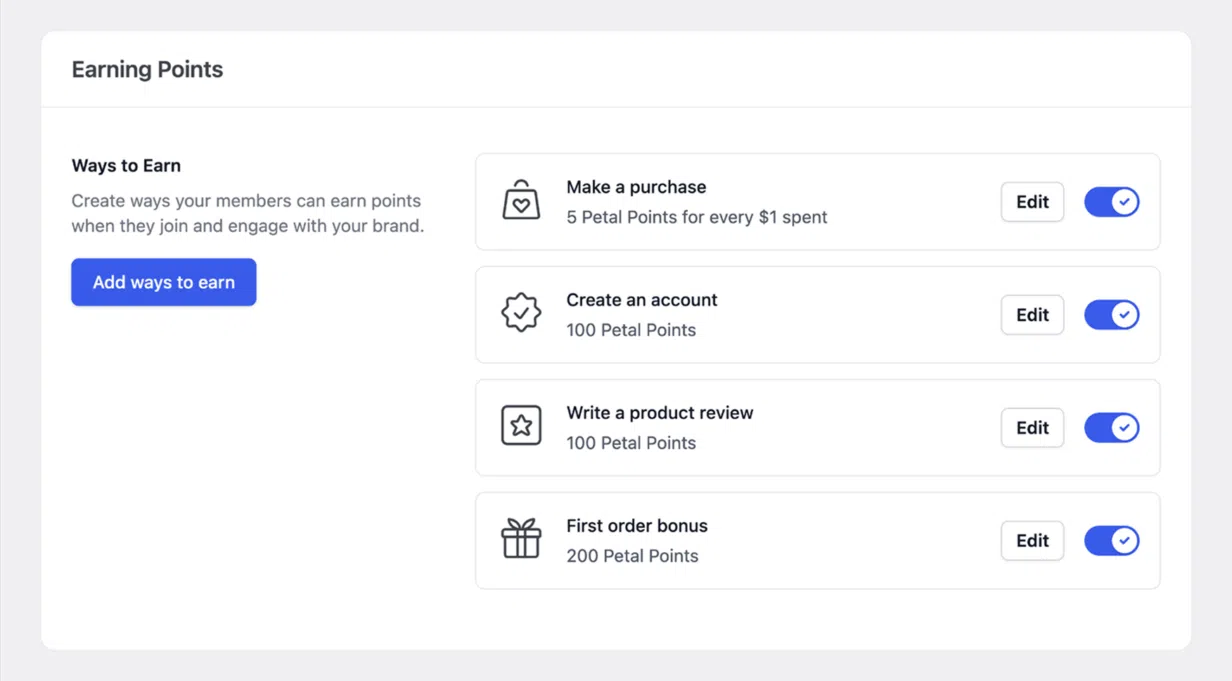
The Points Program provides multiple earning actions that allow customers to accumulate points through purchases and engagement. Each earning action can be enabled or disabled individually from the Earning Points section.
Customers can earn points through the following actions:
- Make a purchase.
- Create an account.
- Write a product review.
- First order bonus.
Each action contributes to the customer’s growing points balance.
Make a Purchase
Purchases are the foundation of most loyalty programs. Customers earn points based on their order total once an order is completed or payment is confirmed.
When editing this action, you can set:
- Points per dollar earned
- Enable/disable status
Points are awarded when the order is set to Completed (WooCommerce) or payment is confirmed (EDD). Order totals include product prices, shipping, and taxes by default, but exclude gift card redemptions and discounts.
Points per Dollar Setting:
This setting determines how many points customers earn for every $1 they spend. The number you enter directly determines your program’s generosity:
| Points per $1 | Reward Rate | Program Type |
| 3 points | 3% back | Conservative |
| 5 points | 5% back | Standard (recommended) |
| 10 points | 10% back | Generous |
Example calculation:
If you set 5 points per $1 and a customer places a $100 order:
- Points earned: 100 × 5 = 500 points
- Value: $5.00
When points are awarded:
Points are credited when the order status changes to Completed (WooCommerce) or after payment confirmation (Easy Digital Downloads). Points are NOT awarded for:
- Pending orders
- Cancelled orders
- Refunded orders (points are deducted)
Create an Account
You can reward customers with a one time signup bonus when they create an account. Points are awarded immediately when a user successfully registers through WordPress registration, WooCommerce checkout, the My Account page, or any standard registration form. To configure:
- Click Edit on the “Create an account” action
- Set the Points amount (default: 100 points)
- Toggle to Enabled
- Click Save changes
Recommended bonus amounts:
| Program Type | Signup Bonus | % of First Reward |
| 3 pts/$1 | 50–100 points | 10–20% of $5 reward |
| 5 pts/$1 | 100–200 points | 20–40% of $5 reward |
| 10 pts/$1 | 200–300 points | 20–30% of $10 reward |
Promote your signup bonus prominently: “Sign up and get 100 Points FREE!” This simple message can significantly increase registration rates.
Write a Product Review
This action rewards customers for submitting product reviews that you approve. To configure:
- Click Edit on the “Write a product review” action
- Set the Points amount (default: 100 points)
- Configure Verified Buyers Only toggle
- Toggle to Enabled
- Click Save
Verified Buyers Only Setting:
| Setting | Behavior |
| Enabled (recommended) | Only customers who purchased the product can earn points for reviewing it |
| Disabled | Any registered customer can earn points for any review |
We recommend keeping “Verified Buyers Only” enabled to ensure authentic reviews and prevent abuse.
How the review process works:
- Customer purchases and receives a product
- Customer writes a review on the product page
- Review enters your WordPress moderation queue
- You approve the review in Comments or WooCommerce admin
- Points are automatically credited to the customer
- Notification email is sent (if configured)
- Points are awarded per product, not per review
- Each customer can only earn review points once per product
- Rejected or spam reviews do not earn points
- Points are awarded on approval, allowing you to maintain quality control
First Order Bonus
The first order bonus rewards customers with additional points after their first completed purchase. The bonus is automatically credited when a customer’s first order status becomes Completed or Processing (for payment gateways that use Processing for successful orders).
To configure:
- Click Edit on the “First order bonus” action
- Set the Points amount (default: 200 points)
- Toggle to Enabled
- Click Save
The bonus is automatically credited when a customer’s first order status becomes Completed or Processing (for payment gateways that use Processing for successful orders).
How it stacks with purchase points:
The first order bonus is added on top of regular purchase points:
| Source | Example ($100 order, 5 pts/$1) |
| Purchase points | 500 points |
| First order bonus | +200 points |
| Total earned | 700 points |
This creates an enhanced first-time experience—customers earn more than expected!
Strategic value:
- Rewards new customers generously for choosing you
- Creates a “wow moment” at checkout
- Accelerates path to first reward
- Encourages immediate second purchase
- Shows program value upfront
Recommended bonus amounts:
| Program Type | First Order Bonus | Effect |
| 3 pts/$1 | 150–200 points | Helps offset slower earn rate |
| 5 pts/$1 | 200–250 points | ~40–50% of $5 reward |
| 10 pts/$1 | 250–300 points | Potentially enables immediate redemption |
Ways to Redeem Points
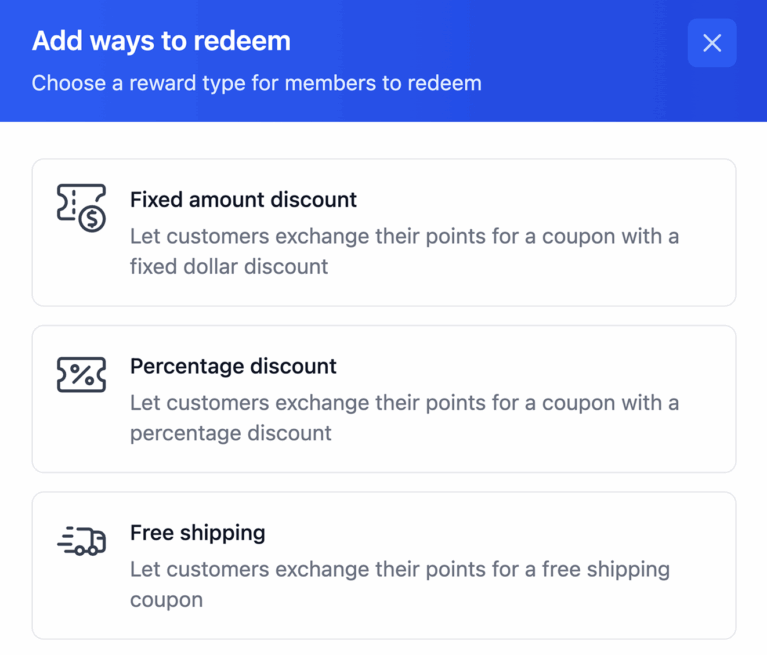
Once customers earn points, the next step is deciding how they can spend them. The Ways to Redeem section defines how customers can convert points into rewards. RewardsWP offers three redemption types:
- Fixed Amount Discount — $X off coupon
- Percentage Discount — X% off coupon
- Free Shipping — Free shipping coupon (WooCommerce only)
Default redemption rewards:
When RewardsWP is installed, three default rewards are created. You can edit or replace them at any time.
- 500 points → $5 off coupon
- 1,000 points → $10 off coupon
- 2,000 points → $20 off coupon
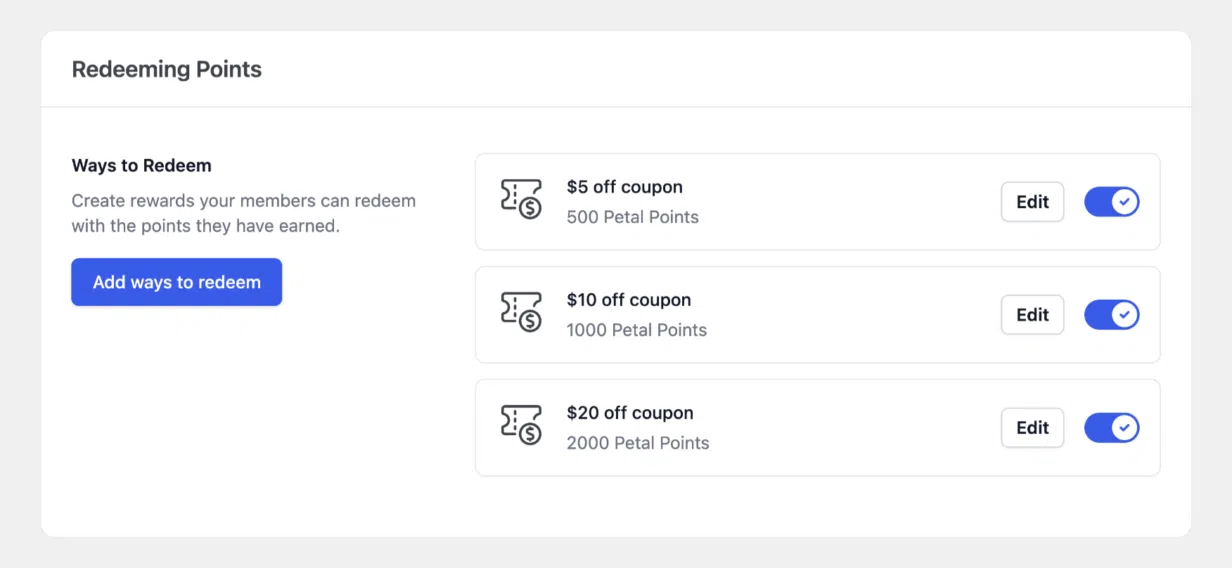
Fixed Amount Discount
Fixed amount rewards generate coupons for a specific dollar value. You define the number of points required and the discount amount. Following the standard 100 to 1 ratio keeps rewards predictable and fair.
To configure:
- Click “Add ways to redeem” and select Fixed Amount Discount
- Configure the following fields:
- Click Save
Configuration fields:
| Field | Description |
| Points Required | Points needed to redeem |
| Discount value | Dollar value of discount |
| Reward expiry | How long coupon remains valid |
Recommended point-to-value ratios:
Following the standard 100:1 ratio:
- $5 off = 500 points
- $10 off = 1,000 points
- $20 off = 2,000 points
- $50 off = 5,000 points
Percentage Discount
Percentage discounts offer flexible value depending on cart size. While appealing for high value carts, they can become very generous on large orders, so they should be used thoughtfully.
To configure:
- Click “Add ways to redeem” and select Percentage Discount
- Configure the settings similar to fixed discounts
- Set the Coupon Percentage (e.g., 10 for 10% off)
- Click Save
Important consideration:
Percentage discounts have variable value depending on order size:
| Cart Total | 10% Discount Value | Effective Point Value |
| $50 | $5 | 100:1 |
| $100 | $10 | 100:1 |
| $200 | $20 | 50:1 (generous!) |
| $500 | $50 | 20:1 (very generous!) |
When to use percentage vs. fixed:
| Use Percentage For | Use Fixed For |
| Wide price range stores | Consistent pricing |
| Higher AOV ($100+) | Lower price points |
| Premium positioning | Predictable impact |
| VIP/high-tier rewards | Entry-level rewards |
Free Shipping
Free shipping rewards eliminate shipping costs and are available for WooCommerce only. Free shipping is one of the most effective incentives in eCommerce and is often perceived as high value by customers, even when the actual cost is modest.
Free Shipping rewards are only available for WooCommerce integration. They do not appear for Easy Digital Downloads.
Free Shipping rewards are only available for WooCommerce integration. They do not appear for Easy Digital Downloads.
To configure:
- Click “Add ways to redeem” and select Free Shipping
- Set the Points Required
- Configure Minimum Spent (optional but recommended)
- Set Coupon Duration
- Click Save
Why free shipping matters:
- Most shoppers say free shipping influences purchase decisions
- Shipping cost is the #1 reason for cart abandonment (48%)
- Orders with free shipping average 30% higher cart value
- Customers perceive high value in free shipping
| Typical Shipping Cost | Suggested Points |
| $5–7 | 500–700 points |
| $8–12 | 800–1,000 points |
| $15+ | 1,200–1,500 points |
Many businesses price free shipping rewards slightly below actual cost because customers perceive enormous value. If shipping costs $10, setting the reward at 800 points ($8 value) is strategically sound.
Managing Redemption Rewards
You can add, edit, disable, or delete redemption rewards at any time. Disabling a reward hides it without removing it, while deleting permanently removes it from the system. This allows you to adjust your rewards strategy over time without disrupting customer balances.
- Adding: Click “Add ways to redeem,” choose a reward type, and configure.
- Editing: Click “Edit” on any reward.
- Disabling: Use the toggle switch to hide a reward without deleting it.
- Deleting: Click the delete icon to remove the reward permanently.
Member Points Balance
Each customer has a points balance calculated as:
Current Balance = Earned – Spent – Expired
Points appear in:
- The Rewards Widget
- Order confirmation pages
- Email notifications
- Product page earning notices
Points entry types:
| Type | Effect on Balance | Source |
| earned | Increases | Purchases, signups, reviews, bonuses |
| spent | Decreases | Redemptions |
| expired | Decreases | Automatic expiration |
| revoked | Decreases | Manual admin action, refunds |
Admin Points Management
RewardsWP provides comprehensive tools for administrators to view and manage member points. Administrators can view detailed points history, manually adjust balances, and add internal notes for record keeping.
Viewing Points History
To view a member’s points history:
- Go to RewardsWP » Members
- Click on a member to open their detail view
- View the Points section showing:
- Current balance
- Total earned
- Total spent
- Recent points activity
Manually Adjusting Points
Administrators can manually add or remove points from member accounts.
To adjust a member’s points:
- Go to RewardsWP » Members
- Click on the member you want to adjust
- Click Adjust button
- In the modal:
- Select Add points or Deduct points
- Enter the Points Amount
- Add an Internal Note (admin only)
- Click Save
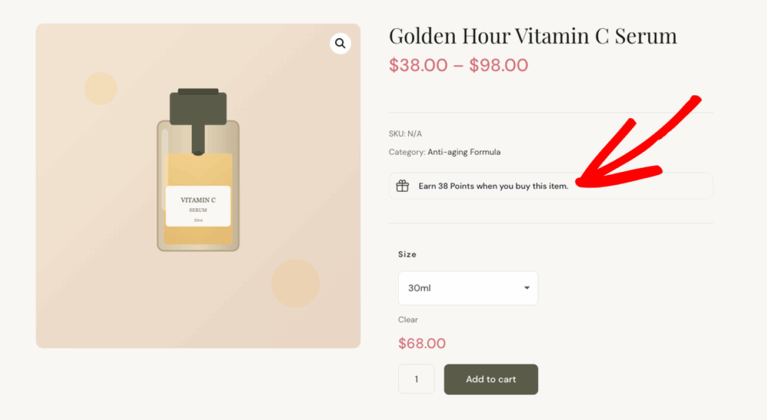
Points on Product Pages
RewardsWP displays a points earning notice on WooCommerce product pages, showing customers how many points they’ll earn for purchasing that product.
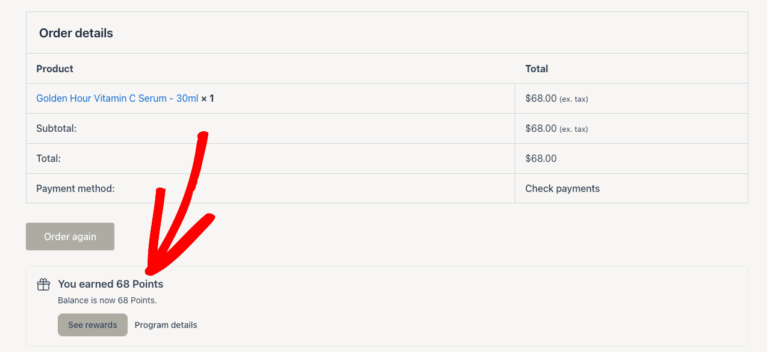
Order Confirmation Points Display
After a purchase is completed, RewardsWP displays a compact rewards banner on the WooCommerce order confirmation page. This reinforces value at a key moment and encourages repeat purchases.
Points and Refunds
Refunds are handled automatically to ensure point balances remain accurate. When an order is fully refunded, all points earned from that order are revoked. For partial refunds, points are deducted proportionally while preserving first order bonuses. This ensures fairness while preventing duplicate deductions.
Full Refunds
When an order is fully refunded (status changes to “Refunded”):
- Points are deducted — All points earned from the purchase are revoked
- Points entry is created — A “revoked” entry appears in points history
Example:
- Customer earned 500 points from $100 order
- Order is fully refunded
- 500 points are deducted from balance
Partial Refunds
When an order is partially refunded:
- Points are deducted proportionally
- First order bonus is NOT deducted (purchase was still made)
Example calculation:
- Original order: $100
- Points earned: 500 (5 pts/$1)
- Refund amount: $25 (25%)
- Points deducted: 500 × 25% = 125 points
The system prevents duplicate deductions, even if refunds are processed in multiple steps.
Email Notifications
RewardsWP includes built in email notifications that can be managed from RewardsWP » Emails. Email notifications keep customers informed about points activity, redemptions, and upcoming expirations.
Points-related emails:
| Trigger | Key Content | |
| Points Earned | Points credited to account | Points amount, source, new balance |
| Reward Redemption | Points redeemed for coupon | Coupon code, reward details, remaining balance |
| Points Expiring | Points approaching expiration | Days until expiry, points at risk, CTA to redeem |
Email merge tags available:
- {points_earned} — Amount of points just earned
- {points_earned_formatted} — “50 Points”
- {current_balance} — Total points balance
- {current_balance_formatted} — “550 Points”
- {currency_singular} — “Point”
- {currency_plural} — “Points”
- {member_name} — Customer’s name
- {coupon_code} — Generated coupon code
- {reward_title} — E.g., “$5 off coupon”
Frequently Asked Questions
Every point in RewardsWP equals $0.01 (one cent). This means 100 points = $1.00. This ratio is fixed and cannot be changed—it’s designed to make your program transparent and easy to understand.
In RewardsWP Pro, you can configure expiration periods ranging from 30 days to 2 years, or set points to never expire.
Points are calculated on the order total after discounts are applied. If a $100 order has a $20 coupon, points are earned on the net $80 amount.
Points are awarded when the order status changes to “Completed” in WooCommerce, or when payment is confirmed in Easy Digital Downloads. Pending or cancelled orders do not earn points.
Yes! Go to RewardsWP » Members, select a member, and click “Adjust Points” to add or remove points with an optional note explaining the adjustment.
Customers open the Rewards Widget on your storefront, navigate to the “Redeem” section, and click on an available reward. The system generates a unique coupon code they can apply at checkout.
Points are deducted immediately when the reward is redeemed, not when the coupon is used. This prevents customers from gaming the system by redeeming multiple coupons with the same points.