RewardsWP includes a built-in email notification system that keeps members informed throughout their rewards journey. From earned points confirmations and referral rewards, to expiration reminders, emails play a critical role in reinforcing value and driving engagement.
This guide explains how the RewardsWP email system works end to end, how and when emails are sent, how members experience them, and how administrators can customize, manage, and extend email notifications.
In This Article
How the RewardsWP email system works
RewardsWP emails are transactional and event-driven. Emails are sent automatically when specific actions occur within the rewards program, such as earning points, completing referrals, or approaching point expiration. Once configured, the email system operates in the background. Emails are triggered, generated, and delivered without manual intervention, ensuring members are always informed at the right moment.
The email system is designed to be:
- Automatic and reliable
- Non-blocking for checkout and user actions
- Customizable at both global and individual email levels
When emails are sent
Emails in RewardsWP are triggered by meaningful moments in a member’s journey. Understanding these moments helps you anticipate what members receive and why.
Points-related moments
When a member earns points, RewardsWP determines the source of those points and sends the appropriate email.
- When points are earned from purchases, reviews, referrals, or custom actions, the Points Earned email is sent with contextual details.
Points emails are sent asynchronously to avoid slowing down checkout or other user-facing actions.
Referral-related moments
When referral activity results in rewards, emails help close the loop for both advocates and friends.
- Advocate earns a reward: The Advocate Reward email is sent with the generated coupon code and reward details.
- Friend claims a reward :The Friend Reward email is sent to the referred friend with their discount information. This email is available with a RewardsWP Pro license.
Expiration-related moments
To prevent surprise point loss, RewardsWP can notify members before their points expire.
- Points approaching expiration: The Points Expiration email warns members in advance and encourages redemption. This email is available with a RewardsWP Pro license.
How emails are delivered
RewardsWP is designed to send emails reliably without impacting site performance.
The delivery pipeline
When an event occurs, such as points being earned, the following process takes place:
- The triggering event is detected
- The appropriate service layer processes the event
- The MailerFactory selects the correct email type
- Email content is prepared and merge tags are populated
- The email is sent either immediately or asynchronously
Most emails are sent using Action Scheduler, which queues emails for background processing. This approach:
- Prevents delays during checkout or registration
- Automatically retries failed sends
- Allows optional delivery delays
- Improves overall reliability
Before any email is sent, RewardsWP checks:
- Whether the email is enabled
- Whether the current license allows that email type
If either check fails, the email is skipped silently.
Email templates and formatting
RewardsWP sends multipart emails by default.
Each email includes:
- HTML version with branding, buttons, and styling
- Plain text version for maximum email client compatibility
Template structure
All emails share a consistent structure:
- Global logo
- Optional per-email banner
- Email-specific content
- Footer with site link
Buttons and links automatically use your configured brand color. RewardsWP calculates contrasting text colors using accessibility guidelines to ensure readability.
Accessing email settings
Email settings are managed from RewardsWP → Emails in the WordPress admin.
This page includes:
- Global email settings
- A list of all available email notifications
- Per-email customization options
Global email settings
Global settings apply to every RewardsWP email.
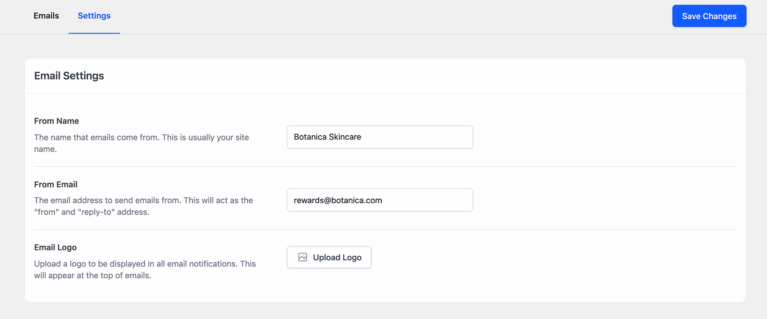
From name
- Controls the sender name shown in inboxes.
- Best practice is to use a recognizable brand name members will trust.
From email
- The email address used to send notifications and receive replies.
- For best deliverability, use an address on your own domain that aligns with SPF and DKIM records.
Email logo
- A global logo displayed at the top of all emails.
- Recommended size is 360 × 120 pixels. The logo appears above any per-email banner and reinforces brand consistency.
Types of email notifications
RewardsWP groups emails based on their purpose and audience.
Referral emails
Referral emails notify members when referrals result in rewards.
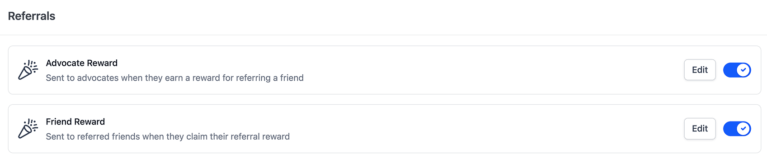
- Advocate reward email: Celebrates a successful referral and delivers the advocate’s reward coupon.
- Friend reward email: Confirms the referred friend’s reward and provides redemption instructions.
Points emails
Points emails notify members about changes to their points balance.
- Points earned email: Sent whenever points are earned through purchases, reviews, referrals, or custom actions.
- Reward redemption email: Confirms successful point redemption and delivers the generated coupon code.
- Points expiration email: Warns members before points expire and encourages timely redemption.
Managing individual emails
Each email notification can be managed independently. When editing an email, you can control its status, customize its content, review how it appears to members, and send test messages before enabling it.
Enabling and disabling emails
Each email has its own toggle.
- Disabled emails are never sent
- Enabled emails are sent when triggered
Disabling critical emails such as reward confirmations may negatively impact the member experience.
Editing subject lines
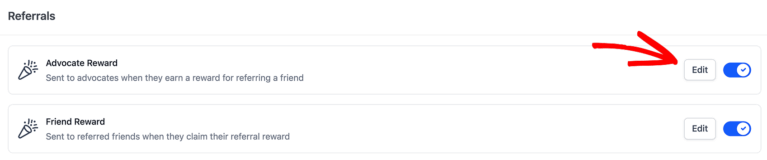
Subject lines of the email notifications can be customized to match your brand voice and create urgency by clicking on the edit button.
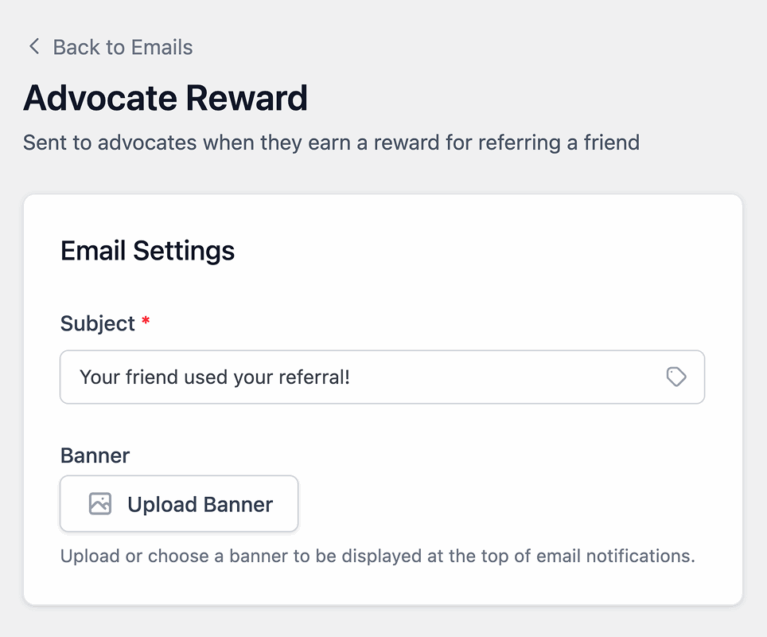
Here you can customize the subject line in the Subject field.
Best practices include:
- Keeping subject lines under 50 characters
- Including merge tags for rewards or points
- Avoiding spam-triggering language
Adding banners to emails
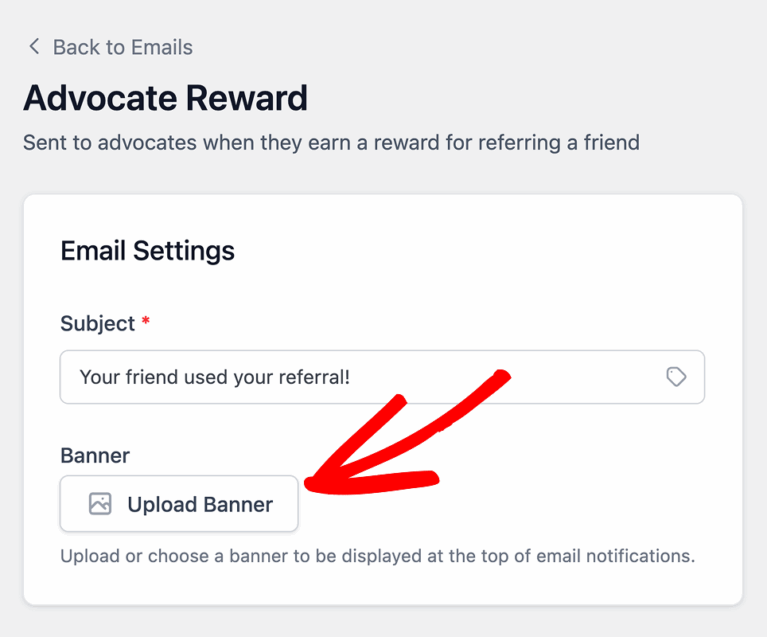
Each email can include a custom banner image. Banners appear below the global logo and are ideal for promotions, campaigns, or seasonal messaging.
Previewing emails
When editing an email, RewardsWP displays a live preview on the right side of the screen. This preview shows how the email will appear to members using sample data for merge tags.
The preview includes:
- Rendered HTML layout
- Global logo and banner
- Example merge tag values
This allows you to review formatting and content before enabling the email.
Sending test emails
In addition to the on-screen preview, you can send a test version of any email. Click Send Test while editing an email to send a test message to your configured From Email address.
Test emails:
- Use the same template as live emails
- Replace merge tags with sample data
- Do not trigger points, rewards, or referrals
Sending test emails is safe and can be done multiple times.
That’s it! Once configured, the RewardsWP email system runs automatically, keeping members informed at every key moment in their rewards journey.
By combining timely notifications, consistent branding, and reliable delivery, RewardsWP emails reinforce the value of your rewards program and encourage long-term engagement without ongoing manual effort.