The Free Product reward type in RewardsWP allows you to offer specific products from your store as rewards when customers redeem their earned points. This tangible incentive encourages repeat purchases and increases customer loyalty by giving them something valuable to work toward.
Setting Up Free Product
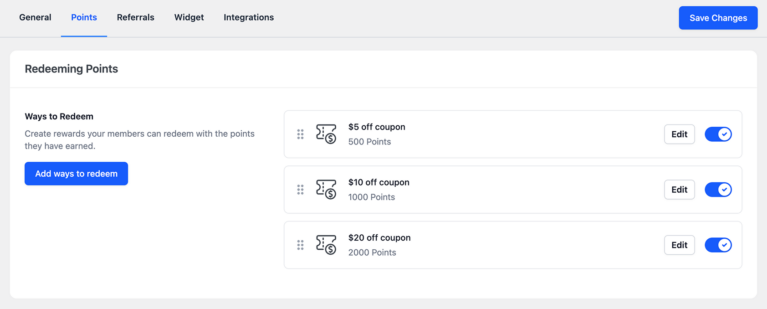
To configure a Free Product as a points redemption option, navigate to RewardsWP » Settings » Points in your WordPress admin, then scroll down to the Redeeming Points section.
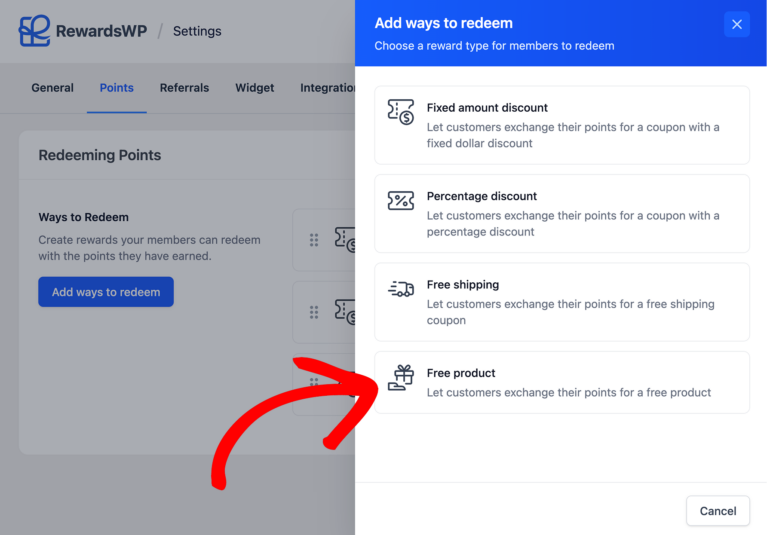
Click the Add ways to redeem button and choose Free product reward type.
This opens the configuration panel where you can customize how this reward works for your customers.
- Status: The Status toggle lets you enable or disable this reward. When disabled, customers won’t see it in the widget. Note that this toggle automatically turns off if the selected product goes out of stock.
- Points Required: Determines how many points customers must spend to redeem this reward. The default is 2,000 points, but you should set this based on the product’s value and how quickly you want customers to earn it.
- Free product selection: This is where you search and select the product to offer as the reward. The search only shows in-stock products from your WooCommerce or Easy Digital Downloads store. If you have variable products (like a t-shirt with multiple sizes), you can select a specific variation rather than the parent product.
- Custom product name (Optional): The Custom Product Name field is optional but useful for simplifying long product titles or creating more appealing reward names. For example, you might display “Luxury Sample Set” instead of “Mini Skincare Collection – Trial Size 5-Pack.”
- Redemption Limit: Controls how many times each customer can redeem this specific reward. The default is “1 time,” meaning each customer can only redeem it once. Set this to “Unlimited” if you want customers to redeem it as many times as they have points.
- Minimum spend: The Minimum Spend field sets a minimum cart subtotal required before the reward can be applied. This value is calculated from the cart subtotal excluding the free product itself. For example, if set to $50, customers must have at least $50 worth of other products in their cart before the free product will apply. Leave this empty if you don’t want a minimum requirement.
- Reward expiry: The Reward Expiry setting determines how long the generated coupon code remains valid after redemption. Options include Never, 30 days, 3 months, 6 months, 1 year, and 2 years. After expiry, unused coupon codes become invalid and customers will need to redeem a new reward.
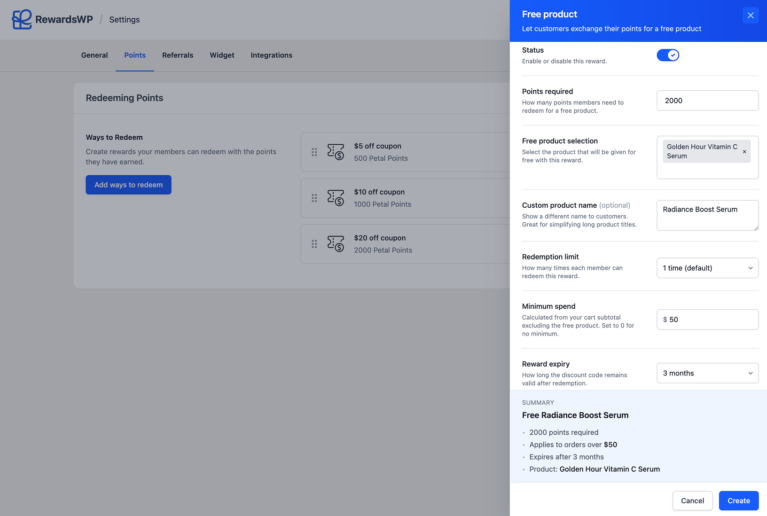
Once you’ve configured the options, click Create to add the Free Product reward, then click Save Changes to apply your settings.
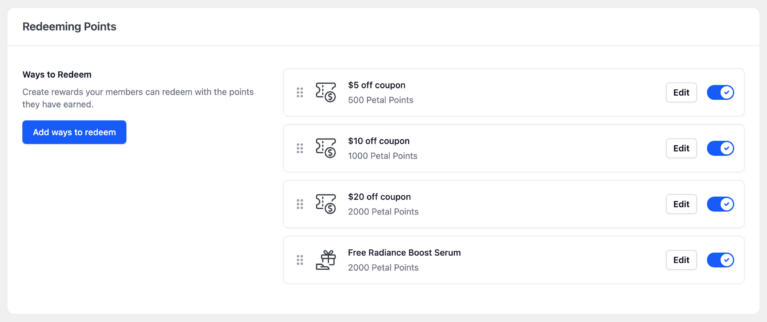
The Free Product option will now appear in your customers’ Rewards Widget under “Ways to Redeem.”
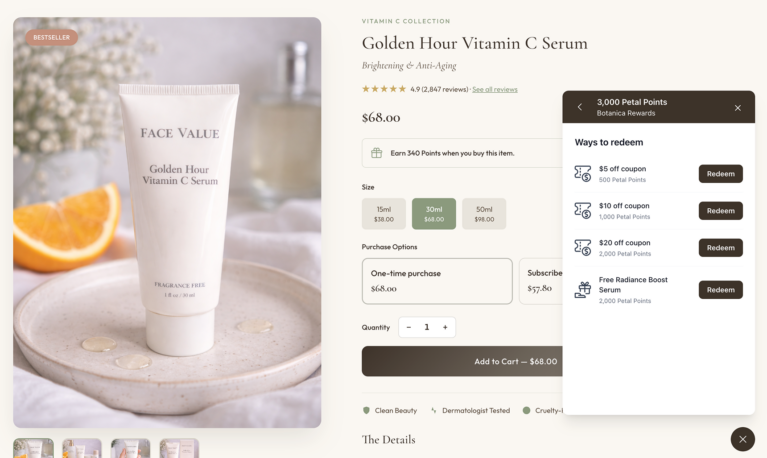
How Customers Redeem Free Product
Once configured, customers can redeem the free product reward through the Rewards Widget on your site. Here’s what that experience looks like.
Customers open the Rewards Widget and navigate to “Ways to Redeem” to see available redemption options.
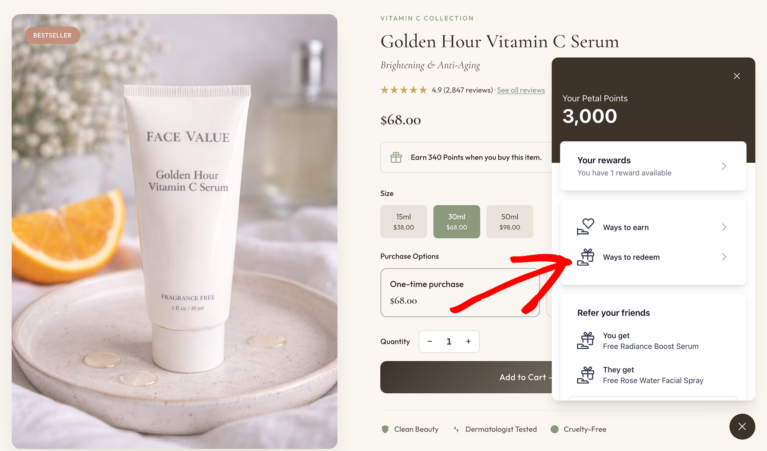
The Free Product displays with the product name (or custom name if configured) and the points required for redemption.
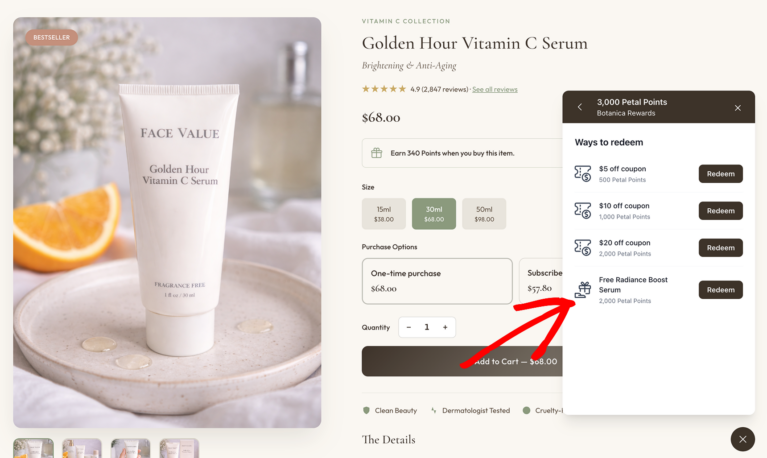
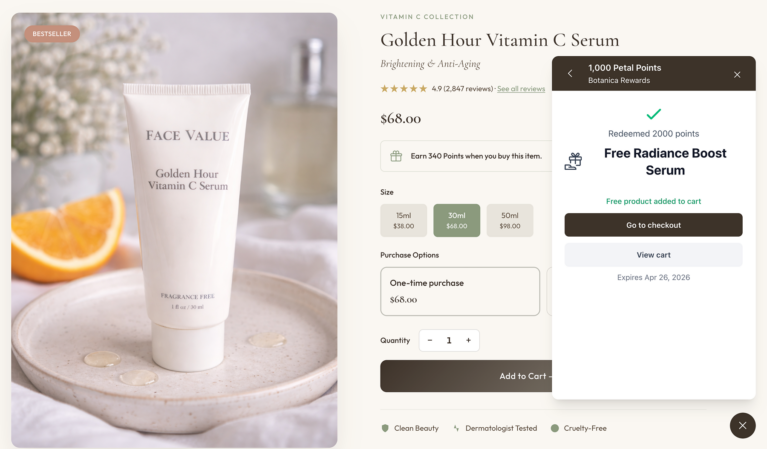
Customers can click the Redeem button to claim the reward, and the required points are automatically deducted from their balance. Once redeemed, they can click Add free product to cart, and the product is added to their cart automatically with the discount applied. If you’ve configured a Minimum Spend requirement, customers will see a helpful message indicating how much more they need to add to their cart before the reward can be applied.

After the product is added, a success message confirms that the free product is in their cart. From there, customers can proceed to checkout with the free product included.
Frequently Asked Questions
Can I use a variable product as a free product reward?
Yes, RewardsWP supports variable products. When you select a variable product as a free product reward, you can choose which specific variation to offer. Customers will receive that exact variation when they redeem the reward.
Does the free product count toward the Minimum Order Value?
No, the Minimum Order Value is calculated based on the cart subtotal before the free product is added. This ensures customers must purchase additional items to meet the threshold.
What is the Minimum Order Value setting?
Minimum Order Value requires customers to have a specified cart subtotal before they can apply the free product reward. For example, if set to $75, customers must have at least $75 worth of other products in their cart before the reward will apply.