AffiliateWP’s Anti-Fraud feature helps you detect and prevent fraudulent activity in your affiliate program, protecting your commissions and identifying suspicious patterns before they cost you money.
This guide walks you through configuring five fraud detection methods, reviewing flagged items, and monitoring fraud metrics to keep your program secure.
Overview
Affiliate fraud happens when someone attempts to exploit your program to earn commissions they didn’t legitimately earn. This could be affiliates clicking their own links to get commissions on purchases they were already making, creating fake accounts to multiply their earnings, or sending low-quality traffic from sources they’re not authorized to use. Without prevention, you could end up paying commissions to fraudulent affiliates instead of genuine partners who are actually promoting your business.
Anti-fraud feature in AffiliateWP includes fraud detection methods and manual blocking tools that work together to identify suspicious activity:
Available to all plans:
- Self-Referral Prevention – Detects affiliates using their own referral links to earn commissions on their own purchases
- Blocked Referring Sites – Manually block visits from specific domains like spam sites, fraud networks, or competitor websites
Pro plan only:
- PPC Traffic Detection – Detects referrals from paid advertising when your terms prohibit it
- IP Velocity Detection – Detects multiple fake affiliate accounts registered from the same location
- Conversion Rate Detection – Detects abnormally high or low conversion rates that indicate fraud patterns
- Referring Site Detection – Validates traffic actually comes from the websites affiliates registered with
Each detection method can be configured to Allow (no action taken), Flag (mark for your manual review), or Reject (automatically block). This flexibility lets you balance strict fraud prevention with giving legitimate affiliates the benefit of the doubt while you investigate.
Getting started with Anti-Fraud
Navigate to AffiliateWP » Settings » Anti-Fraud in your WordPress admin. The recommended first step is to confirm Self-Referral Prevention is set to Reject (the default). This blocks the most common type of fraud
Navigate to AffiliateWP » Settings » Anti-Fraud in your WordPress admin. The recommended first step for new programs is to configure Self-Referral Prevention (detailed in the next section) and save your changes.
Self-referral prevention
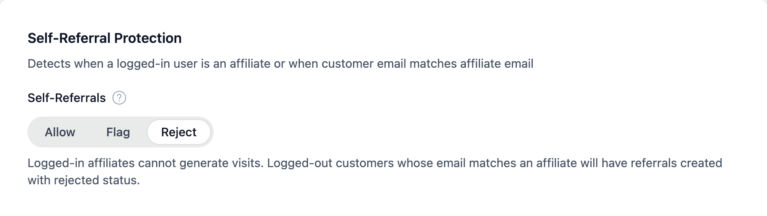
Self-referral prevention stops affiliates from earning commissions on their own purchases by using their own referral link. This is the most common type of affiliate fraud – an affiliate essentially paying themselves a commission, and should be enabled for nearly all programs.
How it works
The system detects self-referrals in two ways:
- Email matching: When a customer’s email address matches an affiliate’s email address
- Logged-in detection: When a logged-in user is also a registered affiliate
If either condition is true, the referral is flagged or rejected based on your configuration.
Configuration
In the Self-Referral Prevention section, choose one of the following modes:
- Allow – Permits self-referrals normally. Use this mode only if you explicitly want affiliates to earn on their own purchases (rare). Some businesses use this as an affiliate discount program where members get commissions on their own orders.
- Flag – Creates referral with pending status for manual review. Use when you want to review self-referrals case-by-case, perhaps because you allow some self-referrals under specific circumstances.
- Reject (default) – Blocks visits and creates rejected referrals automatically. Recommended for most programs because self-referrals are nearly always fraudulent, and automatic rejection saves you from having to review each one manually.
Recommendation: Use Reject mode unless you have a specific business reason to allow self-referrals. This provides immediate protection without requiring manual review.
Affiliates don’t receive notification when their self-referrals are rejected, which prevents them from circumventing your fraud prevention.
Referring site detection
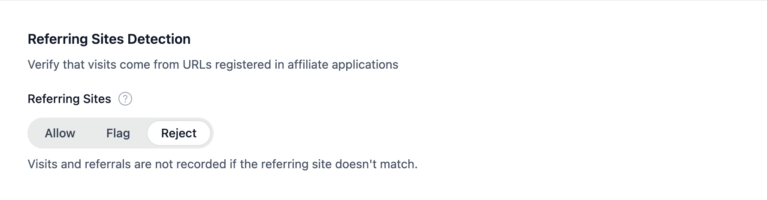
Referring site detection ensures affiliates only send traffic from the websites they registered with. When affiliates sign up, they provide their website URL. This feature verifies that incoming traffic actually comes from those registered URLs, preventing affiliates from promoting your program on unauthorized sites or using domain spoofing.
Pro feature: Referring Site Detection is available on the Pro plan and requires affiliate registration to be enabled. Upgrade to Pro →
How it works
When an affiliate registers, they provide their website URL (e.g., https://example.com). When a visitor arrives through a referral link, the system:
- Checks where the visitor came from (the referring website)
- Compares that referring domain against the affiliate’s registered URLs
- Flags or rejects the visit if it came from an unregistered domain
Domain matching: The system uses flexible matching to avoid false positives:
- Ignores
www.prefix (treatswww.example.comandexample.comas the same) - Matches subdomains (traffic from
blog.example.commatches a registered site ofexample.com) - Supports parent domain matching (affiliate can promote from their main site and any subdomains)
Configuration
In the Referring Sites Detection section, choose one of the following modes:
- Allow (default) – Any referring site permitted. Use if you don’t restrict traffic sources – for example, if affiliates promote through multiple channels like social media, email, or various websites they didn’t all list during registration.
- Flag – Marks mismatched visits for review. Use to monitor where affiliates are actually promoting without blocking – you’ll see if they’re using unauthorized sites and can decide whether to approve the traffic or ask them to update their registered URLs.
- Reject – Blocks visits from unregistered domains automatically. Use to strictly enforce that affiliates only promote from the exact websites they registered with. This prevents affiliates from promoting on spam sites, unauthorized forums, or competitors’ domains.
Requirement: This setting only appears if Allow Affiliate Registration is enabled in AffiliateWP » Settings » General.
Recommendation:
- Use Reject if you want strict control over traffic sources
- Use Flag if you want visibility without blocking
- Keep Allow if affiliates use multiple domains or social media
Conversion rate detection
Conversion rate detection identifies affiliates whose performance falls outside normal patterns. An affiliate’s conversion rate shows what percentage of their tracked visits result in actual referrals. Abnormally high conversion rates (almost every visit becomes a referral) may indicate fraud like self-referrals or cookie stuffing. Unusually low rates (many visits but no referrals) could suggest click fraud or bot traffic.
Pro feature: Conversion Rate Detection is available on the Pro plan. Upgrade to Pro →
How it works
The system monitors each affiliate’s conversion rate – the percentage of tracked visits that result in referrals.
Minimum threshold: Detection only triggers when an affiliate has 10 or more referrals. This prevents false positives from small sample sizes.
Example: An affiliate with 100 visits and 25 referrals has a 25% conversion rate. If your maximum threshold is set to 20%, their referrals would be flagged.
Configuration
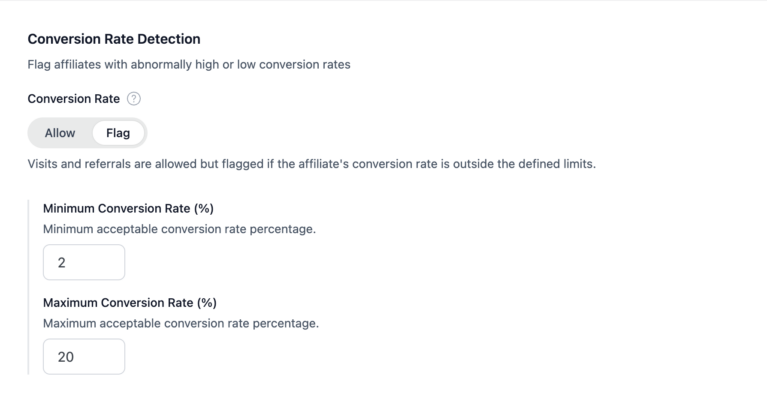
In the Conversion Rate Detection section, choose one of the following modes:
- Allow (default) – No conversion rate checking. Use if you don’t want to monitor conversion rates or if you have high variation in affiliate quality where some naturally perform much better or worse than others.
- Flag Visits & Referrals – Marks visits and referrals when rate is outside limits. Use to monitor suspicious conversion patterns without blocking – you’ll review whether abnormal rates indicate fraud (like self-referrals or fake purchases) or just exceptional affiliate performance. When you select this mode, two additional fields appear to set your minimum and maximum conversion rate thresholds.
Note: Conversion rate detection only supports Allow or Flag modes, not automatic rejection. This is because conversion rate anomalies require context to interpret correctly – a high rate might mean fraud or might mean an affiliate has a perfectly targeted audience. You need to investigate before taking action.
Minimum Conversion Rate (appears when Flag mode is selected)
- Default: 2%
- Range: 0-100%
- What it means: Flag if conversion rate is below this percentage
Maximum Conversion Rate (appears when Flag mode is selected)
- Default: 20%
- Range: 0-100%
- What it means: Flag if conversion rate is above this percentage
Recommendation:
- Start with 2-20% range (industry standard for most affiliate programs)
- Adjust based on your product and niche:
- High-ticket items: 1-10% might be more realistic
- Low-cost subscriptions: 5-30% could be normal
- Physical products: 2-15% is typical
PPC traffic detection
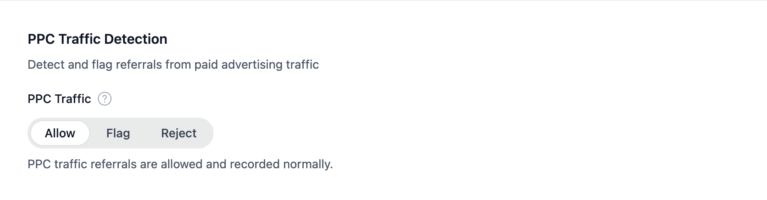
PPC (pay-per-click) traffic detection identifies referrals that come from paid advertising sources like Google Ads, Facebook Ads, or Microsoft Advertising. Many affiliate programs prohibit PPC traffic because affiliates can bid on your brand name in search engines, driving up your advertising costs while earning commissions from those same customers.
Pro feature: PPC Traffic Detection is available on the Pro plan. Upgrade to Pro →
How it works
The system automatically detects paid advertising traffic in three ways:
- Click ID parameters: When someone clicks a paid ad, advertising platforms add special tracking codes to the URL – like
gclidfor Google Ads,fbclidfor Facebook Ads, ormsclkidfor Microsoft Advertising. AffiliateWP detects these codes. - UTM parameters: Identifies URL parameters that indicate paid traffic, such as
utm_medium=cpc,utm_medium=ppc, orutm_medium=paid. - Referrer domains: Recognizes when visitors come directly from known advertising platform domains.
PPC detection recognizes traffic from Google Ads, Facebook Ads, Microsoft Advertising, TikTok Ads, LinkedIn Ads, Pinterest Ads, Snapchat Ads, Reddit Ads, Twitter Ads, Impact Radius, and generic ad platforms.
Configuration
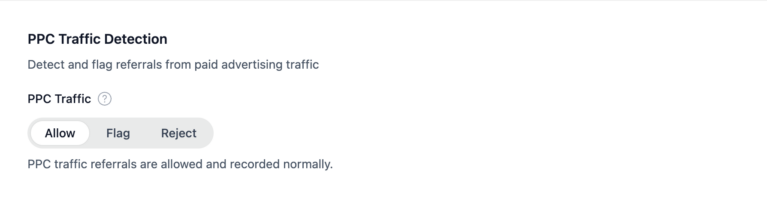
In the PPC Traffic Detection section, choose one of the following modes:
- Allow (default) – Permits PPC traffic normally. Use if you allow affiliates to use paid advertising and trust them to follow your brand bidding guidelines.
- Flag – Marks PPC referrals for manual review. Use when you want to review PPC traffic case-by-case – for example, if you allow general keyword advertising but want to catch and block brand name bidding.
- Reject – Blocks visits and rejects PPC referrals automatically. Use if your affiliate terms prohibit all paid advertising. This ensures affiliates can only promote through organic channels like their blogs, social media posts, and email lists.
When PPC detection triggers, the system records which platform was detected and the detection method used (click ID or UTM parameter), visible when you review the flagged referral.
IP velocity detection
IP velocity detection detects those who create multiple fake affiliate accounts from the same location to multiply their commissions. The system identifies when too many affiliates register from the same IP address (internet location) within a short time window, which indicates fake accounts, bot registrations, or affiliate farms.
Pro feature: IP Velocity Detection is available on the Pro plan. Upgrade to Pro →
How it works
When a new affiliate registers, the system captures their IP address, checks how many other affiliates registered from that same IP within the time window, and compares the count against your threshold. If exceeded, the affiliate is flagged or set to pending.
Example: With the default settings (3 registrations in 24 hours), if a 4th affiliate tries to register from IP address 192.168.1.1 within 24 hours, they’ll be flagged.
Configuration
In the IP Velocity Detection section, choose one of the following modes:
- Allow (default) – No IP velocity checking. Use if IP velocity isn’t a concern for your program or if you have a lot of affiliates who naturally share networks (like university students or coworking spaces).
- Flag – Marks affiliates for your awareness but allows them to activate immediately. Use to monitor patterns without blocking registrations – you’ll see who shares IPs but won’t slow down legitimate sign-ups. When you select this mode, two additional fields appear to set your detection threshold and time window.
- Require Approval – Sets affiliate to pending status for manual review. Recommended for most programs because it prevents fraudulent accounts from immediately activating while you investigate, but still allows you to approve legitimate affiliates who happen to share an IP address. When you select this mode, two additional fields appear to set your detection threshold and time window.
Registration Threshold (appears when Flag or Require Approval is selected)
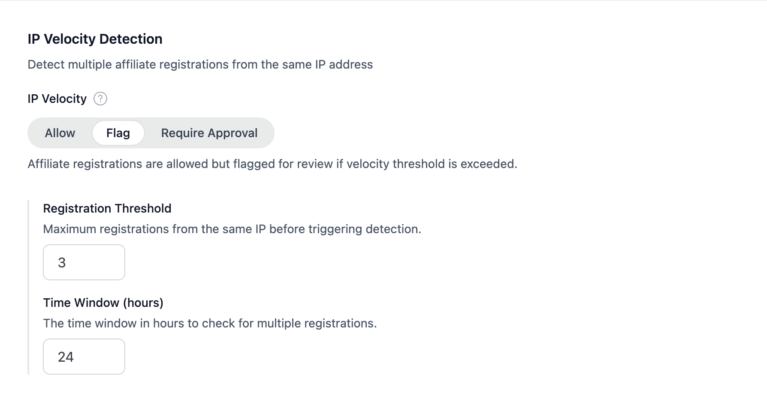
- Default: 3 registrations
- Range: 2-100
- What it means: Maximum number of registrations from the same IP before triggering detection
Time Window (appears when Flag or Require Approval is selected)
- Default: 24 hours
- Range: 1-720 hours (30 days)
- What it means: How far back to look for registrations from the same IP
GDPR and IP logging
IP velocity detection requires capturing IP addresses to track where affiliates are registering from. If you’ve disabled IP logging in AffiliateWP » Settings » Advanced (for example, to comply with GDPR privacy requirements), IP velocity detection won’t function. The Anti-Fraud settings page will display a notice if IP logging is disabled.
Blocked referring sites
Available to all plans – This feature lets you manually block visits from specific domains like spam sites, fraud networks, or competitor websites. Use this when you’ve identified particular sources of fraudulent or unwanted traffic.
How it works
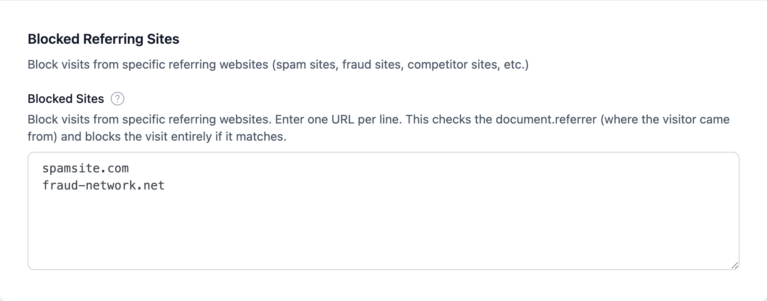
Enter domain names (one per line) in the Blocked Sites textarea under the Blocked Referring Sites section. Any visitor coming from a blocked domain is completely blocked, no visit is recorded and no referral is created.
spamsite.com
fraud-network.net
competitor.com
Domain matching ignores www. prefixes, blocks all subdomains automatically, and is case-insensitive.
Don’t add ad platform domains (google.com, facebook.com, etc.) to this list if you’re using PPC Traffic Detection. Use PPC detection settings instead for more control.
Reviewing flagged referrals and affiliates
When fraud detection flags items, you need to review and decide: is this fraud, or a false positive?
Flagged referrals
Navigate to AffiliateWP » Referrals. Flagged referrals show a red flag icon next to the Referral ID with a tooltip showing the fraud type and details. Use the Pending status filter to find items needing review.
Click a referral to open the edit screen. The Fraud Alert banner at the top explains what was detected, and the Fraud Alert dropdown at the bottom shows the specific flag type.
To approve (legitimate):
- Change Status to Unpaid
- Optionally clear the Fraud Alert dropdown to None
- Click Update Referral
To reject (fraudulent):
- Change Status to Rejected
- Keep the Fraud Alert flag (documents why it was rejected)
- Click Update Referral
Important: Once a referral is included in a payout, the fraud alert cannot be changed.
Once a referral is included in a payout, the fraud alert cannot be changed.
Flagged affiliates
Navigate to AffiliateWP » Affiliates and filter by Pending status. Affiliates flagged by IP velocity detection show a flag icon.
Click the affiliate’s name, then click Review to open the Review Affiliate screen. The Anti-Fraud section at the bottom shows IP velocity details, sibling affiliates from the same IP, and rejected/flagged referral counts.
- To approve: Select Accept Affiliate and submit. The affiliate becomes active and can start earning.
- To reject: Select Reject Affiliate and submit. The affiliate cannot log in or earn commissions.
Frequently asked questions
Can I change a fraud flag after a referral has been paid?
No. Once a referral is included in a payout, its fraud flag is locked and cannot be modified. This prevents retroactive changes that could create accounting inconsistencies.
What happens to an affiliate’s existing referrals if I flag them for IP velocity?
IP velocity detection only affects the affiliate’s status (pending vs. active). It doesn’t retroactively flag or reject their existing referrals. If you want to review their past referrals after flagging for IP velocity, navigate to AffiliateWP » Referrals and filter by that affiliate.
Do affiliates receive notifications when their referrals are rejected?
No. Affiliates don’t receive automatic notifications when referrals are rejected due to fraud detection. They’ll see rejected referrals in their affiliate dashboard (if they have access), but they won’t receive an email alert. This prevents those engaging in fraud from identifying which techniques triggered detection and adjusting their methods to avoid it in the future.
Can I use fraud detection if I’ve disabled IP logging for GDPR compliance?
Partially. Most detection methods (Self-Referral, PPC Traffic, Conversion Rate, Referring Sites) don’t require IP addresses and will work fine – they rely on other signals like email matching, URL parameters, or domain comparison. However, IP Velocity Detection won’t function because it fundamentally requires capturing and comparing IP addresses to identify multiple registrations from the same location. If you’ve disabled IP logging in AffiliateWP » Settings » Advanced to comply with privacy regulations, you’ll see a notice in the IP Velocity section explaining that this detection method is unavailable.
How does fraud detection work with multi-tier affiliate programs?
Fraud detection applies to all referrals regardless of tier level. If a Tier 2 referral (a commission earned on sales generated by a Tier 1 affiliate) is flagged or rejected, it follows the same detection rules as any other referral. Importantly, the parent affiliate (Tier 1) won’t be automatically flagged just because their recruited affiliate (Tier 2) committed fraud – each affiliate is evaluated independently.
Can I temporarily disable all fraud detection?
Yes. Navigate to each fraud detection feature and set its mode to Allow. This disables detection for that feature – visits and referrals will be tracked and credited normally without any fraud checking. This is useful when testing affiliate links during development, running a promotional campaign where you want to temporarily relax fraud rules.