Are you trying to find your RewardsWP license information? These details can be important for setting up our plugin, as well as managing your billing options.
This tutorial will show you how to find your RewardsWP license details in your account, as well as the WordPress admin area.
Accessing License Details in the RewardsWP Account
For a complete look at all your license details, you’ll need to log in to your RewardsWP account.
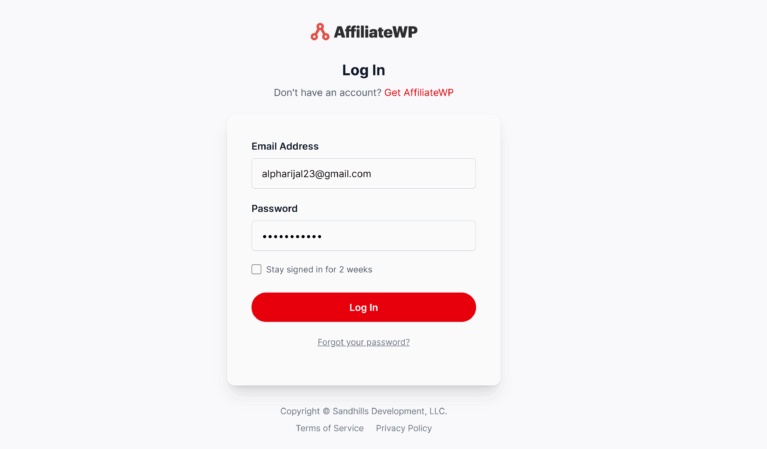
First, visit the RewardsWP login page. Here, you’ll need to enter your email address and password and click Log In.
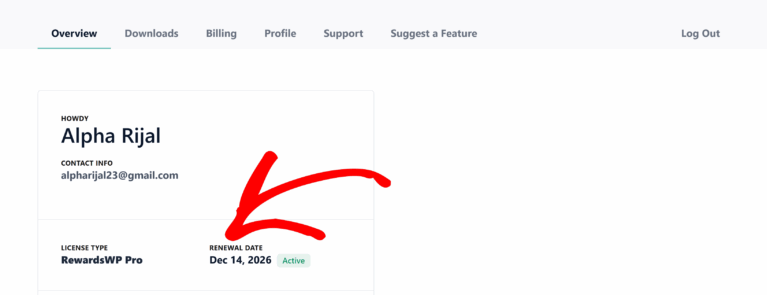
This will bring you to your account overview. Below your name and contact information, you’ll see your license type and renewal date.
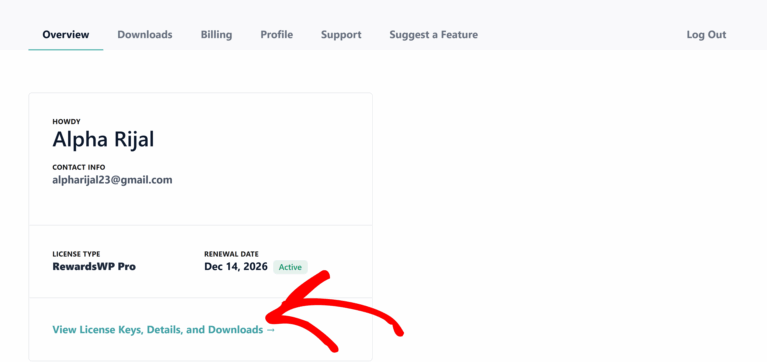
To see even more details, click on View License Keys, Details, and Downloads.
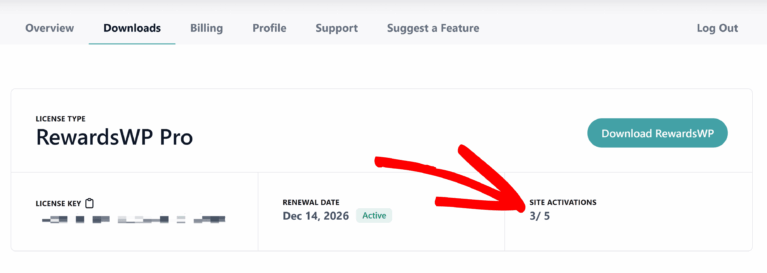
You can also access this screen by clicking on the Downloads tab at the top of your account page. On the Downloads page, you’ll see your license type at the top, followed by your license key and renewal date.
Here, you can copy your license key by clicking on the clipboard icon.
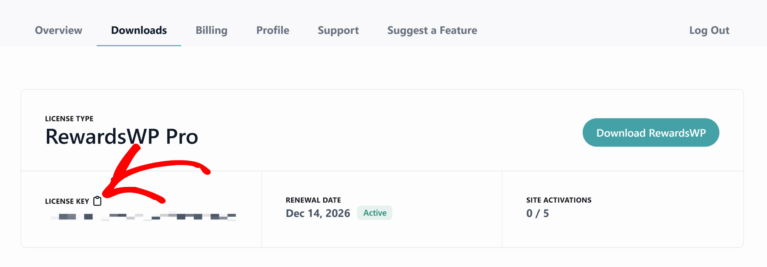
You’ll also see how many sites this license is activated on, and how many active installations are allowed by your license type.
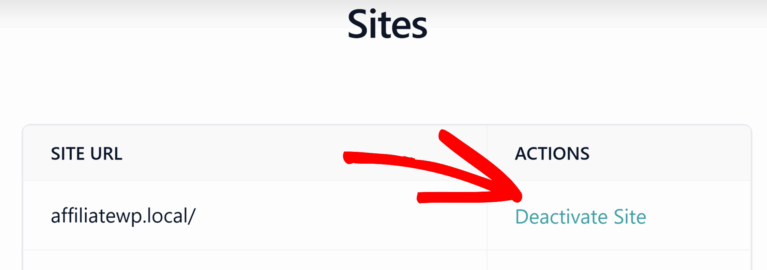
To see which specific domains your license is activated on, click on View Sites. This will open a popup window that lists each of the sites with an active license.
If you need to remove this license from one of these sites, click on Deactivate Site next to its domain.
Viewing License Level in your WordPress Admin Area
Most of your license details are not visible on the backend of your WordPress site. However, you can view your license level by going to RewardsWP » Settings » General, and looking under the License Key field.
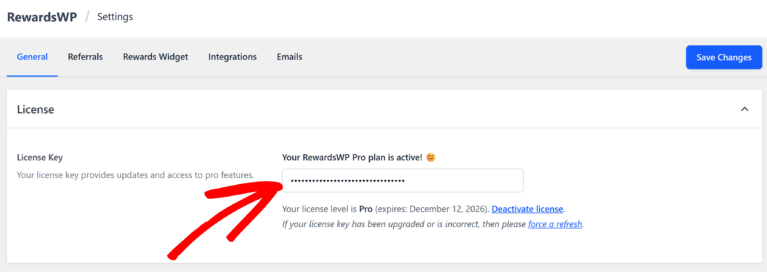
Note: Your license must be verified to view your license level in the WordPress admin area. See our tutorial on verifying your RewardsWP license for step-by-step instructions.
That’s it! Now you know how to find your RewardsWP license details.