Would you like to move your RewardsWP license to a different URL? You may need to transfer a license to a new domain if you’re migrating it from a staging site or if you’d prefer to use RewardsWP on a different site.
This guide will show you how to deactivate the RewardsWP license on one site so you can activate it on another site.
Deactivating your RewardsWP License on your Current Site
There are two ways to deactivate a RewardsWP license: from your site’s WordPress admin area, or from your RewardsWP Account page.
Deactivating a Site License from your WordPress Admin Area
For this approach, you’ll first need to log in to your WordPress site. Then open RewardsWP » Settings » General from the sidebar menu on the left.
To the right of the License Key field, click the Deactivate License link.
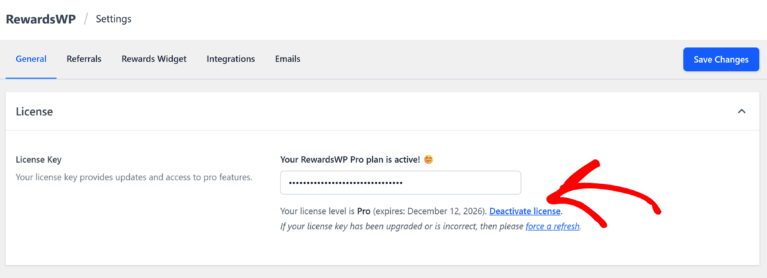
You should see a notice confirming that your settings were successfully updated, along with a message prompting you to enter the license key for RewardsWP to enable automatic updates.
Deactivating a Site License from your RewardsWP Account
If you’d prefer to deactivate your license through your RewardsWP account, you’ll first need to log in to the RewardsWP site.
Then, from your account page, click on the Downloads tab.
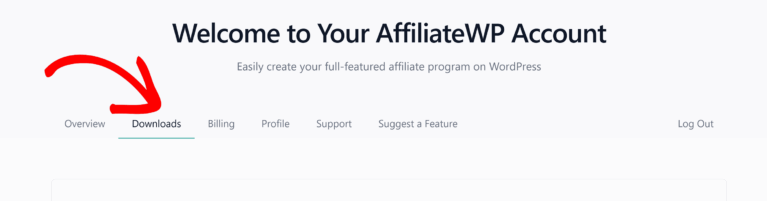
On the Downloads page, look for the Site Activations section and click on the View Sites link.
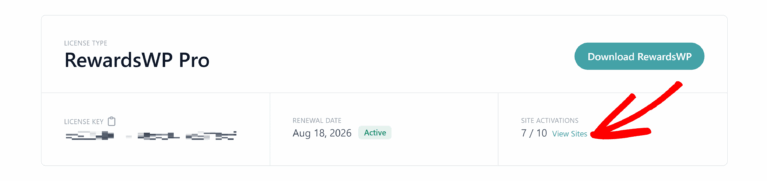
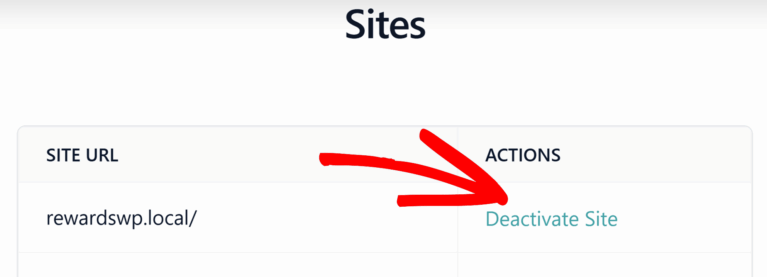
You should then see a list of all the sites your license is active on. Under the Actions column, click the Deactivate Site link to remove the license key from that site.
Installing RewardsWP and Activating the License on a New Site
Once you’ve deactivated your license key for your previous domain, you’re ready to activate it on your new site.
First, make sure you’ve installed the RewardsWP plugin on your new site.
After the plugin is installed and activated, you’ll be able to verify your license key on your new site.
That’s it! Now you know how to transfer your RewardsWP license key from one site to another.