RewardsWP’s export tool lets you download your rewards program data as CSV files for reporting, analysis, or record-keeping. You can export members, points activity, referrals, and rewards, with optional date filtering and email delivery. This guide walks you through each export type, the step-by-step workflow, and what to expect from the generated files.
What you can export
RewardsWP supports four export types, each producing a CSV file:
- Members — A snapshot of all members in your rewards program, including their email, display name, join date, current points balance, referral code, and status.
- Points Activity — A detailed log of every point transaction across all members, showing when points were earned, redeemed, or adjusted, along with the source of each transaction.
- Referrals — A record of all referrals in your program, including the advocate, referred friend, associated order details, and referral status.
- Rewards — A record of all rewards that have been issued to members, including the reward type, value, recipient, and whether it has been used.
While the VIP Program is active, the Members export also includes VIP Tier, VIP Tier Achieved (the date the member reached their tier), and VIP At Risk (whether they’re in a grace period). See Tracking VIP Tiers With Reports and Exports.
How to start an export
Exports are accessed from the Reports page in your RewardsWP admin. Here’s the step-by-step workflow:
1. Navigate to RewardsWP » Reports and click the Export tab.
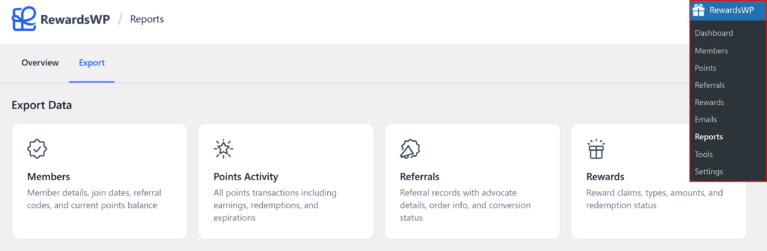
2. Click the card for the export type you want: Members, Points Activity, Referrals, or Rewards.
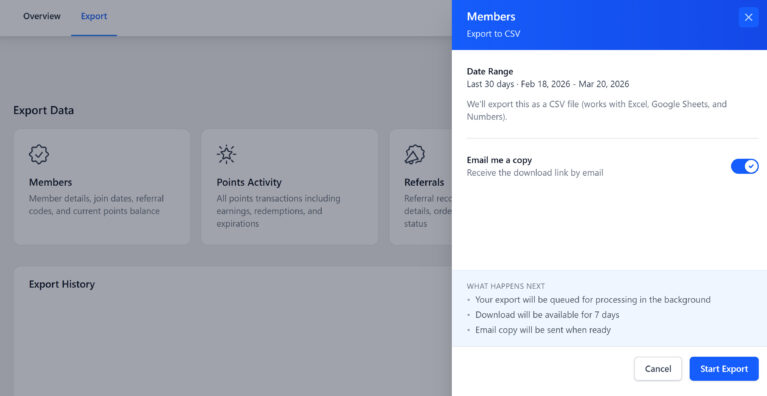
3. Optionally toggle Email me a copy if you want a download link emailed to you.

5. Click Start Export to start the process.

Date range filtering
Each export type supports optional date range filtering. Set a Start date and/or End date to limit the export to records within that window.
- Members – Filters by join date.
- Points activity – Filters by transaction timestamp.
- Referrals – Filters by referral creation date.
- Rewards – Filters by reward issuance date.
If you leave both dates empty, the export includes all records. You can also set just a start date (everything from that date forward) or just an end date (everything up to that date).
Background processing and download
Exports run in the background, so you don’t need to keep your browser open while the file is generated. This is especially useful for large datasets.
How it works
1. Pending – After you click Export, the job is queued and starts processing.
2. Processing – RewardsWP works through the data in batches, building the CSV file incrementally.
3. Completed – The file is ready for download.
If something goes wrong during processing, the job status changes to Failed. Click the Retry button next to the failed job to try again.
The progress is visible in the Export History section on the Export tab, so you can check back at any time to see if your file is ready.
Email notification
If you toggle Email me a copy before starting the export, RewardsWP sends you an email when the file is ready. The email contains a download link that takes you to the export file.
Note: The download link in the email requires you to be logged into WordPress. You’ll need to be signed in as an administrator to access the file.
This is convenient when you’re running a large export and don’t want to watch the progress. Start the export, work on something else, and click the link in the email when it arrives. The download link is valid for 7 days, the same expiration window as the file itself.
File details and expiration
All exports are generated as CSV files (comma-separated values), which work with Excel, Google Sheets, Numbers, and most other spreadsheet applications.
Export files are available for download for 7 days after creation. After that, both the admin download link and any emailed download links stop working. If you need the data again after expiration, simply run a new export.
Store the downloaded CSV in a secure location, especially if it contains customer email addresses or order data.
Frequently asked questions
All exports are generated as CSV (comma-separated values) files. CSV is widely supported by spreadsheet applications like Excel, Google Sheets, and Numbers.
Export files expire 7 days after creation. After that, both the admin download link and any emailed download links stop working. Download your file promptly or re-run the export if you need it later.