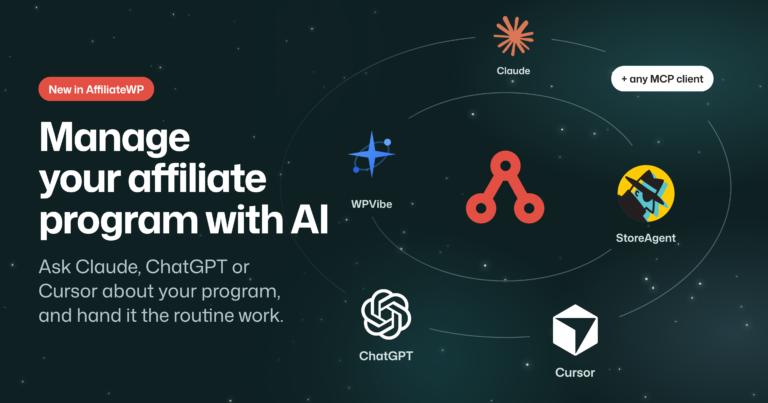





RewardsWP now works with the AI assistant you already use. Ask Claude, ChatGPT or Cursor which customers are sitting on points they’ve never spent, and the answer comes straight from your own rewards program.
Once you allow it, the same chat can make the change in RewardsWP, whether that’s bonus points for a customer, more time on a coupon or a brand new reward.
Here’s what to ask it first, then how changes work, what stays in your hands, and how to connect it in a few minutes.
Ask how your rewards program is doing
Each example is one message, written the way you’d ask someone on your team. Your assistant picks the part of RewardsWP that holds the answer and replies in plain English.
See which customers refer the most friends
Your referral program’s best advocates are worth knowing by name:
Who were my top five customers last month by completed referrals?
You get a ranked list for the dates you gave, and the same question works ranked by points earned instead.
Find points nobody has spent
A balance that keeps growing is a customer you haven’t brought back yet:
Which customers have more than 1,000 points and have never redeemed any?
Your assistant filters your members by balance and redemption history in one go, so you have a list to send a reminder to.

Answer a customer’s question about their points
When a customer asks about the points on an order, your assistant can check it for you:
Why didn’t order 5120 earn any points?
It looks at what RewardsWP recorded for that order and tells you the reason, such as the customer checking out with an email that isn’t a member yet, or the order not being paid.
Check last month in one line
For the numbers you’d normally open the dashboard for, ask:
How many points did customers earn and redeem last month?
It reads the same figures your RewardsWP dashboard shows, so the two always agree.
Let it make the changes you ask for
With write access on, your assistant can change your rewards program directly. Each change below was run end to end on a test store before we wrote it up.
Thank a customer with bonus points
Add 250 points to Maya’s account as a thank-you for her product photos.
Your assistant finds Maya, adds the points as a manual adjustment and saves your reason as an admin-only note. The points show in her rewards widget like any other adjustment.
Give a coupon more time
Extend Kenji’s $5 off coupon to the end of next month.
It moves the reward’s expiry date and the coupon’s expiry in your store along with it. A coupon from a reward that never expires has nothing to extend, so your assistant will tell you that instead.
Add a reward, and know what a point is worth first
Add a way to redeem: 500 points for $5 off.
This is the change that touches your margins, so RewardsWP asks your assistant to run it as a trial and show you the result before it saves anything. The trial shows what one point is worth through the new reward, a cent each at 500 points for $5, and what you’d owe if every point your customers hold were spent on it.

Reward product reviews
Turn on points for leaving a review, at 50 points, for verified buyers only.
Customers start earning for reviews from that moment, and reviews they’ve already left don’t earn retroactively.
Start the week with one prompt
You can chain a few of these into a single message and send it every Monday:
Summarize last week’s points and referrals, list customers with more than 1,000 points who have never redeemed, and give me the three things to do first.
Your assistant reads each part, lines them up, and finishes with a short list of what to do this week.
Changes stay off until you switch them on
Your assistant signs in as the WordPress user who connected it, so it can only see and do what that user can, and every RewardsWP action needs a user who can manage your site’s settings.
Reading is always on. Changing anything in RewardsWP waits for Enable MCP Write Access, in the AI Permissions section of the AI MCP tab, and that one switch covers every connector. While it’s off, your assistant isn’t offered RewardsWP’s changes at all.
With it on, your assistant can reach your program settings and your members, deleting a member included. That’s why every change carries a reason your assistant has to give, and a delete takes two steps, a preview of the member first, then a confirmation. When it adds or deducts points, the member’s page in RewardsWP shows which assistant made the change.
RewardsWP’s actions can’t touch your license, switch write access on, or change which store RewardsWP is connected to.
The connector plugin is the one part RewardsWP doesn’t decide, though. It has its own permissions, which you pick when you connect it, and a read and write connection can reach parts of your site outside RewardsWP. If you only want answers, connect it read-only.

Two free plugins connect your assistant
RewardsWP describes what it can do through the WordPress Abilities API, and a free connector plugin hands that to your assistant over MCP, the open standard AI assistants use to talk to other software. You add the connector from the AI MCP tab.
WPVibe connects your assistant to your whole WordPress site, RewardsWP included, and it works whether you sell with WooCommerce or Easy Digital Downloads. Its RewardsWP recipes walk you through jobs like reviewing pending referrals and flagging the odd ones, and every one is tested on a live store first.
If you run a WooCommerce store, StoreAgent is another great option. It’s a WooCommerce AI agent that also chats with your shoppers and writes product content, and it connects your assistant to your store and RewardsWP.
Either one works with Claude, ChatGPT, Cursor and any other assistant that supports MCP.
Set it up in four steps
It takes a few minutes, and it needs WordPress 6.9 or later, the version that added the Abilities API.
- Go to RewardsWP > Tools and open the AI MCP tab.
- Install and activate WPVibe from its row with one click. If you’re using WooCommerce, you’ll also see StoreAgent below it.
- Set up the connector and follow its steps to connect your AI assistant.
- To let your assistant make changes, turn on Enable MCP Write Access.

Everything your assistant can read and change is listed in the RewardsWP AI assistants documentation.
Available on every RewardsWP plan
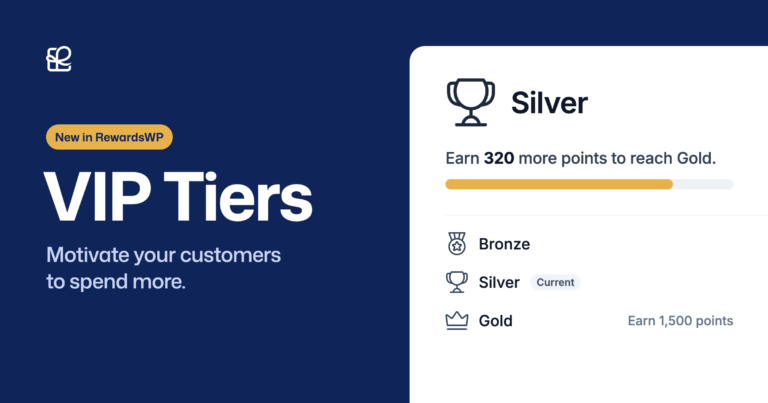
Every RewardsWP plan includes AI assistants, so you already have them once you’re on the latest update. A change your plan doesn’t cover, like setting up VIP tiers without Pro, comes back with the plan that includes it.
Next step: open the AI MCP tab, connect WPVibe, and ask your assistant which customers have points they’ve never spent. I’d bet at least one name on that list surprises you.
RewardsWP AI assistant FAQs
Yes, once write access is on. It previews the member first, then deletes in a second step, and the delete takes their points history, referrals and rewards with it, which RewardsWP can’t restore. You can add the customer back as a member, but they start again from zero, so leave write access off if you only want answers.
Some do, the same way they would from your admin. Points that move a customer into a VIP tier send the tier email, and completing a referral sends the customer their reward.
The same member details you see in RewardsWP, including names and email addresses. Referred friends’ emails are masked, and visitor IP addresses, license keys and other secrets are left out.