





When your affiliate program reaches the point where you’re regularly paying out commissions, you want a payout method that takes care of itself.
Stripe Payouts in AffiliateWP does exactly that. Affiliates set up their Stripe account directly from their portal, Stripe handles identity verification and banking details on its end, and payments land in their bank account from your WordPress dashboard.
Once you’ve connected your Stripe account and your affiliates have completed their one-time setup, every payout is a single click.
In this guide, you’ll learn how to:
- Connect your Stripe account to AffiliateWP
- Get affiliates onboarded to receive Stripe payouts
- Run individual and bulk payouts from your dashboard
Stripe Payouts is included in every AffiliateWP plan. No add-on required.
Why Use Stripe to Pay Affiliates?
Stripe’s advantage over other payout methods comes down to infrastructure. Under the hood, AffiliateWP uses Stripe Connect, Stripe’s platform for businesses that need to pay out money to third parties.
When affiliates complete their one-time onboarding, they create Stripe Express accounts that are KYC-verified and banking-verified directly with Stripe. You never see a bank account number, a routing number, or a tax ID.
Compare that to paying with PayPal: you’re sending money to an email address and hoping the affiliate has an active account tied to it. With Stripe Connect, Stripe owns the identity verification layer.
The affiliate updates their own banking details, sets their own payout schedule, and downloads their own 1099 from their Stripe Express Dashboard. None of that lands on your plate.
For affiliate programs paying out regularly and internationally, Stripe Connect is purpose-built for this. Affiliates abroad are paid in their local currency. No per-transaction fees from AffiliateWP. And the payout process is in the background without you staying on the page.
What You Need for Stripe Payouts
- AffiliateWP (any paid plan): Stripe Payouts is built into every paid plan. No separate plugin needed.
- A Stripe account: if you don’t have one yet, create one at stripe.com. Your Stripe account must be fully activated to process live payouts.
- Affiliates: they’ll complete a one-time Stripe setup from their Affiliate Area before they can receive their first payout.
Step 1: Connect Your Stripe Account
Go to AffiliateWP → Settings → Payouts in your WordPress dashboard. Find the Stripe card, enable the toggle, then click Configure to open the Stripe settings panel. (Full reference: Stripe Payouts documentation)
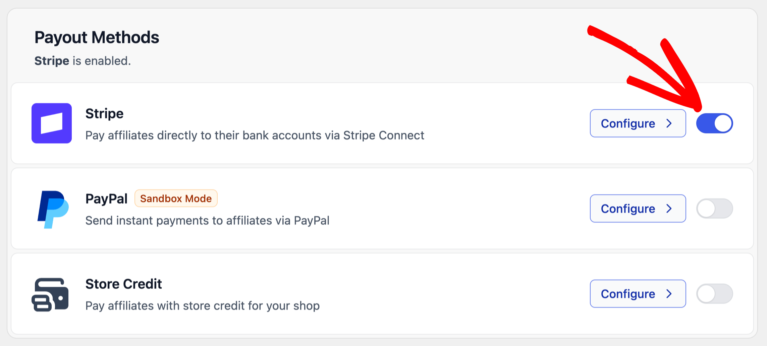
You’ll need two API keys from your Stripe Dashboard:
- Secret Key: your live key, used for real payouts
- Test Secret Key: used when Sandbox Mode is enabled
To find both keys, go to your Stripe Dashboard and navigate to Developers → API keys. Copy each key and paste it into the matching field in AffiliateWP.
Sandbox Mode lets you test the full payout flow without moving real money. Enable it using the Sandbox Mode toggle in the Stripe settings panel. When Sandbox Mode is on, AffiliateWP uses your Test Secret Key and Stripe routes all payouts through its test environment. It’s a good way to confirm everything is working before your first live payout.
Save your settings.
Paying affiliates in other countries?
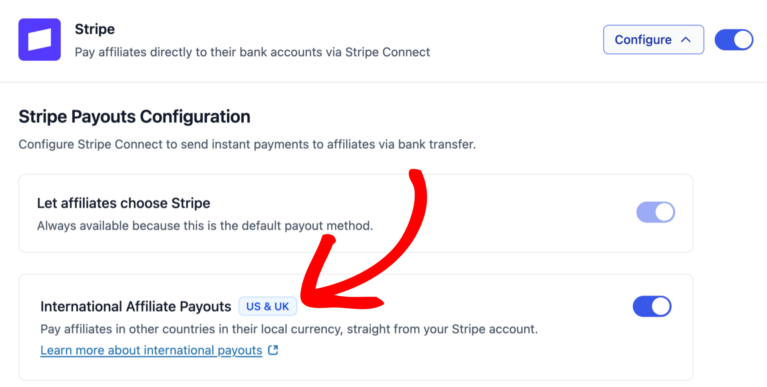
If any of your affiliates are outside your Stripe account’s country, turn on international payouts in the Stripe settings panel. There are two options, and you can use either or both. The first pays affiliates in their local currency through a Stripe account AffiliateWP creates for them, and works when your Stripe account is based in the US, UK, EEA, Canada or Switzerland. The second, Stripe Global Payouts, pays affiliates by bank transfer in 90+ countries, in their local currency, with no Stripe account needed on their side. It requires a US- or UK-based Stripe account.
Step 2: Affiliates Set Up Their Stripe Account
Each affiliate completes a one-time setup from their Affiliate Area. They don’t need an existing full Stripe account. Stripe’s Express onboarding creates a lightweight account for them as part of the process.
When an affiliate logs into their Affiliate Area and Stripe is configured on your site, they’ll see a prompt to get started. They choose their country, start the setup, and complete Stripe’s Express onboarding, entering their banking details, identity information, and tax details directly with Stripe. Affiliates paid through Stripe Global Payouts add their bank details on a Stripe-hosted page instead. You never see or store any of that information.
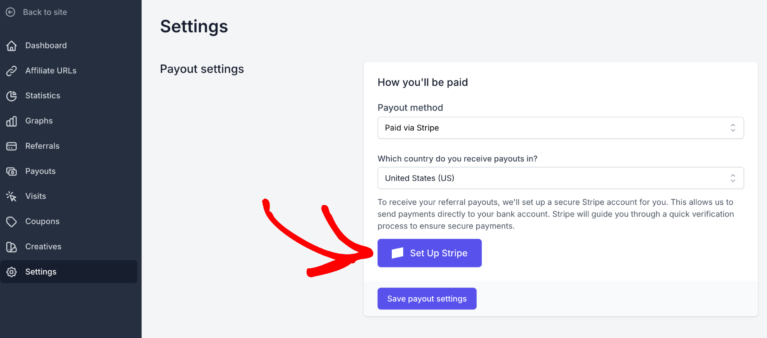
Once an affiliate completes onboarding, they’re ready to receive payouts. They only go through this process once.
After connecting, affiliates get access to their own Stripe Express Dashboard, a lightweight portal where they can track incoming payments, update their banking details, download tax forms (including 1099s for US affiliates), and manage their payout schedule. You don’t need to handle any of that on their behalf.
Affiliate connection status
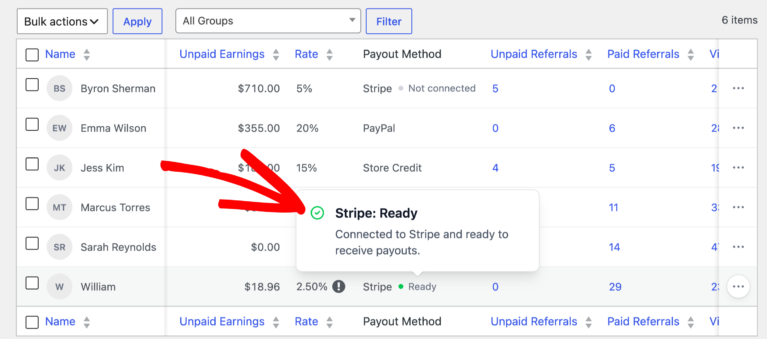
From AffiliateWP → Affiliates, the Payout Method column flags any affiliate whose Stripe setup needs attention, such as an affiliate who hasn’t finished setup yet, or whose account Stripe is still verifying or has restricted. Click the flag to open the affiliate and see the reason. Affiliates who are ready to be paid aren’t flagged.
What if an affiliate hasn’t set up their Stripe account yet?
The Pay button will still appear on their referrals, but the payout won’t go through until their Stripe account is connected. Their unpaid referrals aren’t lost; they stay in the queue and are included in the next payout run once they complete the setup.
Step 3: Run Stripe Payouts
You have two options for running Stripe payouts yourself: individual referral payouts and bulk payouts. On the Pro plan, Automatic Payouts can also run them for you on a weekly or monthly schedule.
Individual payouts
Go to AffiliateWP → Referrals. Find the unpaid referral you want to pay, hover over the row, and click Pay. The payment goes to the affiliate’s connected Stripe account immediately.
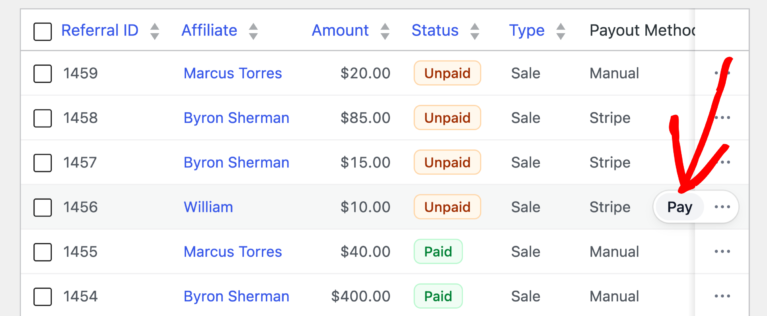
The referral status updates to Paid automatically. There is no separate confirmation step.
Bulk payouts
Go to AffiliateWP → Payouts and click the Pay Affiliates button. Select Stripe as the payout method, set your date range, and run. AffiliateWP processes all qualifying unpaid referrals for Stripe-connected affiliates in that range.
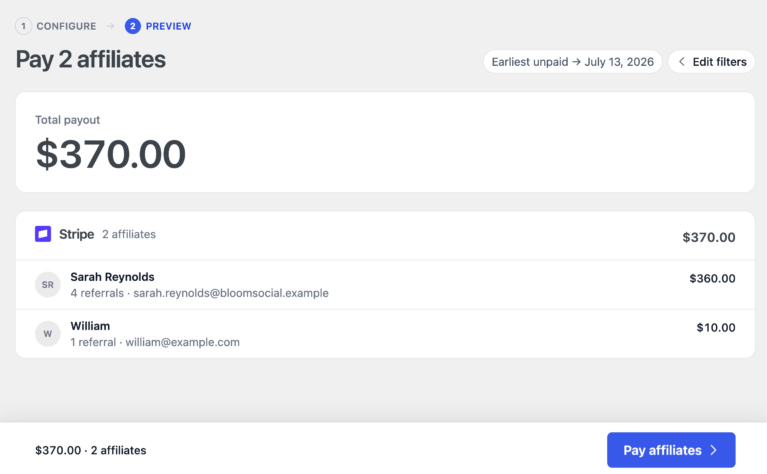
Referrals update to Paid status once Stripe confirms the transfer. You don’t need to stay on the page.
How long does it take? Funds reach the affiliate’s Stripe balance immediately after the payout is processed. From there, Stripe transfers the balance to their bank account, typically within 1-2 business days depending on their country and bank. First-time payouts for newly connected affiliates may take a little longer while Stripe completes its verification.
If you’re running multiple payout methods (Stripe, PayPal, Store Credit, or Manual), AffiliateWP routes each affiliate’s payment through their assigned method automatically in a single batch run.
Stripe Payouts is included in every AffiliateWP plan. No extra plugin, no per-transaction fees beyond Stripe’s standard rates. Get AffiliateWP and start paying affiliates today.
Frequently Asked Questions
Yes. Stripe Connect is Stripe’s platform for businesses that collect payments on behalf of others, or pay out money to third parties. AffiliateWP uses Stripe Connect to route your payouts directly to each affiliate’s verified Stripe Express account. This is what allows affiliates to onboard in minutes, receive payouts directly to their bank account, and manage their own tax forms, without any of that work falling on you.
No. Affiliates go through Stripe Express onboarding, which is a lightweight setup built for exactly this use case. They never need to create a full Stripe account or visit stripe.com separately. The entire setup happens from within their Affiliate Area.
Stripe processes payouts in the background, and AffiliateWP updates the referral to Paid once Stripe confirms the transfer. This typically happens within a few minutes. You don’t need to stay on the page or check back manually.
It depends on where your Stripe account is based. With a Stripe account in the US, UK, EEA, Canada or Switzerland, you can pay affiliates in the US, UK, EEA, Canada and Switzerland through Stripe accounts AffiliateWP creates for them. With a US- or UK-based Stripe account, you can also use Stripe Global Payouts to pay affiliates by bank transfer in 90+ countries, with no Stripe account needed on their side. Turn on the options you want in the Stripe settings panel in AffiliateWP. Affiliates Stripe can’t reach can be paid with another method, such as PayPal.
The Pay button will appear on their referrals, but the payout will not go through until they complete Stripe Express onboarding. Their unpaid referrals stay in the queue and are included automatically in the next payout run once they connect.
Yes. Enable Sandbox Mode in the Stripe settings panel and enter your Test Secret Key from Stripe. All payouts will go through Stripe’s test environment without moving any real money.
Yes. Each affiliate has a payout method assigned individually. When you run a bulk payout, AffiliateWP routes each affiliate’s payment to their assigned method automatically. You can process Stripe, PayPal, and Manual payouts in a single batch.
No. AffiliateWP charges no per-transaction fees. You pay only Stripe’s standard payout rates.
Start Paying Affiliates with Stripe
Stripe Payouts turns affiliate commissions into a hands-off process. Affiliates set up their account once from their portal, and from there every payout goes directly to their bank account from your WordPress dashboard.
No add-on. No additional fees. Built into every AffiliateWP plan.



There are two pricing columns on the Stripe page: “Stripe handles pricing” and
“You handle pricing”. Which column applies with this integration and which of the fees are actually incurred when making a payout? Thanks!
Hey Jeremy,
Thanks for your question. Our integration uses Stripe Connect with Express accounts, which falls under the “You handle pricing” column on Stripe’s pricing page. This is the only supported model for our integration, and here’s what it means:
This is the standard pricing model for platforms using Stripe Connect with Express accounts, offering a cleaner experience for your affiliates while giving you control over your fee structure.
Hope that helps
2 Questions
1. In your FAQ you state : Can I pay international affiliates with AffiliateWP Stripe Payouts?
Not yet. AffiliateWP Stripe Payouts currently supports domestic transfers only.
My Question : We are a UK based company with customers and affiliates in the Europe. We need to be able to payout to those affiliates – is that possible ? –
Question 2 Can we automate on a weekly schedule for payouts ? So we dont manually need to go in and do anything admin wise.
Hey Patrik – As a UK-based business, you can use AffiliateWP Stripe Payouts to send commissions to affiliates across Europe. Stripe allows for Euro (EUR) payouts to EU bank accounts, though there may be some country-specific requirements depending on where your affiliates are based.
Additionally, at the moment, Stripe Payouts via AffiliateWP does not support automated/scheduled payouts — payouts need to be manually initiated. That said I’ve added your request to our internal feature request tracker so our team can consider it for a future update.
Hey Patrik,
AffiliateWP now supports international affiliate payouts via Stripe’s Cross-Border feature. You can read more about it here: https://affiliatewp.com/pay-affiliates-local-currency/.
Automatic weekly payouts are coming soon.