





Would you like to ask an AI assistant who your top affiliates were last month, or have it approve a pending application for you? AffiliateWP works with AI assistants such as Claude, ChatGPT, and Cursor. You can look up program data and manage affiliates and referrals in plain English.
In this guide, we’ll walk you through connecting an AI assistant to AffiliateWP, turning on write access, and trying your first prompts. All you need is WordPress 6.9 or later and AffiliateWP 2.37.0 or later.
Requirements: AI assistants work with every AffiliateWP license level. Your site needs WordPress 6.9 or later, which includes the WordPress Abilities API.
Before you get started, make sure AffiliateWP is installed and activated on your WordPress site.
What can AI assistants do with AffiliateWP?
AI assistants connect to your site through the Model Context Protocol (MCP). It’s an open standard that lets an AI tool use an app on your behalf. AffiliateWP gives them a set of abilities. Each one is a single task, such as listing affiliates or adding a referral. Your assistant picks the right ability from what you ask, so there are no commands to learn.
Assistants can always look things up. They read program totals for any date range, your program settings, affiliates and their coupon codes, referrals, payouts, visits, campaigns, and creatives. They also rank your top earners and show how one affiliate performed this week or this month.
With write access turned on, assistants can also make changes. They add affiliates, approve, reject, or pause them, and update an affiliate’s name, rate, notes, payment email, or group. They add and edit referrals, change a referral’s status, and add text link, image, and QR code creatives.
Assistants can’t delete anything, change your AffiliateWP settings, or send money to an affiliate. Those stay with you in the AffiliateWP admin.
Installing WPVibe
To get started, we’ll install WPVibe, a free plugin from SeedProd that connects your WordPress site to AI assistants over MCP. AffiliateWP can install it for you from its AI MCP tab.
From your WordPress admin sidebar, go to AffiliateWP » Tools. Then click the AI MCP tab.
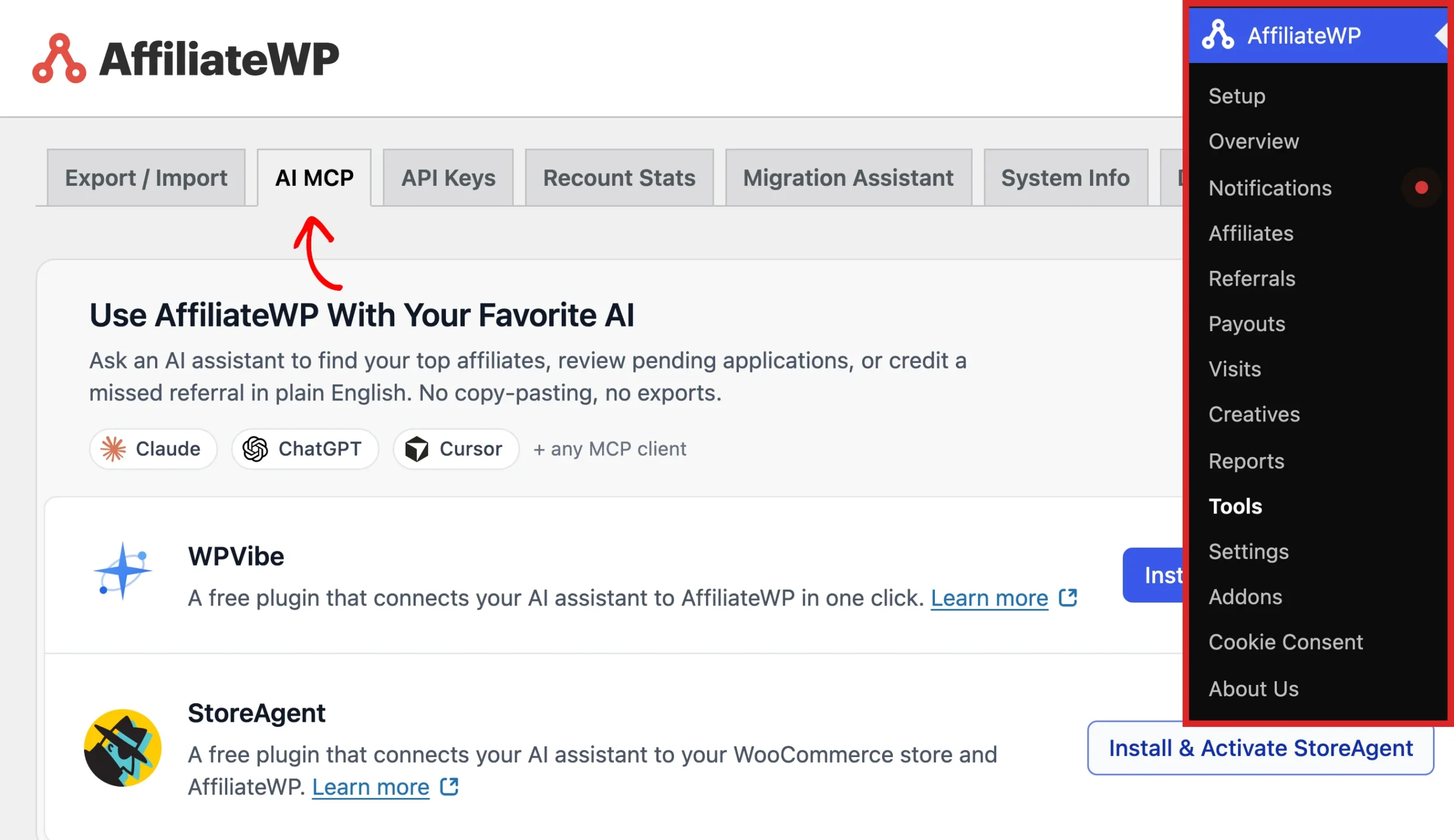
This tab brings together everything for AI in AffiliateWP. It installs a connector plugin for you, holds the write access setting, and lists what assistants can do with your program.
Note: The AI MCP tab only appears on WordPress 6.9 or later, and only for users who can manage AffiliateWP settings.
On the AI MCP tab, click Install & Activate WPVibe.
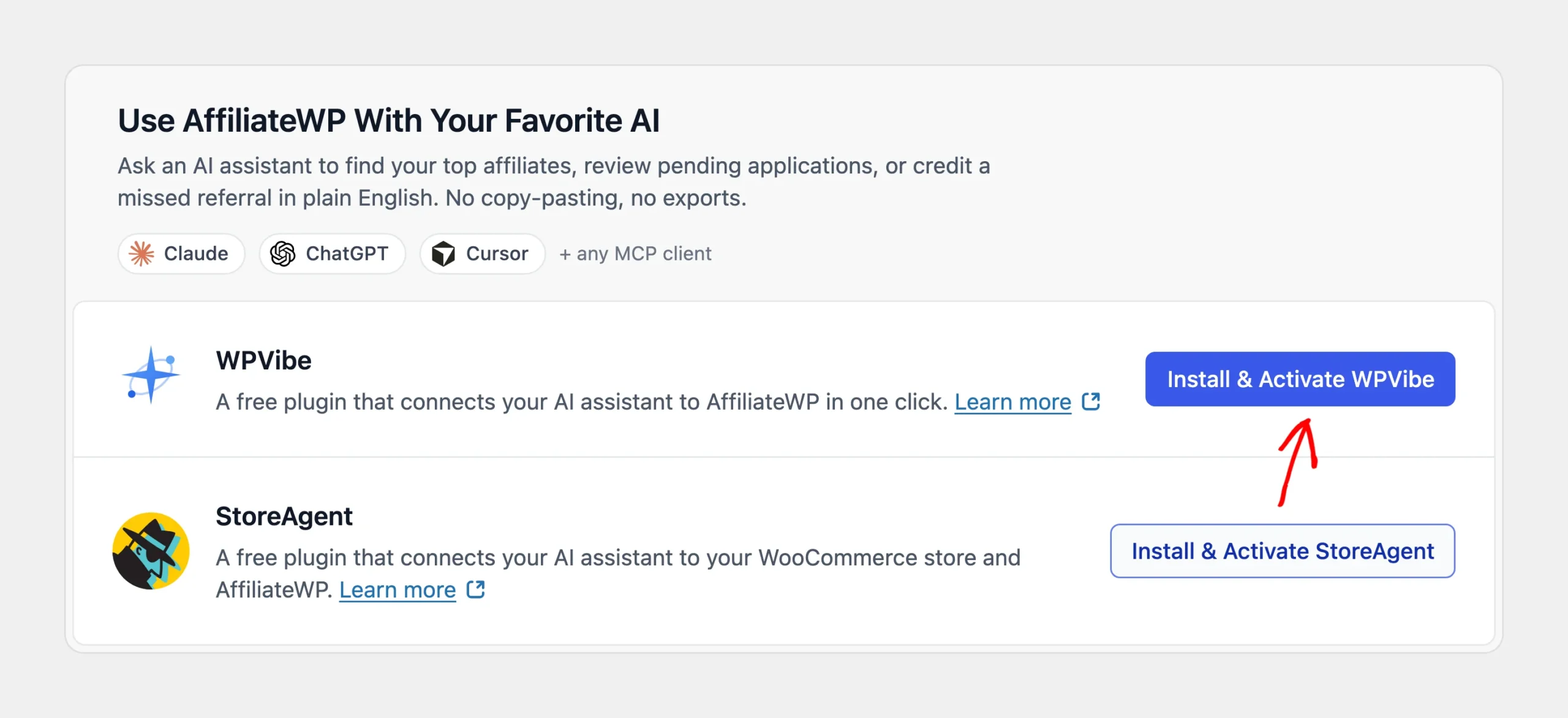
If your WordPress user can’t install plugins from the dashboard, the button reads Install from WordPress.org instead. It opens WPVibe’s page on WordPress.org, where it’s listed as Vibe AI. From there, install and activate it the same way as any other plugin. See How to Install a WordPress Plugin.
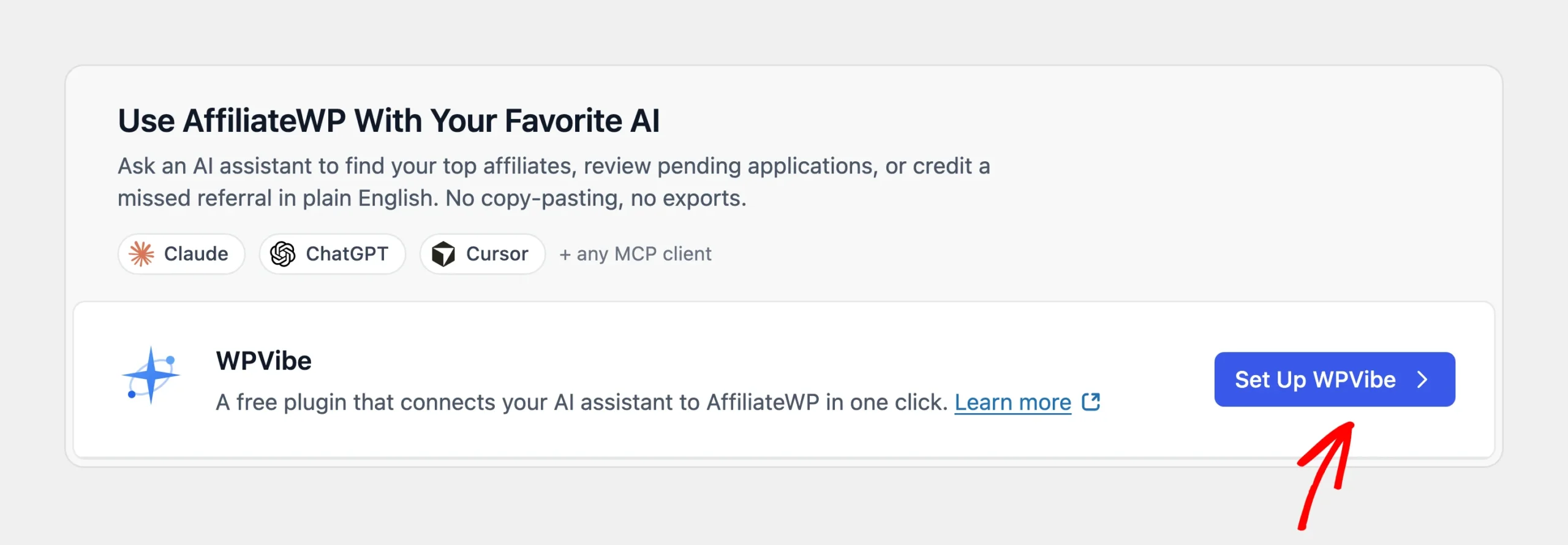
Once WPVibe is active, its button changes. Next, click Set Up WPVibe to open the WPVibe page in your dashboard.
Using StoreAgent with WooCommerce
If you run a WooCommerce store, StoreAgent is another great option. It’s a free plugin that connects your AI assistant to both WooCommerce and AffiliateWP. To use it, click Install & Activate StoreAgent.
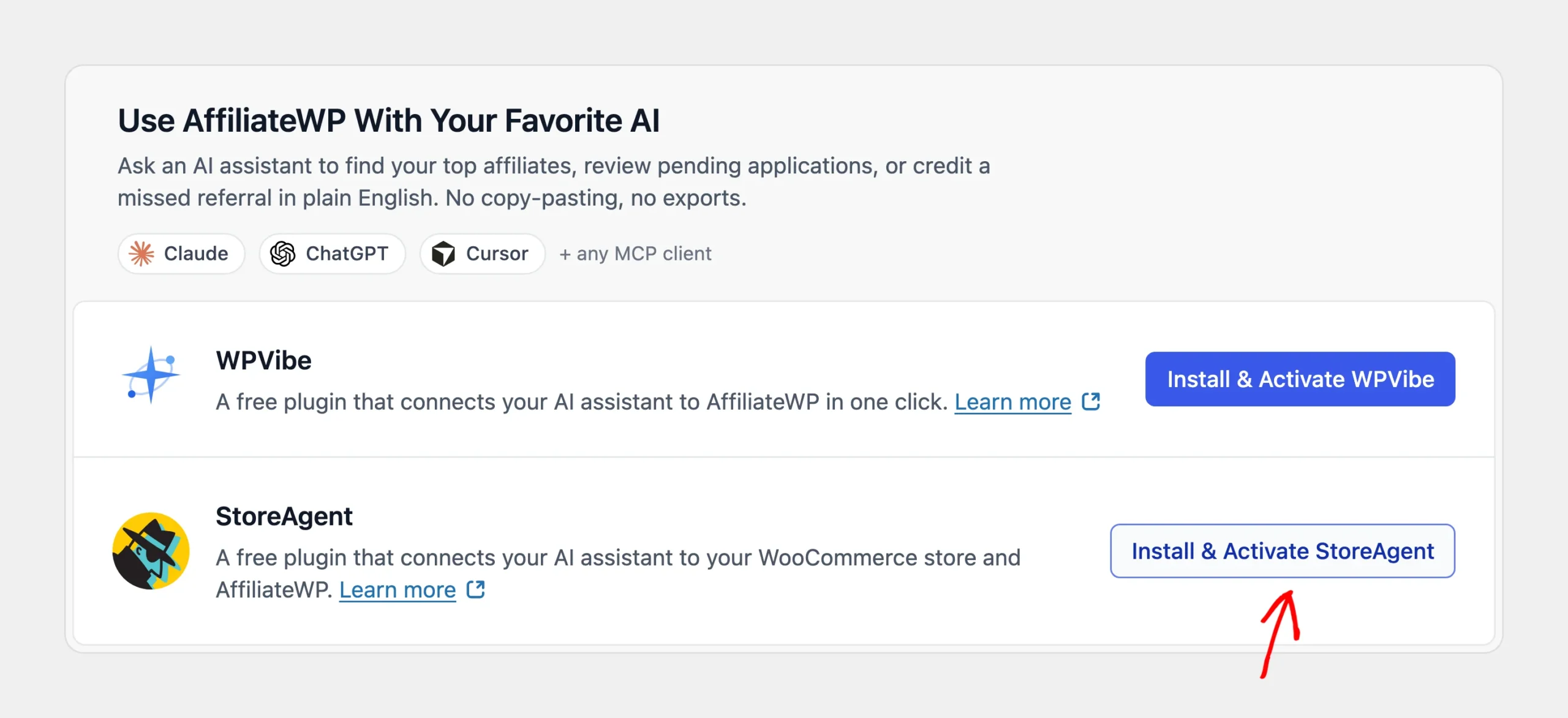
Once StoreAgent is active, its button changes to Connect StoreAgent, which opens the StoreAgent dashboard to finish the connection.
The rest of this guide follows the WPVibe setup, and the write access steps apply to StoreAgent too.
Connecting your AI assistant
The WPVibe page walks you through the connection as a short checklist. It checks that WPVibe can reach your site, asks you to approve the connection, and gives you a prompt to paste into your AI assistant.
For the steps in Claude, ChatGPT, Cursor, and other assistants, see the WPVibe AI client setup guide.
Once your assistant has used the connection, the WPVibe row on the AI MCP tab shows a Connected badge. Its button also changes to Manage WPVibe.
To check that everything works, ask your assistant a simple question, such as “How many affiliates do I have?” It answers with the totals from your program.
Enabling MCP write access
At this point, your assistant can read your program data but can’t change anything. AffiliateWP keeps write access off by default, so nothing in your program changes until you decide it should. AI assistants can make mistakes, and this keeps that decision with you.
To let your assistant make changes, turn on the Enable MCP Write Access toggle in the AI Permissions section. A Saved message appears next to the toggle when the change takes effect.
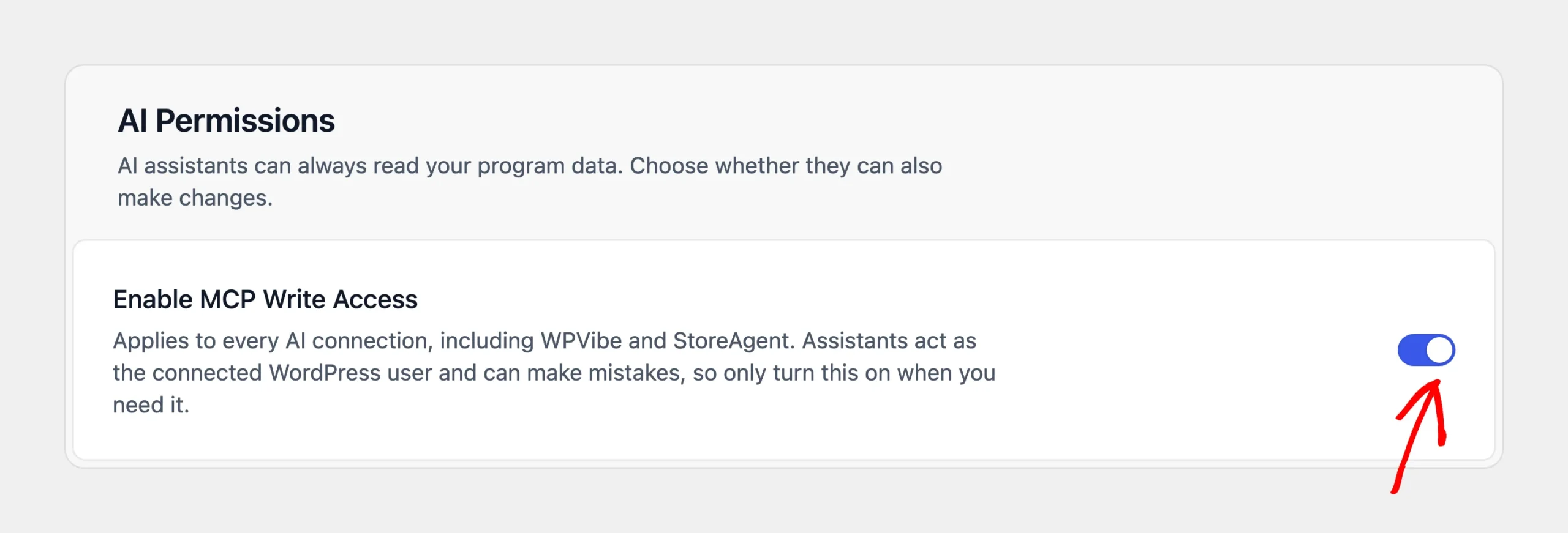
The setting applies to every AI connection on your site, including WPVibe, StoreAgent, and direct connections. Your assistant acts as the WordPress user who connected it. It can only do what that user can do in the AffiliateWP admin. See User Role Capabilities.
Below the toggle, the capability cards list what assistants can do. Actions with a Write badge need write access.
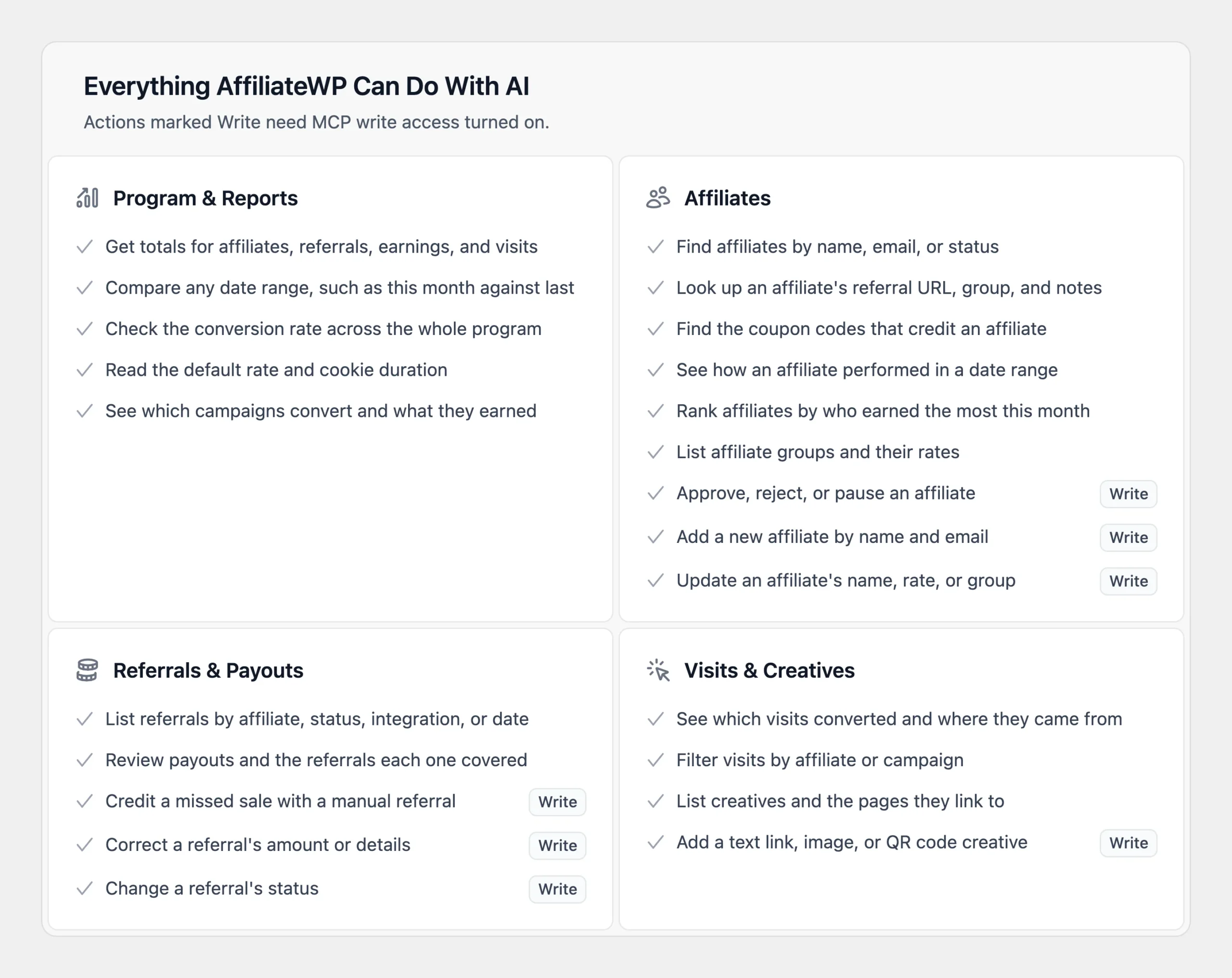
You can turn write access off again at any time. The change applies right away. While it’s off, your assistant either doesn’t see the actions that make changes or gets a message telling it where to turn write access on.
Note: With write access on, your assistant makes real changes to your live program. You can review each change on the matching AffiliateWP screen, such as Affiliates or Referrals.
Trying your first prompts
The best way to start is with a question and then a small change. Here are some prompts to try:
- “How did my affiliate program do this month compared with last month?” Your assistant compares totals for both date ranges.
- “Who were my five top-earning affiliates last month?” It ranks affiliates by what they earned in that period.
- “Which affiliate applications are still pending?” It lists the affiliates waiting for approval.
- “Which coupon codes credit this affiliate?” Name the affiliate, and it lists their coupons and the discount each one gives.
- “Approve the pending application from this email address.” A change that needs write access.
- “Add a $25 referral for this affiliate for order 1234.” This credits a sale that wasn’t tracked, and also needs write access.
When your assistant adds a new affiliate, it doesn’t send the affiliate welcome email unless you ask it to. When it approves or rejects a pending application, AffiliateWP sends the same email the affiliate gets when you do it in the admin.
That’s it! Your AI assistant can now answer questions about your affiliate program and, when you allow it, manage affiliates and referrals for you. Next, read AffiliateWP AI Features to see the AI tools built into AffiliateWP itself.
FAQ
Below, we’ve answered some of the most common questions about using AffiliateWP with AI assistants.
Is it safe to give an AI assistant write access?
Write access is off by default. Only a user who can manage AffiliateWP settings can turn it on. Even with it on, your assistant has the same permissions as the WordPress user who connected it. It can’t delete anything, change your AffiliateWP settings, or send money to an affiliate. AI assistants can make mistakes, so turn write access on only when you need it.
Can an AI assistant pay my affiliates?
No. Your assistant can review your payouts and, with write access, mark a referral as paid. Marking a referral paid only records it as paid. No money is sent. To pay affiliates, use the Payouts screen, which also creates a payout record.
Why don’t I see the AI MCP tab?
The tab needs WordPress 6.9 or later, because that version added the WordPress Abilities API. It also only appears for users who can manage AffiliateWP settings. If your site runs an older version of WordPress, update it. The tab then appears under AffiliateWP » Tools. See How to Safely Update WordPress.
Which AI assistants work with AffiliateWP?
Any AI tool that supports the Model Context Protocol works with AffiliateWP, including Claude, ChatGPT, and Cursor. Some AI platforms only offer custom connectors on certain plans, so check your assistant’s own documentation.
Can I use this on a local or staging site?
WPVibe and StoreAgent reach your site over the internet. They need a site that’s publicly reachable. For a local site, connect directly through the WordPress MCP Adapter instead. It can also run on your own computer through WP-CLI.
What data can an AI assistant see?
Your assistant sees the same program data as the WordPress user who connected it. AffiliateWP leaves out visitor IP addresses, API keys, and other secrets, even for an administrator.
I’m a developer. Can I use these abilities without WPVibe or StoreAgent?
Yes. AffiliateWP registers every ability with WordPress whether or not a connector plugin is installed. To connect an MCP client directly, install the WordPress MCP Adapter, then create an Application Password for a user with the AffiliateWP capabilities you need. Your MCP server address is /wp-json/mcp/mcp-adapter-default-server on your site.
To call abilities without MCP, use the WordPress Abilities REST API at /wp-json/wp-abilities/v1/abilities. It lists every AffiliateWP ability with its description and its input and output schemas. Each ability checks the connected user’s capability before it runs, so see User Role Capabilities. To decide write access in code instead of with the toggle, use the affwp_abilities_allow_write filter.