





Wondering how to pay your affiliates for their referral earnings? AffiliateWP offers several flexible payout methods, including Stripe, PayPal, Store Credit, and Manual Payout.
Whether you prefer automatic payments or manual options, this guide walks you through each method and how to run payouts, so your affiliates get paid on time.
Choose your payout methods
AffiliateWP pays affiliates through one of these methods. Turn on the ones you want to offer at AffiliateWP » Settings » Payouts, then decide who gets paid how in the next section.
Stripe
AffiliateWP has a built-in Stripe integration that pays commissions into your affiliates’ own bank accounts. You add one Stripe secret key. Each affiliate sets themselves up once from their Affiliate Area, and every payout after that reaches their bank on its own.
Affiliates never sign up for Stripe themselves. They click a button in their Affiliate Area and finish on a secure Stripe page, where they add the bank account they want to be paid into.
You can also pay affiliates in other countries, in their own local currency, straight from your Stripe account. Which countries you can reach depends on where your own Stripe account is based. See paying affiliates internationally.
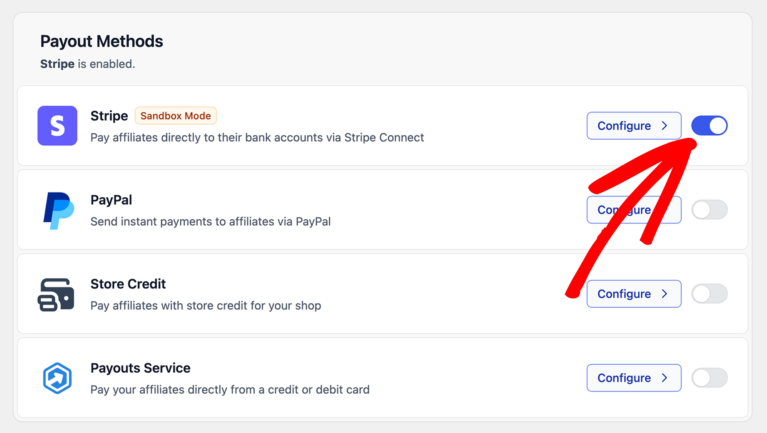
To set up Stripe:
- Go to AffiliateWP » Settings » Payouts.
- Click the Stripe card to expand it.
- Add your Stripe secret key and save.
- Turn on the toggle on the Stripe card.
Both steps are needed. A saved key with the toggle off, or the toggle on with no key, leaves Stripe unable to pay anyone. For full setup instructions, see paying affiliates with Stripe.
PayPal
PayPal sends commissions to affiliates’ PayPal accounts. Payouts run in the background, so you can leave the page once a batch is submitted. Affiliates are paid in your store’s currency, and PayPal converts it on their side if their account uses another one.
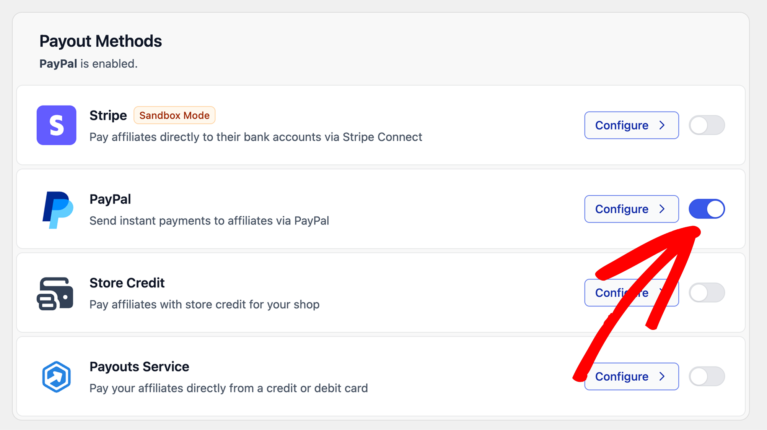
To set up PayPal:
- Go to AffiliateWP » Settings » Payouts.
- Click the PayPal card to expand it.
- Enter your PayPal API credentials and save.
- Turn on the toggle on the PayPal card.
For full setup instructions, see paying affiliates with PayPal.
Affiliates don’t need an existing PayPal account before running a payout. If the recipient’s email isn’t linked to a PayPal account, PayPal sends them a signup invitation and holds the funds for 30 days. Once they create an account using that email, the funds land automatically.
Store Credit
Store Credit adds the commission to an affiliate’s balance on your store as spendable credit, instead of sending money to an external account. They spend it on your site. Affiliates on Store Credit are paid in the same batch as everyone else, so there is no separate step at payout time.
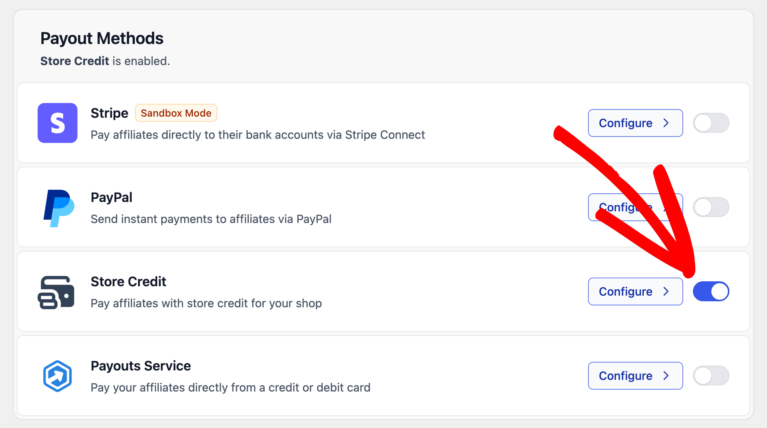
Requirements: WooCommerce or Easy Digital Downloads must be active on your site, and enabled as an integration at AffiliateWP » Settings » Integrations. Store Credit cannot be turned on until both are true.
To set up Store Credit:
- Go to AffiliateWP » Settings » Payouts.
- Click the Store Credit card to expand it.
- Turn on the toggle on the Store Credit card.
For full setup instructions, see paying affiliates with store credit.
Manual Payout
Manual Payout means AffiliateWP records that a payout occurred, but no money moves through the plugin. You pay the affiliate outside AffiliateWP by bank transfer, check, wire, or any other method, and AffiliateWP keeps a record. See paying affiliates manually for how to record one, what the CSV holds, and what a manual payout cannot tell you.
Manual Payout is admin-only and never appears in the affiliate-facing payout method picker. An affiliate paid this way sees Paid directly as a status line in their Affiliate Area, in place of the setup fields the other methods show.
Manual affiliates are included when you run a payout batch. After the batch completes, a Download CSV link appears in the Summary card inside the batch drawer. The CSV contains the payment details for each Manual affiliate so you have everything you need to complete those payments offline.
An affiliate can end up on Manual Payout without you choosing it. Manual is the last resort when no other method can pay them, and their payout is still marked as paid even though no money moved. Check the per-method breakdown in the payout preview before you process a batch, then use the CSV to pay everyone in the Manual group.
Payouts Service (retiring September 30, 2026)
The Payouts Service is being retired. It no longer accepts new connections, and it stops paying affiliates on September 30, 2026. You’ll only see it in your settings if your site was already connected to it, so if it isn’t there, this doesn’t apply to you.
If you are on it, your payouts keep working until that date. Move your affiliates to Stripe, PayPal or store credit before then, and change your default payout method too, so nobody is left on a method that can no longer pay them.
Control which method pays each affiliate
Two controls in the Payout Settings card, on the same settings page, decide this: the default payout method, and whether affiliates may choose their own. Overriding a single affiliate happens on their Edit Affiliate screen instead. The card’s other two toggles deal with failed payouts, covered further down.
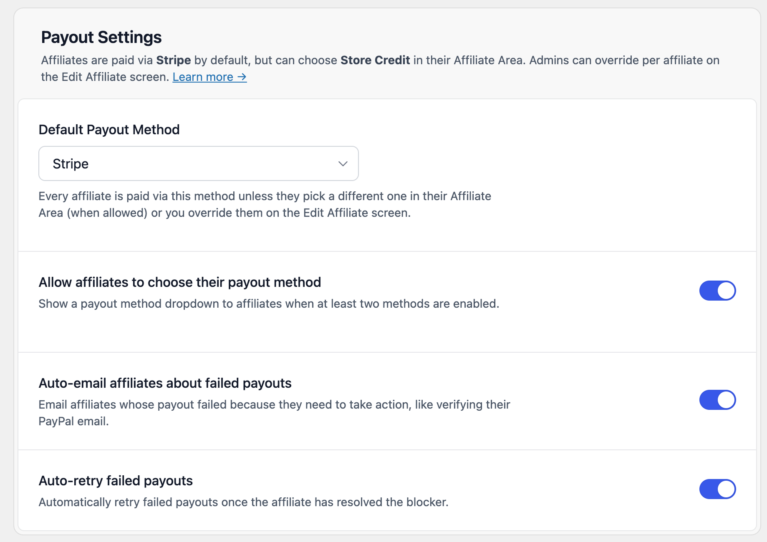
Set your default payout method
The method used for every affiliate who hasn’t chosen their own. The dropdown only shows currently enabled methods plus Manual Payout, so enable your methods before setting the default.
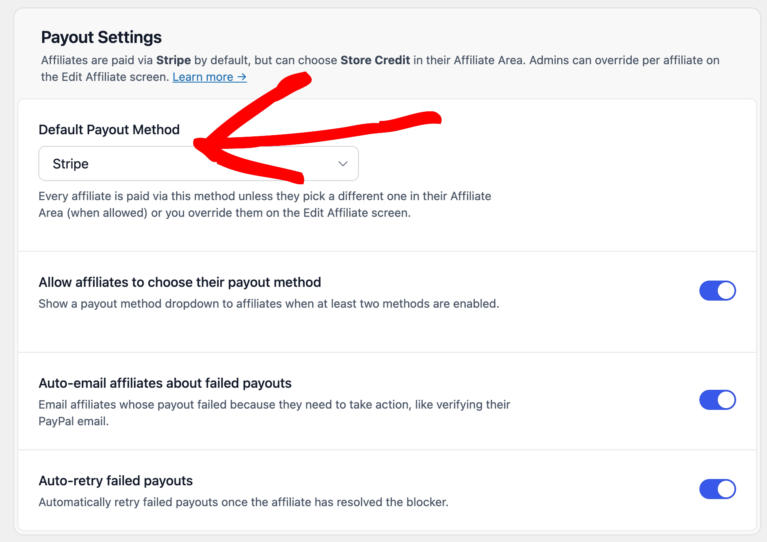
To set your default:
- Go to AffiliateWP » Settings » Payouts.
- Under “Payout Settings,” open the Default Payout Method dropdown.
- Select the method most of your affiliates will use.
- Click Save Changes.
If you later disable the method you chose here, AffiliateWP uses Manual Payout instead until you pick a new default.
Let affiliates choose their own
When this toggle is on, a Payout Method dropdown appears on the affiliate’s Settings page in the Affiliate Area whenever two or more methods are enabled. Affiliates can switch between available methods at any time.
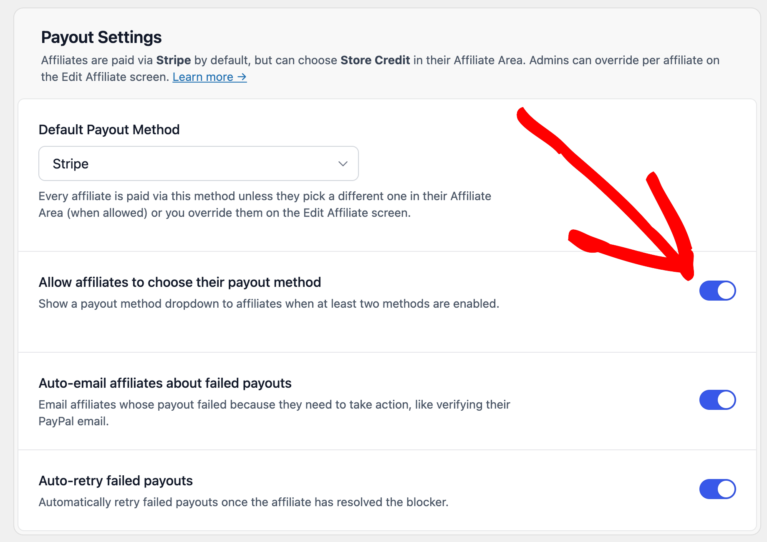
When the toggle is off, affiliates are paid via the site default and see a plain status line naming it, such as Paid via Stripe. No dropdown appears.
When Allow affiliates to choose their payout method is on and at least two methods are enabled, affiliates see a Payout Method dropdown in the How you’ll be paid section of their settings. This is the same in the Affiliate Area and in the Affiliate Portal.
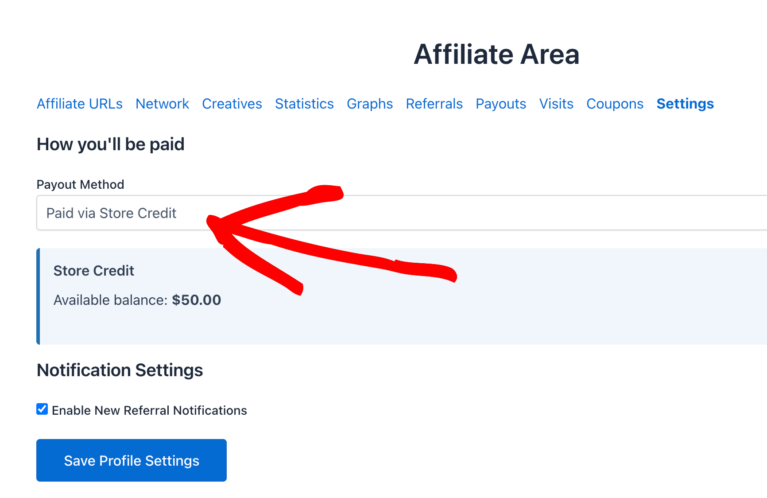
The dropdown lists the enabled methods an affiliate is allowed to pick. Manual Payout is admin-only, so it never appears there. When your default method is not one an affiliate can pick, the dropdown carries an extra row for that default, so they can stay on it rather than being pushed onto something else.
When affiliates save their choice, it becomes their configured method and overrides the site default going forward. The method they will be paid through is shown in the Affiliates list and on their Edit Affiliate screen.
What affiliates see after selecting each method:
- PayPal: a Payment Email field to enter the address they want payouts sent to.
- Stripe: a Set up payouts button, or their current status once they have finished setting up.
- Store Credit: their current available store credit balance.
The Affiliate Area updates the visible fields immediately when the dropdown changes, without a page reload.
Override one affiliate
If you need to route a specific affiliate through a different method regardless of what they’ve chosen, set an override on their profile.
- Go to AffiliateWP » Affiliates and click the affiliate’s name to open the Edit Affiliate screen.
- Find the Payout Method row.
- Open the dropdown, which reads No override until you set one, and pick the method you want to use for this affiliate.
- Click Update.
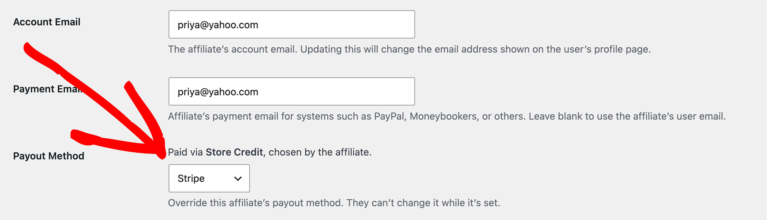
The override takes priority over the affiliate’s own selection and the site default. While it is set, the affiliate cannot change their own payout method. To hand the choice back to them, set the dropdown to No override and save.
The line above the dropdown tells you how this affiliate’s method was decided: as an override you set, as the affiliate’s own choice, or as your site default. If that method is no longer enabled, the line names both the method paying them now, which is your site default, and the disabled one it replaced.
How AffiliateWP chooses the payout method
Every affiliate is paid through one method, and AffiliateWP works out which one in this order:
- Admin override: if you’ve set a specific method on the Edit Affiliate screen, that takes priority over everything else.
- Affiliate’s own choice: if the affiliate has selected a method themselves (or connected Stripe), that’s their method, as long as it’s still enabled on your site.
- Default Payout Method: if neither of the above applies, the affiliate falls back to your site-wide default.
Your default is always a method that is actually enabled. If you later disable the method you set as your default, AffiliateWP uses Manual Payout instead, or the first other enabled method when Manual is off too. No affiliate is silently skipped.
Run one batch and AffiliateWP pays each affiliate through their own method. You never have to group them by method yourself.
Paying an affiliate through Stripe also depends on their country. Each affiliate sets the country they’re paid in, and if Stripe can’t pay out to that country, AffiliateWP routes them to another method before they connect, so no one is left without a way to get paid.
To cover the countries Stripe can’t reach, enable PayPal alongside Stripe. Affiliates who can’t use Stripe can then set themselves up with PayPal where it’s available. If you have no other method enabled, those affiliates fall back to Manual Payout, so you pay them outside AffiliateWP and the payout is still recorded.
The Payout Method column
Two admin lists carry a Payout Method column, and it answers a different question in each one.
- On AffiliateWP » Referrals, an unpaid referral shows the method that will pay it on the next run, and it changes as you or the affiliate change that method. A paid referral shows the method that actually paid it, and that never changes.
- On AffiliateWP » Affiliates, the column sits next to Rate and shows each affiliate’s current method.
Run a payout
Pay all your affiliates at once
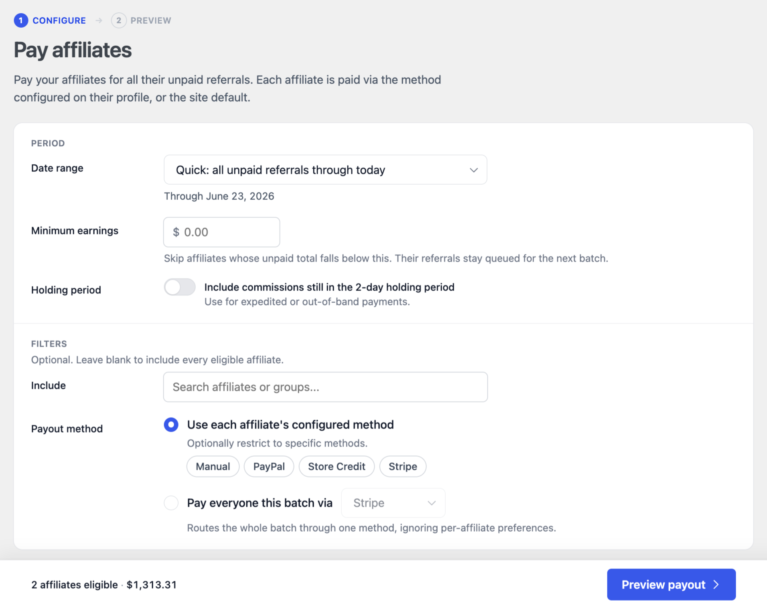
Navigate to AffiliateWP » Payouts and click Pay Affiliates. The same button sits on AffiliateWP » Referrals and opens the same screen, so it doesn’t matter which one you use.
Set your filters:
- Date range: Limit payouts to referrals recorded within a specific window. Preset options include: All unpaid up to today, This month, Last month, Last 30 days, Last 90 days. Or set a custom range with the date picker.
- Minimum earnings: Skip affiliates who have earned less than this amount.
- Ignore commission holding period: Bypass the configured holding window for this batch only.
- Include: Pay all affiliates, or narrow to specific affiliates and/or affiliate groups.
- Payout method: choose Use each affiliate’s configured method to pay everyone through the method that already applies to them. You can narrow that to specific methods when you want to process one at a time. Choose Pay everyone this batch via instead to send the whole batch through one method, whatever each affiliate is set to. That applies to this batch only and does not change anyone’s saved method.
Preview before sending:
Click Preview Payout to see exactly who will be paid and how, before any money moves. The preview shows:
- Total amount and affiliate count
- A per-method breakdown showing exactly where funds are directed
- Affiliates who can’t be paid yet, and the amount they hold. A Stripe affiliate who hasn’t finished connecting is the usual case, because only they can complete that step. Their total is kept separate from the headline figure, so the amount you see leaving is the amount that actually leaves
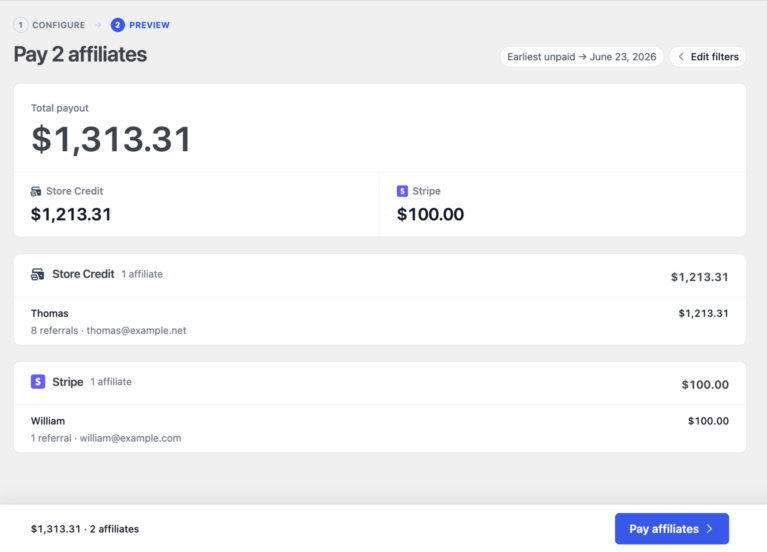
Referrals do not show as “Paid” until the payout actually settles. The preview is a safe step to verify before committing.
Send the batch:
Once the preview looks correct, click Pay affiliates to confirm and send.
- Stripe and PayPal run asynchronously: payouts are submitted to the provider and move through a “processing” state while the provider confirms. You can close the browser; processing continues in the background.
- Store Credit and Manual are synchronous: balance updates and CSV generation happen immediately.
When the batch completes, results are visible under AffiliateWP » Payouts (individual payouts) and the Batches tab within that same page (the aggregate batch record).
If your batch included Manual affiliates: open the batch from the Batches tab and look for the Download CSV link in the Summary card inside the batch drawer. The CSV contains the payment details for each Manual affiliate.
Pay one referral, or a few
You don’t have to run a full batch to pay someone. Go to AffiliateWP » Referrals.
Every row has one payment action, named for what it does. For Stripe and PayPal it reads Pay and sends the transfer. For Store Credit it also reads Pay and credits their balance. For a Manual affiliate it reads Record as paid, because nothing is sent.
- To pay a single referral, find it in the list and click that button on its row.
- To pay several at once, tick them, choose Pay from the bulk actions dropdown, then apply.
Either way AffiliateWP creates a payout record, so the referral appears in your history exactly as one paid in a batch does.
Record a payment you made yourself
Record as paid marks an unpaid referral as paid. Use it when the money moved outside AffiliateWP, or to reconcile a referral a batch couldn’t pay. What it does next depends on the affiliate’s payout method.
- Store Credit: their balance really is credited, exactly as it would be from Pay. So this is not a records-only note for them. Your history will also file that payout as manual rather than store credit, so use Pay unless you have a reason not to.
- Manual: the payout is recorded and no money moves, which is exactly what Manual Payout means.
- Stripe or PayPal: the referral is marked paid and no transfer is sent.
On a Stripe or PayPal row, Record as paid is the first item in the row’s actions menu. It is easy to reach and it sends nothing, so only use it when you have already paid that affiliate another way.
Pay on a schedule
You don’t have to start every payout yourself. A schedule pays your affiliates on a set day, each through their own method, and produces the same batch you would get from Pay Affiliates. Schedules live on the Schedules tab at AffiliateWP » Payouts, and need a Pro licence or higher.
Affiliates set to Manual Payout are skipped by a scheduled run, because a manual payout is one you make deliberately. You keep paying those yourself. See paying affiliates automatically for how to set a schedule up.
Commission holding period
The Commission Holding Period is a feature that allows you to delay paying affiliate commissions for a set number of days after a referral is made. This helps protect your business from issues like refunds, chargebacks, or fraud, ensuring that affiliates are only paid for finalized sales.
To set up the Commission Holding Period:
- Navigate to AffiliateWP » Settings » Commissions and look for the Commission Holding Period field.
- Enter the number of days you wish to delay commission payouts. For example, if your refund period is 30 days, it’s recommended to set the holding period to 37 days (refund period + 7 days).

The extra 7 days help account for potential payment processing delays or disputes, ensuring commissions are only paid out once the sale is fully finalized.
By delaying payouts, you can ensure that any refunds or disputes are resolved before commissions are paid, protecting your business from paying out on sales that don’t ultimately complete.
See what a batch paid
The Batches tab at AffiliateWP » Payouts shows one row per “Pay Affiliates” run, giving you an aggregate view of every batch you’ve run.
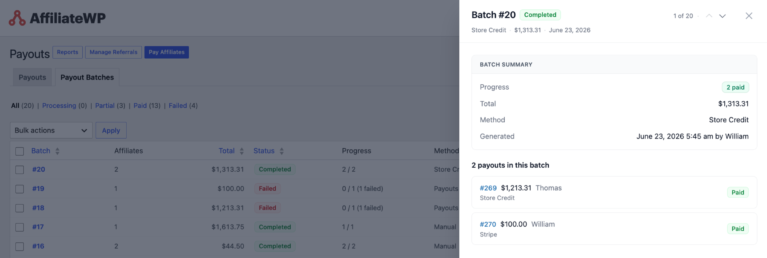
Click a batch row to open the Batch drawer, an inline panel that shows the full per-affiliate breakdown and lets you drill into individual payouts without leaving the list.
Retrying a failed batch: a batch with failures gets a retry action on its row and in its actions menu, labelled with the count, such as Retry 3 failed payouts. Confirm it and AffiliateWP creates a new batch holding only those payouts, then runs them through each affiliate’s own method again. The original batch is left as it was. The new one is marked ↳ retry of #12 and links back to it, so you can follow the whole chain.
If a payout fails
AffiliateWP categorizes every payout failure into one of these classes, which determines what happens next:
- Affiliate action required: the affiliate needs to do something, such as confirm their PayPal email or finish setting up Stripe. An auto-email goes out if you have that on, and the daily sweep retries the payout once they’re ready. Retry stays disabled until then.
- Admin action required: you need to fix something, such as topping up your account balance or updating API credentials. Retry stays disabled until you do, and the drawer names the problem.
- Temporary error: a rate limit, a network timeout, or a provider outage. Nothing retries it for you, but Retry stays enabled so you can run it again yourself.
- Data error: the affiliate’s profile has a problem, such as an email in the wrong format or a currency mismatch. Retry stays disabled. Fix the data on their profile, then retry.
- Unable to classify: AffiliateWP couldn’t work out which of the above it is. The drawer shows the provider’s own error message and links to their dashboard, and Retry stays enabled so the judgement is yours.
Viewing and resolving a failed payout
Click any failed payout in AffiliateWP » Payouts to open its drawer. The Next Steps card shows:
- The failure class
- A plain-language explanation of what went wrong
- The primary action button: email the affiliate, retry, or a link to the specific admin setting to fix
Switch payout method from the drawer
If a payout is stuck and you want to reroute the affiliate through a different method, expand the Switch payout method section at the bottom of the Next Steps card.
- Click Switch payout method to expand the options.
- Select an alternative method from the list.
- Click Switch and retry.
This changes this payout only. AffiliateWP creates a new payout under the method you picked and links it back to the failed one. The affiliate’s own payout method is left alone, so their next payout uses it again. You don’t need to leave the drawer or run a new batch.
If you want the change to stick, set an override on their Edit Affiliate screen as well.
Example: an affiliate’s PayPal account is on hold. Open their failed payout drawer, switch to Store Credit, then click Switch and retry. They’re paid in store credit straight away, and the failed payout is closed out pointing at the one that replaced it. Their payout method is still PayPal, so change that separately if the hold isn’t temporary.
Auto-email affiliates about failed payouts
When a payout fails because the affiliate needs to take action (for example, their PayPal account isn’t set up or they haven’t finished setting up Stripe), AffiliateWP can automatically send them a method-specific email explaining what to do and where to do it.
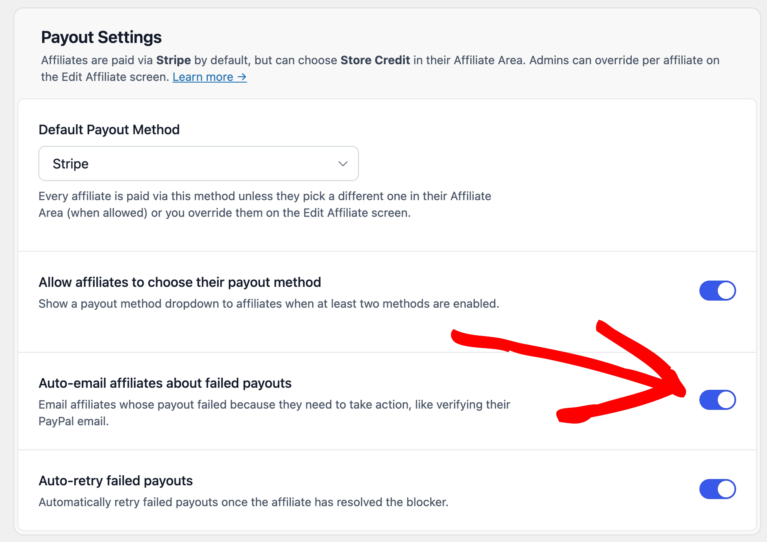
The email includes a direct link to the affiliate’s Settings page. A 7-day cooldown per affiliate prevents repeated emails if the same issue persists.
Auto-retry failed payouts
When on, a background job runs daily and checks every failed payout that’s waiting for the affiliate to fix something.
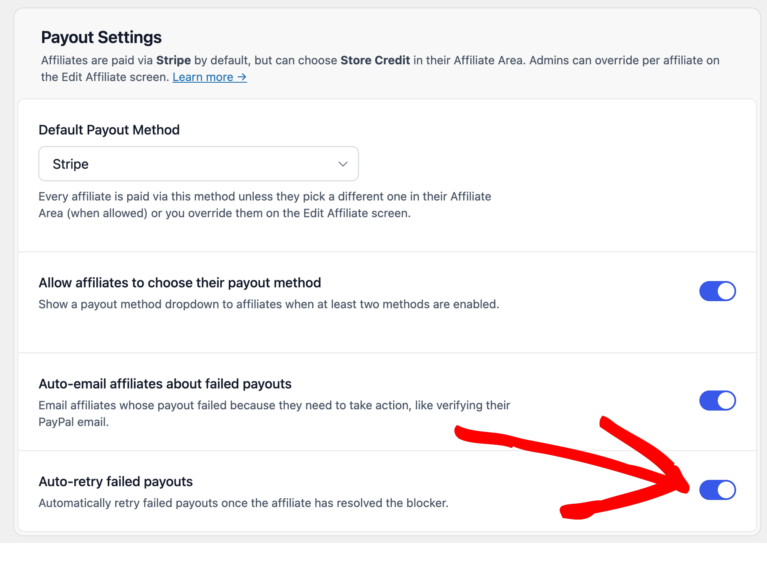
Once the affiliate is ready (their PayPal email is verified or their Stripe setup is finished), the payout retries automatically without any admin involvement.
PayPal-specific failure statuses
PayPal returns three distinct statuses that all fall under “affiliate action required” but have different resolutions:
- Unclaimed: the recipient email isn’t linked to a verified PayPal account. PayPal has sent them a signup invitation and is holding the funds for 30 days. If the affiliate creates a PayPal account on that email within 30 days, the funds land automatically. The auto-retry sweep picks this up once they’re set up.
- Returned: the 30-day claim window expired, or the affiliate explicitly refused the payment. Contact the affiliate and consider switching their payout method.
- Blocked: PayPal blocked the transaction due to compliance, fraud, or an account hold on their PayPal account. Switch the affiliate’s payout method. They need to sort it out with PayPal before switching back.
Frequently Asked Questions
Do I need to run a separate batch for each payout method?
No. One batch handles all methods. AffiliateWP pays each affiliate through the method that applies to them. If you want to process one method at a time, use the Method filter on the Pay Affiliates form.
Can affiliates choose their own payout method?
Yes, if you enable “Allow affiliates to choose their payout method” in Settings » Payouts. When enabled, affiliates see a Payout Method dropdown on their Settings page in the Affiliate Area or Affiliate Portal. When disabled, all affiliates use your site’s Default Payout Method unless you’ve set an override on their profile.
Why isn’t the payout method dropdown showing in the Affiliate Area?
Two things have to be true. Allow affiliates to choose their payout method must be on in AffiliateWP » Settings » Payouts, and at least two methods an affiliate can pick must be enabled. With only one there is nothing to choose between, so affiliates see a plain status line naming their method instead of a dropdown. Manual Payout doesn’t count towards the two, because affiliates can never pick it.
What happens if I disable a method that some affiliates are already on?
Their saved preference is kept on file but they are paid via the site default until you turn that method back on. If you re-enable the method later, those affiliates automatically revert to their saved preference without any action needed.
What does the “Paid” status on a referral actually mean?
It means one of two things, and which one depends on how the referral got there.
- Paid by a batch or a Pay action through Stripe or PayPal: the provider confirmed the transfer. Until it does, the referral stays Unpaid and its payout sits at Processing, so a referral only turns Paid once the money is on its way.
- Paid by Record as paid, or paid through Manual Payout: nothing was sent, and Paid means somebody recorded it.
Store credit sits between the two: the balance really is credited, so the affiliate has the money to spend on your store.
One thing Paid never means is that the money has reached the affiliate’s bank. A Stripe payout lands in the account Stripe set up for them first, and Stripe pays it on to their bank on its own schedule. See paying affiliates internationally for how that second step works.
Can I pay a single referral without running a full batch?
Yes. On the Referrals admin list, hover over any unpaid referral row and click the Pay quick action. This pays that single referral straight away, through the method that applies to its affiliate.
Can I pay affiliates who don’t have a PayPal account yet?
Yes. PayPal lets you send money to any email address. If the recipient doesn’t have an account, PayPal emails them a signup invitation and holds the funds for 30 days. Once they create a PayPal account at that email, the funds land automatically.
What does “Manual Payout” mean?
Manual Payout means AffiliateWP records that a payout occurred, but no money moves through the plugin. You pay the affiliate outside AffiliateWP by bank transfer, check, or any other method, and AffiliateWP keeps a record. After the batch completes, open it from the Batches tab and use the Download CSV link in the Summary card to get the payment details for each Manual affiliate.
Does the commission holding period apply to all payout methods?
Yes. The holding period applies universally across Stripe, PayPal, Store Credit, and Manual Payout. If you need to pay a specific batch before the window passes, use the “Ignore commission holding period” option on the Pay Affiliates form.