





Are you looking for a safe way to add custom code snippets to your WordPress site? Whether you want to fix an issue or add new functionality without editing core files, the snippets can help.
They make it easy to add or tweak features on your site, and they’re simple to manage or undo whenever needed.
What is a Snippet and Why Use One?
Snippet is a piece of code that lets you add new features or modify existing functionality on your WordPress site. It allows you to customize your site without directly editing theme or plugin files. This makes it easier to manage changes, fix issues, or adjust how a theme/ plugin works in a simple and secure way.
Why You Shouldn’t Edit Core Plugin/Theme file?
WordPress core files, along with theme and plugin files, are the backbone of your website. Editing them directly may seem like a quick way to make changes, but any update to WordPress, theme, or plugins can overwrite the edits, causing them to disappear.
Direct edits can also break your site or create errors if the code isn’t correct. By using correct snippets instead, you can safely add custom features or fixes without touching these core files, keeping your site stable, secure, and easy to update.
How to Add a Snippet?
In WordPress, there are various ways of adding the snippets. However, one of the safest and easiest way to add it is using the WPCode plugin.
WPCode is a WordPress plugin that makes it easy and safe to add the snippets to your site. It supports PHP, JavaScript, CSS, HTML, etc., and lets you organize and manage snippets.
Moreover, it also allows you to enable or disable them without editing core files. This helps keep your site stable and up-to-date while adding custom features or fixes.
Using the WPCode Plugin
Install and Activate the WPCode plugin
To get started with WPCode Plugin, you will need to install and activate the plugin on your WordPress site. To do so, please follow the steps below:
In your WordPress dashboard, navigate to Plugins → Add New.
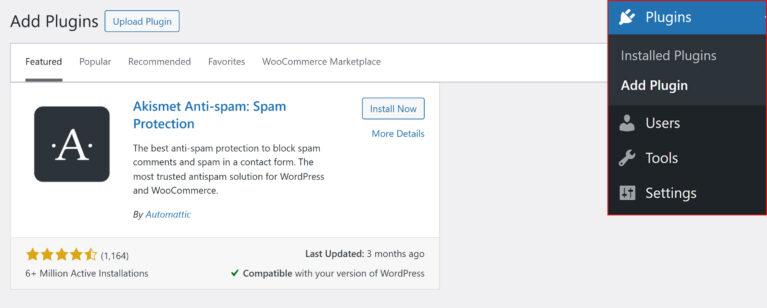
In the search box, type WPCode – Insert Headers and Footers + Custom Code Snippets.
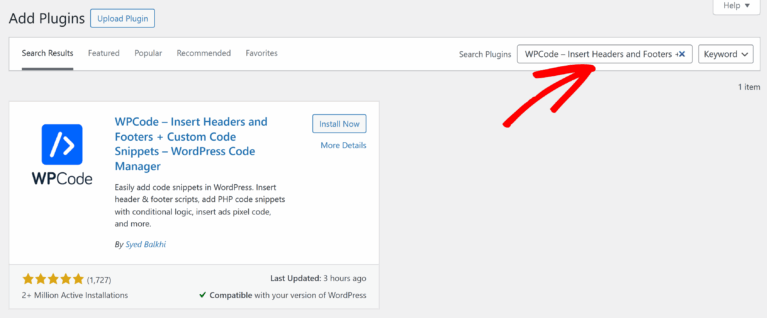
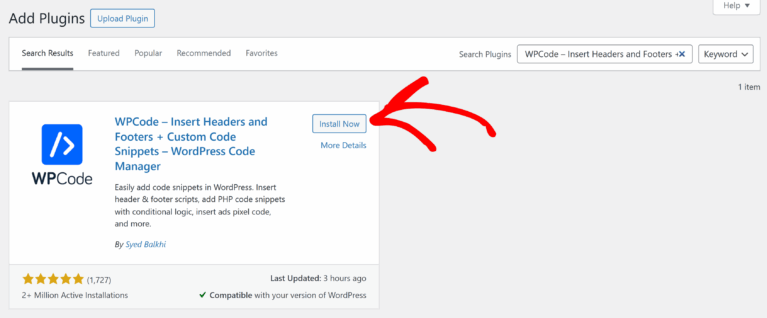
Find WPCode in the results and click Install Now.
After installation, click Activate to start using WPCode on your site.
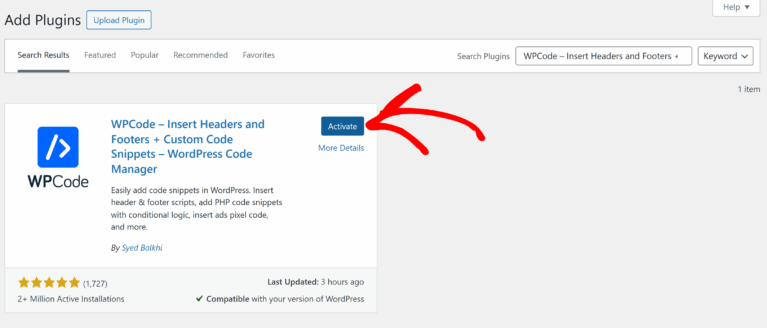
Once activated, you can start adding and managing the snippets safely without touching core files.
Prepare Snippets
Before adding a snippet in WPCode, make sure your code is ready and correct. You can use PHP, JavaScript, CSS, depending on what you want to achieve. Give your code a clear purpose, and double-check it to avoid errors on your site.
If your snippet is ready and the WPCode plugin is installed on your site, you can follow these steps to add the snippet using WPCode.
Otherwise, follow the steps to see and understand what a snippets looks like.
Note: Keep in mind that creating snippets requires some basic knowledge of PHP, CSS, or HTML.
For this guide, we will create a snippet to support more than 5 tiers of commissions in AffiliateWP. By default, AffiliateWP does not include multi-tier commissions so to use tiers, you must have the Multi-Tier Commissions addon installed.
Once the addon is active, the following snippets will allow you to add additional tiers beyond the default 5.
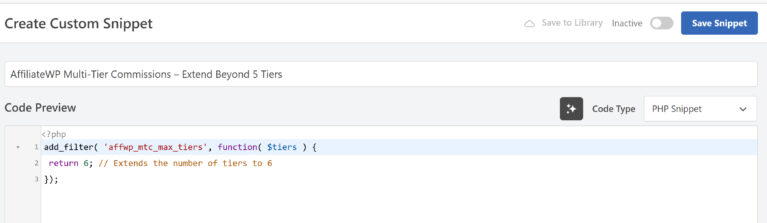
add_filter( 'affwp_mtc_max_tiers', function( $tiers ) {
    return 6; // Extends the number of tiers to 6
});
Now, this snippet is ready to be added to the WPCode plugin and will allow AffiliateWP to support 6 tiers of commissions. If you want to add more tiers, simply change the value from 6 to the number you need.
Add Snippets in WPCode
The next step is to add your prepared snippet into the WPCode plugin. This will enable the custom functionality on your site safely, without editing any core files.
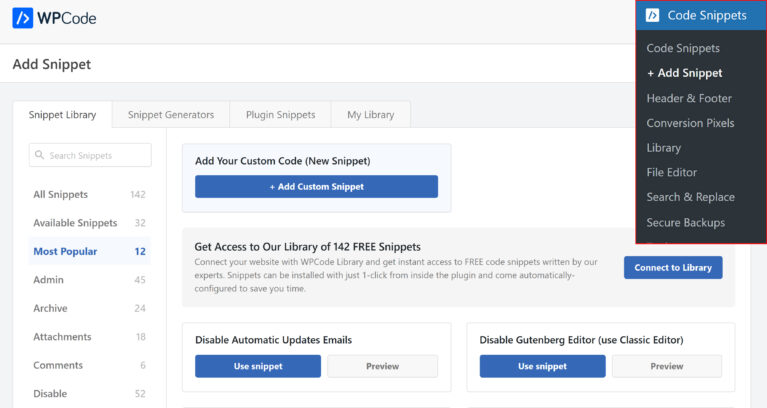
In your WordPress dashboard, go to Code Snippets → Add Snippet.
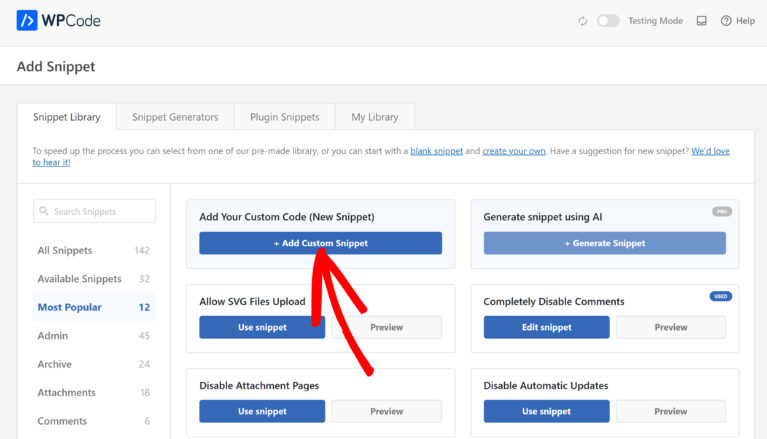
Next, hover over Add Your Custom Code (New Snippet) and click Add Custom Snippet
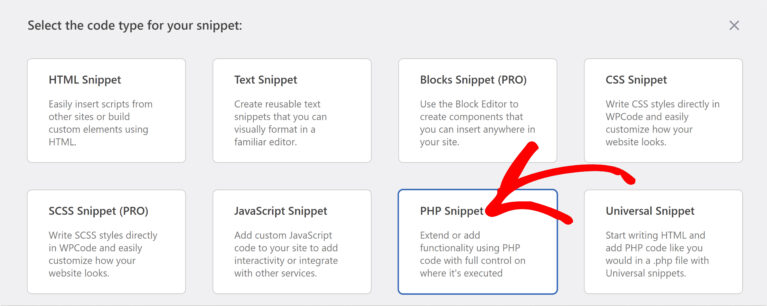
Next, choose the code type (PHP, JavaScript, or CSS) depending on your snippet.
Give your snippets a clear title (e.g., “AffiliateWP Multi-Tier Commissions – Extend Beyond 5 Tiers”). Once done, paste your prepared code into the editor.
Configure Settings (optional)
Scroll down to the Insertion section
Insert Method: Keep as Auto Insert (recommended)
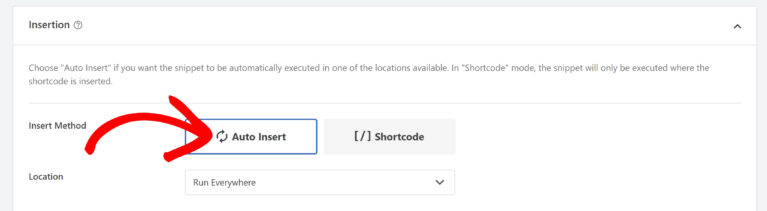
Location: Select Run Everywhere for most AffiliateWP snippets. This ensures the snippet runs on both frontend and admin.
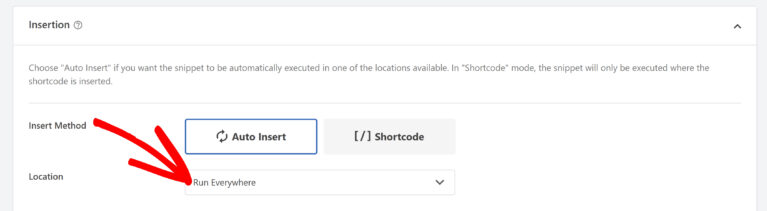
Depending on the type of code you are creating, you can even choose to add it as a Shortcode to your pages/posts.
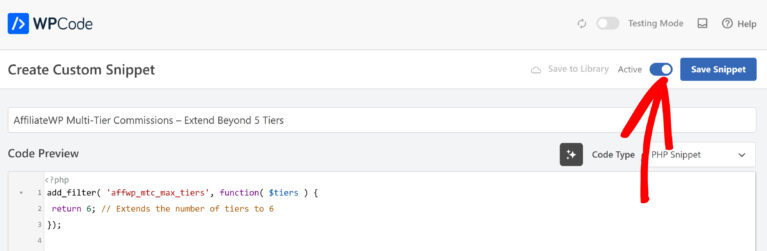
Toggle the Active switch in the top right corner to activate the snippet
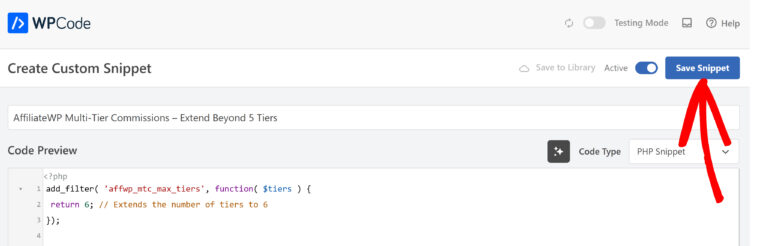
Click Save Snippet to apply the changes.
Test Your Site
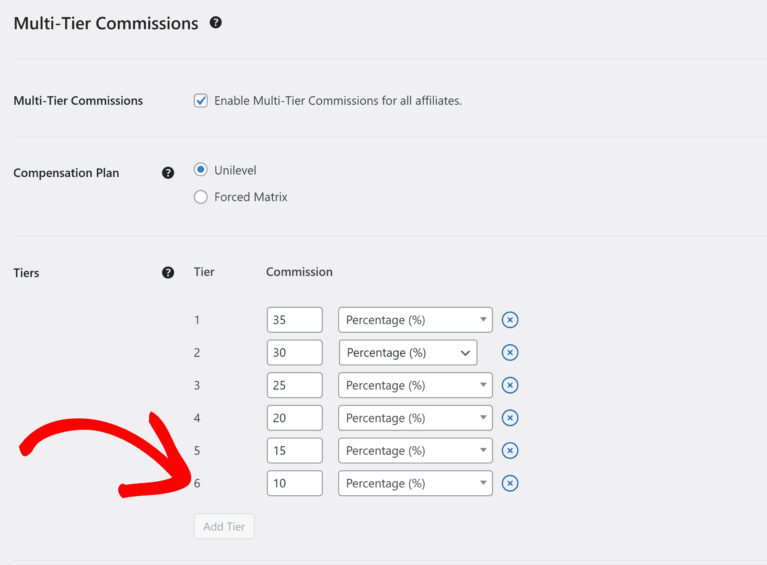
To verify that the functionality is working correctly, please navigate to AffiliateWP → Commissions → Multi-Tier Commissions →Tiers
Under this section, you should now see the option to set commissions for up to 6 tiers.
Frequently Asked Questions
Why should I use the WPCode plugin?
WPCode allows you to safely add and manage the snippets. Also it help you keep your custom changes safe during updates.
Will adding snippets break my site?
If the code is correct and added via WPCode, it is safe. Always test the snippet on a staging/test site if possible.
Can I disable or remove the snippets later?
Yes, WPCode lets you enable, disable, or delete any snippets at any time without affecting your core files.
That’s it! You’ve successfully added and enabled a custom code snippet using the WPCode plugin on your WordPress site