





Are you looking to add Terms & Conditions checkbox to your AffiliateWP registration form? Adding a Terms & Conditions checkbox ensures that users agree to your rules and policies before completing registration.
With AffiliateWP, you can easily add the checkbox to your registration form in few steps.
Create a Terms of Use Page
The Terms of Use Generator is a tool in the AffiliateWP plugin that creates a Terms of Use page for your affiliate program.
To access the tool, from the WordPress Dashboard, please Navigate to AffiliateWP > Tools.
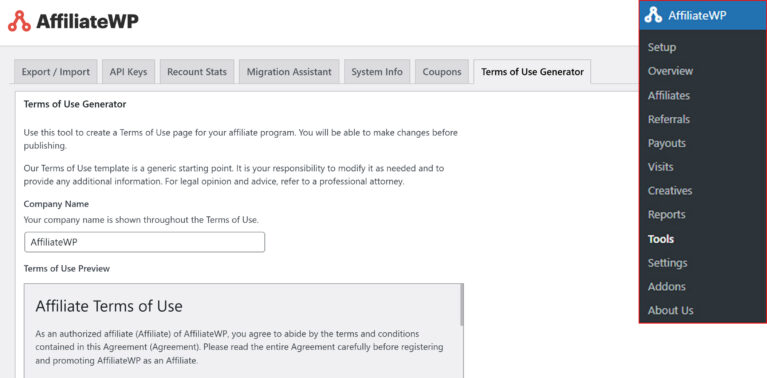
Next you’ll see an screen with various tabs. Click on Terms of Use Generator tab.
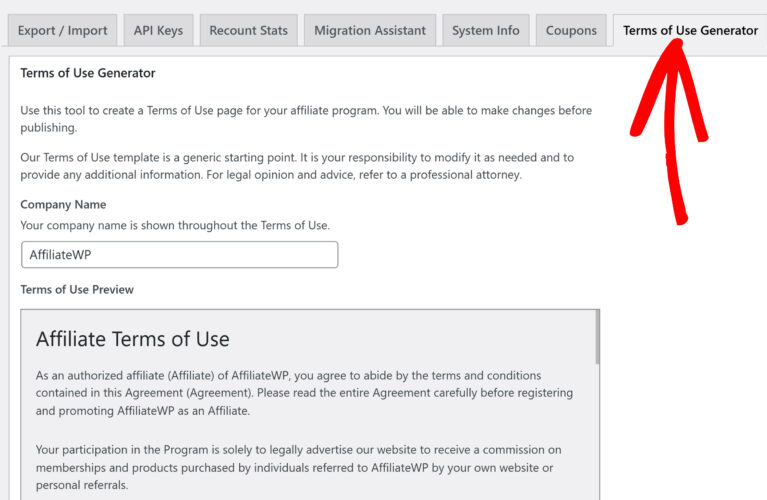
You’ll find an option to add the company name. Add the relevant Company Name under the option.
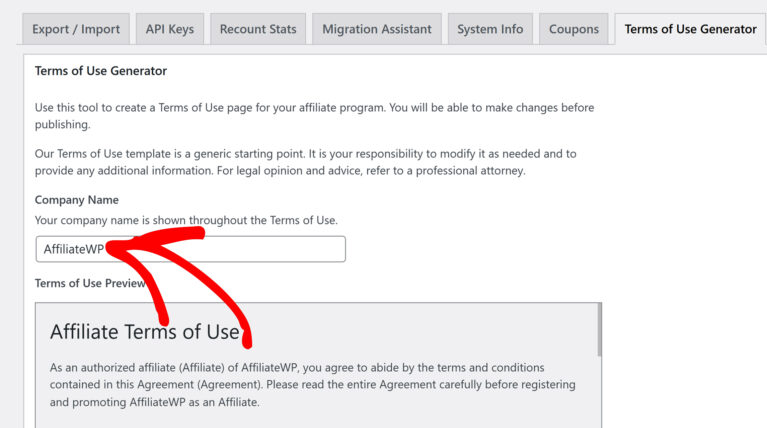
Once you’ve added the company name , the template will update automatically. The, click Create a New Terms of Use Page to generate the Terms & Conditions page.
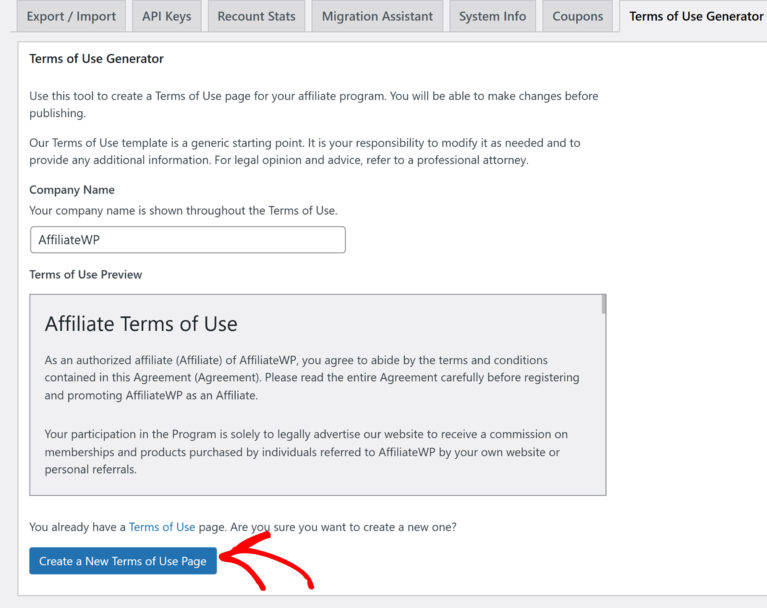
The template shared inside the Terms of Use Generator is a general guideline. You can modify it to fit your specific program and add any additional information as needed. For legal advice or to ensure full compliance, you can also consult a professional attorney.
Publish Terms & Conditions Page
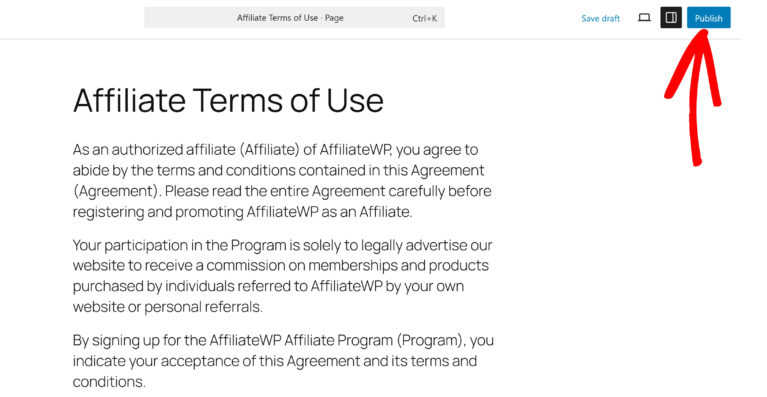
After you have clicked on Create a New Terms of Use Page, a new draft will automatically open.
You can then edit the content to fit your program. Once everything looks good, click Publish, and your Terms of Use page will be live.
Using an Existing Page
If you already have a Terms of Use or Terms & Conditions page on your website, you can use that instead of generating a new one. Simply ensure your existing page is published and accessible, then proceed to the configuration step below.
Add Terms & Condition to Registration Form
After creating your Terms & Conditions page, the next step is to add it to your registration form so users must agree before signing up.
You should already have a registration page set up during the plugin installation. If you don’t, you can follow the steps for creating Affiliate Registration Page.
Once you’ve the registration page, click on the registration form. You’ll see a small (plus) + icon.
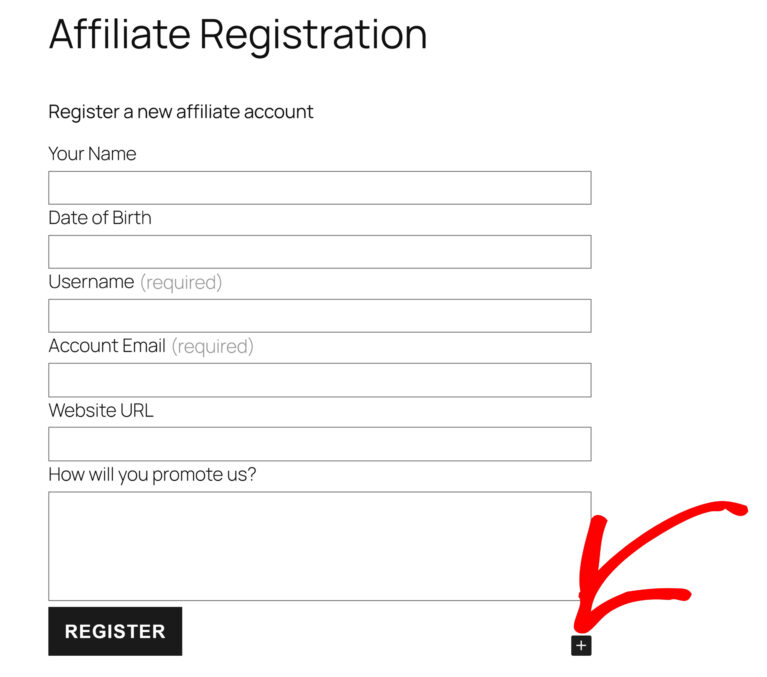
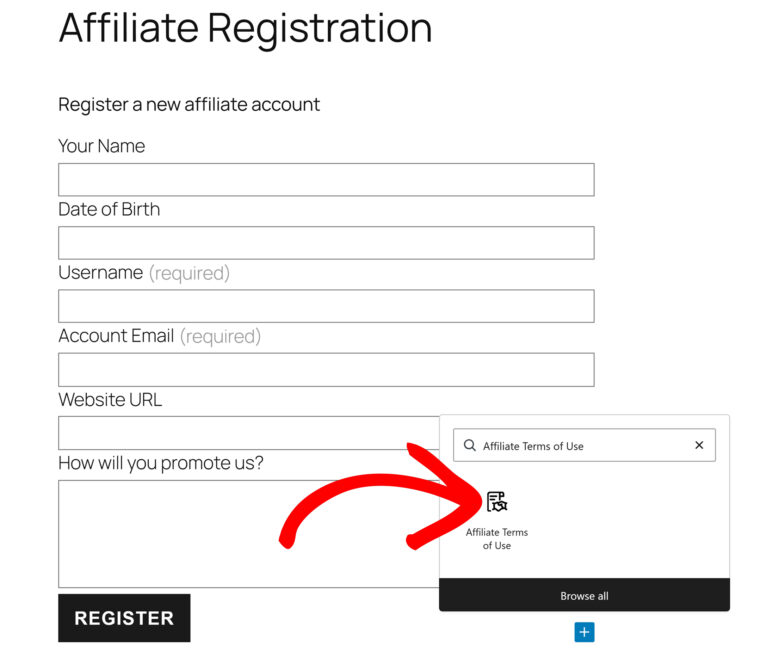
Click the + icon to view the list of available blocks. Then, search for the Affiliate Terms of Use block and add it to your form.
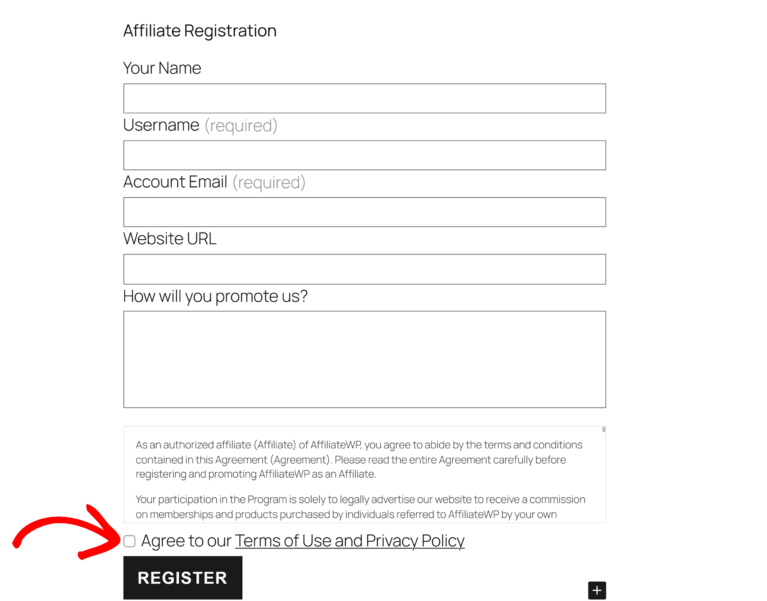
In the Display Style options on the right-hand sidebar, you can check Show Above Checkbox. This will add a box where your affiliates can scroll through the Terms & Conditions before agreeing to them.
Frequently Asked Questions (FAQs)
Why should I add a Terms & Conditions checkbox to my registration form?
Adding a checkbox ensures that affiliates agree to your rules and policies before registration, helping with legal compliance and transparency.
What if I don’t have a registration page yet?
You need to create a registration page first. Follow the Affiliate Registration Page guide before adding the Terms & Conditions block.
Can I use a pre-made Terms & Conditions template?
Yes, you can use a template as a starting point, but it’s important to customize it to match your program. For legal advice, consult a professional attorney.
Can affiliates view the full Terms & Conditions before agreeing?
Yes, by enabling Show Above Checkbox, affiliates can scroll through the terms before checking the box.
That’s it! You’ve successfully added the Terms & Conditions page to your registration form.