





Would you like to know why some of a member’s points can’t be spent yet? Every points entry in RewardsWP carries a status. That status decides whether the points count toward the balance a member can redeem from.
In this guide, we’ll walk you through each points status, where to find it, and what happens to a balance after a refund. All you need is RewardsWP with an active points program.
- Viewing Points Statuses
- Learning What Each Status Means
- Approved
- Pending
- Expired
- Revoked
- Calculating a Member’s Balance
- Handling Refunds and Negative Balances
- FAQ
Before you get started, make sure RewardsWP is installed and activated on your WordPress site.
Viewing Points Statuses
To get started, we’ll look at where RewardsWP shows each entry’s status: the list of every member’s points activity, and each member’s own page.
From your WordPress admin sidebar, go to RewardsWP » Points.
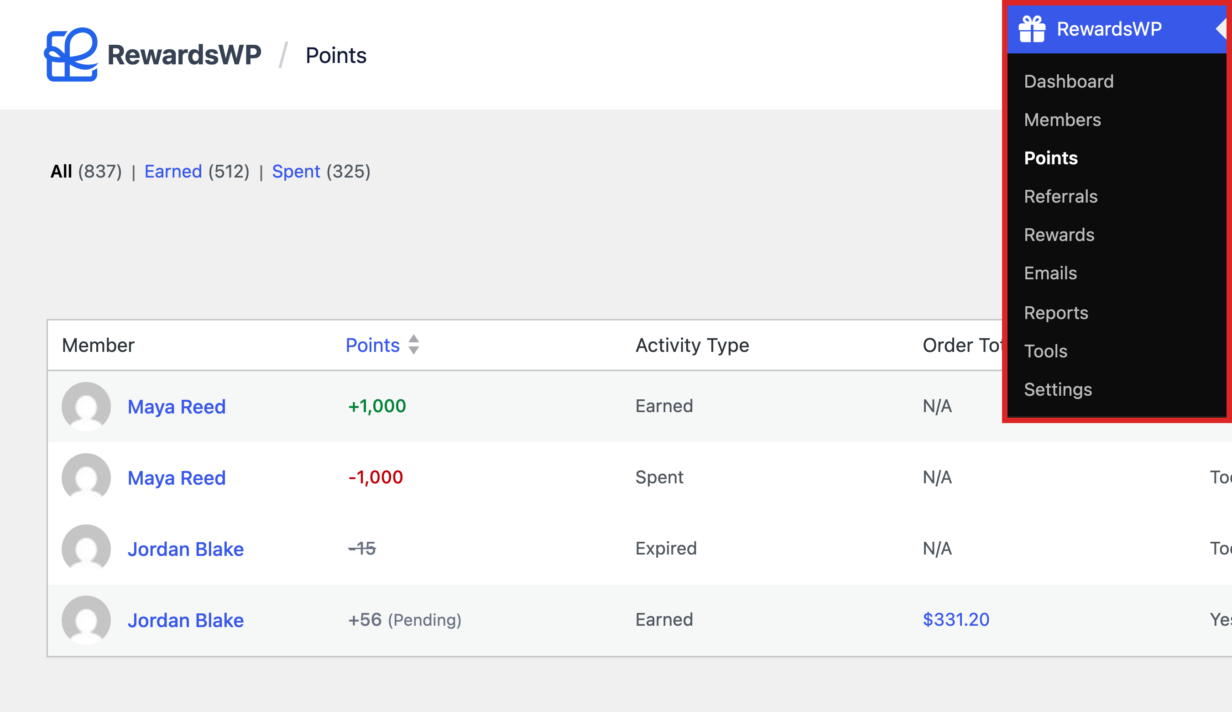
This page lists every points entry for every member, newest first. Earned entries show a plus number. Spent entries show a minus number.
A pending entry shows (Pending) next to its points. An expired entry shows its points crossed out, with Expired in the Activity Type column.
The Details column says what each entry was for. A review entry names the reviewed product. An order entry shows its order number.

To see one member’s entries and the balance they can spend, click the member’s name.

At the top of the member’s page, the Points Available stat shows the balance they can redeem from. Any pending points appear as a count under it.

Further down, the Points tab of the Activity section lists the member’s entries. Earned entries show a plus number. A redemption shows a minus number.
A pending entry carries a Points pending label. An expired entry shows its points crossed out.

Now that you know where to find each status, let’s look at what each one means.
Learning What Each Status Means
When a member earns or spends points, RewardsWP creates a points entry with a status. Only approved points count toward the balance a member can spend.
Approved
Approved is the most common status. It means the points are fully valid.
RewardsWP records points as approved when a purchase reaches a confirmed state. It does the same when a member completes an action such as signing up or leaving an approved product review. Manual adjustments made by a store administrator are approved as well.
To set up points for purchases, read Earning points from purchases. For signups, see Earning points from signups, reviews, and first orders. For reviews, see Earning points from product reviews.
For members, approved points mean progress. These points show in their balance and their history. They’re ready to exchange for rewards.
Next, let’s look at pending points.
Pending
Pending points are created only when RewardsWP is waiting for a final confirmation. This happens when an order or action hasn’t fully completed yet. Examples include cash on delivery purchases before payment, payment methods that need extra verification, and custom approval workflows.
Members can see pending points in their history. These points join the balance they can spend once the order or action completes.
Most earning actions don’t use pending. Pending exists to keep points accurate in special payment cases.
When an order ends unpaid, RewardsWP removes its pending points. An order ends unpaid when it’s cancelled, when it fails, or when it’s refunded before payment.
A partial refund while the points are still pending updates those pending points. When payment arrives, RewardsWP approves only the points for what the member kept.
Next, let’s look at expired points.
Expired
If you set up points expiration, points stop being valid once their expiration period passes. When a member’s oldest earned points pass the expiration period, RewardsWP updates their status to expired with a scheduled task. Points expiration is available on the Basic, Plus, and Pro plans.
Expired points come off the available balance and stay visible in history. Points expiration never takes a balance below zero.
For details on choosing an expiration period, see Configure points expiration.
Next, let’s look at revoked points.
Revoked
Revoked points represent a reversal. This happens when an administrator deducts points manually, or when fraud prevention removes points that were already granted. RewardsWP subtracts revoked points from the available balance right away and keeps a log entry with the reason.
Members see the lower balance, along with the revoked entry and its note in their history.
Now that you know what each status means, let’s see how they add up to a member’s balance.
Calculating a Member’s Balance
RewardsWP calculates the available balance from approved entries only:
Available balance = Approved earned − Approved spent
Pending, expired, and revoked entries never count toward the balance a member can redeem from. They stay in history as a record of what happened, without changing the points a member can use today.
Next, let’s look at how refunds change a member’s balance.
Handling Refunds and Negative Balances
A refund takes back the points its order earned. A partial refund takes back only the points the refunded items earned. An item that earned nothing takes nothing back.
Items earn nothing when the Earns on setting of Make a purchase leaves them out.
To set that up, read Excluding products from rewards and points.
A refund still takes back its points when the member has already spent them. Their balance then goes below zero. It shows as a negative number in the rewards widget and on the Members list.
To learn more about the widget, read Understanding the Rewards Widget.
On the member’s page, a negative balance with no pending points reads Repaid from future earnings under Points Available. The points the member earns next pay back the difference.
Until their balance covers a reward again, the member can’t redeem.
If you use points expiration, RewardsWP never takes back the same points twice. This holds for a refund, an expiration, and an undo of a points entry.
That’s it! You now know what each points status means and how it affects a member’s balance. Next, to see everything you can do from a member’s page, read Managing members.
FAQ
Below, we’ve answered some of the most common questions about points statuses.
Why can’t my members spend their pending points?
Pending points are waiting for their order or action to complete, such as a payment that hasn’t arrived yet. For what happens next, see the Pending section above.
Can my members’ balances go below zero?
Yes, after a refund of points the member has already spent. For how the member pays it back, see the Handling Refunds and Negative Balances section above.
Do I take back points when I refund only shipping?
No. Refunding only shipping takes back no points, because points aren’t earned on shipping.


