





Most WooCommerce stores allow customers to check out without creating an account, which means many of your buyers start as guests. RewardsWP tracks these guest purchases and automatically links them to a member account when the customer signs up. This guide explains what guests see in the widget, how their purchases are tracked behind the scenes, and how order linking works when they convert to full members.
What guests see in the widget
When a visitor who hasn’t joined your rewards program opens the widget, they see a preview version designed to encourage sign-ups. The guest experience gives them a taste of what the program offers without access to member-only features.
Guests see:
- “Become a member” CTA – A prominent button encouraging them to create an account and join the program.

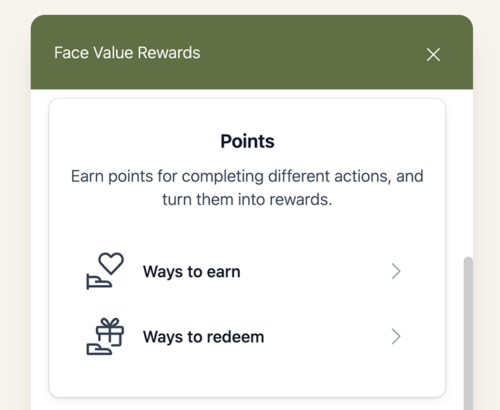
- Points system preview – An overview of how points work, without a personal balance.
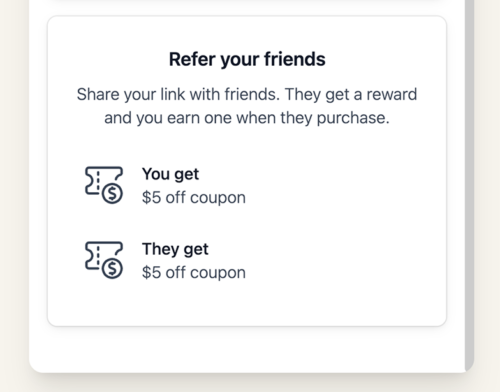
- Referral rewards preview – A glimpse of the rewards available through referrals.
- VIP section preview – If VIP tiers are enabled, a preview of the tier structure and benefits.
- “Ways to earn” and “Ways to redeem” previews – Guests can browse available earn actions and rewards, but each panel includes a join CTA instead of active functionality.
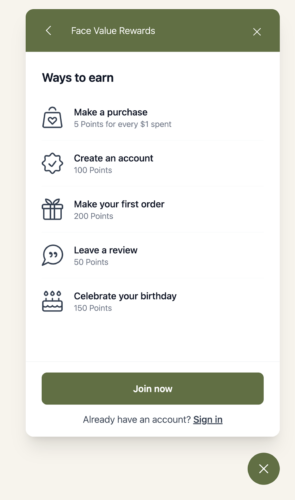
Guests can’t earn points, access a referral link, share with friends, or redeem rewards. These features become available once they create an account and become a member.
How guest purchases are tracked
When a guest makes a purchase through WooCommerce’s guest checkout, RewardsWP captures their order data (email address and name) and creates a guest member record. Here’s what happens step by step:
- Guest browses your store – The visitor sees the widget in guest/preview mode. No tracking has started yet.
- Guest completes a purchase – They check out without creating an account, providing their email and name as part of the standard WooCommerce checkout.
- Guest member record created – RewardsWP creates a member record with a status of Guest. This record stores their email and links their order.
- Tracking token issued – A unique token is generated and stored on the visitor’s device. This token allows RewardsWP to recognize the guest on return visits.
The tracking token is stored in two places for reliability:
- Browser cookie (
rewardswp_member_access_token) – Valid for 400 days, which is the maximum duration browsers allow. - Local storage – A backup copy in the browser’s local storage, which persists even if cookies are cleared.
This dual-storage approach ensures guests are recognized on return visits even if one storage method is cleared.
Guest member creation
When RewardsWP creates a guest member record, it works differently from a regular member account:
- No WordPress account required – The guest member record exists only within RewardsWP. The guest doesn’t have a WordPress user account or login credentials.
- Status is “Guest” – Guest members appear in your RewardsWP » Members list with a Guest status badge, separate from active members.
- No points awarded yet – The purchase is recorded but points aren’t awarded until the guest converts to a full member. This ensures they have an account to access their balance.
- Order data preserved – The guest’s email, name, and order history are stored and ready for linking when they sign up.
You can view and filter guest members from the RewardsWP » Members page using the Guests tab.
Converting from guest to member
When a guest decides to create an account on your store, RewardsWP handles the conversion automatically. No manual intervention is needed.
The conversion flow works like this:
- Guest returns to your store – RewardsWP checks for the tracking token in the guest’s cookie or local storage.
- Guest creates an account – The guest registers through your site’s account creation form, WooCommerce checkout account creation, or any other WordPress registration method.
- Token matched to guest record – RewardsWP uses the stored token to find the guest’s existing member record.
- Guest record upgraded – The guest member record is linked to the new WordPress user account. The member’s status changes from Guest to Active.
- Historical orders linked – All previous guest purchases associated with that email or token are linked to the new member account.
- Points awarded – Points are calculated and awarded for all linked purchases retroactively.
The member’s activity log will show the linked purchases as earned points entries, giving the new member immediate visibility into the rewards they’ve already accumulated.
How order linking works
Order linking is the process that connects a guest’s previous purchases to their new member account. It relies on two matching methods:
Email matching
When a guest creates an account, RewardsWP checks whether the email address on the new account matches the email used for any guest purchases. If there’s a match, those orders are linked to the member.
This is the primary linking method and covers the most common scenario: a guest who used the same email for checkout and account registration.
Token matching
In addition to email matching, RewardsWP uses the tracking token stored on the guest’s device. This handles edge cases where:
- The guest used a different email for their account than for checkout.
- Multiple guest orders were placed from the same device under different emails.
The token-based approach persists and retrieves tokens across sessions. RewardsWP manages the token lifecycle through several steps:
- Setting the token – When a guest member is created, the token is written to both a cookie and local storage.
- Retrieving the token – On return visits, RewardsWP checks both storage locations and uses whichever token is available.
- Matching the token – During account creation, the token is matched against guest member records to find the right account to link.
What gets linked
When orders are successfully linked, the following happens:
- Each qualifying order is associated with the member’s account.
- Points are calculated for each order using your configured earn rate.
- Point entries appear in the member’s activity log with the appropriate source label (e.g., “Made a purchase”).
- The member’s points balance updates to reflect all linked purchases.
What store owners should know
Guest participation works automatically in most setups, but here are a few things worth keeping in mind:
- Guest checkout must be enabled – Guest participation relies on WooCommerce’s guest checkout feature, which is enabled by default in most stores. If you’ve disabled it, customers must create an account before purchasing, and the guest flow doesn’t apply.
- Points are awarded after conversion – Guests don’t accumulate points while they’re in guest status. Points are calculated and awarded only when the guest converts to a full member. This prevents orphaned point balances that nobody can access.
- Guest records appear in your members list – Guest members show up in the Guests tab on the RewardsWP » Members page. You can see how many guests you have and review their order data.
- No manual linking needed – The conversion and order linking process is fully automatic. You don’t need to merge records, reassign orders, or manually award points.
- Cookie duration is 400 days – The tracking cookie is set to the maximum browser-allowed duration of 400 days. After that period, or if the guest clears their cookies, the token in local storage serves as a backup.
Frequently asked questions
Not while they’re guests. Points are calculated and awarded retroactively when the guest creates an account and becomes a member. This ensures points go to an account the customer can actually access and use.
RewardsWP automatically upgrades the guest record to an active member, links all previous guest purchases to the new account, and awards points for those orders. The entire process is automatic and the member sees their earned points immediately in the widget.
Guest participation is tied to WooCommerce’s guest checkout setting. If you disable guest checkout in WooCommerce » Settings » Accounts & Privacy, customers will need to create an account before purchasing, which means every buyer is already a member by the time they check out.