





AffiliateWP incluye un potente conjunto de herramientas de prevención de fraudes diseñadas para proteger su programa de afiliados de actividades sospechosas. Ya sea que se trate de afiliados que hacen clic en sus propios enlaces, registros de cuentas falsas o publicidad de pago no autorizada, la configuración Anti-Fraude le permite controlar cómo se manejan estas situaciones.
Activar la prevención de autorreferencias
El fraude por autorreferencia es el tipo más común de fraude de afiliados. Ocurre cuando los afiliados utilizan sus propios enlaces de referencia para obtener comisiones sobre sus propias compras. Activar la prevención de autorreferencias debería ser su primera línea de defensa, y solo lleva un momento configurarla.
- Navegue a AffiliateWP » Ajustes » Anti-Fraude en su administrador de WordPress
- Encuentre la sección Prevención de autorreferencias
- Establezca el modo en Rechazar (este es el valor predeterminado)
- Haga clic en Guardar cambios
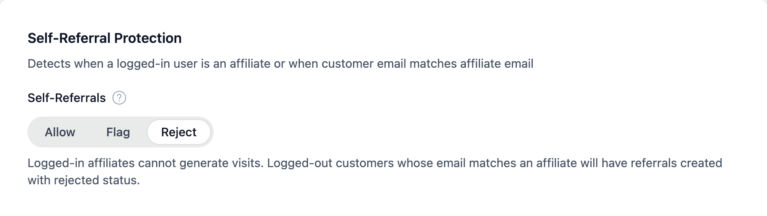
Eso es todo. AffiliateWP ahora bloqueará automáticamente cualquier referencia donde el correo electrónico del cliente coincida con el correo electrónico del afiliado, o donde un afiliado conectado esté realizando una compra a través de su propio enlace.
¿Por qué “Rechazar” en lugar de “Marcar”? Las autorreferencias son casi siempre intencionales. Rechazarlas automáticamente le ahorra la revisión manual de cada una. El afiliado no recibirá una notificación, por lo que no podrá ajustar su comportamiento para evitar la detección.
Cuándo usar “Marcar” en su lugar: Si su programa permite intencionalmente que los afiliados ganen en sus propias compras (como un programa de descuento para miembros, por ejemplo), configúrelo en Permitir. Si solo lo permite a veces, use Marcar para revisar cada caso.
Activar detección avanzada
Si tiene un plan AffiliateWP Pro, tiene acceso a cuatro métodos de detección adicionales que monitorean sitios web de referencia no autorizados, patrones de conversión sospechosos, tráfico de publicidad de pago y registros de cuentas falsas. Las secciones a continuación siguen el mismo orden que la página de configuración en el plugin.
Detección de sitios de referencia
La Detección de Sitios de Referencia verifica que los afiliados envíen tráfico desde los sitios web con los que se registraron durante el registro. Esto evita que los afiliados promocionen su programa en sitios no autorizados o utilicen el suplantación de dominio para ocultar de dónde proviene realmente su tráfico.
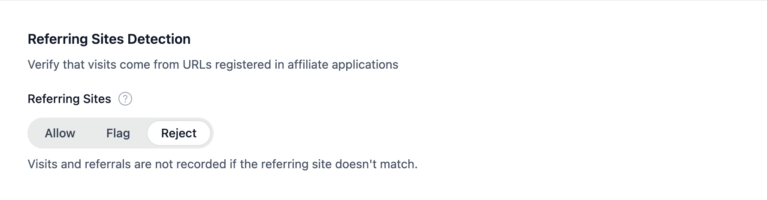
- Encuentre Detección de Sitios de Referencia en la página de configuración Anti-Fraude
- Establecer el modo:
- Marcar para monitorear sin bloquear
- Rechazar para aplicar estrictamente solo dominios registrados
- Haga clic en Guardar cambios
Esta función solo funciona cuando Permitir Registro de Afiliados está activado en AffiliateWP » Ajustes » General, ya que necesita la URL del sitio web que los afiliados proporcionan durante el registro.
Detección de tasa de conversión
La Detección de Tasa de Conversión monitoriza la proporción de visitas por referencias de cada afiliado y marca aquellos cuyo rendimiento cae fuera de los patrones normales. Una tasa de conversión inusualmente alta puede indicar fraude como autorreferencias o cookie stuffing, mientras que una tasa inusualmente baja podría sugerir fraude de clics o tráfico de bots.
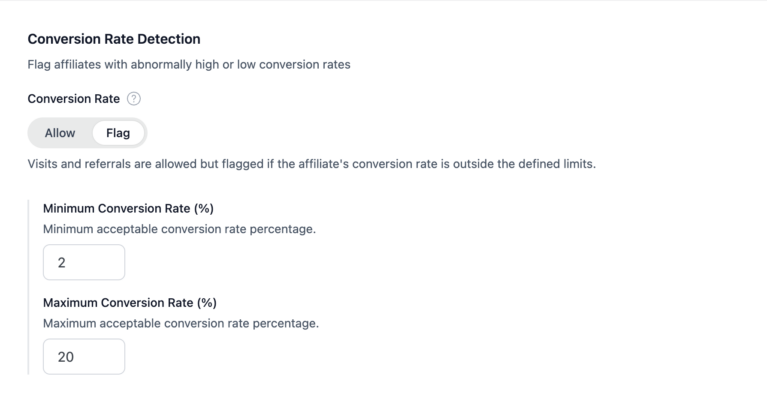
- Encuentra Detección de Tasa de Conversión en la página de configuración Anti-Fraude
- Establece el modo en Marcar
- Establecer sus umbrales:
- Tasa de Conversión Mínima: 2% (predeterminado)
- Tasa de Conversión Máxima: 20% (predeterminado)
- Haga clic en Guardar cambios
La detección solo se activa después de que un afiliado tenga 10 o más referencias, evitando falsos positivos por tamaños de muestra pequeños.
La Detección de Tasa de Conversión solo admite los modos Marcar y Permitir (sin rechazo automático). Las tasas de conversión anómalas requieren contexto, ya que una tasa alta podría significar fraude o una audiencia excepcionalmente específica, por lo que siempre se requiere una revisión manual.
Detección de tráfico de pago por clic
Muchos programas de afiliados prohíben la publicidad de pago porque los afiliados pueden pujar por tu nombre de marca en los motores de búsqueda, aumentando tus costes publicitarios mientras obtienen comisiones de esos mismos clientes. La Detección de Tráfico PPC identifica automáticamente las referencias que provienen de fuentes de publicidad de pago y te permite marcarlas o rechazarlas.
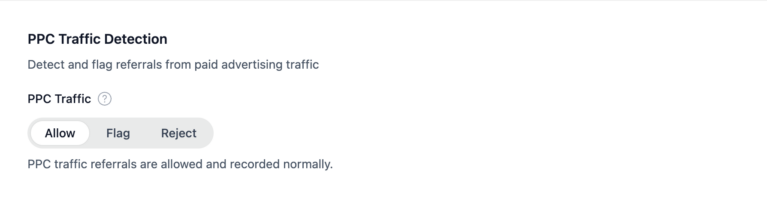
- Encuentra Detección de Tráfico PPC en la página de configuración Anti-Fraude
- Establecer el modo:
- Marcar si quieres revisar el tráfico PPC caso por caso
- Rechazar si tus términos prohíben estrictamente toda la publicidad de pago
- Haga clic en Guardar cambios
AffiliateWP detecta automáticamente el tráfico de Google Ads, Facebook Ads, Microsoft Advertising, TikTok Ads, LinkedIn Ads, Pinterest Ads, Snapchat Ads, Reddit Ads, Twitter Ads y otras plataformas publicitarias comprobando los parámetros de ID de clic (gclid, fbclid, msclkid), parámetros UTM (utm_medium=cpc) y dominios de referencia.
Detección de velocidad de IP
La Detección de Velocidad de IP te ayuda a detectar afiliados que crean múltiples cuentas falsas desde la misma ubicación para multiplicar sus comisiones. Cuando demasiados registros de afiliados provienen de la misma dirección IP dentro de una ventana de tiempo corta, el sistema los marca para tu revisión.
- Encuentra Detección de Velocidad de IP en la página de configuración Anti-Fraude
- Establece el modo en Requerir Aprobación (recomendado)
- Configurar los umbrales:
- Umbral de Registro: 3 (predeterminado), se activa después de 3 registros desde la misma IP
- Ventana de Tiempo: 24 horas (predeterminado), cuánto tiempo atrás mirar
- Haga clic en Guardar cambios
Esta función requiere que el registro de IP esté habilitado. Si has deshabilitado el registro de IP en AffiliateWP » Ajustes » Avanzado para cumplir con el RGPD, la Detección de Velocidad de IP no funcionará y verás un aviso en la página de configuración.
Bloquear dominios maliciosos conocidos
La función Sitios de Referencia Bloqueados te permite evitar manualmente visitas de dominios específicos que sabes que envían tráfico fraudulento o spam. Esto está disponible en todos los planes y te da control directo sobre qué fuentes de tráfico se permiten en tu programa.
- En la misma página de configuración Anti-Fraude, desplázate hasta Sitios de Referencia Bloqueados
- Introduce nombres de dominio en el área de texto
- Haga clic en Guardar cambios
Los visitantes que llegan desde dominios bloqueados tienen completamente impedido crear visitas o referencias.
Consejos para crear tu lista de bloqueo:
- Consulta la página AffiliateWP » Visitas para ver dominios de referencia desconocidos
- Añade dominios gradualmente a medida que identifiques fuentes de tráfico maliciosas
- No añadas aquí dominios de plataformas publicitarias (google.com, facebook.com). Usa la Detección de Tráfico PPC en su lugar para un control más granular.
- La coincidencia de dominios es flexible: bloquear
example.comtambién bloqueawww.example.comy todos los subdominios comoblog.example.com
Verificar su configuración
Después de guardar la configuración, es una buena idea confirmar que todo funciona como se espera.
- Revisa el resumen de tu configuración. Desplázate por la página Anti-Fraude y confirma que cada sección muestra el modo que seleccionaste.
- Probar la detección de autorreferencia. Si tiene una cuenta de afiliado de prueba:
- Visita tu sitio a través del enlace de referencia del afiliado de prueba
- Realiza una compra de prueba utilizando el mismo correo electrónico que la cuenta de afiliado
- Consulta AffiliateWP » Referencias. Deberías ver una referencia rechazada con una marca de autorreferencia.
- Comprobar elementos marcados. Después de unos días de tráfico normal, revise:
- AffiliateWP » Referencias para ver iconos de bandera roja junto a los IDs de referencia.
- AffiliateWP » Afiliados filtrados por estado "Pendiente" para ver cualquier marca de velocidad de IP.
¿Qué sucede a continuación?
Una vez que la detección de fraude esté activa, AffiliateWP trabaja en segundo plano para monitorizar tu programa. Esto es lo que puedes esperar:
- Las referencias marcadas aparecen en AffiliateWP » Referencias con un icono de bandera roja. Haz clic en la referencia para revisar los detalles y aprobarla o rechazarla.
- Los afiliados marcados aparecen en AffiliateWP » Afiliados con un estado pendiente y un icono de marca. Haz clic en "Revisar" para ver los detalles del fraude y aceptar o rechazar al afiliado.
- Los elementos rechazados se registran automáticamente. Puedes revisar todas las referencias rechazadas filtrando la página de Referencias por estado.
- Los Informes proporcionan una visión general de la efectividad de tu prevención de fraude. Navega a AffiliateWP » Informes » Anti-Fraude para ver métricas como el dinero ahorrado, la tasa de fraude y las tendencias a lo largo del tiempo.
Recomendamos revisar tus elementos marcados al menos una vez por semana cuando actives por primera vez la detección de fraude. A medida que aprendas los patrones de tu programa, podrás ajustar los umbrales y cambiar del modo Marcar a Rechazar para los métodos de detección en los que estés seguro de los resultados.
Preguntas frecuentes
¿Puedo activar la detección de fraude en un programa existente?
Sí. La activación de la detección de fraude no afecta retroactivamente a las referencias o afiliados existentes. Solo se aplica a la actividad nueva en adelante. Puedes activar de forma segura cualquier método de detección sin afectar a las referencias que ya se han creado o pagado.
¿La detección de fraude ralentizará mi sitio?
No. Las comprobaciones de fraude se ejecutan durante la creación de referencias y el registro de afiliados, que son eventos que ocurren con poca frecuencia en comparación con las visitas normales a las páginas. Las comprobaciones añaden un tiempo de procesamiento insignificante y no afectan al rendimiento del frontend de tu sitio.
¿Necesito tener activados todos los métodos de detección?
No. Empieza con la Prevención de Autorreferencias (recomendado para todos los programas) y añade otros métodos según sea necesario en función del tamaño y el perfil de riesgo de tu programa. Cada método es independiente, por lo que puedes habilitar, deshabilitar o ajustar cualquiera de ellos en cualquier momento sin afectar a los demás.
¿Cómo sé si la detección de fraudes está funcionando?
Después de habilitar la detección:
- Consulta AffiliateWP » Referrals periódicamente para ver las referencias marcadas o rechazadas
- Revisa la pestaña de informes Anti-Fraud (cuando esté disponible) para ver métricas generales de fraude
- Busca el icono de la bandera roja junto a los IDs de referencia, que indica un patrón de fraude detectado
Si no ves ninguna marca después de varias semanas de tráfico normal, es una buena señal. Probablemente significa que tu programa no tiene actividad fraudulenta.